Print-Layout
You can set the visual appearance of commercial and graphical documents for all users as standard, by using the page Print Layout. Furthermore you can also deposit own profiles for the batch print Batch print in CARAT is the name for a special type of printing. By means of a batch print you can print several different documents one after another (sequentially) in one step. on this page, so, depending on the work step for which the batch print will be started, the respectively needed forms are already correctly selected.
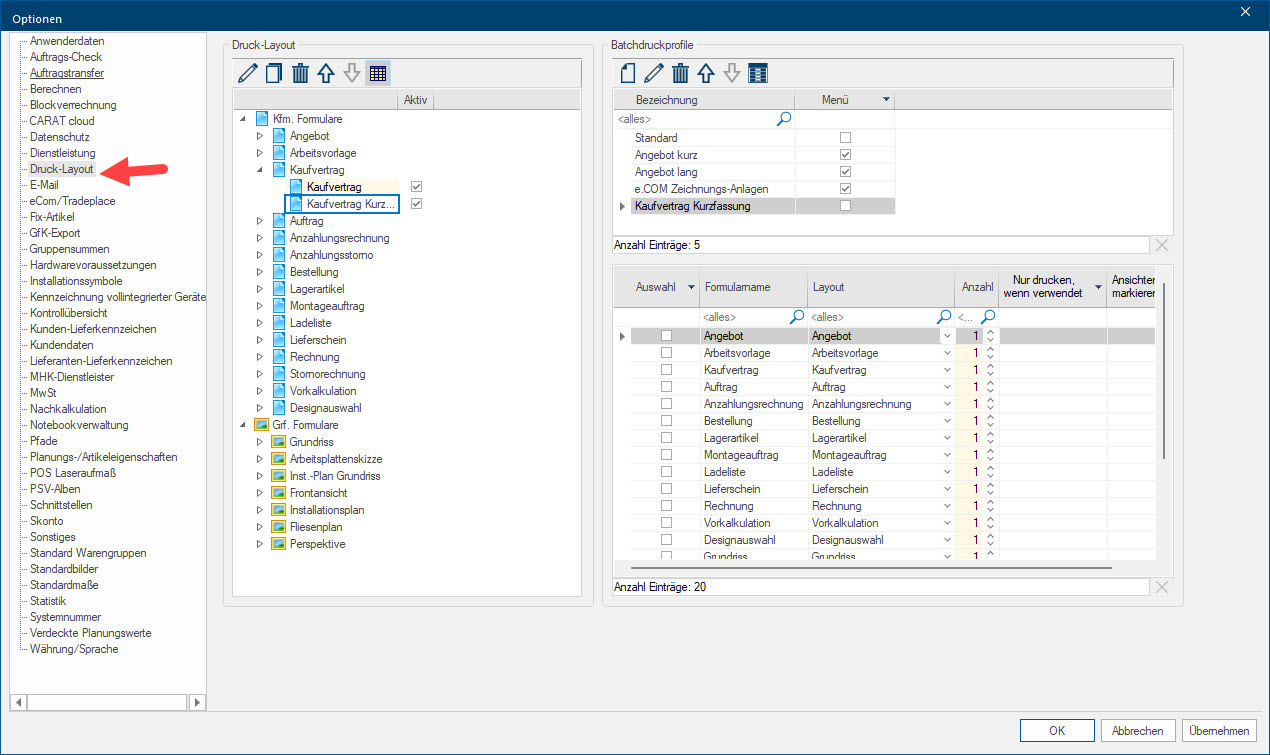
 The area Print Layout
The Print Layout area is on the left side of the page. By using this area you have the possibility to administrate the layout variants for all forms. For that purpose are all commercial and graphical forms that are available being listed. You have the possibility to enter several layout-variants for each of the listed forms, when desired. By clicking Typically the LEFT mouse button is pressed once quickly, if not specified differently. Clicking will either mark an object, or when clicking on a button, the execution of the desired activity (e.g. OK, Cancel, Close). on the triangle-symbol you will be shown the already existing layout-variants for a form. For printing a form out of the planning are the layout variants, that are activated on this page, put up for selection.
This is how you create additional layout variants ...
For each form is first only one layout variant displayed. This is the standard layout which is provided by CARAT and which has possibly already been modified by you in parts, for your purposes. If you would like to create further layout variants for miscellaneous purposes of use, you can always derive these from one of the already existing layout variants.
- Please first mark the layout variant that you want to use as basis to generate an additional Addition (in Latin: addere) is one of four basic operations in arithmetic. In primary school and in common language it is the expression used for the adding of two or more numbers. layout variant and click subsequently in the icon bar on the symbol copy. You can edit a layout variant or also delete it at any time via the icon bar.
- Next you should assign the copied layout variant a meaningful name. You can enter up to 30 alphanumeric An alphanumeric character is in the narrow sense either a letter or a number. The term is used in telecommunications and computer technology. characters for the name.
- After having entered at least two layout variants, you can change the order of the layout variants by using the arrow symbols. The order defined by you will later also be used with the display of the layout variants in the planning. Furthermore, will the upper layout variant also always be used when the quick view of the Print preview for a form is selected, in other words, when no specific layout variant has been selected.
- If you do not want to release a layout variant for a certain period, you can delete the checkmark in the column Active, for the layout variant concerned. This layout variant will then no longer be available for selection in the planning.
The area Batch print profile
By using Batch print profiles you can even better adapt a batch print to your requirements. By using a batch print profile, you can pre-arrange the forms that you repeatedly need for a work step, like for example, the offer preparation or the contract issuance. Thus there is no need for individual selection when invoking the Batch Print. Only the wall or perspective selection must still be made, since these are always dependent on the respective plan.
- The individual Batch print profiles are displayed in the upper part of the area Batch print profiles. The checkbox A checkbox is a standard element in a graphic user interface. A checkbox has, in most cases, two states (set or not set). These usually correspond to a yes/no selection. in the Menu column indicates whether the respective batch print profile should also be displayed in the context menu In almost all Windows programs a click with the RIGHT mouse button opens a context menu containing a list of commands that are commonly the next step of a procedure. of Print and Print preview. This is especially helpful since thereby a batch print with predefined settings can be accessed directly.
- When you have marked a Batch print profile, you can read from the table shown below it, which forms have been selected for this batch print profile. Furthermore will be displayed which layout-variant should be used, and in which quantity the respective form should be printed. Also the pre-setting Print only when used and Mark views for the graphical documents can be influenced via this table.
Creating a Batch print profile
- Please click in the upper icon bar on the symbol New, to create a new batch print profile. Enter subsequently an appropriate name for the batch print profile. You can rename an existing batch print profile or even delete the entire batch print profile by using the symbols Edit and Delete.
- You also have the possibility to change the order of the batch print profiles to your desire, by using the arrow symbols.
- You can define which forms and which layout per form should be used for the marked batch print profile in the bottom table. Furthermore, you have the option to create more than one print out per form, if desired, by using the Quantity column.
- As an additional pre-setting for the front view, the worktop sketch, the installation plan and the tiling plan, you can specify that these documents are only to be printed in a batch print if these have been created accordingly in the plan. Furthermore you can specify for the front view, the installation and tiling plans as well as for the perspective, that all views used are always to be selected automatically for the batch print. Naturally, you can always change these specifications later in the batch print dialogue Dialogue, dialogue windows or dialogue fields are special windows in software applications. Dialogue windows are displayed by application programs in different situations to request input or confirmation from the user..


