The Article Search

To be able to work with the complete collection of a supplier for a design in CARAT, you will usually also need to consult the paper catalogue of the supplier. But even then, the search for a specific article can often drag on. Therefore, you have the possibility in CARAT to fall back on an article search with which you very quickly can find any desired article. CARAT has revised individual catalogues for the article search, to be able to offer special search ranges for the various articles.
For the article search can the different search criteria be used separate or also in combination. You have for example the possibility to search for a specific part of an article number, or for a term in the article short text. You can of course also search for a specific cabinet type, the cabinet size, a front segmentation or even for the function of the article (sinks, cooking, cooling,...).
 This is how you open the article search
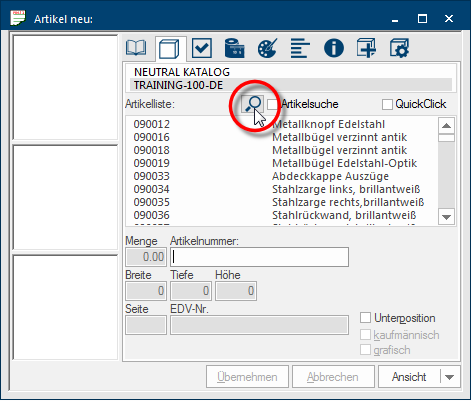
Click Typically the LEFT mouse button is pressed once quickly, if not specified differently. Clicking will either mark an object, or when clicking on a button, the execution of the desired activity (e.g. OK, Cancel, Close). in the article input dialogue Dialogue, dialogue windows or dialogue fields are special windows in software applications. Dialogue windows are displayed by application programs in different situations to request input or confirmation from the user. on the magnifying glass symbol, which is located above the article list, to open the article search.
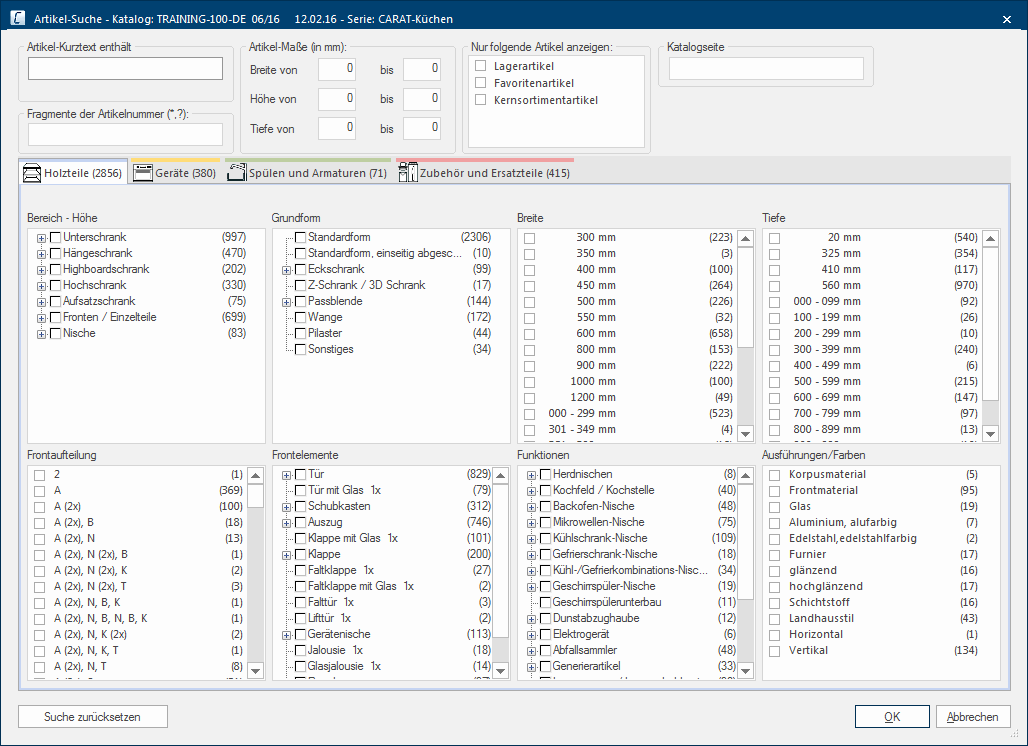
The two main areas of the article search
- The upper range of the article search comprises the standard search criteria that are always available for each catalogue. Here you can search for a certain character string in the article short text or for a part of an article number. Beyond that you can also be shown only articles with a certain width, height or depth. You can furthermore arrange via this area that only articles with certain properties or even only from a certain catalogue page are displayed.
- The lower range of the enhanced search is shown to you, if the respective catalogue is already provided with additional Addition (in Latin: addere) is one of four basic operations in arithmetic. In primary school and in common language it is the expression used for the adding of two or more numbers. details for the article search by CARAT. Through this range you have additionally to the standard search criteria the availability over further extensive search criteria, by which you can search even more targeted for a certain article and by which you can filter the article list accordingly. As far as the catalogue possesses several article groups (wood, appliances, accessories,...), these are arranged by corresponding index cards Some dialogue windows are too voluminous, therefore the functions are separated into indexed groups. The subgroup names typically appear on the tab of the index card at the top of the dialogue and can be selected by clicking on the appropriate tab..
The article list in the article entry dialogue will be filtered based on the search criteria entered by you as soon as you click on the OK button In dialogue windows you always find one or more buttons that can be activated by clicking on them. Typical functions for buttons are e.g. OK, Cancel, Apply. Buttons are always activated by a single click with the left mouse button.. You can cancel all modifications that you have made in this dialogue via the Reset search button. If you do not want to make any modifications in this dialogue, please click on the Cancel button in order to close the dialogue again.
This is how it is done
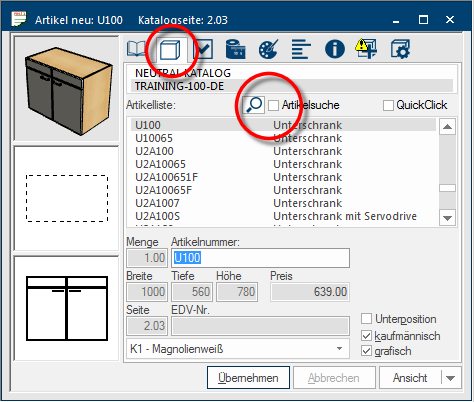
The article search has been designed to filter the article list in the article entry dialogue, so that only a few or in the best case only one soughed after article remains, based on the selection of various search criteria. The article list is situated in the article entry dialogue on the Article index card. There you are shown besides the article number also always the article short text, this text reflects the first line of the article text.
- As long as no criteria are selected for the search, the article list is shown in full. The mark in the checkbox A checkbox is a standard element in a graphic user interface. A checkbox has, in most cases, two states (set or not set). These usually correspond to a yes/no selection. to the right of the binoculars symbol button for the article search is absent, this for a visual check that the article search is still deactivated.
The search by article short text
Many articles contain already in the article short text, thus in the first line of the article text, a distinct character string which you can use for a quick article search.
- Is this this case, call up the article search and enter the character string needed in the Article Short Text Contains field. The article list is searched and accordingly filtered, as far as fitting entries are found, as soon as you have finished the entry or have used the tabulator key The Tabulator key ("Tab key") takes on, among other things, a "Preview Function" in CARAT. When you enter a new measurement value in the information area in the left hand window, use the Tab key to go to the next entry field and to see a preview in the main window showing your entered modification. The tab key is found above the caps lock key, and is normally marked with two arrow symbols.. The number of appropriate articles is already shown directly after entering a character. The more characters you enter, the more precise is your article search.
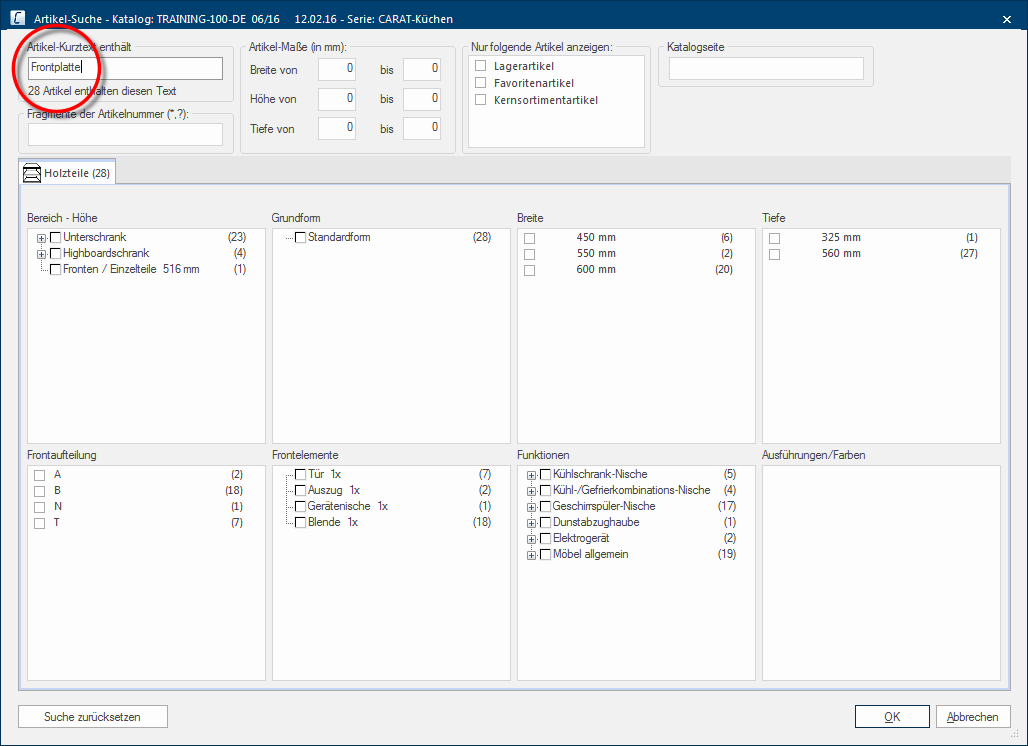
- The dialogue will be closed as soon as you use the enter key The enter key (also known as return or enter) is located on the right side of the letter part of your keyboard and is usually labelled with an arrow pointing to the left. This key causes a line break when used in word processing and is also used in software programs to confirm the currently marked button (usually OK or Cancel). or click on the OK button, and only the filtered articles are shown in the article list.
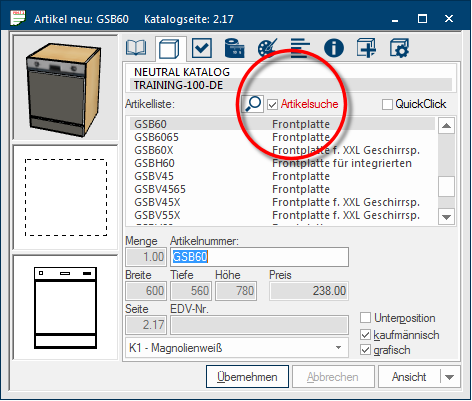
- The term Article search is shown in red above the article list, and also the checkbox right of the binoculars symbol is now marked, to indicate that the article list is now displayed filtered.
The search by article number
The search for an article number behaves similar to the search for a part of the article short text. However, a special feature is to observe.
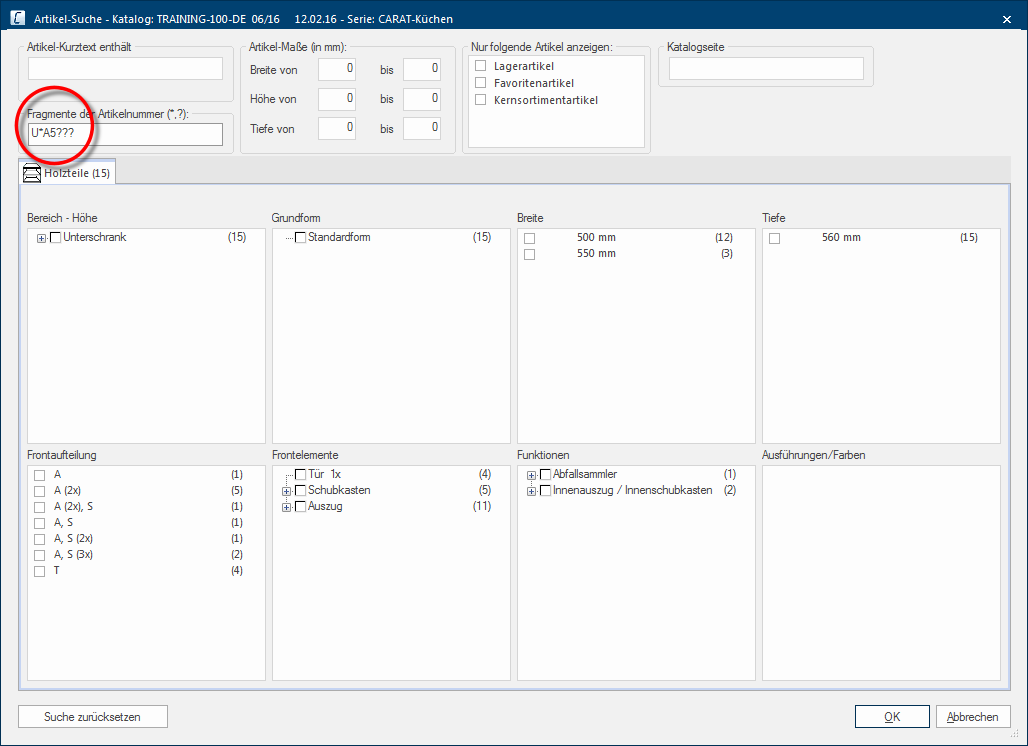
- You have the possibility to use wild cards to search also for a part of an article number.
- The Star (*) character is a wild card that stands for any number of characters. If you, for example, enter the search term U2A*, all articles are found whose article number begins with U2A (U2A40, U2A45, U2A50, U2A60,...).
- The Question mark (?) is a wild card that stands for exactly one character. If you, for example, enter the search term U??50, all articles are found whose article number is 5 characters long, start with U, and end with 50. The two characters in between can however be any character (U2A50, U3A50, U2S50, U4550,...).
- If you like, you can of course also combine both wild cards for the search.
The search by article dimension
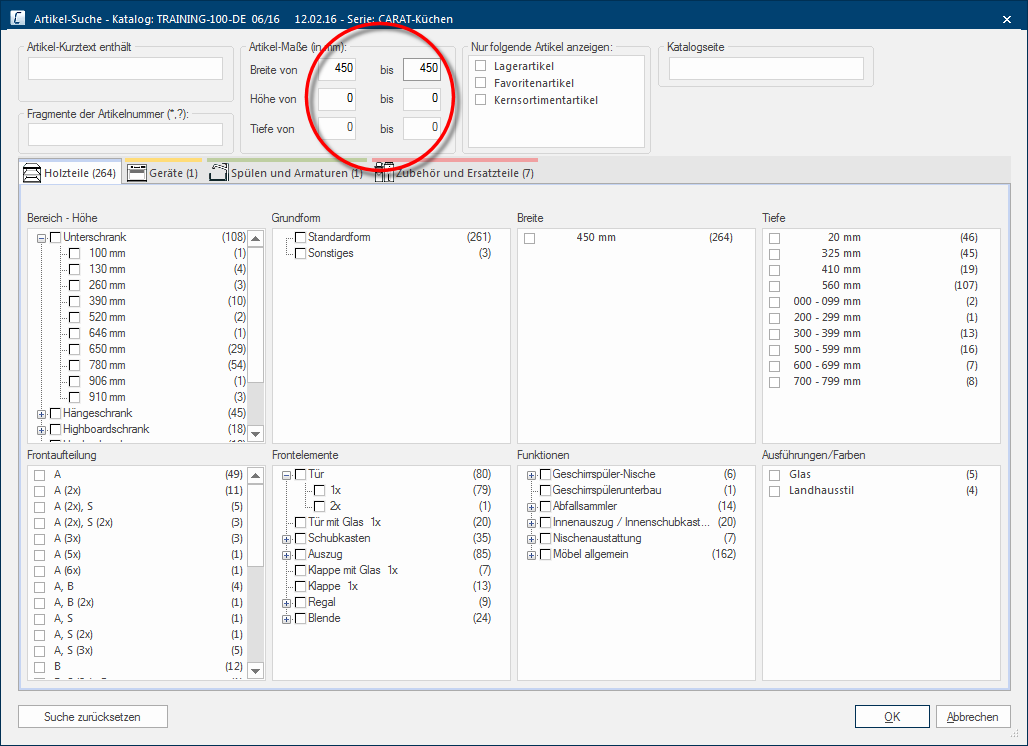
You can use the article dimension as a basic search criterion. For this are the input fields width, height and depth available. Through these input fields you have the possibility to search by very concrete measurement specifications. The input is done in millimetres.
- Please enter the minimum initial size in the left column, and the maximum final size in the right column. You can also enter the same values in both input fields instead of a value range in order to limit the number of articles still further.
The search by article property
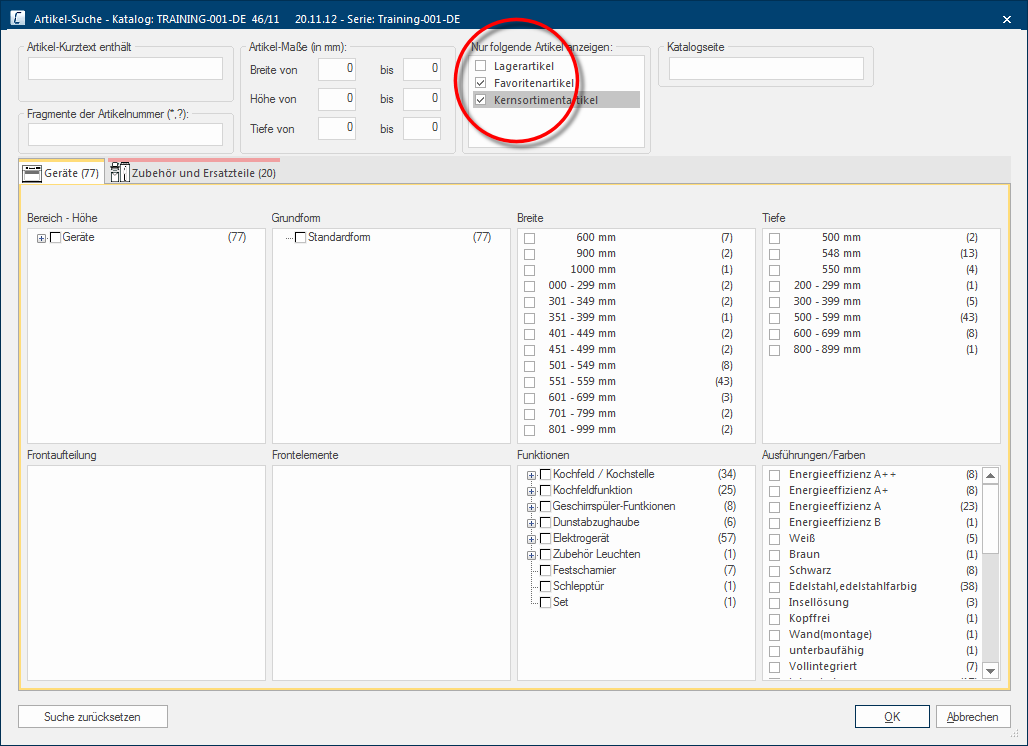
In many catalogues are nowadays core range, stock and also favourite articles maintained. You can also specifically retrieve the article groups via the article search.
- To this, please click in the respective checkbox to activate the desired article property. If needed, you can also combine the properties, to limit the search result furthermore.
The search by catalogue page
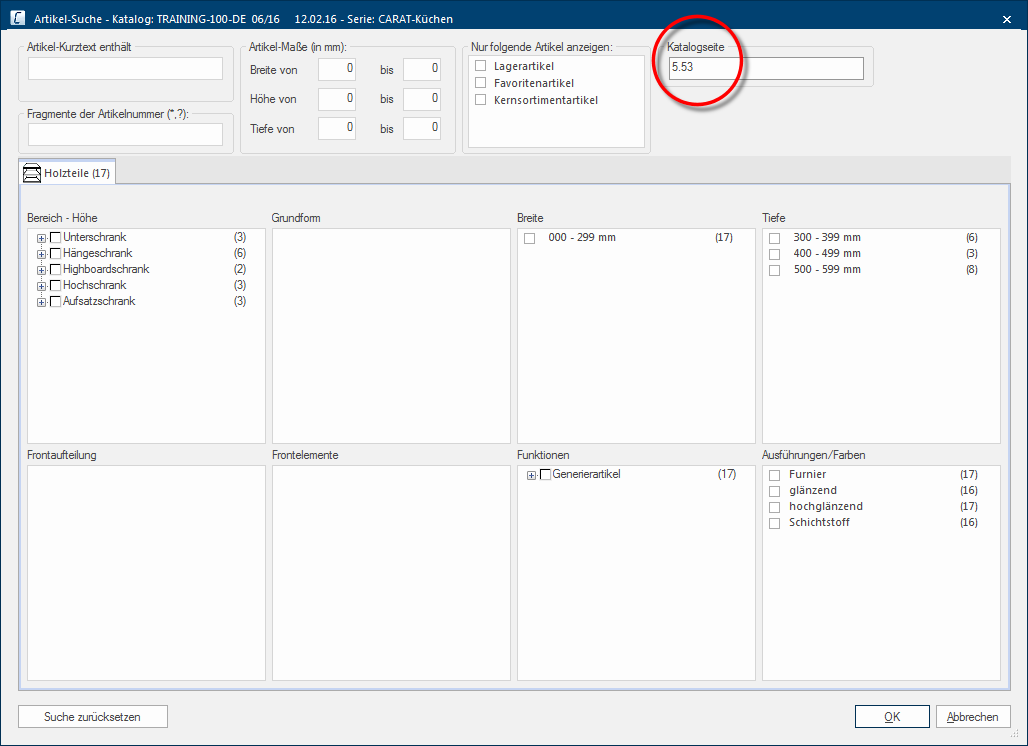
In the standard search options The word option (from Latin: optio = free will) used in computing means a choice. In CARAT it is normally used with a list box. area, there is also a search for articles of a certain catalogue page available. You can use this search when you want to have all articles of a certain catalogue page shown.
The enhanced article search
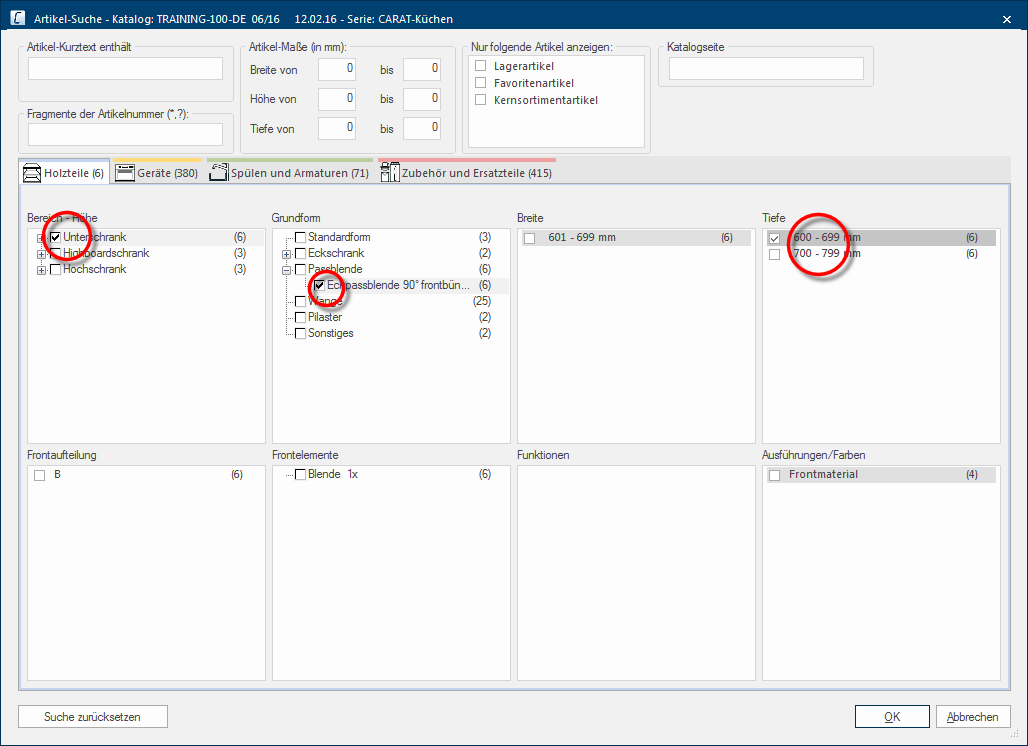
The enhanced search criteria are available for selection underneath the standard search criteria. Each article of a catalogue is assigned several criteria. As soon as you mark a criteria from one of the areas for the article search, all thereto non-fitting criteria are automatically hidden. You can reduce the search result more and more, by combining criteria from the different areas.
- The search criteria with which you get to the desired search result most effectively are available via Range -height, Basic shape, Width and Depth. Thus you can search specifically for a base unit (Range-height) corner filler panel, 90° flush with front (Basic shape), from 60 cm side length (Depth), for example.
- If search criteria are entered for an article search, the term Article search is shown in red above the article list, and also the checkbox right of the binoculars symbol is marked, to indicate that the article list is now displayed filtered.