From Version V2024 3.0.3, is with CARAT productinfo another tool available to provide you with even better support in the sales process, and that at No extra charge. Directly in CARAT under New article, in the Parts list and in the Model selection, you will have immediate access to Important additional Addition (in Latin: addere) is one of four basic operations in arithmetic. In primary school and in common language it is the expression used for the adding of two or more numbers. information from the manufacturer in the form of PDF The Adobe Portable Document Format (PDF) was developed and perfected in the 80's by Adobe Systems. Adobe PDF files contain data from any application, that can be displayed on every computer, and are suitable thereby to be exchanged with users throughout the world., image and video files or as link to the manufacturer's website.
For example:
-
Sales manuals (with a direct call up of the page on which the product is listed)
-
Pictograms and article pictures
-
Model description
-
Assembly instructions
-
Care instructions
-
Energy label
The respective manufacturer is responsible for the Contents and the Availability of the information shown.
Here you will find a list of the already Available manufacturer catalogues: Manufacturer overview
See also: Video-tutorial about CARAT productinfo

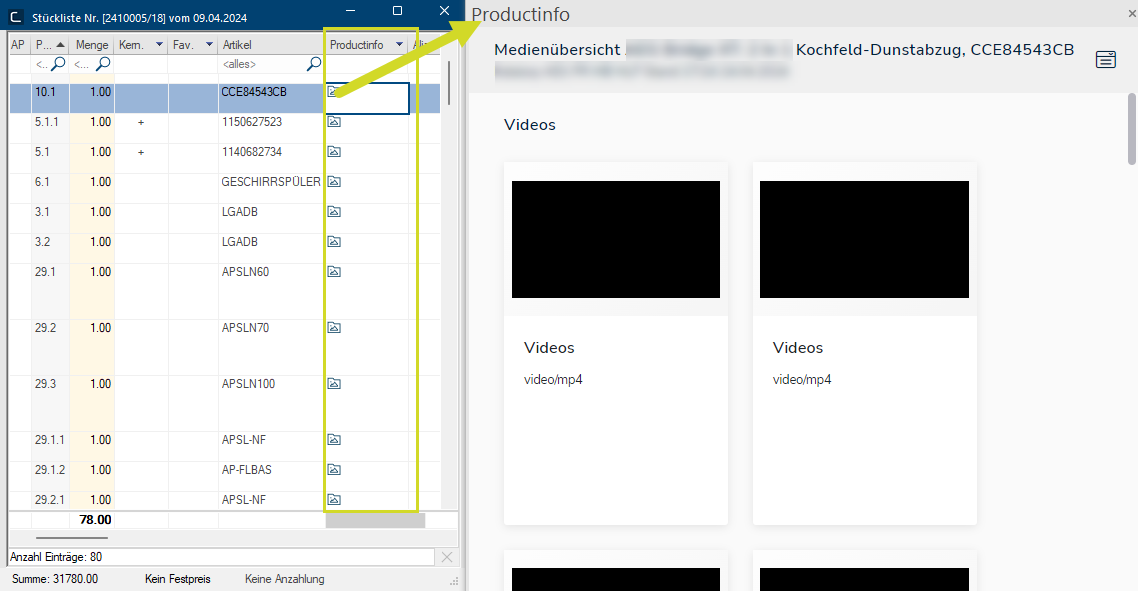
 This is how you call up CARAT productinfo from the parts list:
In the parts list you will find the new Productinfo column. As soon a CARAT productinfo is activated in CARAT for the manufacturer catalogue you use, the Productinfo symbol will appear here to the side of the already planned article. Click Typically the LEFT mouse button is pressed once quickly, if not specified differently. Clicking will either mark an object, or when clicking on a button, the execution of the desired activity (e.g. OK, Cancel, Close). on the symbol to call up the information.
CARAT productinfo symbol: 
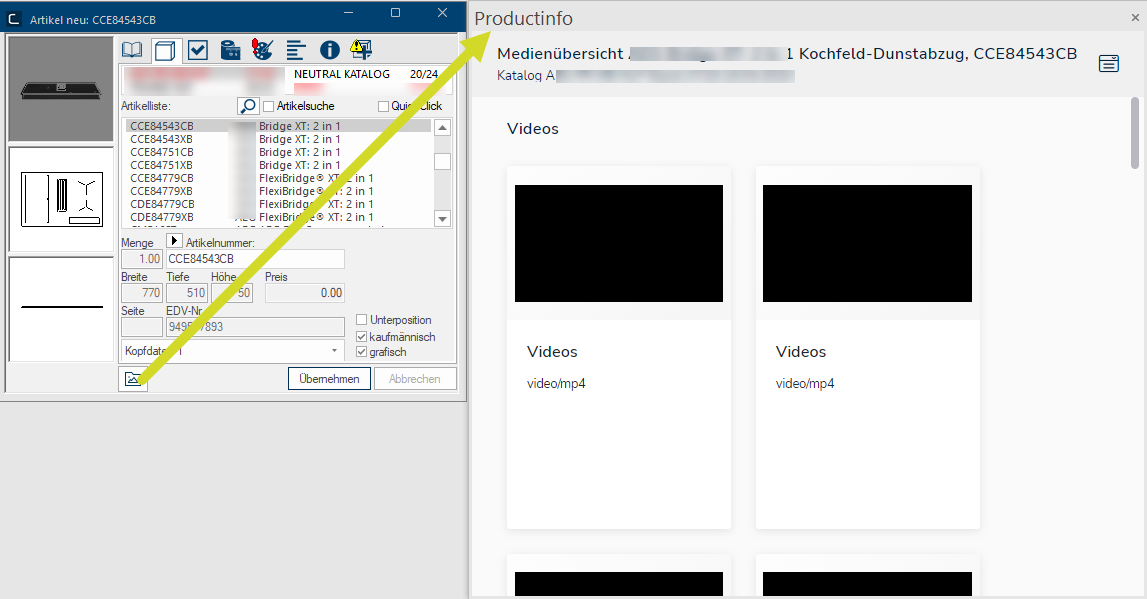
 This is how you call up CARAT productinfo when planning new articles:
The new Product info symbol will be displayed in the Article new dialogue Dialogue, dialogue windows or dialogue fields are special windows in software applications. Dialogue windows are displayed by application programs in different situations to request input or confirmation from the user. at the bottom left. If the symbol is displayed in colour, you can call up the information by clicking on the symbol.
This is how you call up CARAT productinfo in the model selection:
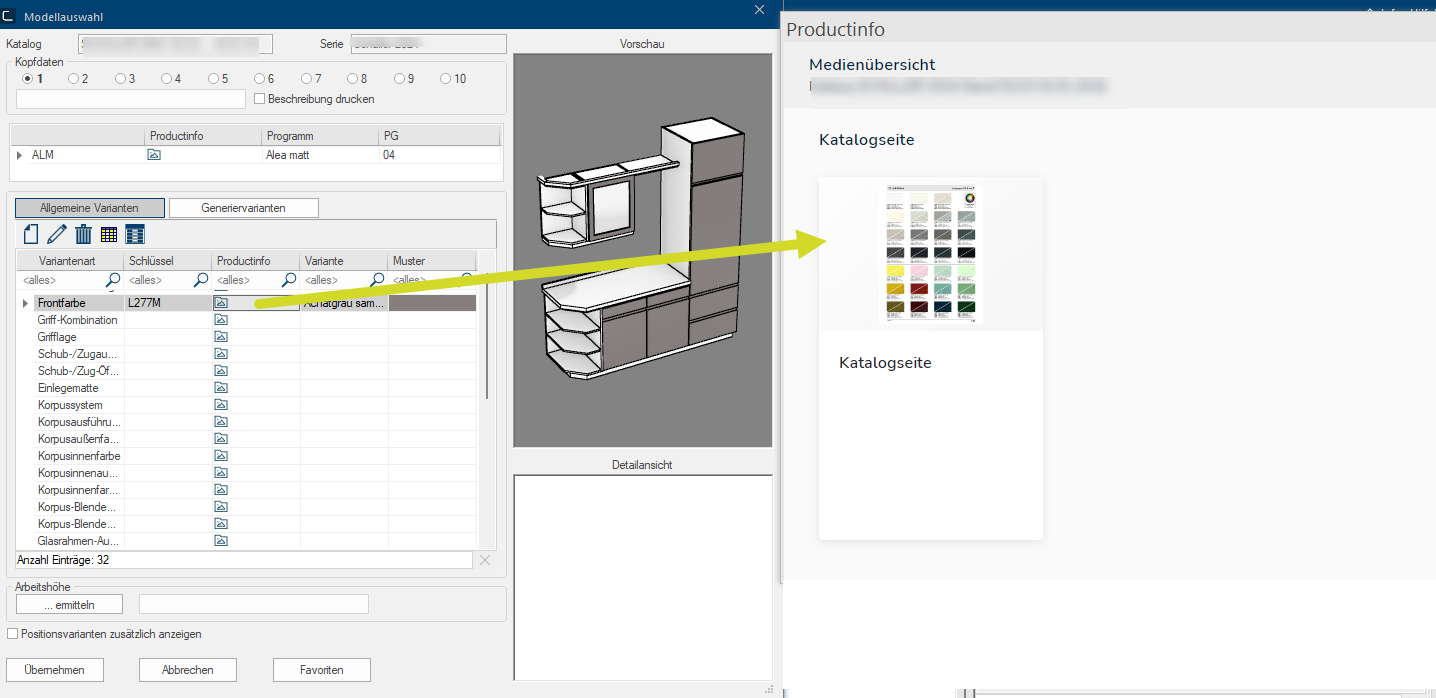
In the Model selection dialogue you will see the new Productinfo column in the General variants table as well as in the Generate variants table. Additionally, the new Productinfo column also appears top left in the table with the Program key.
As soon a CARAT productinfo is activated in CARAT for the manufacturer catalogue you use, the Productinfo symbol will appear here in the respective tables.
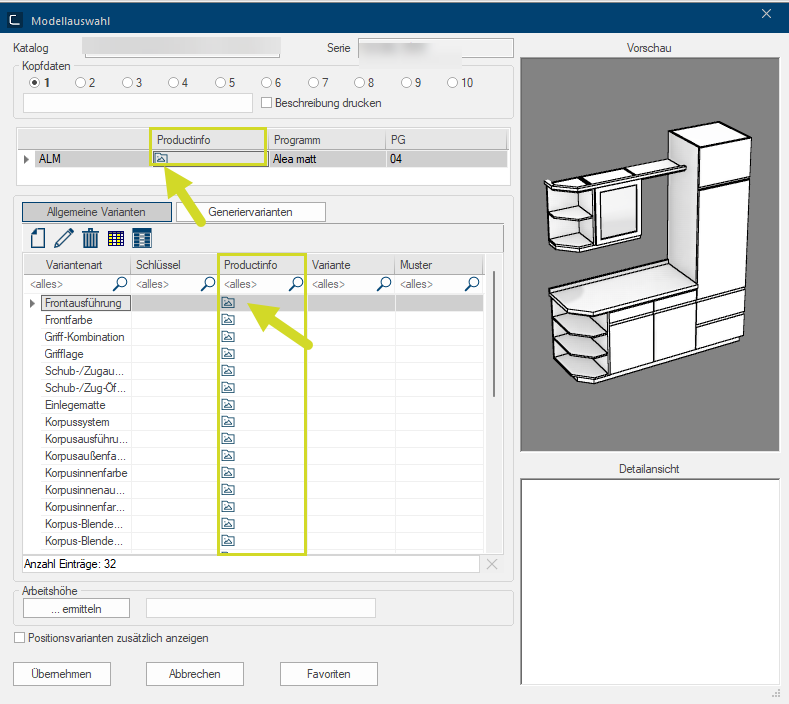
This is how you call up CARAT productinfo in the model selection, from the table with the program key:
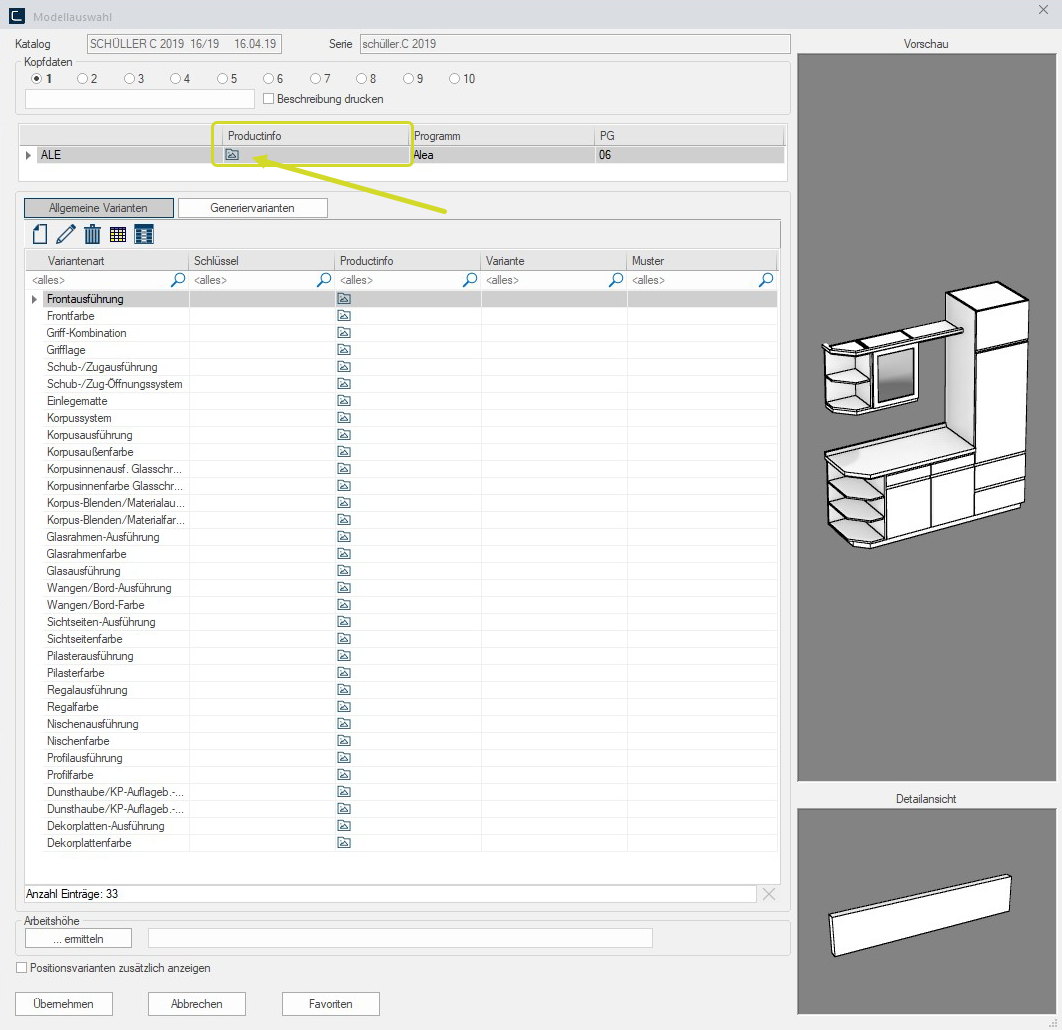
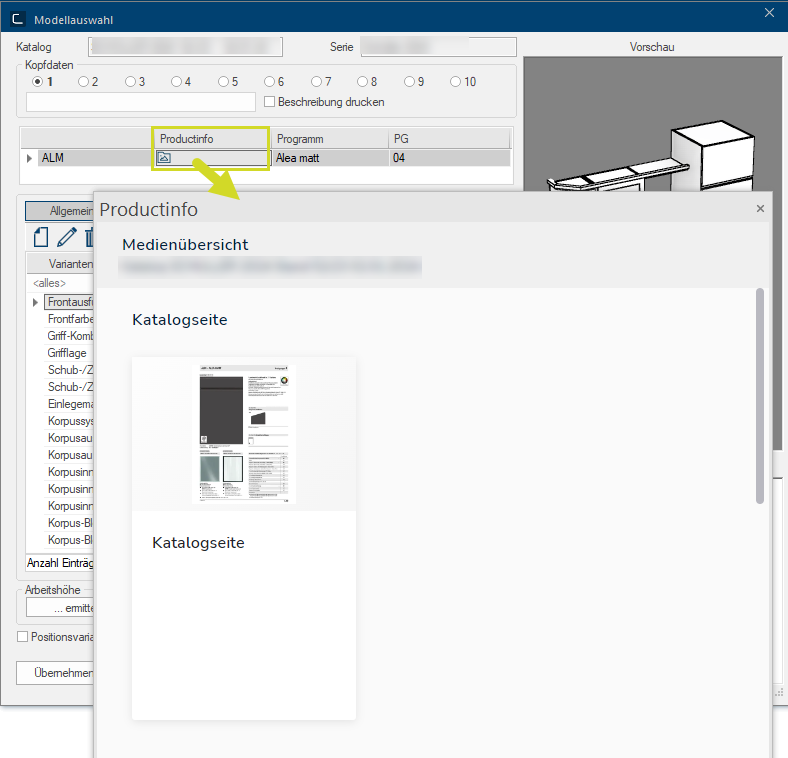
Click on the Productinfo symbol to call up the CARAT productinfo for the Program key selected.
Example
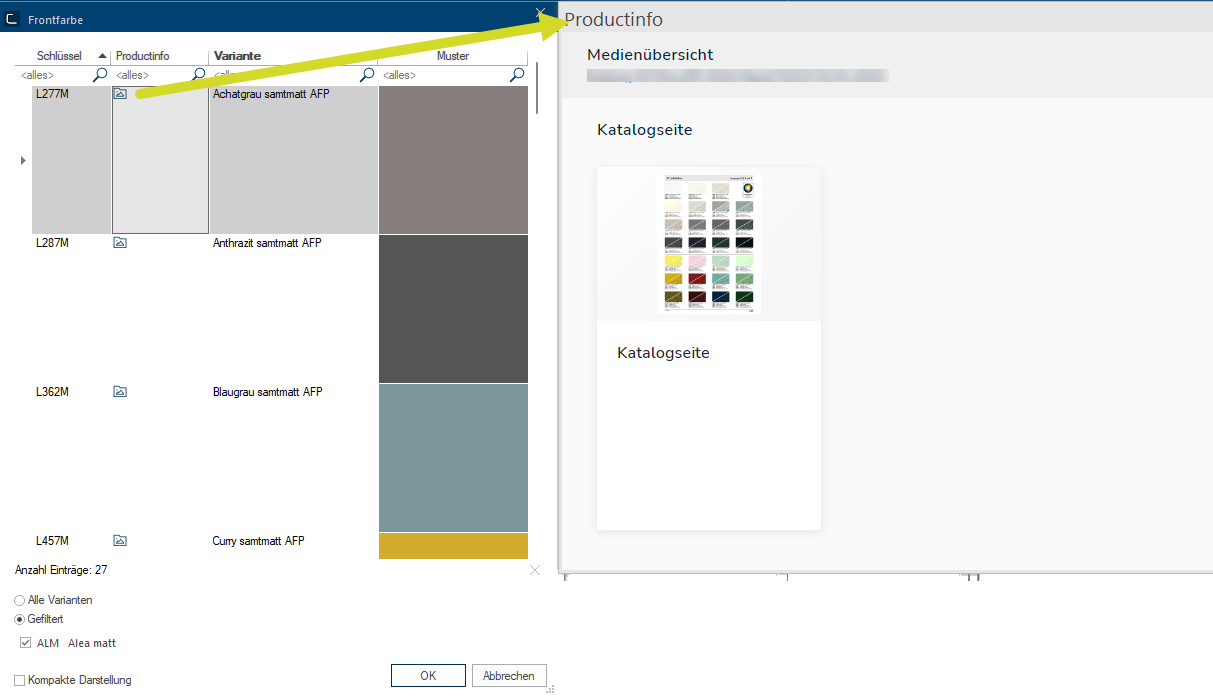
First open the Variant selection dialogue with a double click A double click is, amongst other things, needed to open files and programs or to activate an operation or a command. If the mouse cursor points to the desired symbol, you should click the left mouse button twice in quick frequency. The mouse pointer should not be moved between these two clicks., to call up the CARAT productinfo for a Selected variant type that has not been assigned a Variant yet.
Example
.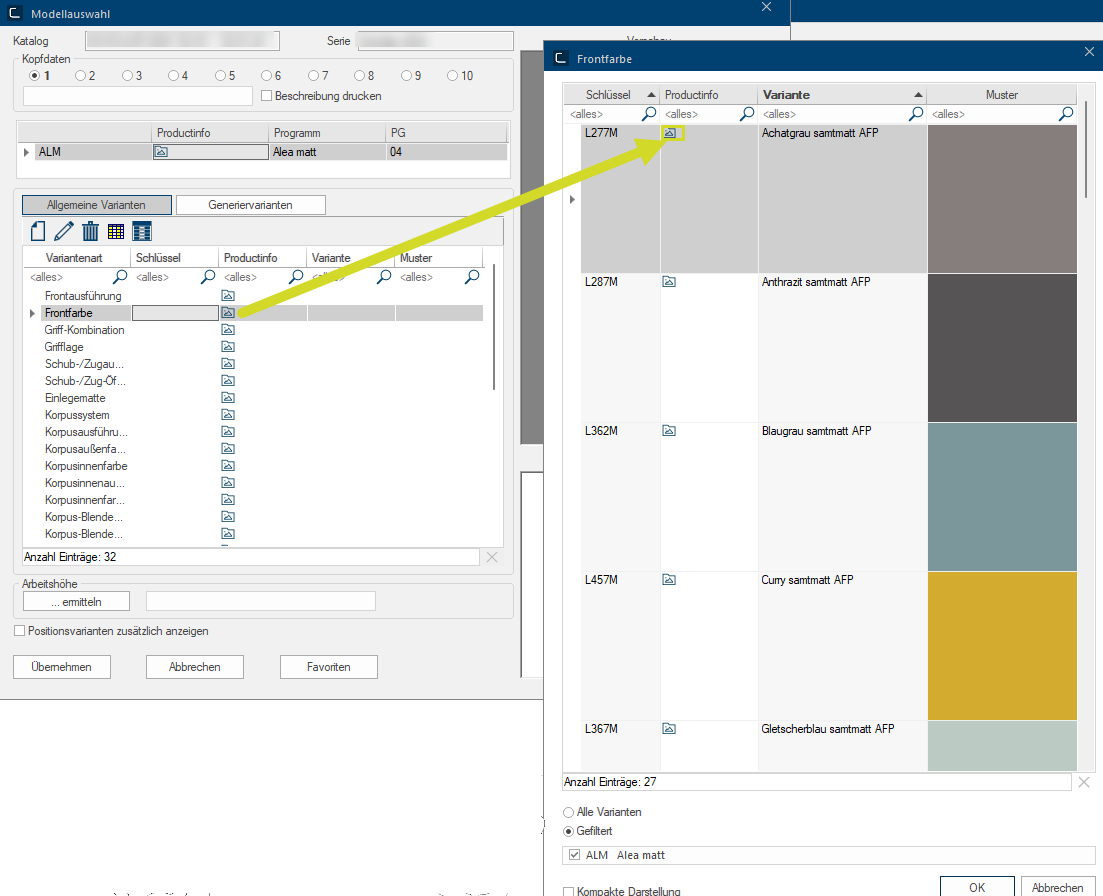
The CARAT productinfo is then called up by clicking on the Productinfo symbol.
Example
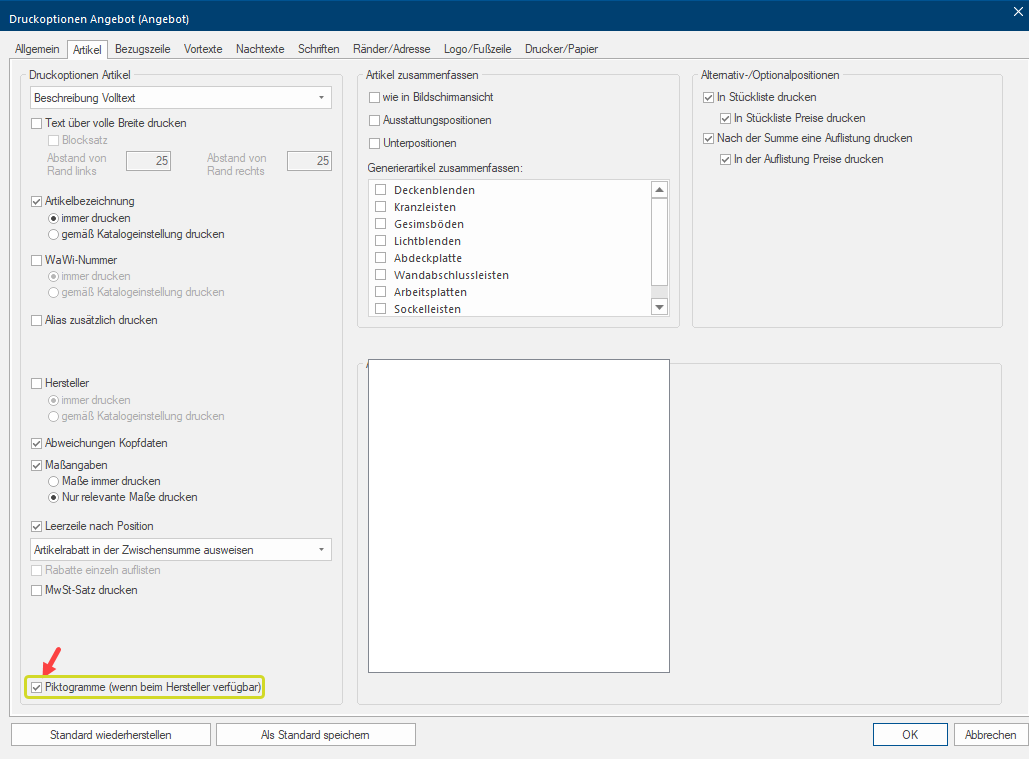
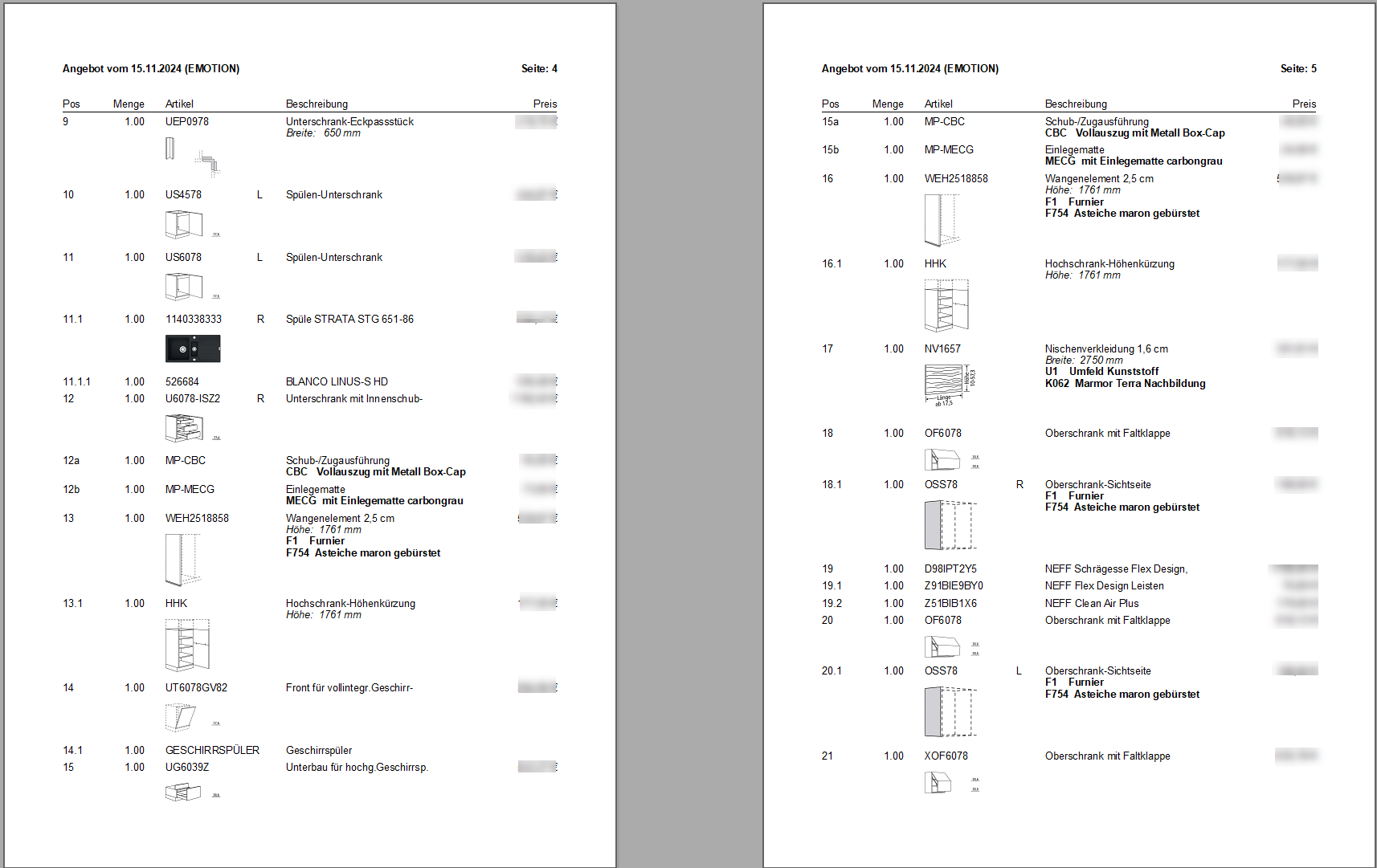
 New from Version V2024.5.1.0: Activating "Print pictograms from CARAT productinfo" in layout
On the Article index card Some dialogue windows are too voluminous, therefore the functions are separated into indexed groups. The subgroup names typically appear on the tab of the index card at the top of the dialogue and can be selected by clicking on the appropriate tab. of the Layout it is now possible to select the Pictogram option The word option (from Latin: optio = free will) used in computing means a choice. In CARAT it is normally used with a list box. in the Print preview of Commercial documents. With it you can display Pictograms of the articles from CARAT productinfo in the Print preview and on the Printouts.
Example: