signoSign - The digital signature in CARAT
In collaboration with the company signotec GmbH CARAT offers you from version V2025.4.0.0 on the possibility to transfer digital signatures to your created documents via signature pad, mouse, QR code or Click Typically the LEFT mouse button is pressed once quickly, if not specified differently. Clicking will either mark an object, or when clicking on a button, the execution of the desired activity (e.g. OK, Cancel, Close). to sign keyboard signature.
What are your benefits with signoSign?
-
Sign digitally during the selling process, independent from time or location
-
Collecting signatures via PC PC: The English term personal computer is the trade name for a range of computer systems, which originally were primarily manufactured by the company IBM., tablet, signature pad or smartphone
-
Increased efficiency due to integrated processes
-
Modern paperless workflow
-
Convenient and legally compliant
How to activate the digital signature in CARAT:
To use signoSign in CARAT it is required to click the following link to open the PDF The Adobe Portable Document Format (PDF) was developed and perfected in the 80's by Adobe Systems. Adobe PDF files contain data from any application, that can be displayed on every computer, and are suitable thereby to be exchanged with users throughout the world. order form, fill the form and to send it via e-mail E-mail (electronic mail) is a letter like message transmitted electronically over a computer network. to: sales@signotec.de.
Click the following link to open the order form: Order form digital signature with signotec
In addition Addition (in Latin: addere) is one of four basic operations in arithmetic. In primary school and in common language it is the expression used for the adding of two or more numbers., you need the activation of the free CARAT module 2P through CARAT.
To do so, please send the activation request via e-mail to CARAT using the address: info@carat.de
The setup for the digital signature
Once you received the login data from signotec and the module 2P has been activated by CARAT you can start the setup.
 How to setup the interface for the digital signature in the System options in the Interfaces section:
-
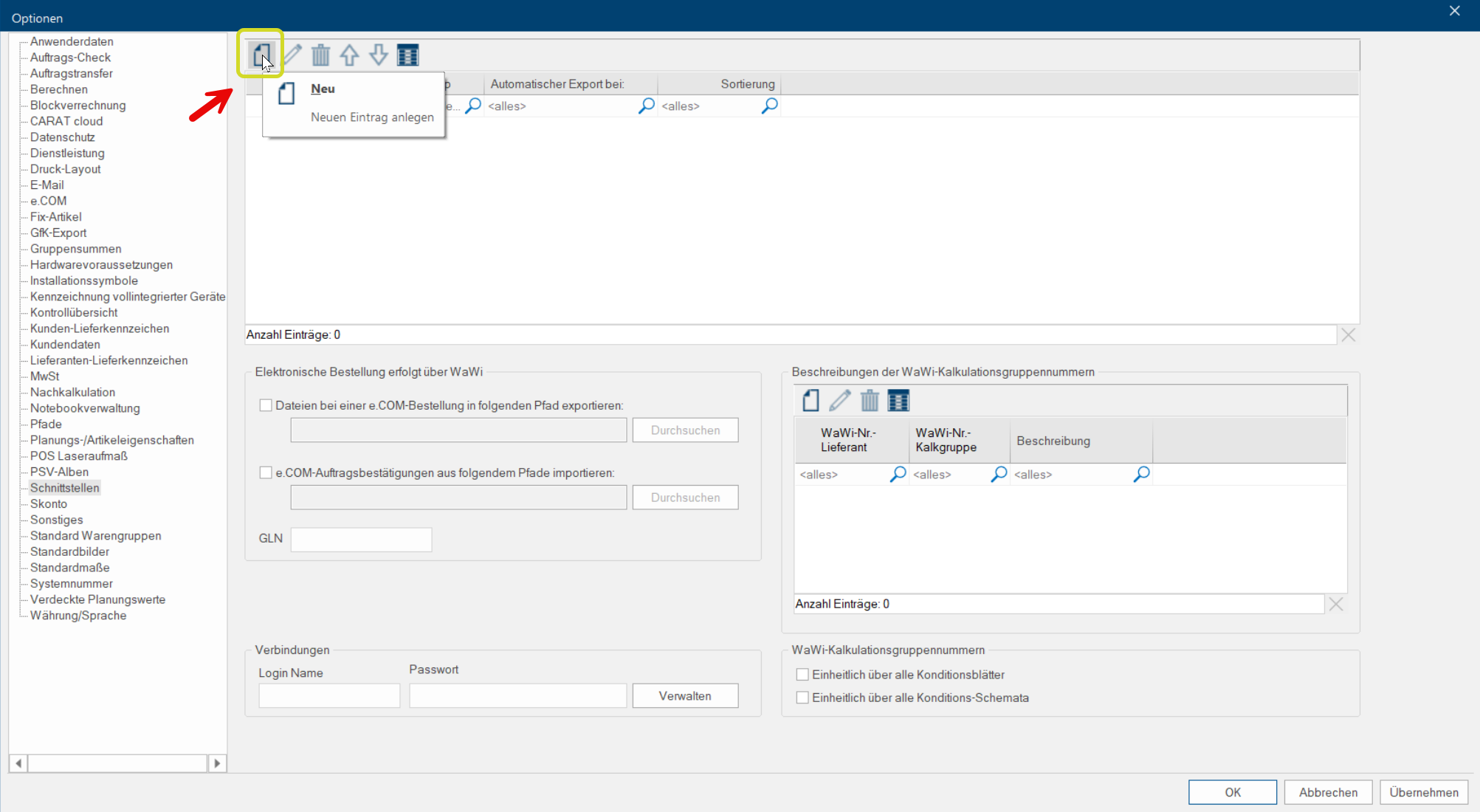
Go to the System tab in the menu bar, click on System options and go to the Interfaces section. Then click on the icon New
-
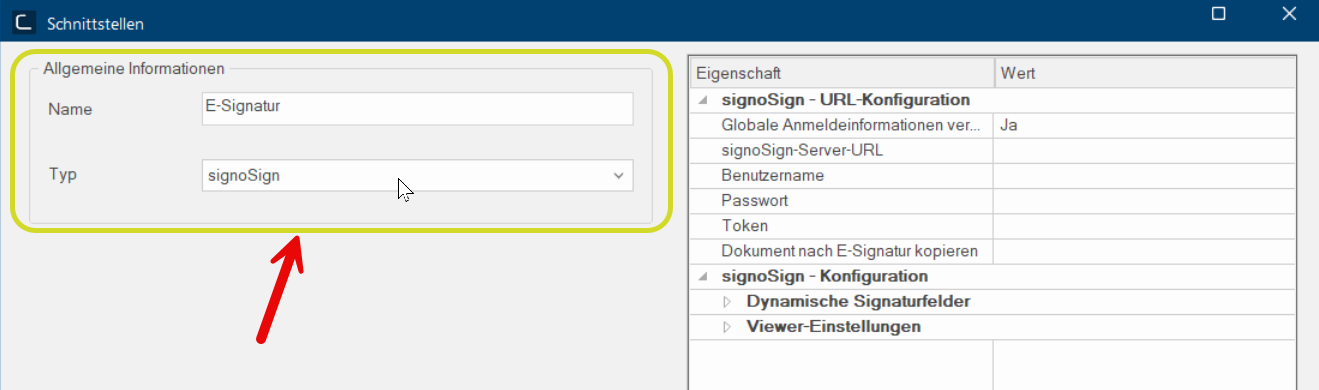
In the following dialogue Dialogue, dialogue windows or dialogue fields are special windows in software applications. Dialogue windows are displayed by application programs in different situations to request input or confirmation from the user. Interfaces you can choose a suitable name, e.g. E-signature, in the General information area and select signoSign as Type.
-
Enter the e-mail address you shared with signotec in the field User name in the signoSign - URL configuration A configuration designates the specific program settings or hardware components in a computer. and the login data you received from signotec into the field Password. In the field Copy document after e-signature you can optionally enter a path In a hierarchically organized file system the path is a succession of listings that one must pass through to get from a determined place in the file system to a determined file, for example C:\sample\letter\business_letter or c:\Documents\Own files\business_letter. to store the e-signatures.
How to setup the signature fields under signoSign configuration:
-
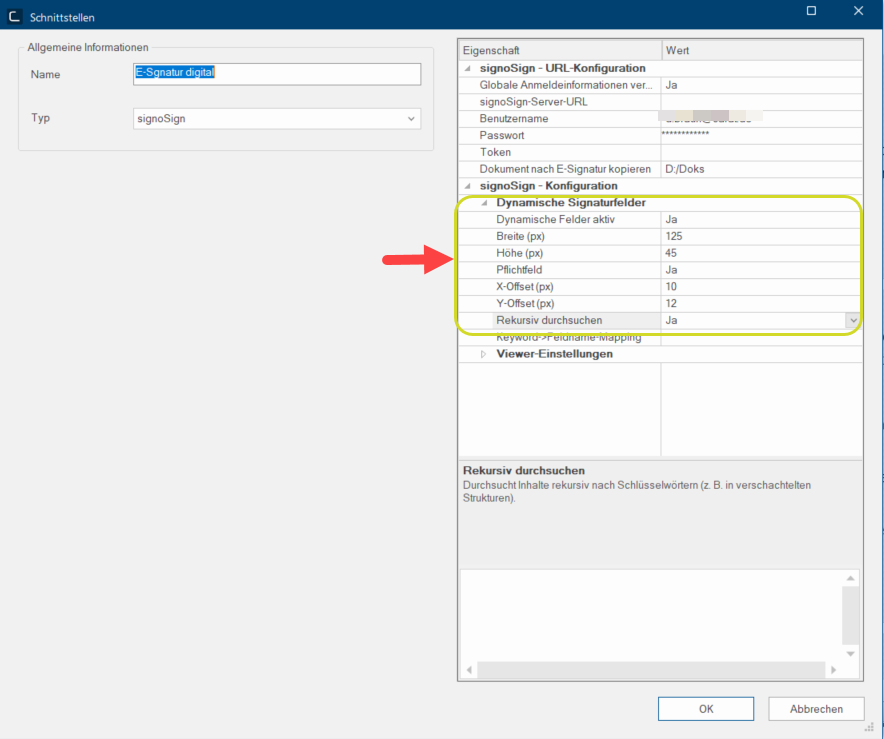
Start by selecting Yes for the property Dynamic fields active to assure that signatures can be placed freely on any position later on during the process. This is reasonable if for example you want to have proof for the handover of installation plans or other important documents to the customer.
-
In the next step define width and height of the respective signature field in pixels Pixel or picture element identifies both, the smallest unit of digital raster graphics and the display of these graphics on a monitor with raster activation..
-
When selecting Yes for the property Mandatory field you can assure that the signature is obligatory. This is important if you want to ensure that certain documents will not be handed out without signatures from seller and buyer anymore.
-
The fields X-Offset and Y-Offset define the position of the signature field and of how many pixels to the right (X) or downwards (Y) from the keyword. (Keyword is the operative word of the respective signature field, e.g. Buyer.
-
When selecting Yes for the field Search recursively, a signature field will be placed on every positions of the document where the pre-selected keyword appears. When selecting No, the signature field will be placed only on the first appearance of the keyword.
Example:
How to define the signature fields by means of keywords and denominations:
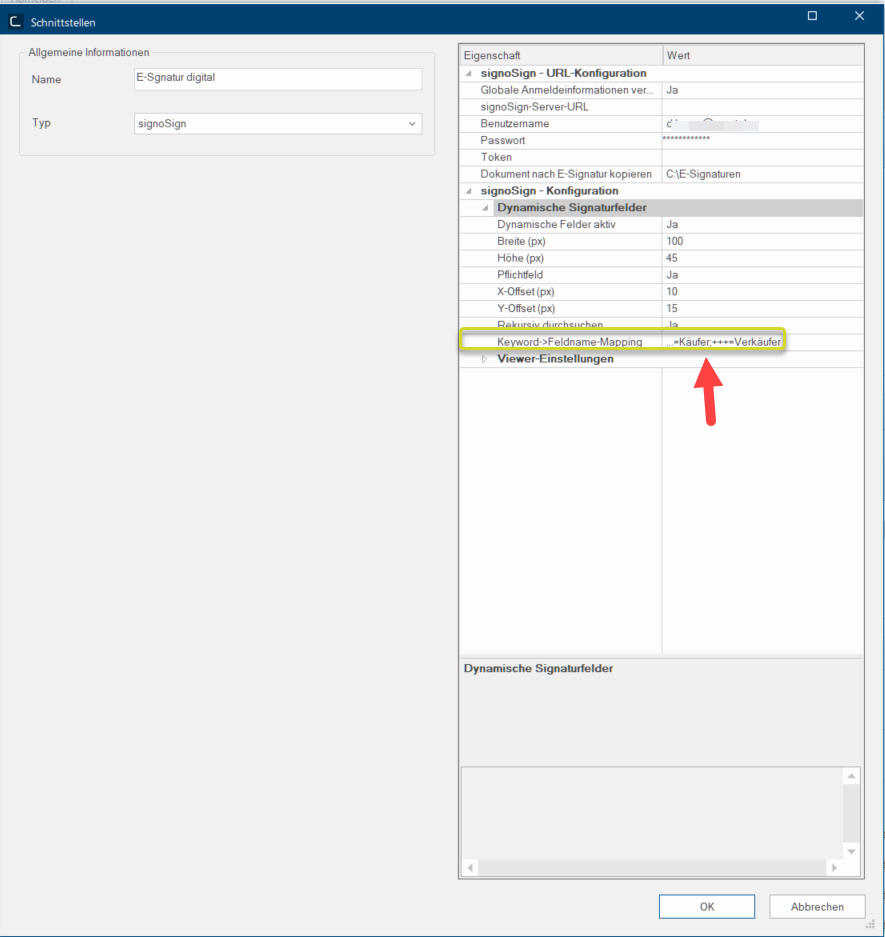
In the field Keyword->Fieldname-Mapping you can define a Denomination (Field name), e.g. ... for the respective signature field and link it to a Keyword, e.g. Buyer.
The mandated format The format or formatting (Latin, forma) is designated in word processing as the design of the text document. In this case meaning the selection of character fonts and character style such as bold or italics. for this link looks as follows:
...=Buyer;
This keyword will then be indicated in the signature field for the later signature. Add a semicolon after the keyword in order to add another link, e.g.: +++=Seller
It should then look like this:
...=Buyer;+++=Seller
Now save your entries with OK.
How to create a default text for the e-signature:
-
Click on Standard texts in the General data area of the Data tab in the CARAT menu bar.
-
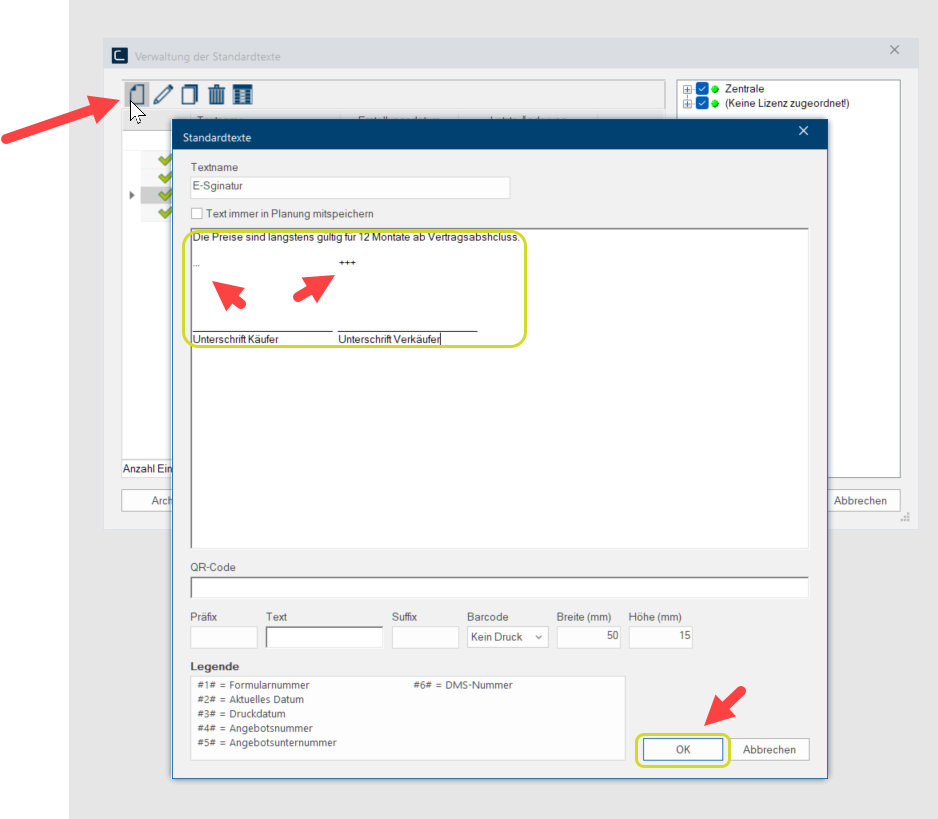
Now the dialogue Standard texts administration opens up and you can click on the icon New.
-
Choose a Text name for the e-signature, enter a standard text in the big field and type the previously selected field names underneath, then save your entries by clicking OK.
How to setup the default print layout:
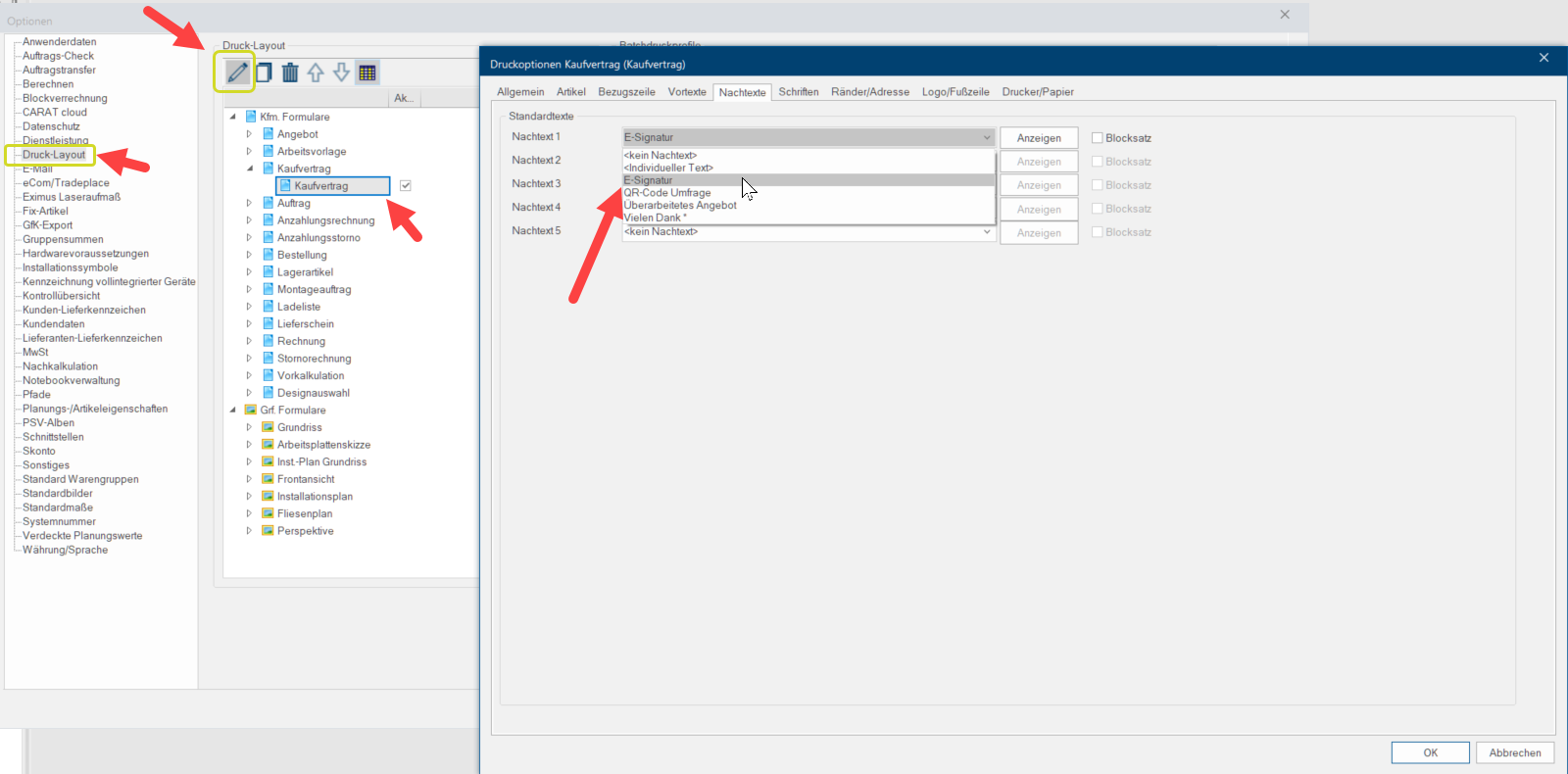
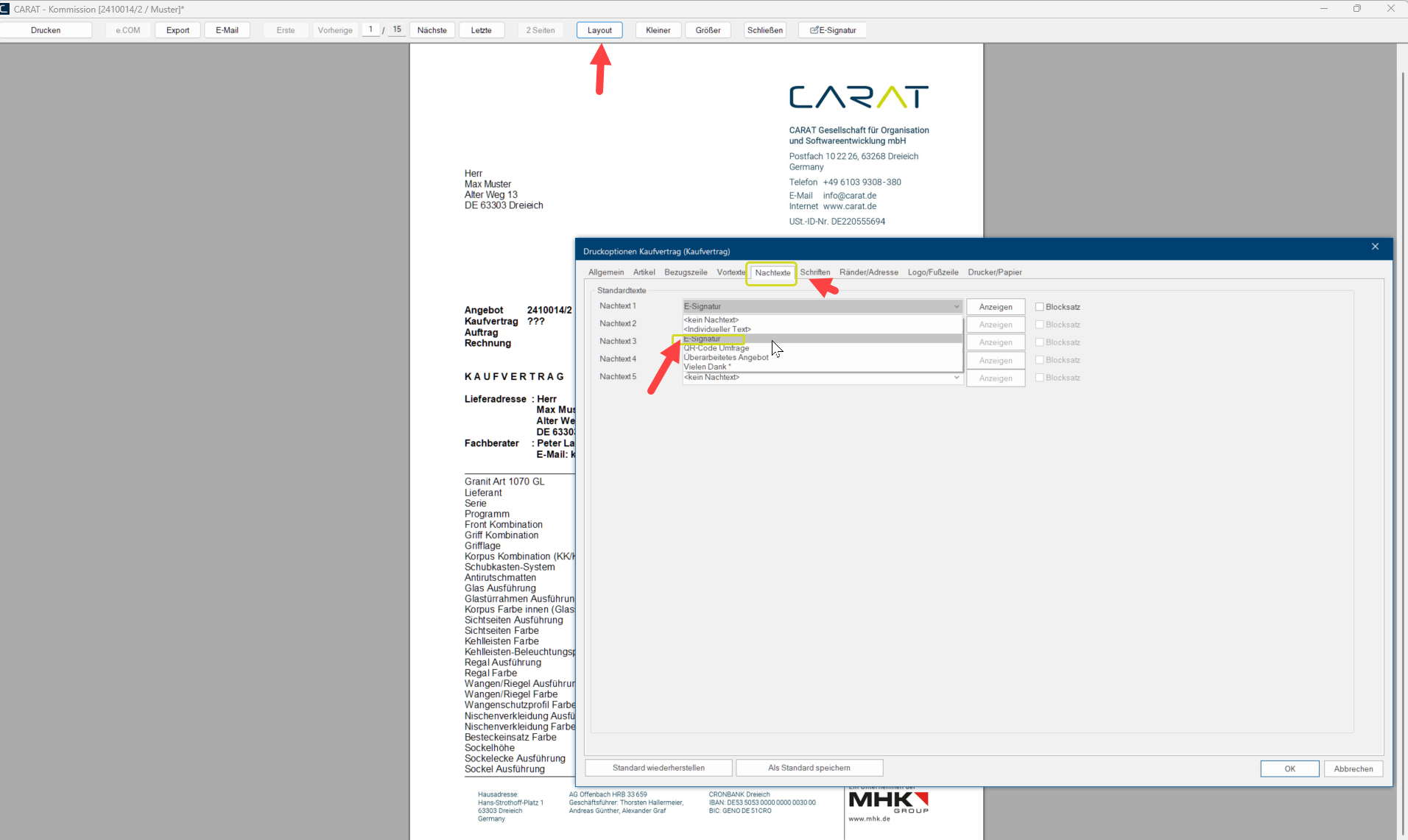
You can then add the e-signature to your documents either via System options, Print layout, e.g. as default footer text for the sales contract or select it individually when printing in the print preview by clicking Layout.
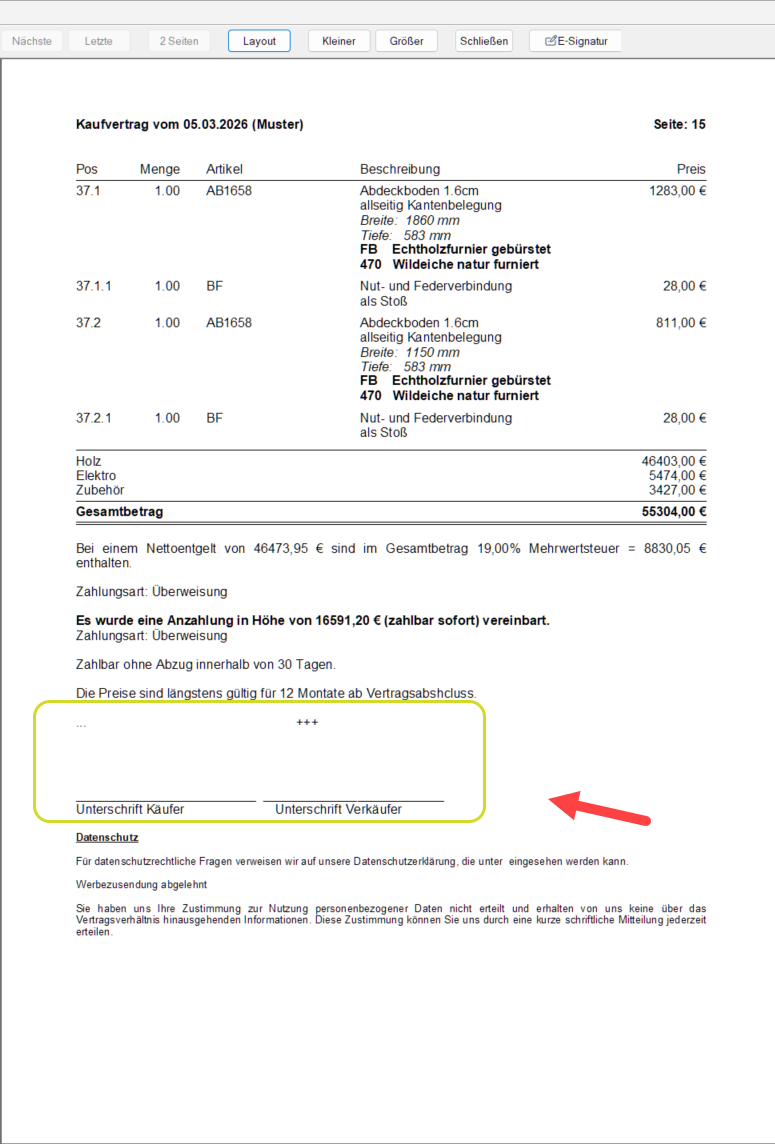
Example: last page of the print preview with e-signature as default footer text
How to configure the e-signature in the documents:
-
First, select for example the sales contract from the print preview.
-
After opening the print preview go to the last page of the sales contract and select, as shown previously, the pre-set footer text e-signature. The pre-set footer text with the pre-selected e-signature keywords will now be added Addition (in Latin: addere) is one of four basic operations in arithmetic. In primary school and in common language it is the expression used for the adding of two or more numbers. to the PDF.
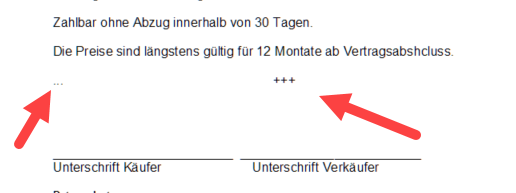
-
We want to add the e-signatures right underneath the pre-selected keywords. To do so, click on the button In dialogue windows you always find one or more buttons that can be activated by clicking on them. Typical functions for buttons are e.g. OK, Cancel, Apply. Buttons are always activated by a single click with the left mouse button. E-signature above the PDF document in the print preview. Now the dialogue signoSign will open up.

Example: signoSign dialogue
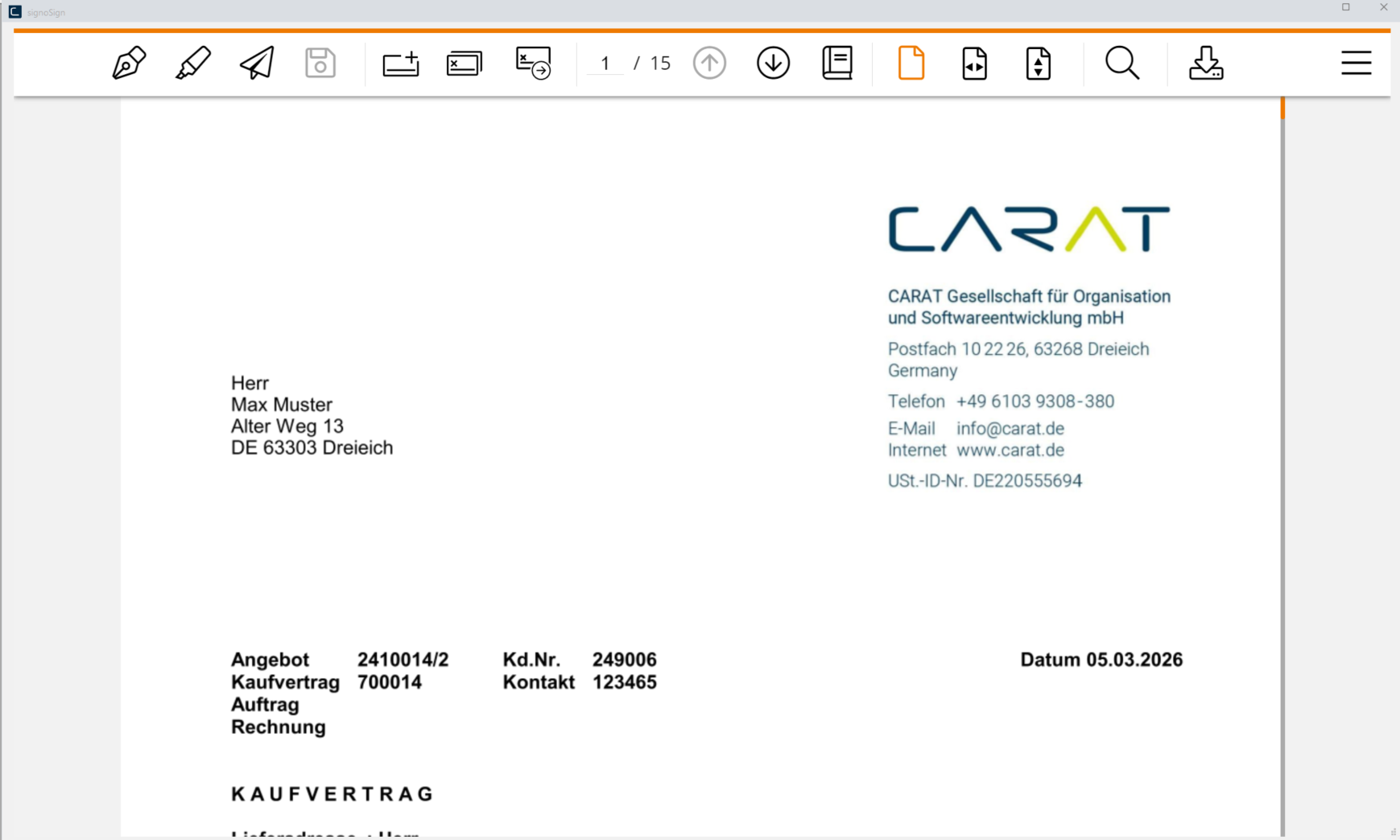
This is how the configured e-signature will look like in your documents:
-
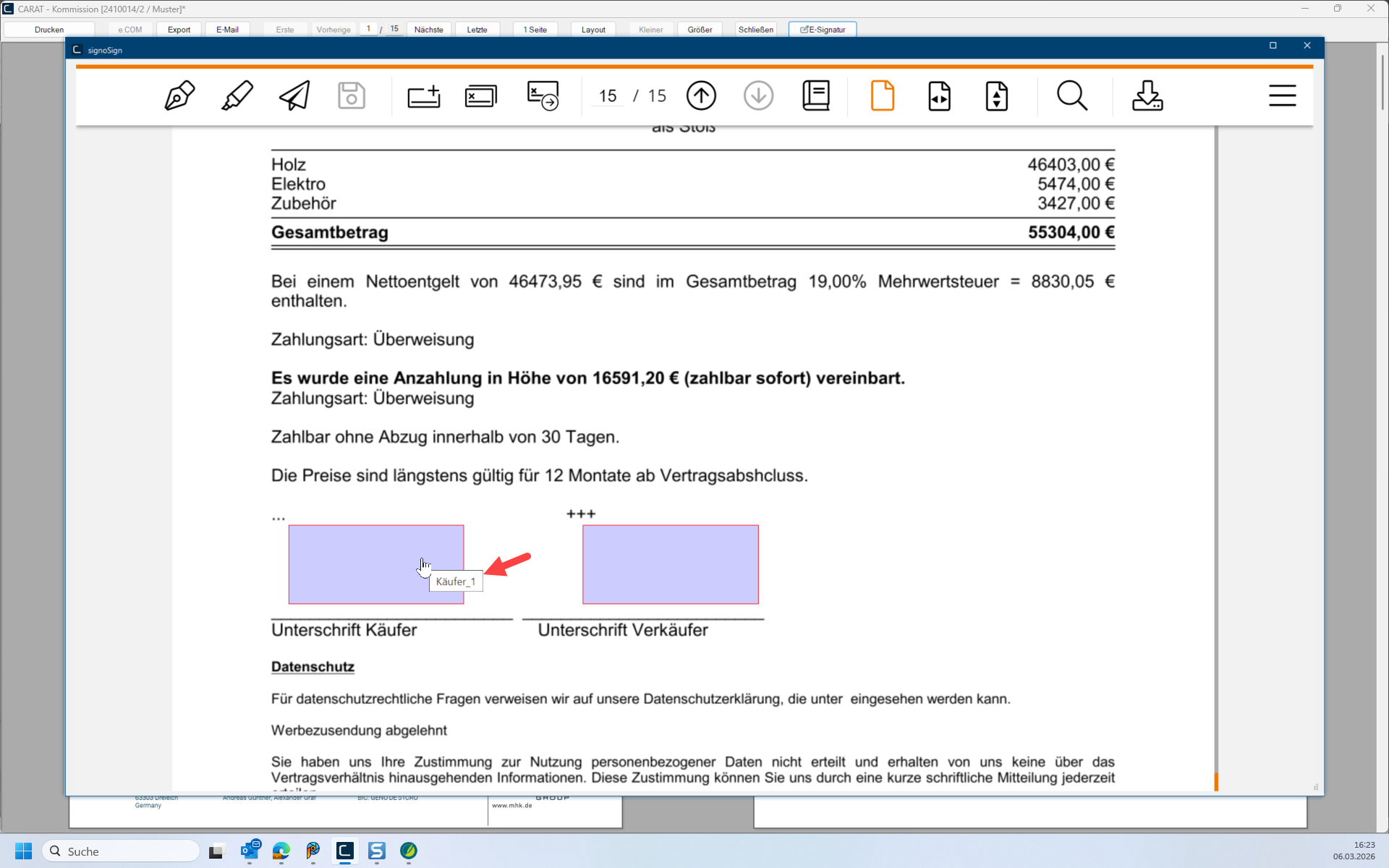
After opening the signoSign dialogue click on the icon Browse to next signature field in the menu bar.
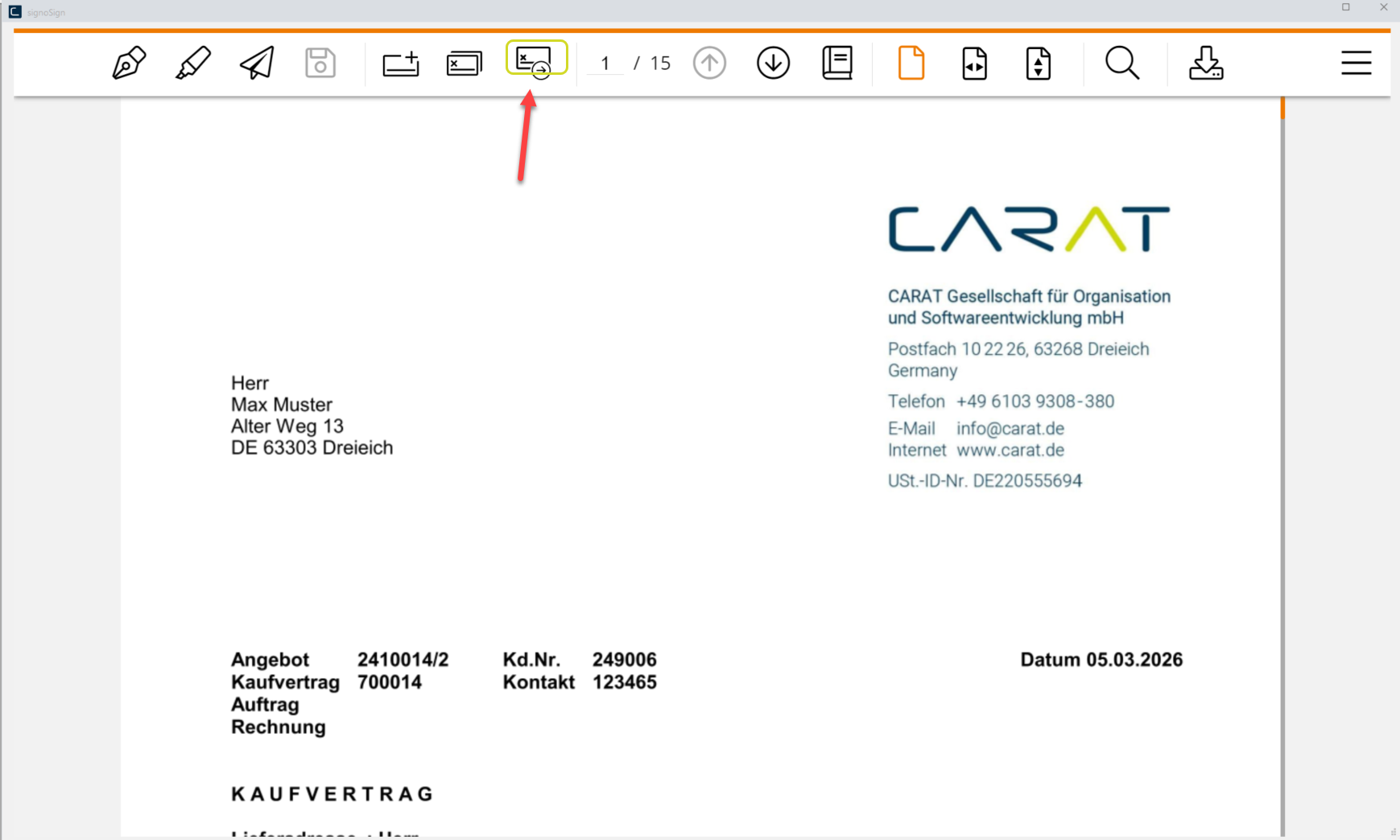
Now you will see the pre-set signature fields.
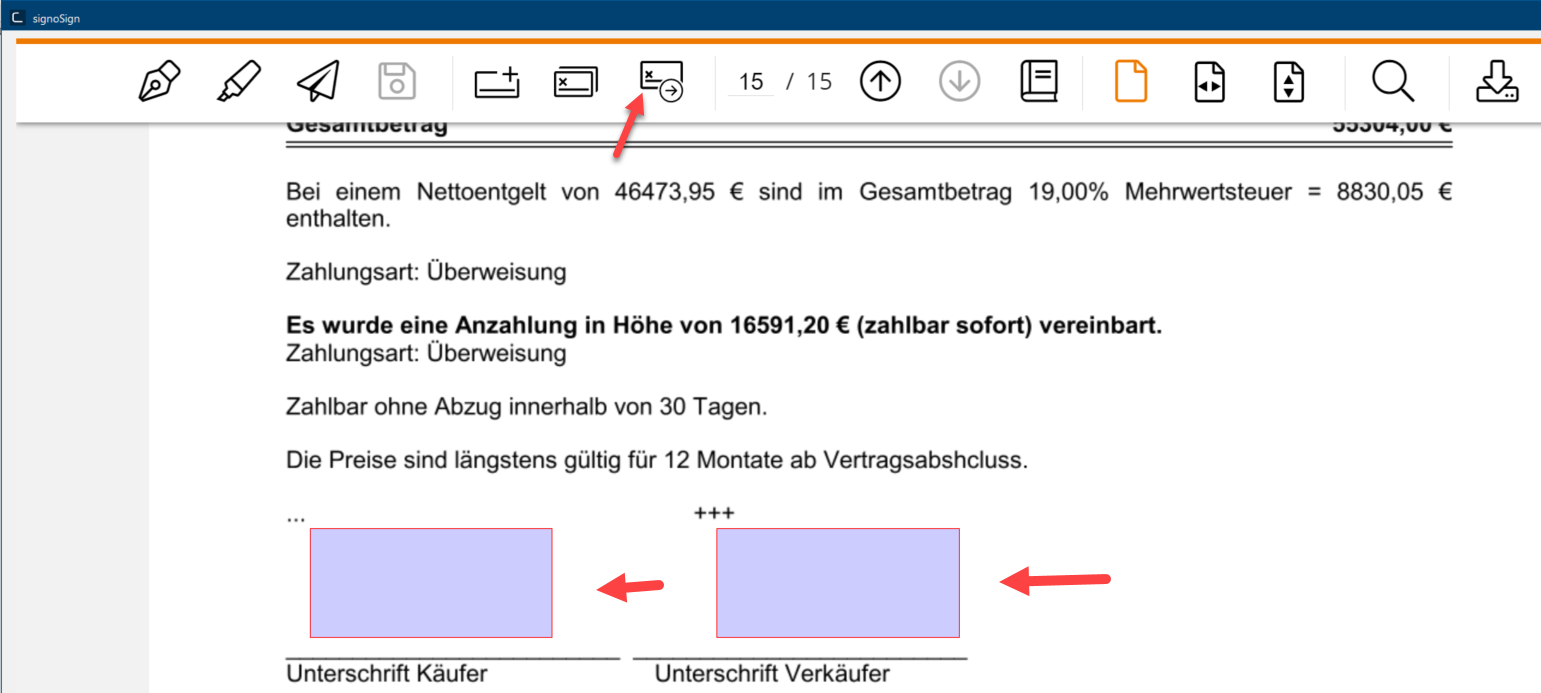
When hovering the mouse cursor over the signature fields, the pre-set field name will be displayed.
-
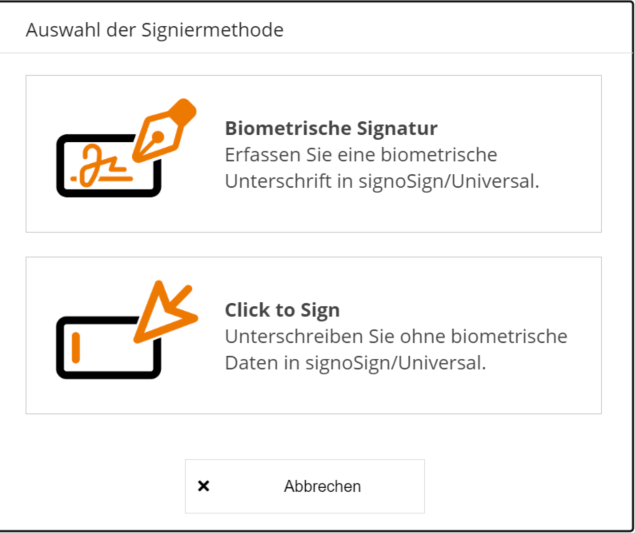
After clicking on a signature field you can select the signature method.
Which signature types are possible for digital signature?
-
You can choose from 2 digital signature methods, the biometric signature or the Click to Sign Signature. It is also possible to define an individual signature method for each signature field.
-
After selecting the biometric signature you can sign the document by means of a held left mouse key, or a signature pad or by scanning a QR code on a smartphone.
Using a signature pad requires the purchase of respective hardware and further setup for which the Support of signotec will be happy to assist you with. Find more information on the homepage of signotec.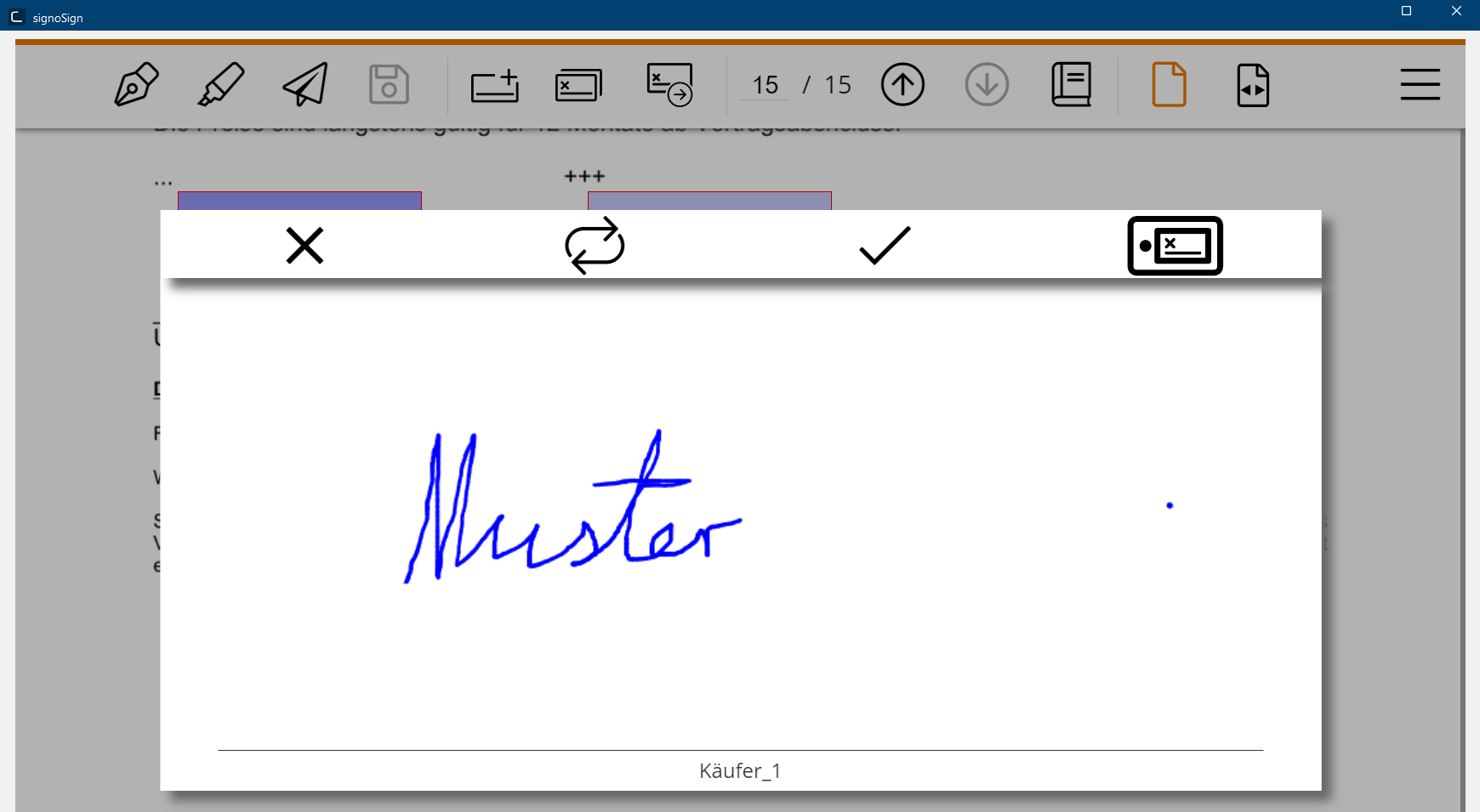
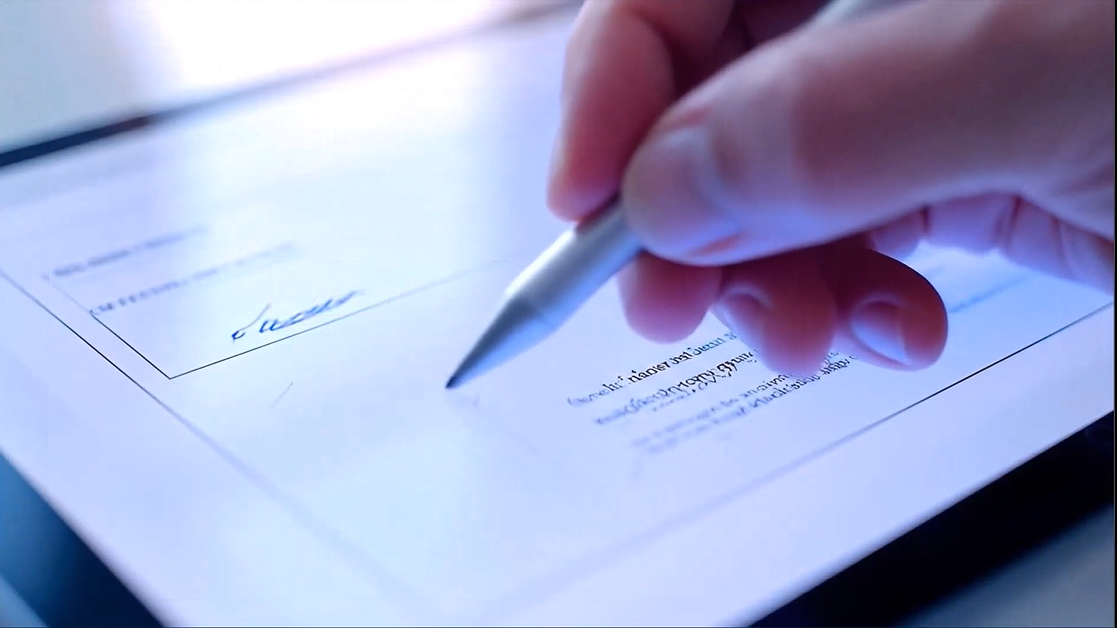
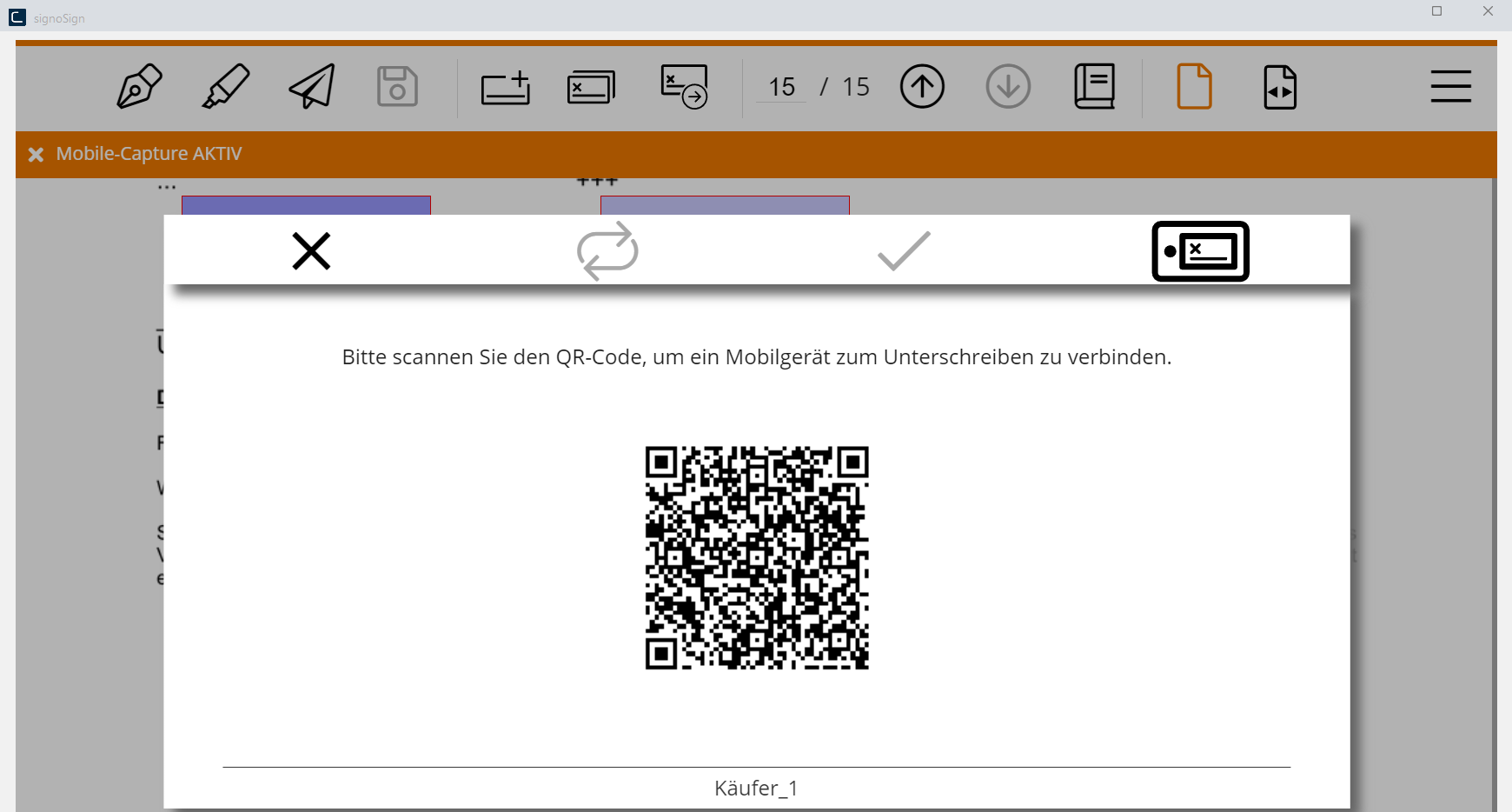
Once the signature is created it will be displayed as electronic signature in the selected signature field.
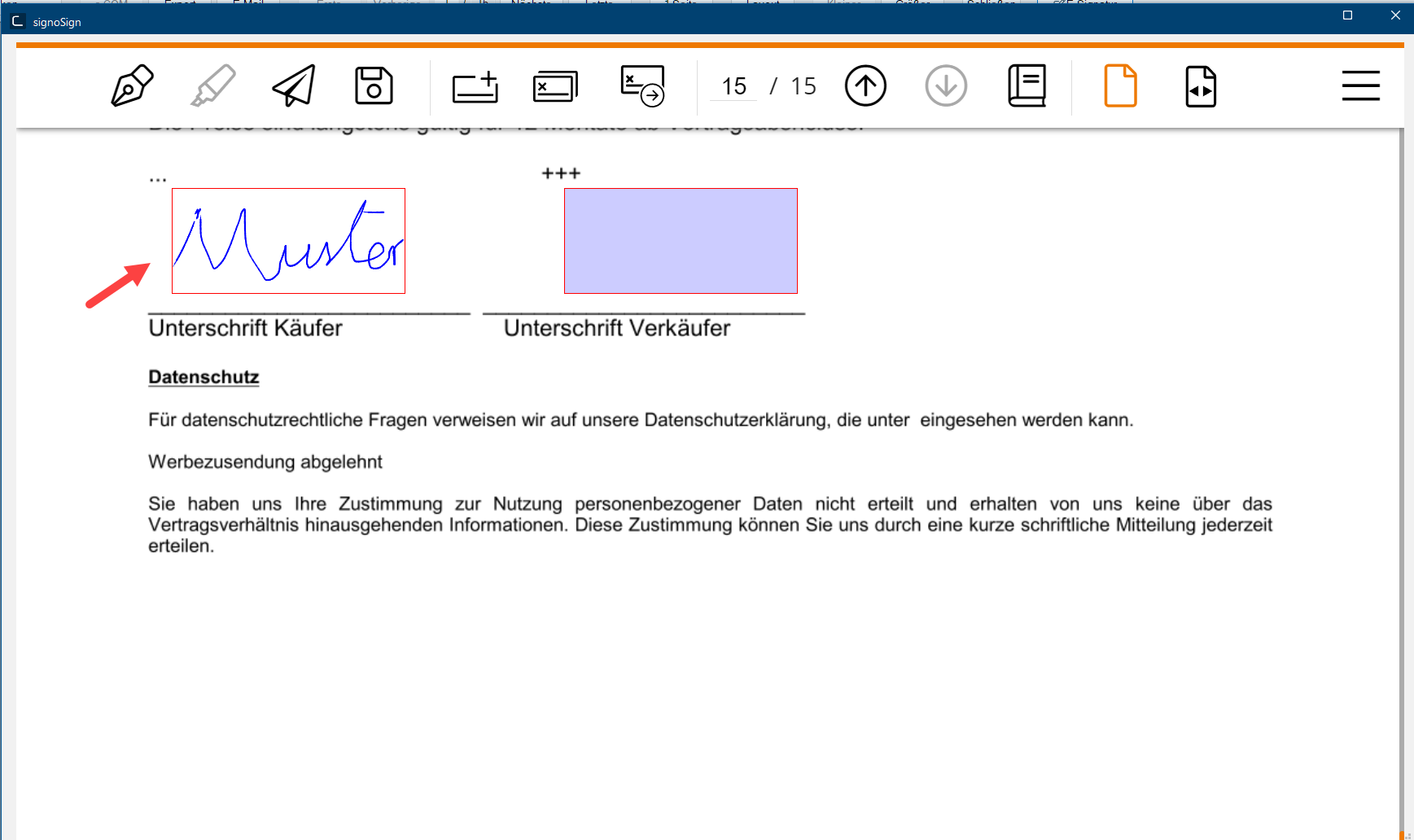
-
After selecting Click to Sign the document can be signed via keyboard entry. A field to enter the name with the keyboard will then be displayed.
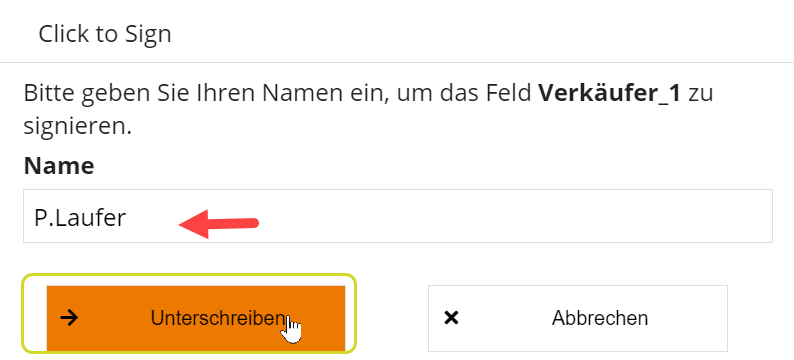
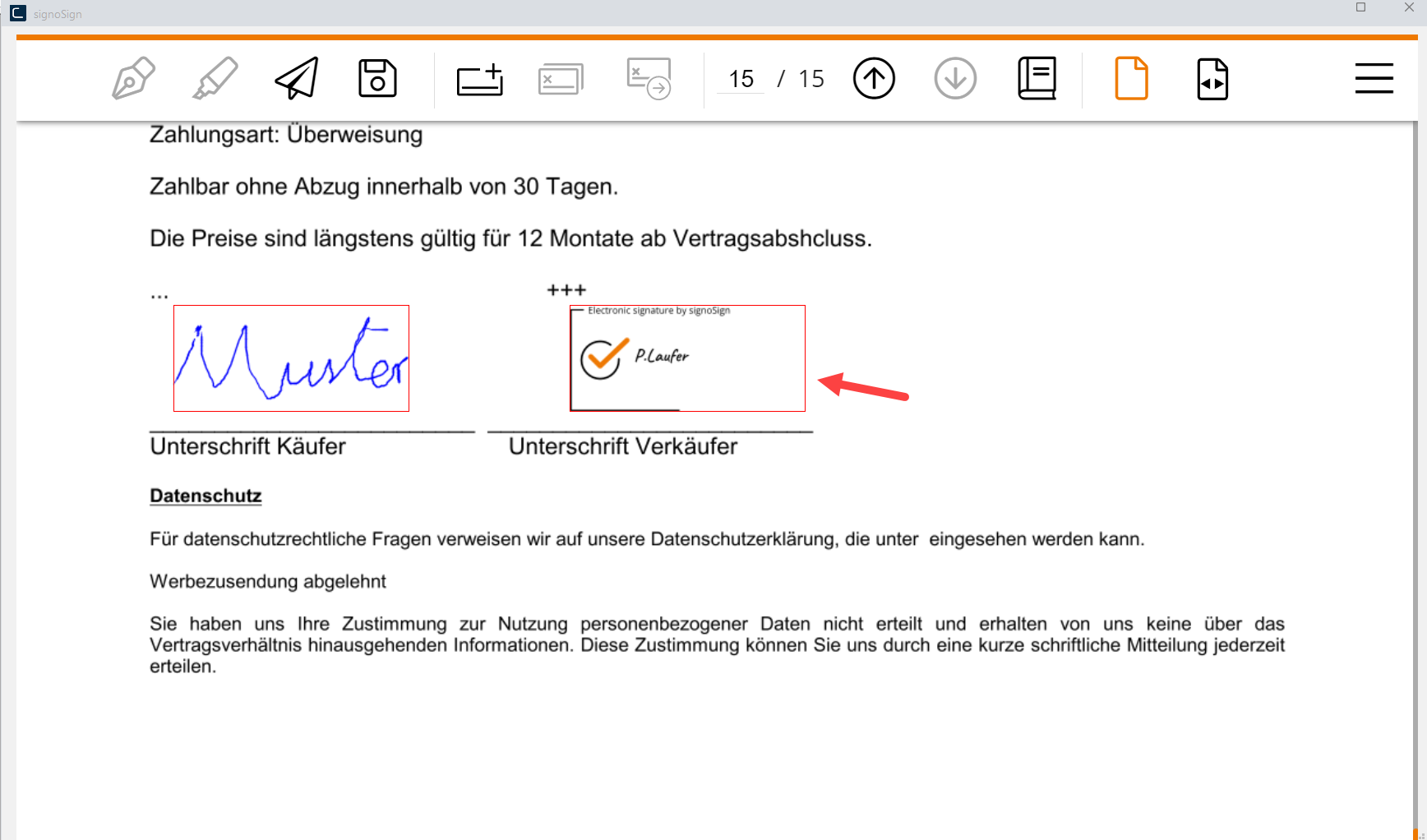
After clicking on Sign, the entered name will then be added as electronic signature to the signature field.
How do you share the document to sign with the customer via smartphone or e-mail?
-
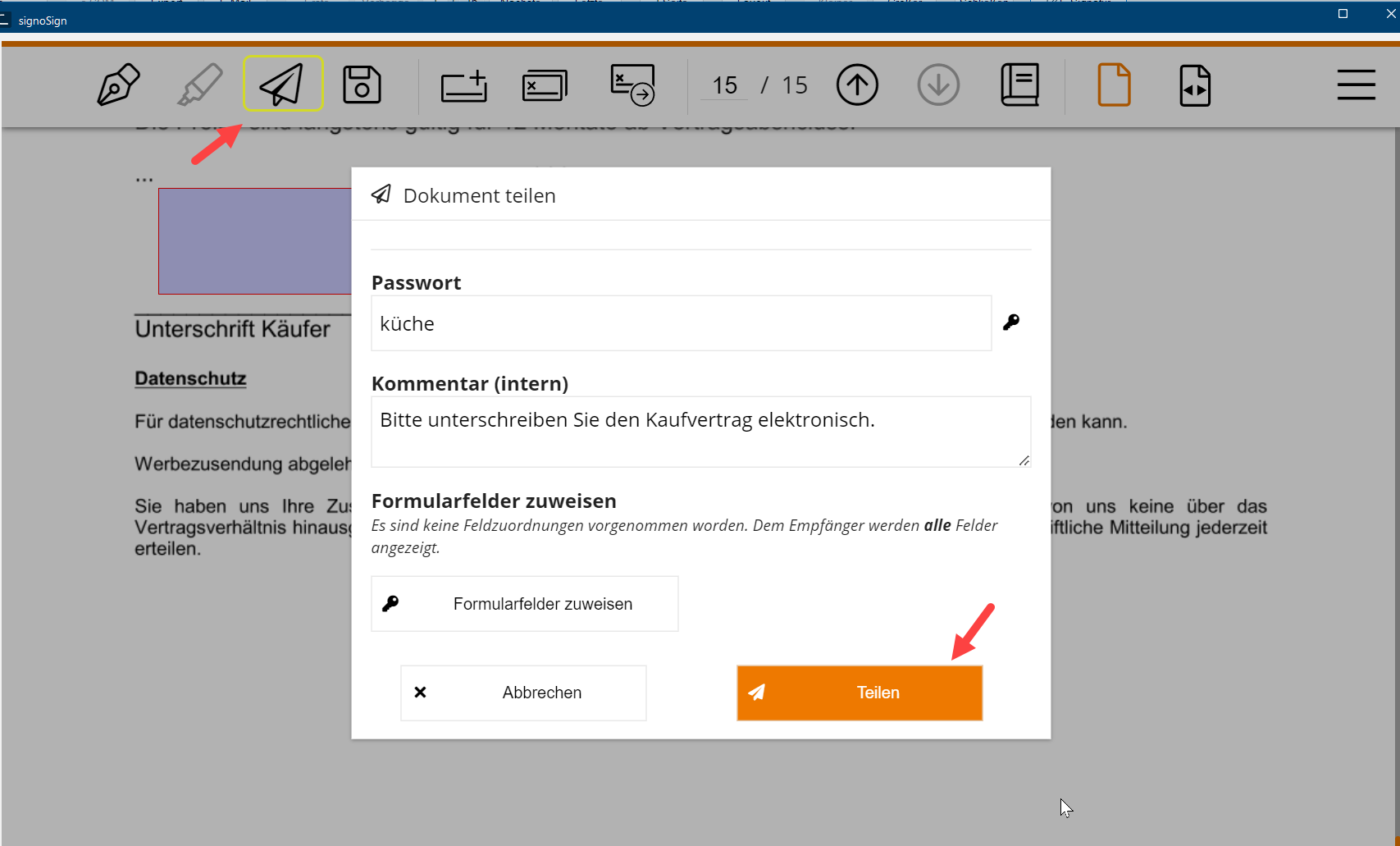
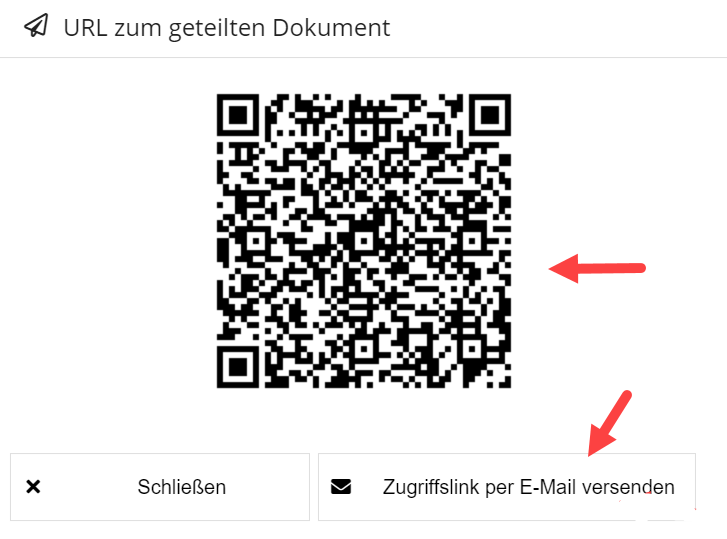
Once you as a seller have electronically signed the document, you can access the dialogue Share document by clicking the icon Share document. There you can create a QR code link the customer can scan with his smartphone by clicking the button Share. Thereby, the access to the QR code link can be secured with a password or it can be commented on. You also have the possibility to send the link by e-mail, simply by clicking on Send Access Link A link (is a synonym for connection or the connector) is a cross reference from one document to another document through the corresponding marker. By using a link you can easily navigate through a document or an Internet page. by E-Mail and the customer then can open and sign it on his home PC.
-
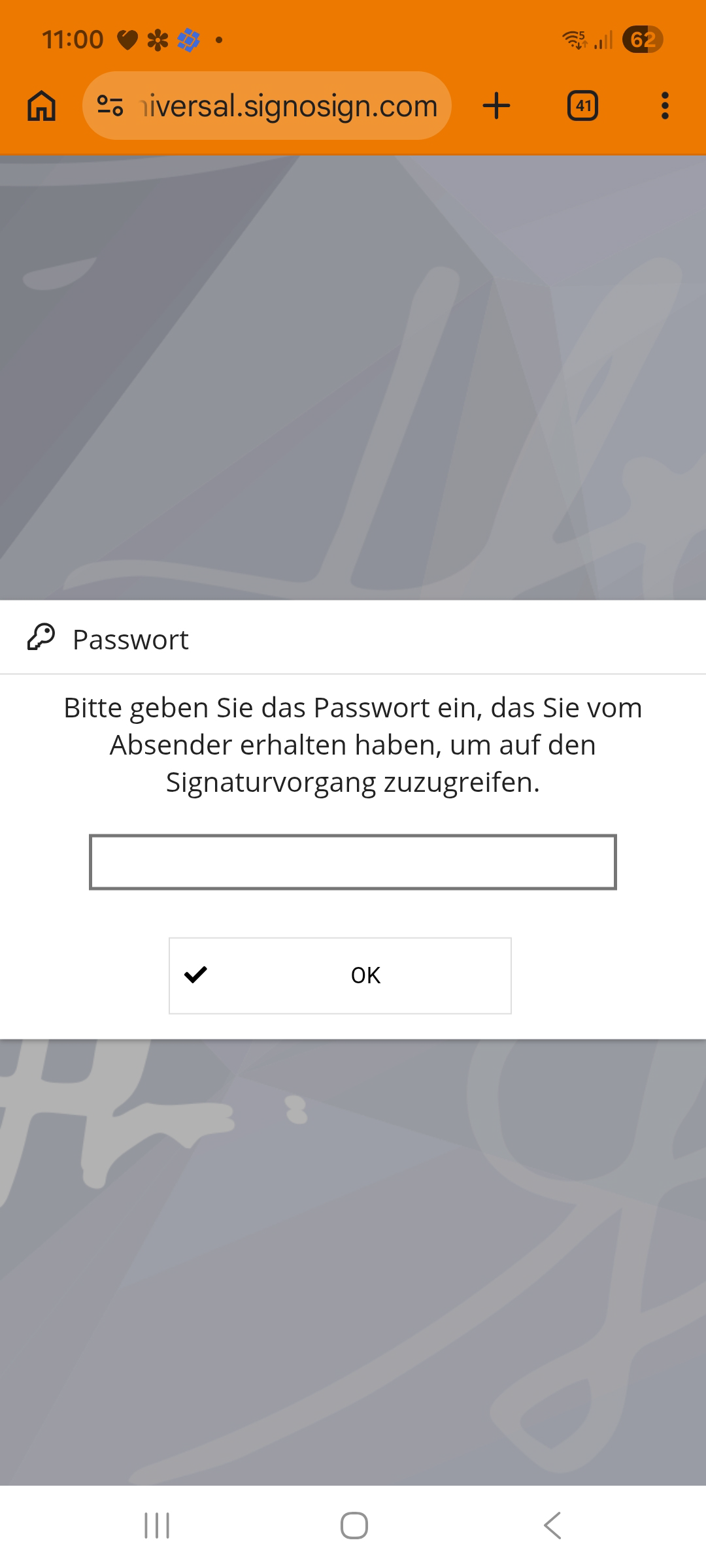
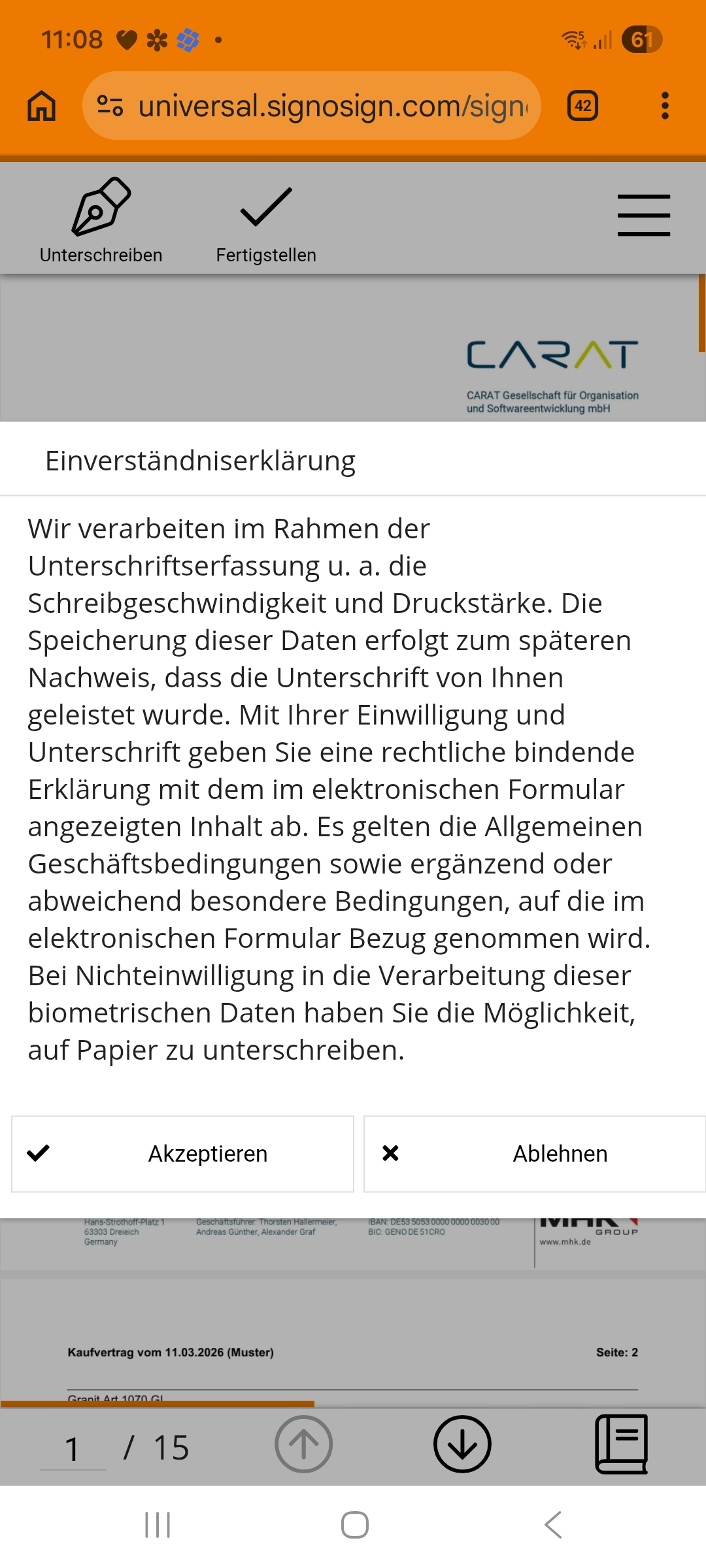
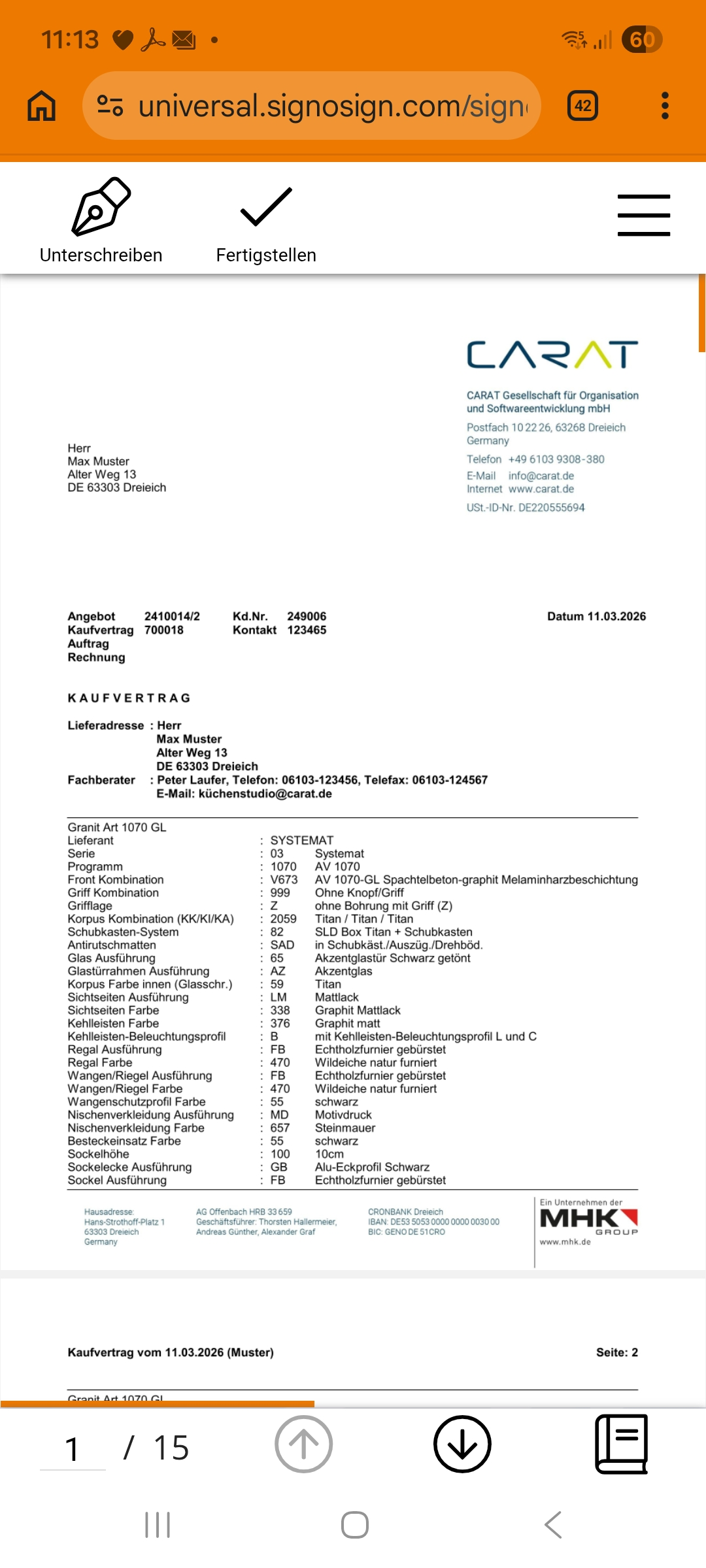
After opening the QR code link with a mobile phone or through e-mail, optionally entering a password and confirming a declaration of agreement, the customer can view the document.
-
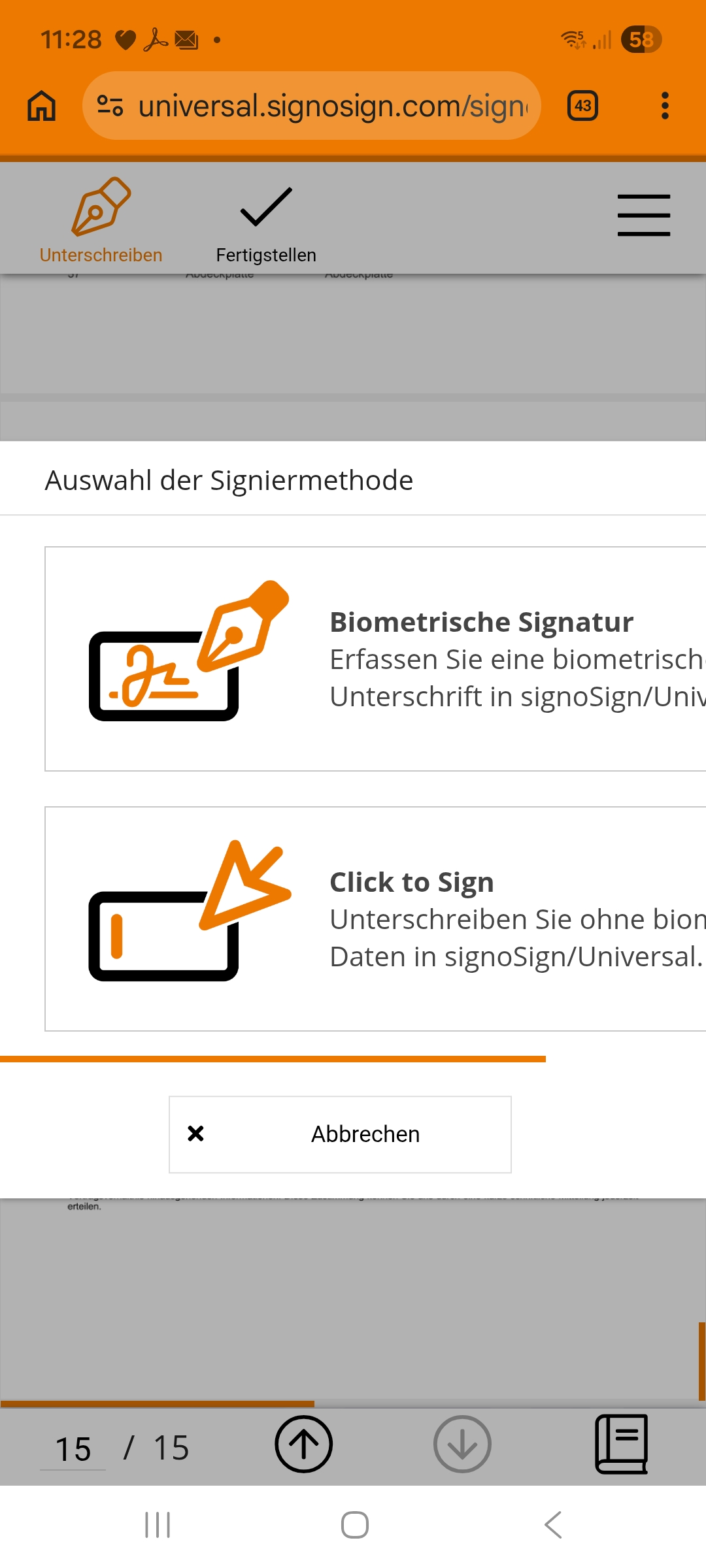
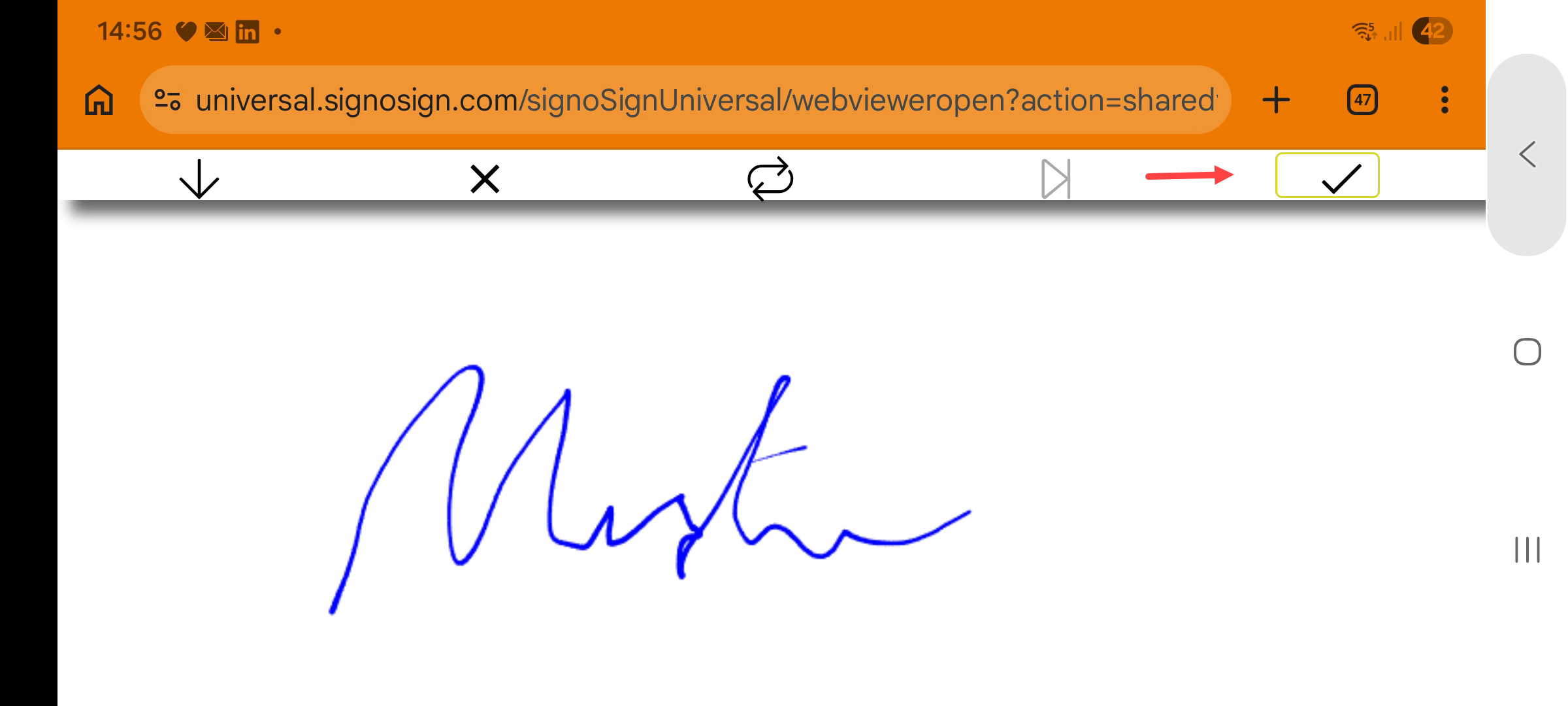
When clicking the icon Sign in the menu bar above the document, the selection of signature methods will appear again. After selecting the method and creating the electronic signature, click on the checkmark in the menu bar to return to the print preview with the added signature. For closure the customer can download Downloading is a term used in electronic data processing. To download means to acquire data from another location (e.g. network PC or Internet) and transfer this data to your own computer. the document with the contained electronic signatures and save it on his smartphone.
A signature pad can not be used in this case.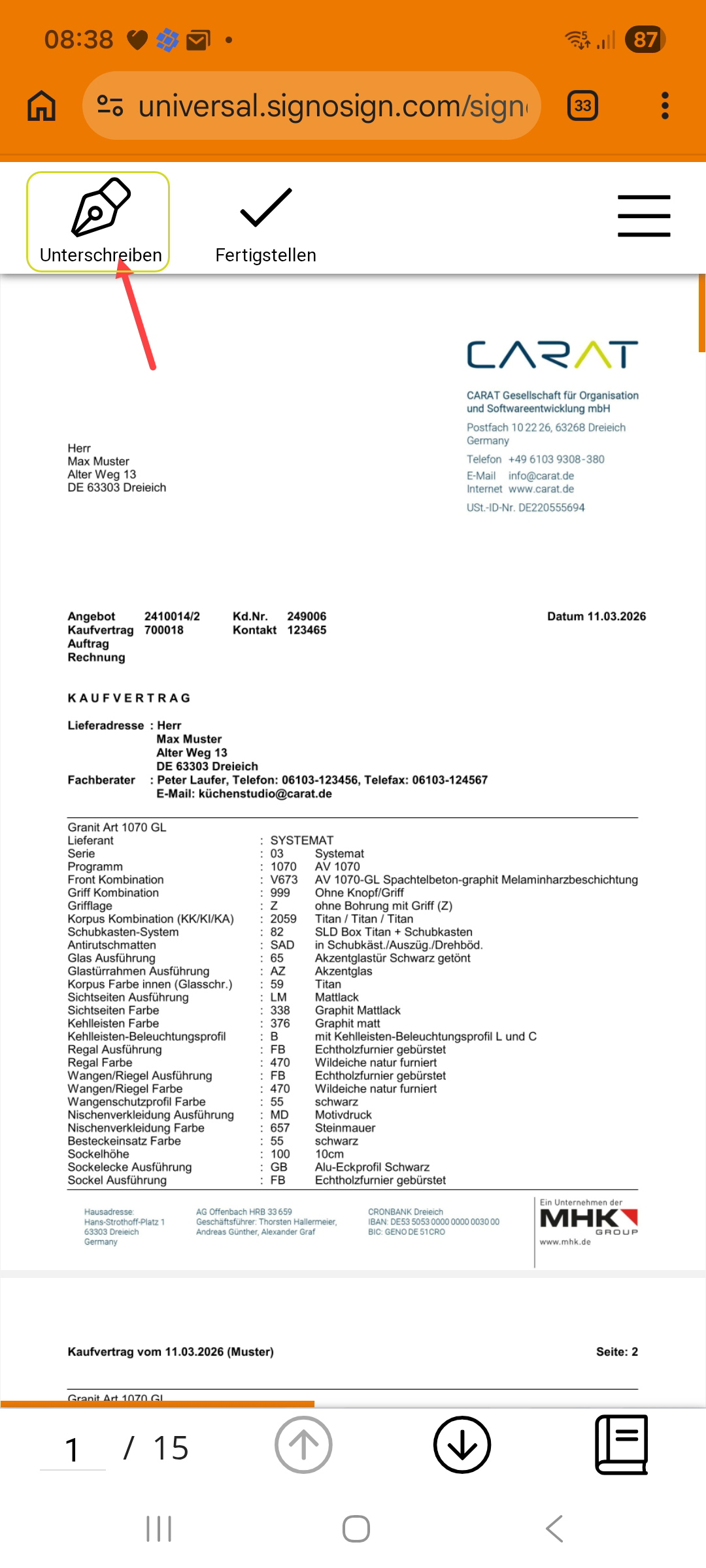
-
Afterwards, signotec will automatically send you an information by e-mail. The document signed by both parties can be downloaded from the signotec portal where you can login with your reseller-access.
Documents that have been signed on the customer's home computer or his smartphone will not appear in the commission overview but can be downloaded from the signotec portal.
How to add an e-signature to your commercial documents via batch print:
-
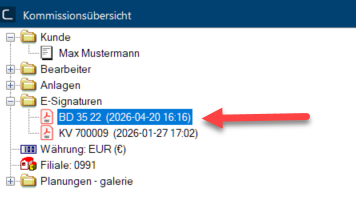
With the batch print Batch print in CARAT is the name for a special type of printing. By means of a batch print you can print several different documents one after another (sequentially) in one step. feature in CARAT you can combine and save multiple graphic and commercial documents altogether into one PDF file and share it with the customer. For the contained commercial documents you have the possibility to have the customer sign them electronically. The created PDF file will then be stored in the commission overview in the folder E-signatures including the signed commercial documents.
See also: Batch printing
-
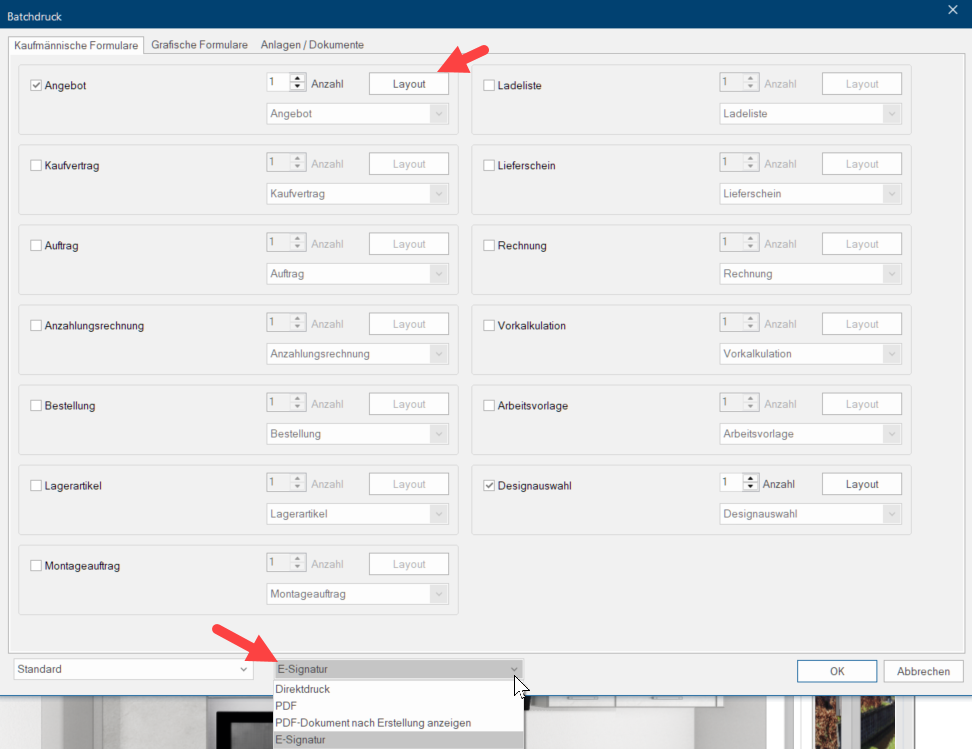
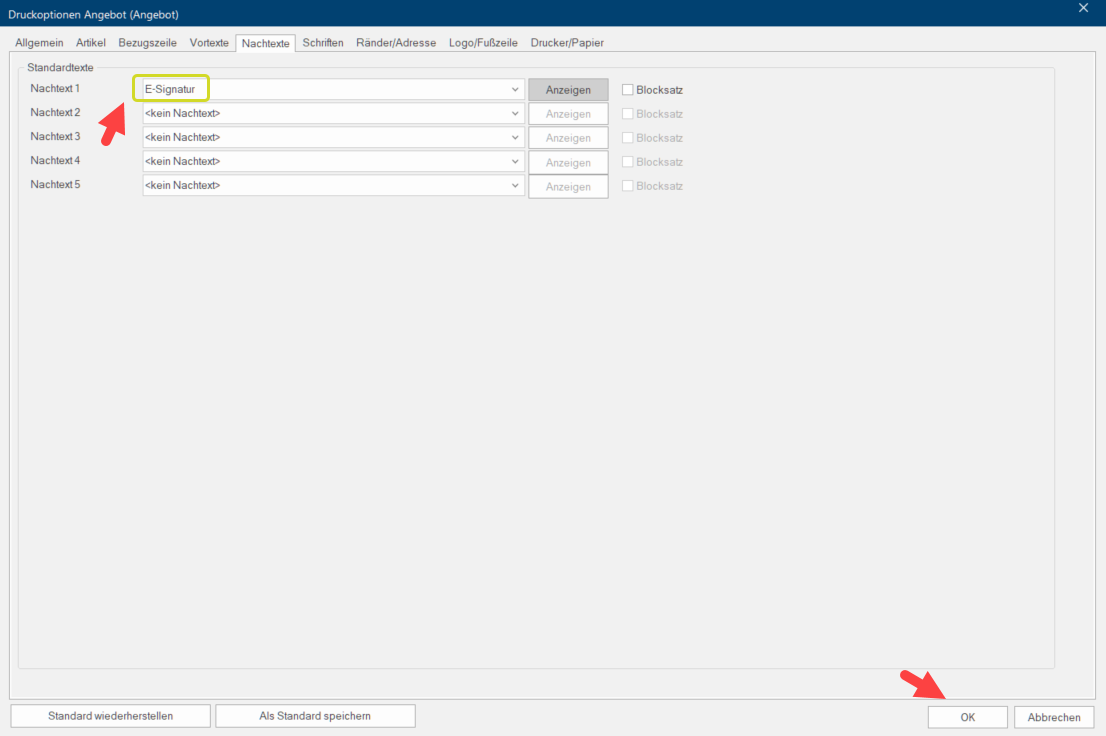
Open the batch print in CARAT and select the respective documents, select E-Signature as footer text in the layout and confirm with OK. Afterwards, select E-Signature from the drop-down menu and click OK.
-
Once you started printing, the document will open up in the signoSign dialogue and can be signed as described previously by you and your customer in your studio. Alternatively, you can sign the document electronically and share the document afterwards with the customer's smartphone or send it by e-mail for signature.
See also: How do you share the document to sign with the customer via smartphone or e-mail?
Documents that have been signed on the customer's home computer or his smartphone will not appear in the commission overview but can be downloaded from the signotec portal.
Where does CARAT store the documents with e-signature?
-
The documents are stored in the folder E-Signature in the commission overview.
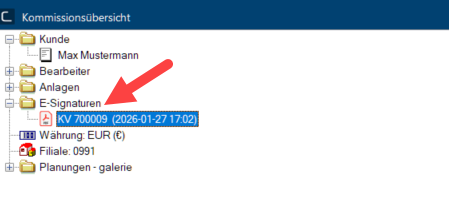 Documents that have been signed on the customer's home computer or his smartphone will not appear in the commission overview but can be downloaded from the signotec portal.
How to export the e-signature into a ERP interface:
-
If your ERP interface supports the feature e-signature, you can activate the feature Export e-signature in CARAT as follows: Go to System options, Interfaces area and in the settings of your ERP interface, in the category Export comm. documents as PDF activate the feature Export e-signatures.
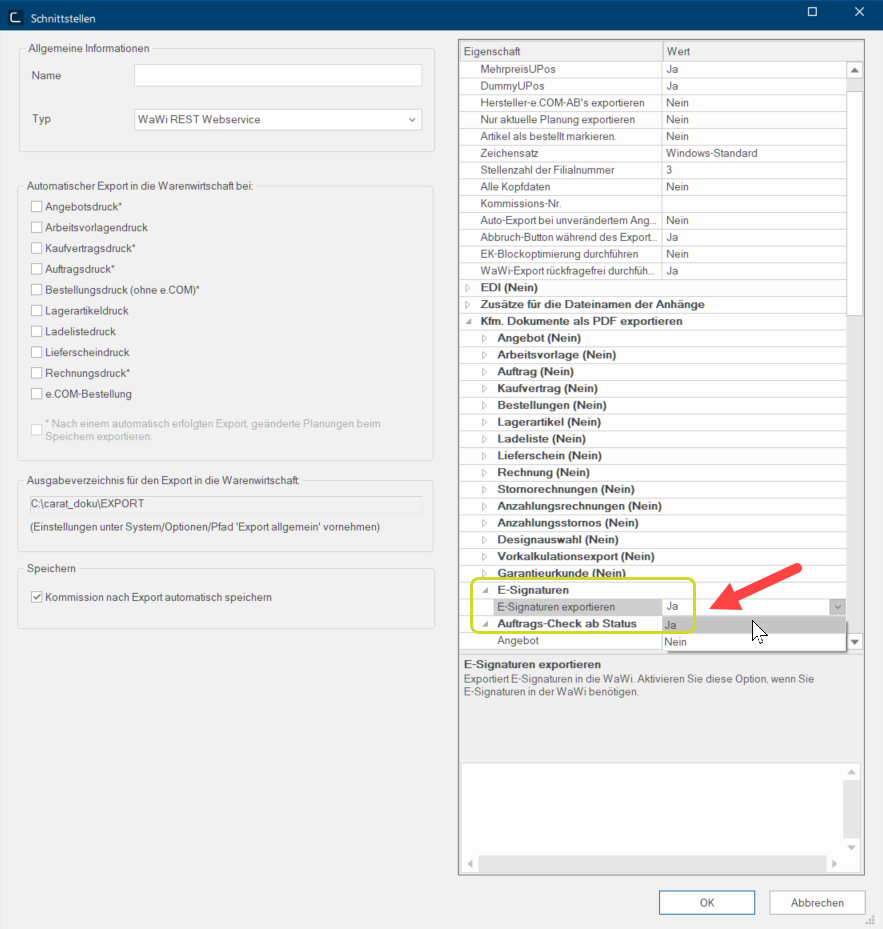 Documents that have been signed by the customer on his home PC or his smartphone can not be exported from CARAT to the ERP interface.


