Batch Print / Batch Mail
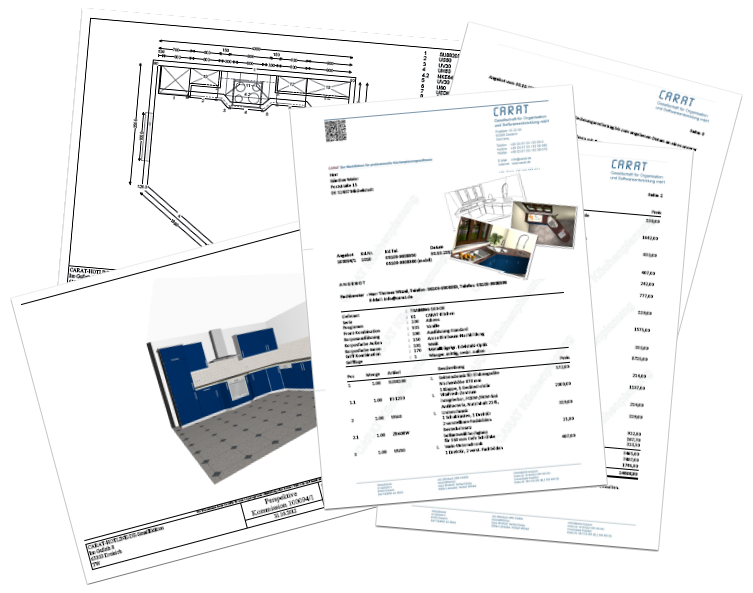
With the batch print Batch print in CARAT is the name for a special type of printing. By means of a batch print you can print several different documents one after another (sequentially) in one step. function you can select multiple commercial and graphic forms to print directly in one operation, or use it to create in an easy way a multi-page PDF The Adobe Portable Document Format (PDF) was developed and perfected in the 80's by Adobe Systems. Adobe PDF files contain data from any application, that can be displayed on every computer, and are suitable thereby to be exchanged with users throughout the world. document. Via the additional Addition (in Latin: addere) is one of four basic operations in arithmetic. In primary school and in common language it is the expression used for the adding of two or more numbers. Batch Mail function you have furthermore the possibility to create an e-mail E-mail (electronic mail) is a letter like message transmitted electronically over a computer network. directly from CARAT.
Using batch print or batch mail becomes especially interesting in connection with a batch print profile, which you can create yourself. Thus, using a custom batch print profile for the individual steps in your order processing, for example for the quotation proposal, order issuance, up to delivery and billing, you are able to specify which documents in what quantity and in which layout should be printed.
Via a batch print profile for a quotation you can for example define that always the commercial quotation, the floor plan as well as a perspective should be included. A further profile for an order can then also include the installation and tiling plans. Especially if you want to print out several different documents right after one another, or create a multi-page PDF document for e-mail dispatch, it would be much too complex to select the necessary documents every time anew for printing. With a batch print profile this can naturally be accomplished much more quickly and easily. See also: Print-Layout
 Calling up the batch print or batch mail function via the area file
When a commission is open, the Batch print or Batch mail functions are always available via the File area. You can open the File area via the menu ribbon. See also: The index card - File
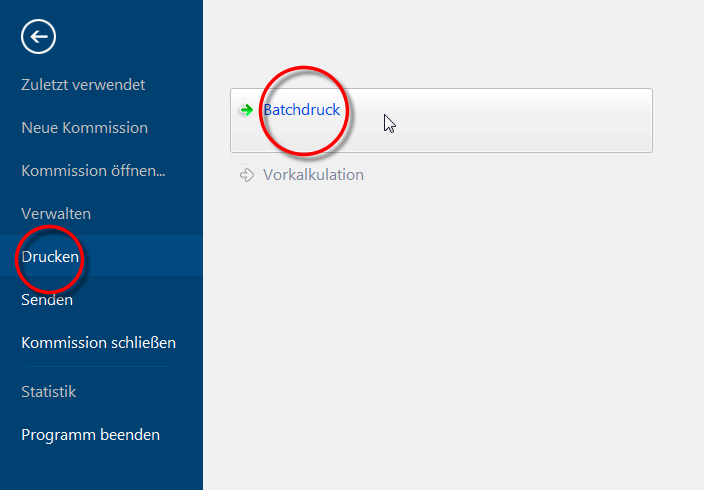
- Batch print: Select the batch print in the File area via the Print topic, if you want to print several graphical or commercial forms at once on a printer or if you want to create them as a multi page PDF.
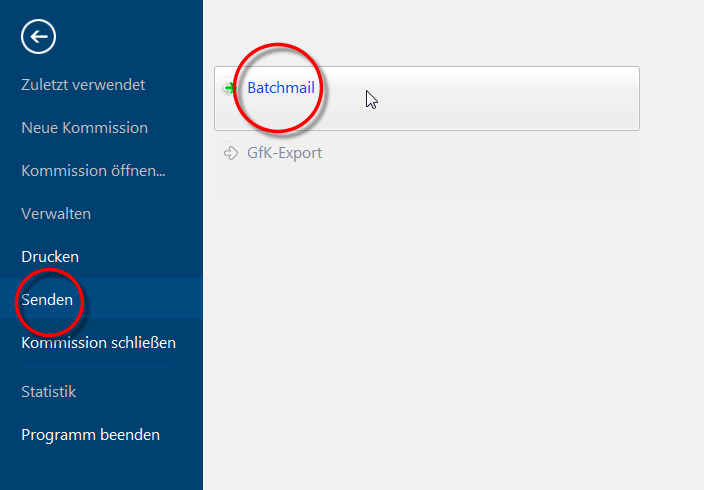
- Batch mail: Select the batch mail in the File area via the Send topic if you want to send several graphical or commercial forms at once as a multi page PDF directly per e-mail.
The batch print/batch mail dialogue
- As soon as you have selected the function, the corresponding Batch print or Batch mail dialogue Dialogue, dialogue windows or dialogue fields are special windows in software applications. Dialogue windows are displayed by application programs in different situations to request input or confirmation from the user.. The dialogue is divided into three index cards Some dialogue windows are too voluminous, therefore the functions are separated into indexed groups. The subgroup names typically appear on the tab of the index card at the top of the dialogue and can be selected by clicking on the appropriate tab.. You can define via this dialogue which documents you want to print in an one step process or want to create together as one single PDF-document.
See also: E-invoice
See also: GoBD adjustments
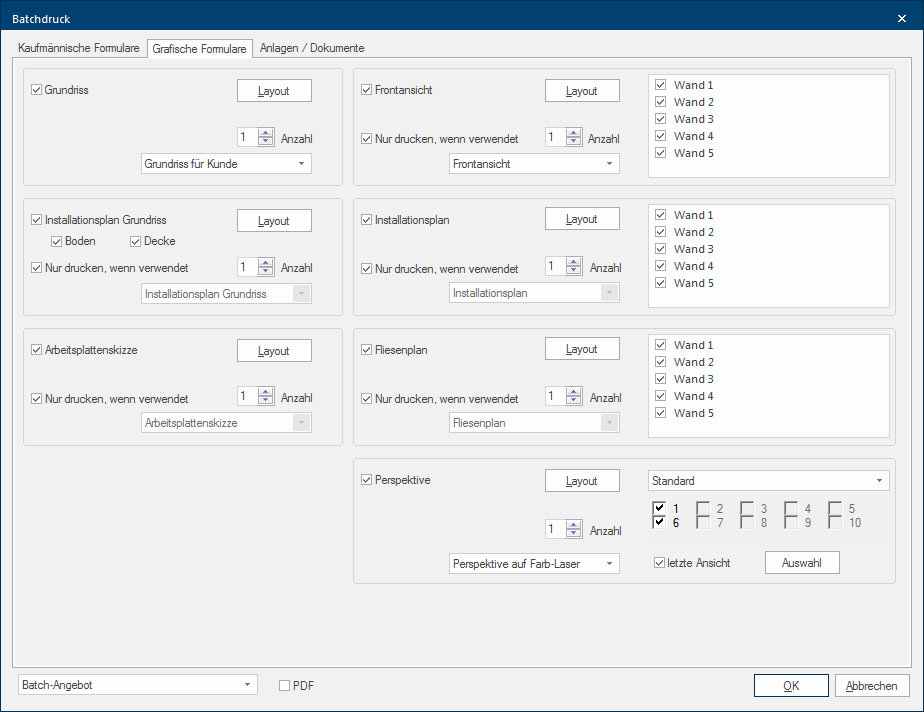
- The first two index cards contain all commercial and graphical forms, that you can create out of CARAT.
- For the graphical forms front view, installation plan and tiling plan, you can also make a manual selection of wall views via the selection list. The number of displayed wall numbers can vary per plan, as only the actual planned walls are displayed of course.
- When module 3C has been activated for you, you can issue up to 10 saved perspectives. If you are not sure which of the saved perspectives belong to the numbers displayed, you can click Typically the LEFT mouse button is pressed once quickly, if not specified differently. Clicking will either mark an object, or when clicking on a button, the execution of the desired activity (e.g. OK, Cancel, Close). the Selection button In dialogue windows you always find one or more buttons that can be activated by clicking on them. Typical functions for buttons are e.g. OK, Cancel, Apply. Buttons are always activated by a single click with the left mouse button. to display the stored camera positions. See also: The Camera Position
- Since a print preview can not be displayed for each individual form during printing or creation, you should make sure that you have already pre-set the layout settings for all forms properly. See also: The Print Preview
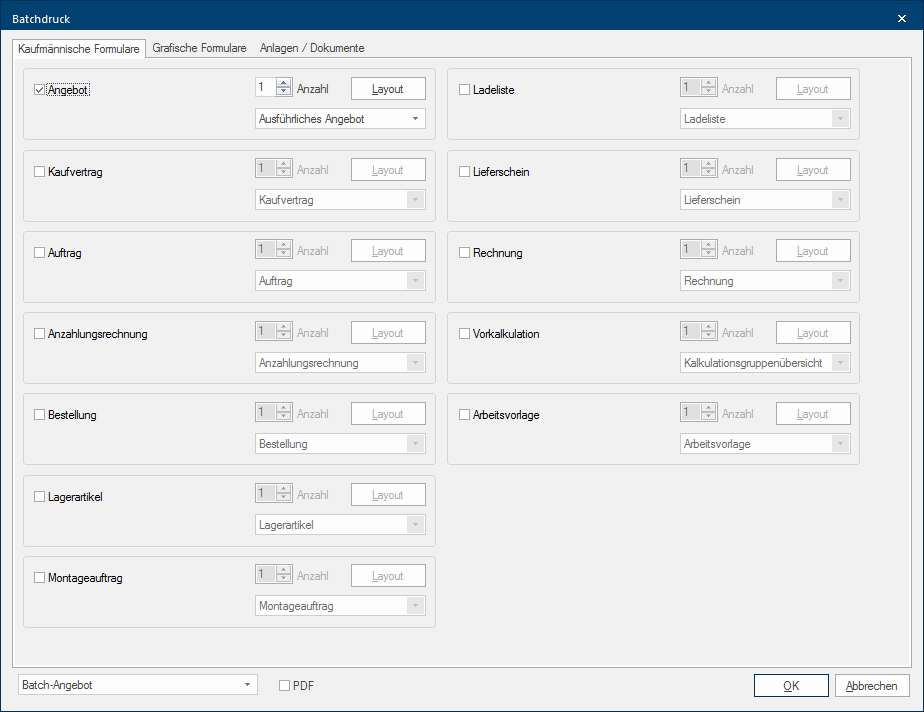
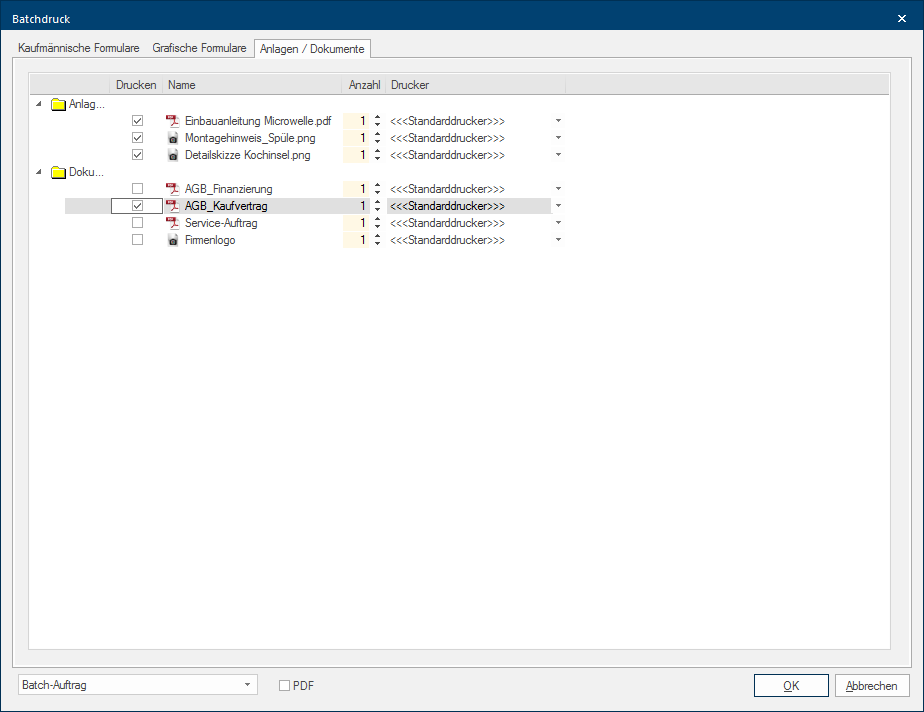
- Via the third index card you have access to all documents that are located in the document administration, as well as to all files that are already saved as attachments in the commission. See also: The Commission Overview
- Whenever you want to run a batch print or batch mail, you can manually select the necessary forms, and make all settings for the different forms in the process. Clearly more comfortable however, is using this function if you have previously created several batch print profiles for your various cases and you afterwards only have to select the desired profile using the list box If several options are provides for one function provides, are these often shown in a list. Please click on the little black triangle in the right margin to select the desired option. at the lower edge of the dialogue.
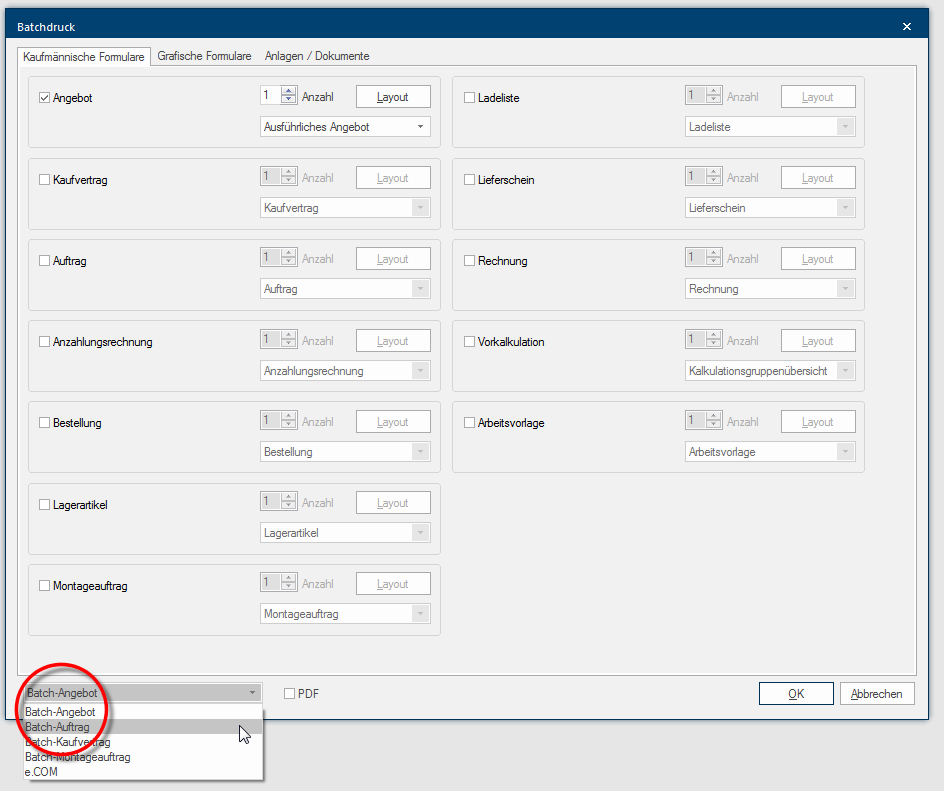
- After you have selected the desired batch print profile, all settings are automatically set adequately on the index cards for the commercial and graphical forms.
- You can start the batch print or create the batch mail by clicking once on the OK button.
Calling up a batch print profile directly from the planning
If necessary you can also call up a batch print profile directly via the context menu In almost all Windows programs a click with the RIGHT mouse button opens a context menu containing a list of commands that are commonly the next step of a procedure. of the parts list or via the quick access toolbar.
Parts list
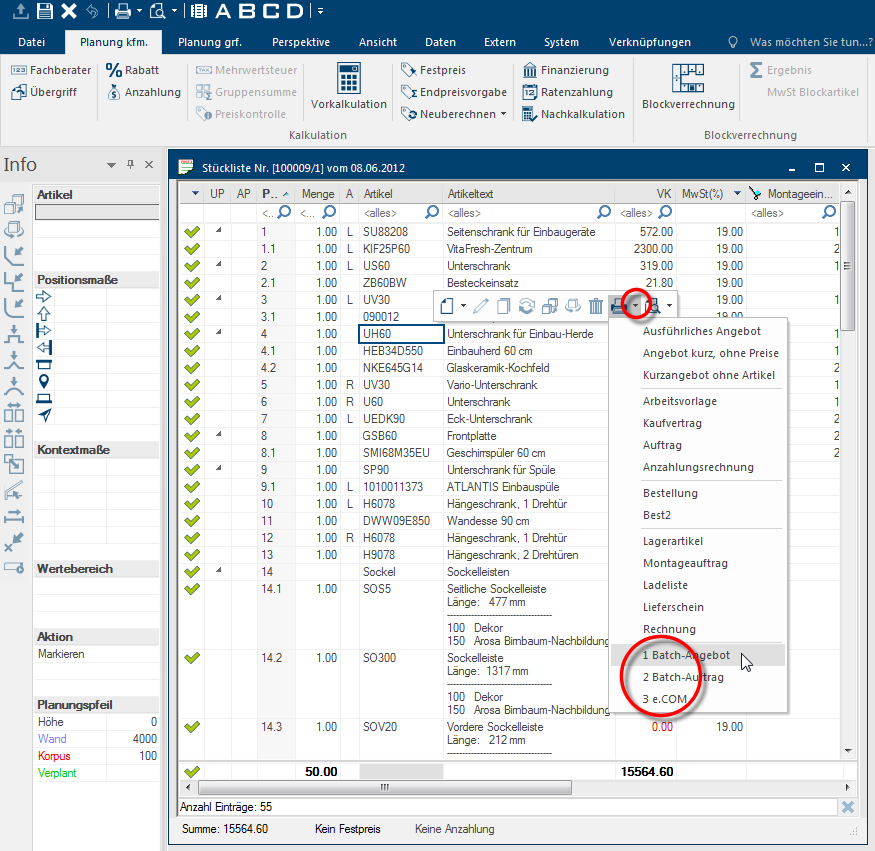
- Click with the right mouse button in the parts list, to open the context menu.
- Click subsequently on the small triangle to the right of the Print symbol to view the forms that are possible.
- The available batch print profiles are listed, numbered consecutively, underneath the individual forms.
- The Batch print dialogue will open as soon as you select a batch print profile, and all forms corresponding the profile are selected automatically.
Quick access
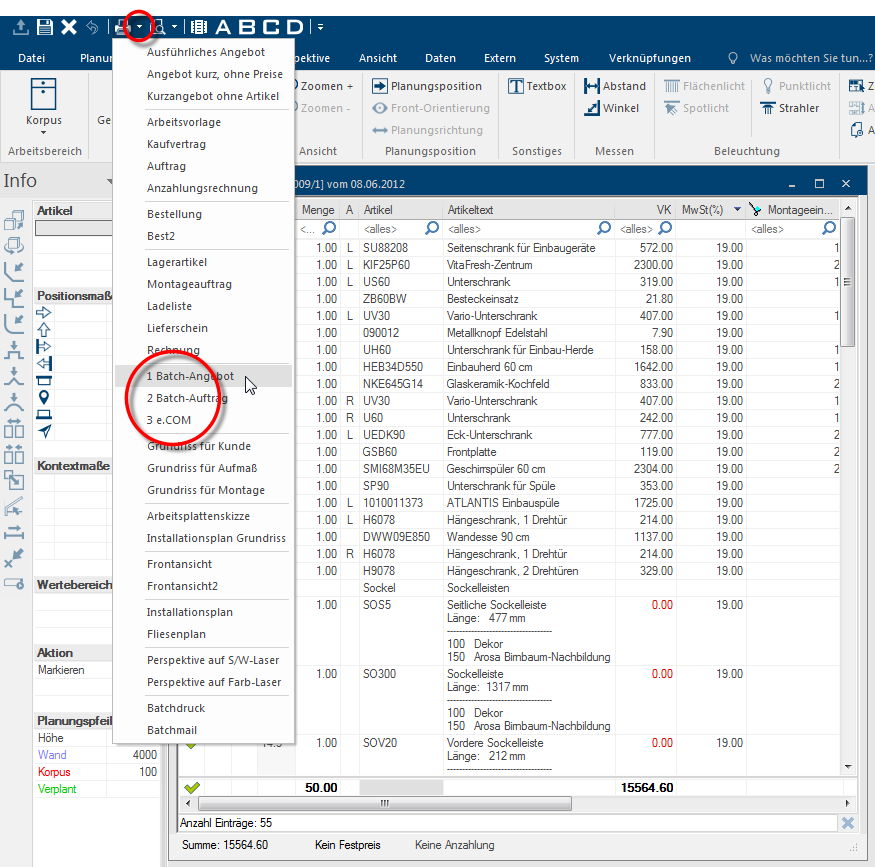
- Click in the quick access bar on the small triangle to the right of the Print symbol to view the forms that are possible.
- The available batch print profiles are listed, numbered consecutively, underneath the commercial forms.
- The Batch print dialogue will open as soon as you select a batch print profile, and all forms corresponding the profile are selected automatically.
This is how you create a multi-page PDF document using the batch print
As an alternative, with the batch print function you can also convert the desired forms in a PDF, so you can save the forms in an autonomous format The format or formatting (Latin, forma) is designated in word processing as the design of the text document. In this case meaning the selection of character fonts and character style such as bold or italics., for example for archiving.
- Advantages of a PDF
- A PDF has a small file size.
- A PDF can be opened on different devices. See also: Adobe Acrobat Reader DC
- A PDF created with CARAT can not be changed by the recipient.
You can create a PDF document from the selected forms using the PDF option The word option (from Latin: optio = free will) used in computing means a choice. In CARAT it is normally used with a list box. at the lower border of the Batch print dialogue. If you additionally activate the Show PDF Document after creation option, the PDF will be shown for control purposes after it is saved. A precondition for this is of course, that you have installed a program with which you can view PDF's on your computer. See also: Adobe Acrobat Reader DC
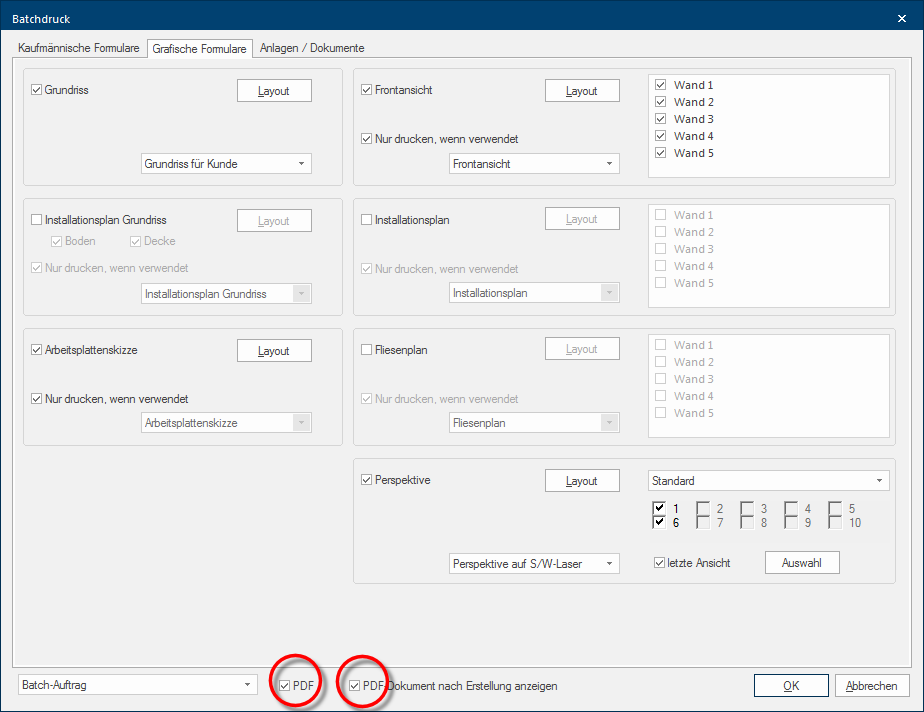
- Click on the OK button to subsequently create the selected forms as PDF.
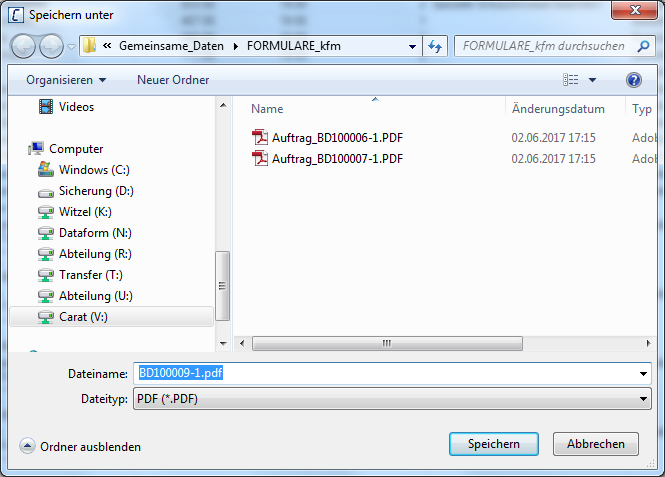
- Now the Save in dialogue will open. Here, you can set a save location and a file name of your choice.
- Click on the Save button, to create the final PDF-file.
- As example: A Quotation as PDF
This is how you create an e-mail via the function batch mail
- First call up the function Batch mail from the area File and the category Send, as described further above.
- Then selected the desired forms manually or use for this also a batch print profile.
- Then click on the OK button.
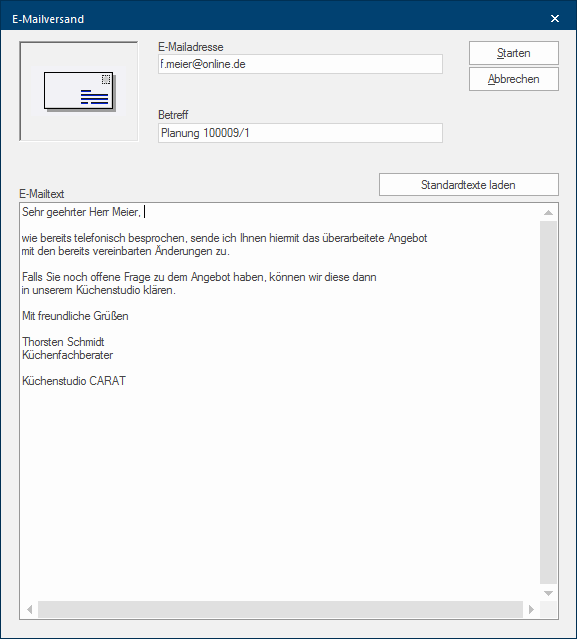
- Shortly thereafter the E-mail dispatch dialogue will appear. In case you have stored an e-mail address in the customer data, this e-mail address will be pre-allocated. The automatically created reference can be changed or supplemented by you, if necessary. Furthermore can you enter an e-mail text in the bottom range.
- You have additionally the possibility to apply a text module in the text range via the button Load standard text. As soon as you click on the Start button, the e-mail will be created and according the settings in the system option either passed on to you e-mail program for dispatch, or send directly. See also: E-mail