The Sidebars
When starting CARAT, the area of operation - the so-called docking sidebars - will be shown. You can select from sidebars for Info, Planning Values, Gallery, Front Modification, Graphic Effects, Notifications and Check Results.
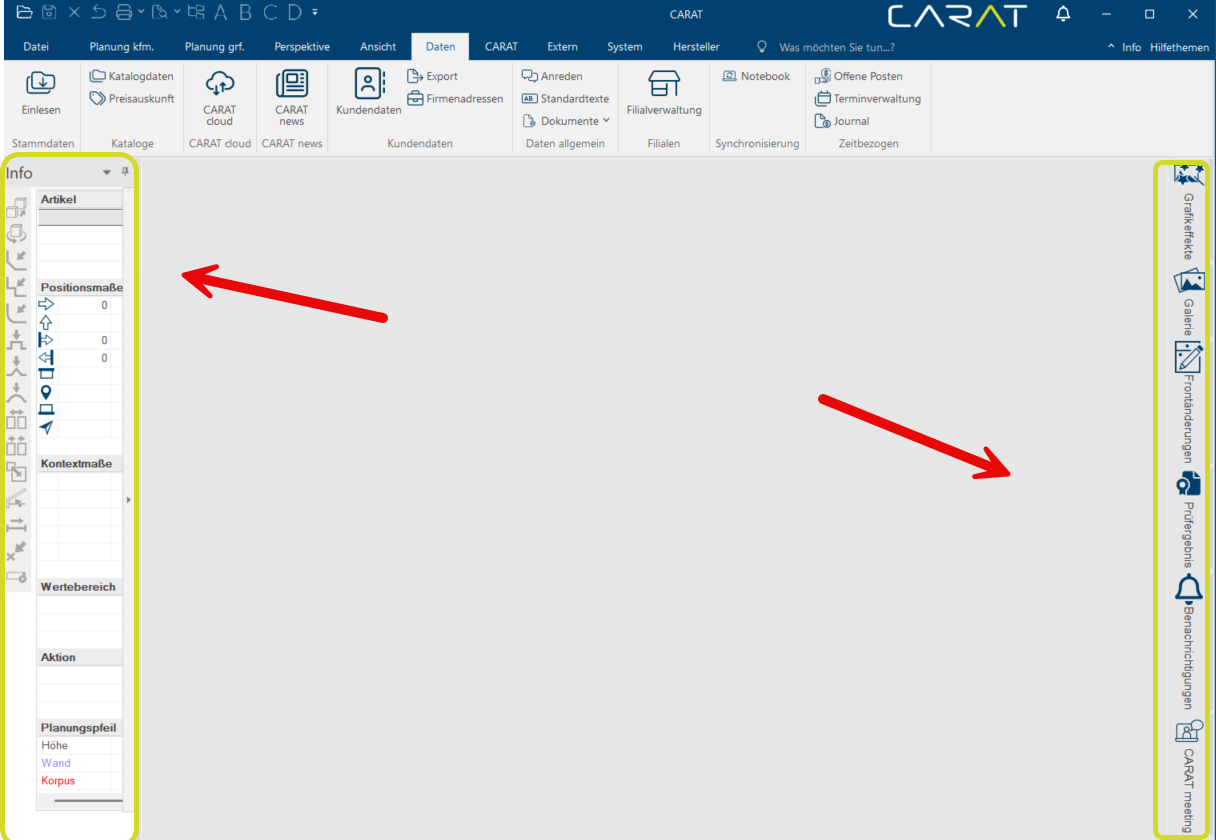
The sidebars contain various control elements and give you additional Addition (in Latin: addere) is one of four basic operations in arithmetic. In primary school and in common language it is the expression used for the adding of two or more numbers. information. In addition you quickly and easily adjust size and position of the docking sidebars according to your needs. Alternatively, you can completely hide the sidebars on the menu bar in the View tab. To do so, open the drop-down menu of the group Sidebars and click Typically the LEFT mouse button is pressed once quickly, if not specified differently. Clicking will either mark an object, or when clicking on a button, the execution of the desired activity (e.g. OK, Cancel, Close). on the unwanted sidebars.
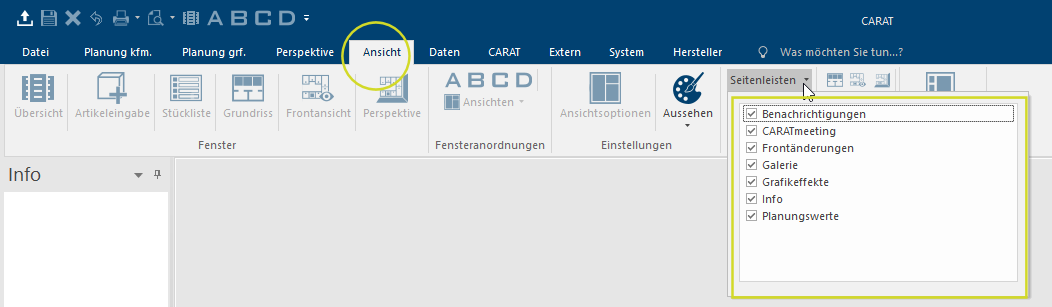
1. The sidebar Check Results can not be hidden using the View tab.
2. You can not use your preset keyboard shortcuts to execute functions with these sidebars.
 The special functions of the sidebars
Show sidebars expanded or collapsed.
The special functions of the sidebars
Show sidebars expanded or collapsed.
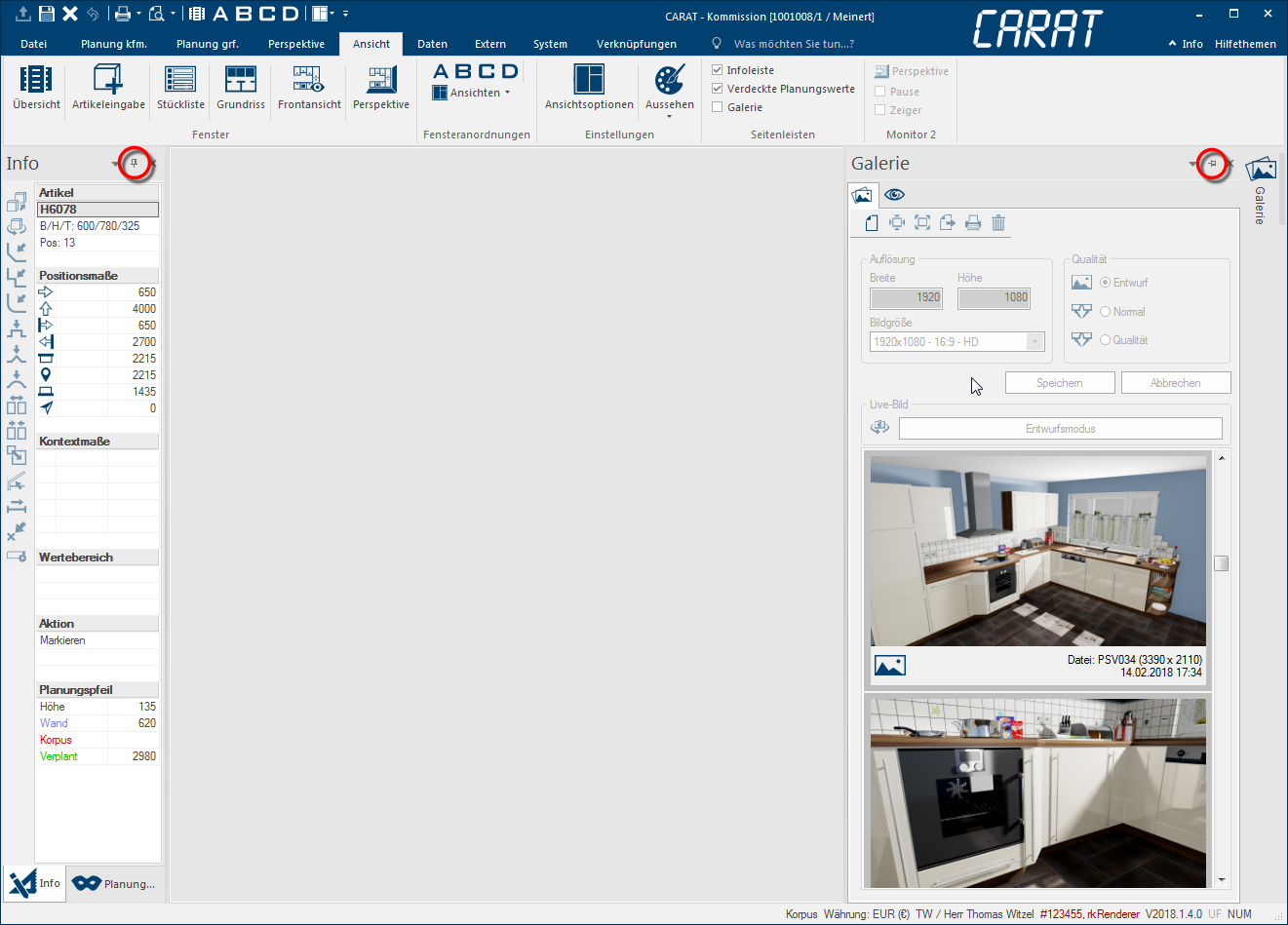
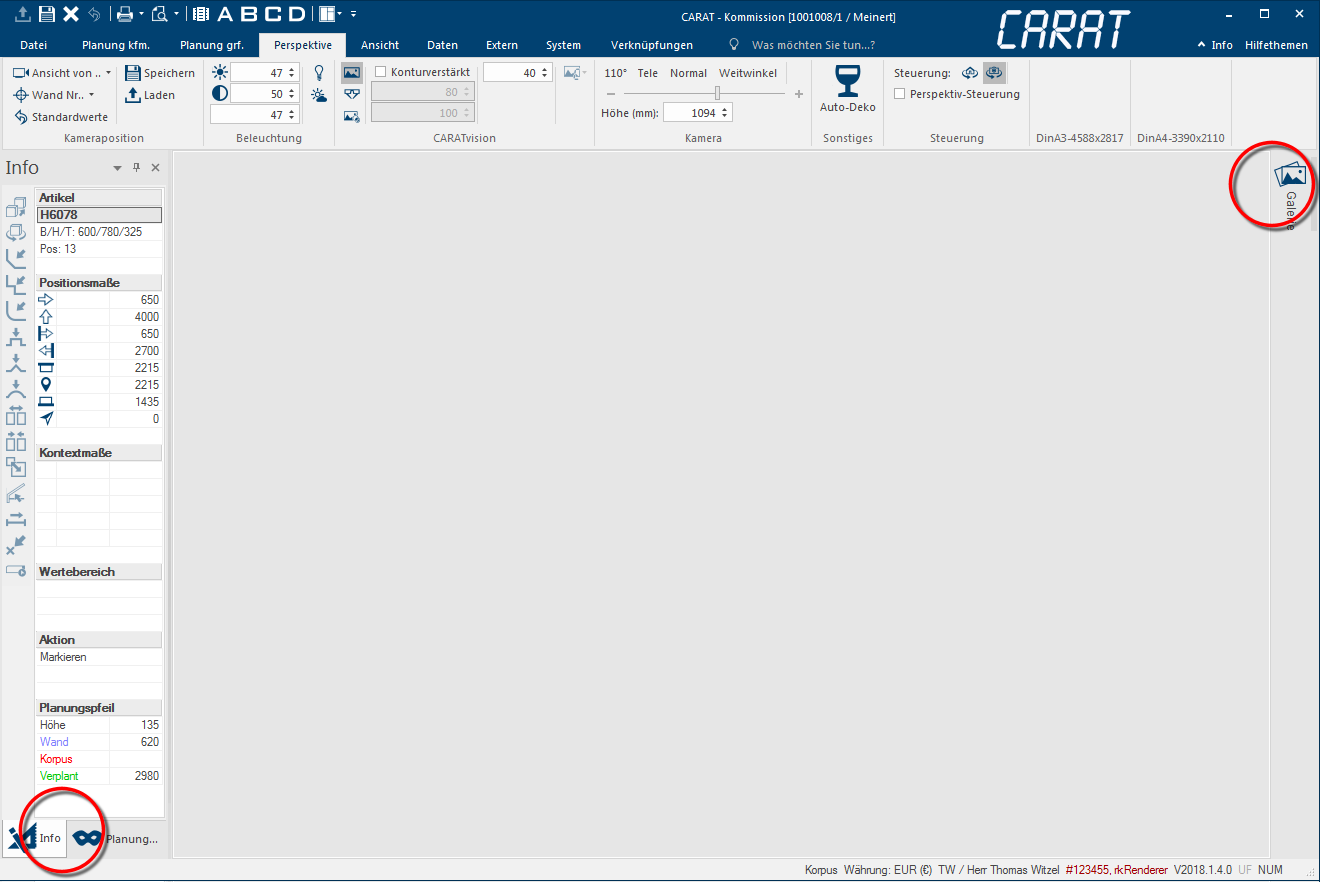
As you can learn from the description of sidebars, the sidebar can be displayed in two conditions: permanently collapsed or expanded. You could also call the expanded condition as docked, which is shown by the vertical pin symbol. Please click in the sidebar one time on the Pin symbol if you do not want a sidebars to be docked, meaning do not want to show it permanently. The alignment of the pin changes thereby, and shows thus if the sidebar stay's expanded or will collapse automatically.
- Pin vertically = The sidebar is docked and will be shown permanently.
- Pin horizontally = The sidebar will collapse automatically when the mouse pointer moves out of the area.
Hide or show sidebars
If you no longer need a sidebar, you can hide that sidebar permanently by using the x next to the pin symbol. You can show a hidden sidebar again by putting a checkmark for the respective sidebar in the Sidebars area on the View tab The check mark in a checkbox A checkbox is a standard element in a graphic user interface. A checkbox has, in most cases, two states (set or not set). These usually correspond to a yes/no selection. shows that the respective sidebar will be shown expanded, in other words docked. Sidebars that are not labelled with a checkmark are either hidden or are currently only shown collapsed.
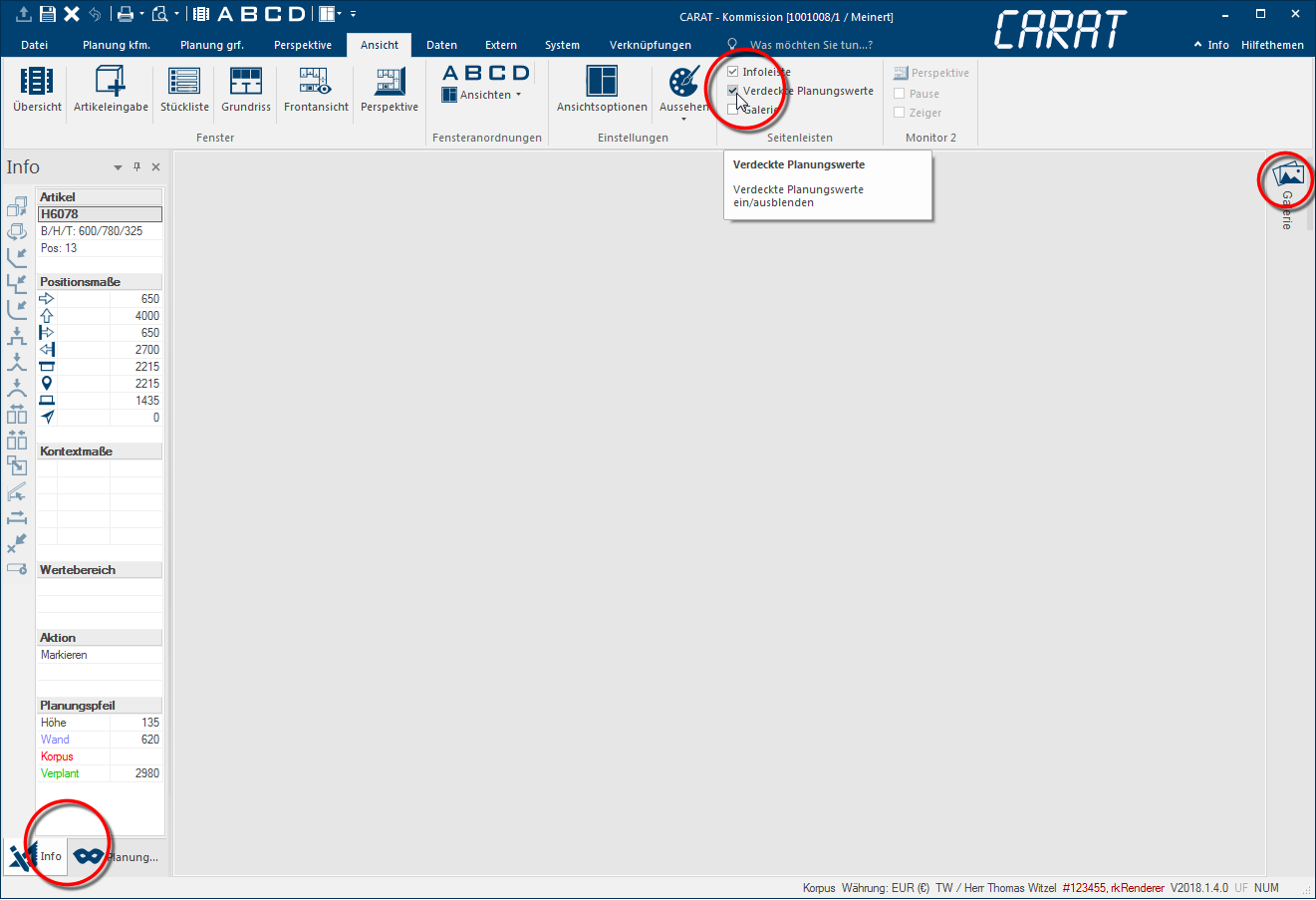
Re-position sidebars.
The position of the sidebars is not fixed and can therefore be changed if desired. The sidebar first has to be in an expanded condition before it can be re-positioned. Following, you can select the command Floating via the small triangle in the sidebar.
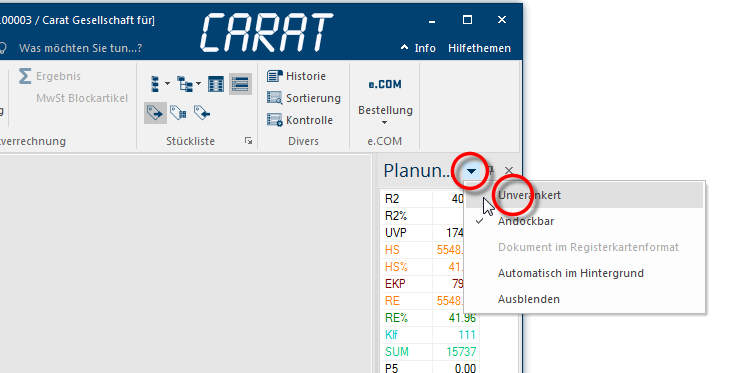
Now, the sidebar floats above the program windows like a dialogue Dialogue, dialogue windows or dialogue fields are special windows in software applications. Dialogue windows are displayed by application programs in different situations to request input or confirmation from the user.. You can move the sidebar by clicking and holding the left mouse button In dialogue windows you always find one or more buttons that can be activated by clicking on them. Typical functions for buttons are e.g. OK, Cancel, Apply. Buttons are always activated by a single click with the left mouse button. on the title bar. During the movement, additional positions where the sidebar can be docked again, will be shown.
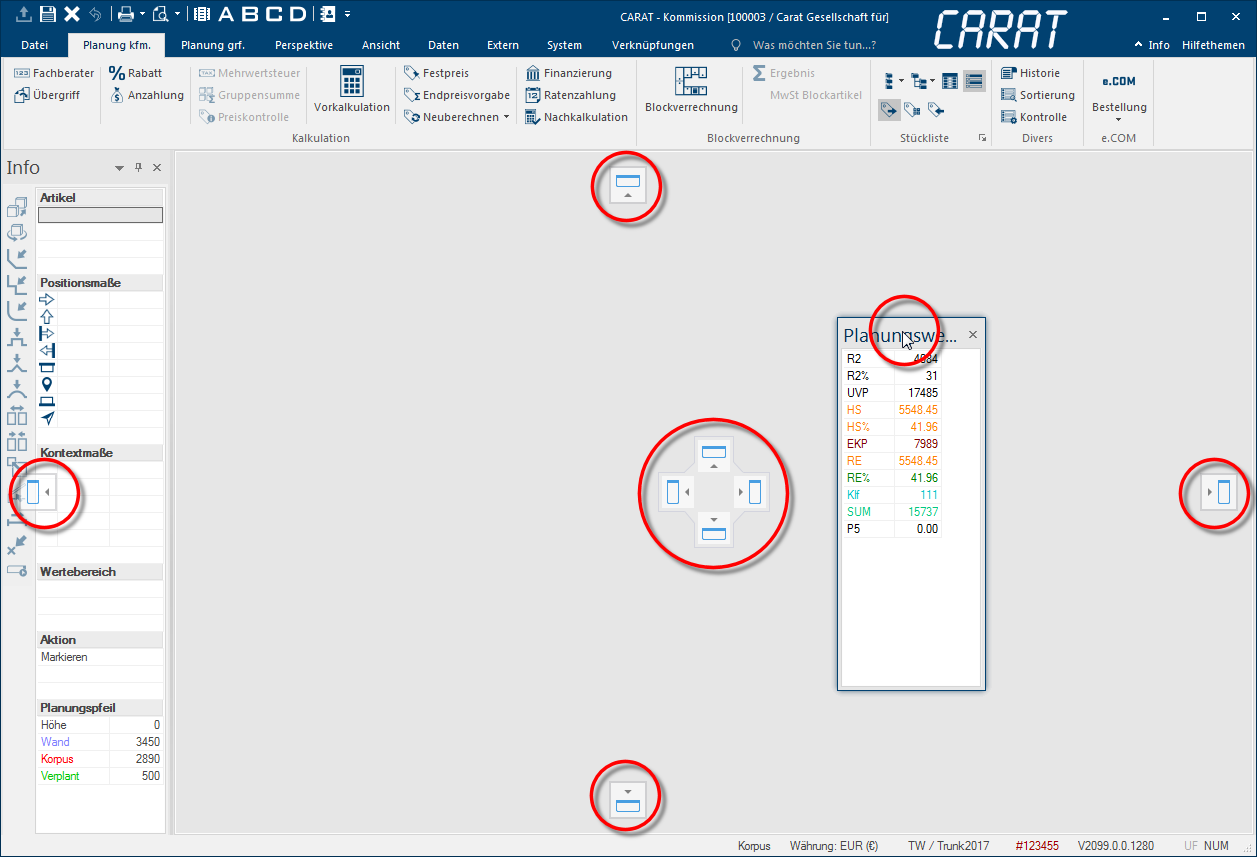
If you, for example, move the mouse pointer to the position at the far right of the program window Programs and files are shown in so called windows in the operating system of the same name. In CARAT each view (e.g. floor plan, article input, front view, perspective etc.) opens its own window. Multiple windows can be shown simultaneously for processing. If changes are made in one of these windows, this has an automatic effect on all other windows., you will see the area where the sidebar can be docked again after releasing the mouse button. If you move the current sidebar over the left sidebar you will be offered more docking positions there. Thus, you can also place the sidebars directly next to each other or overlapping.
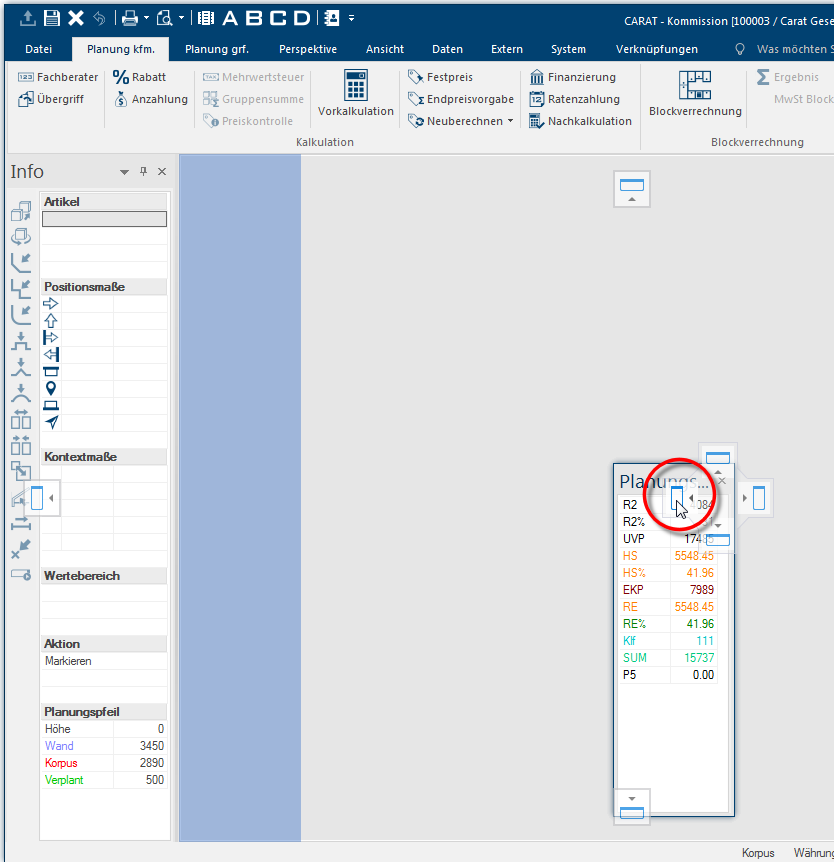
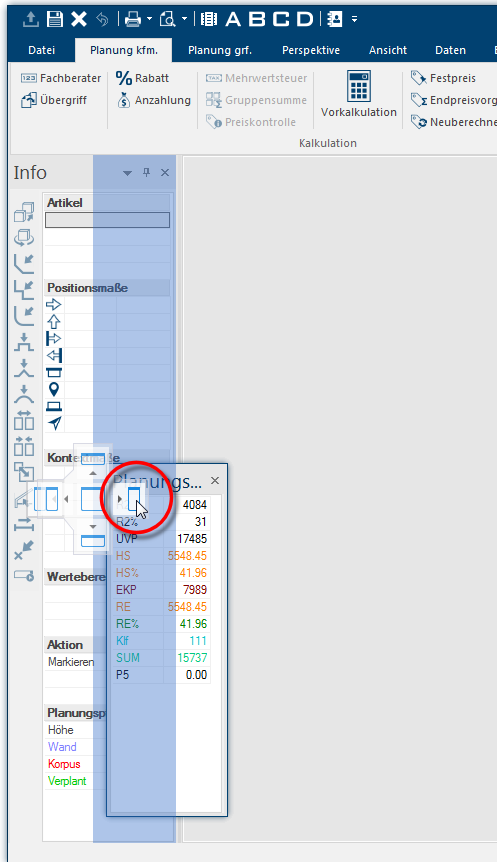
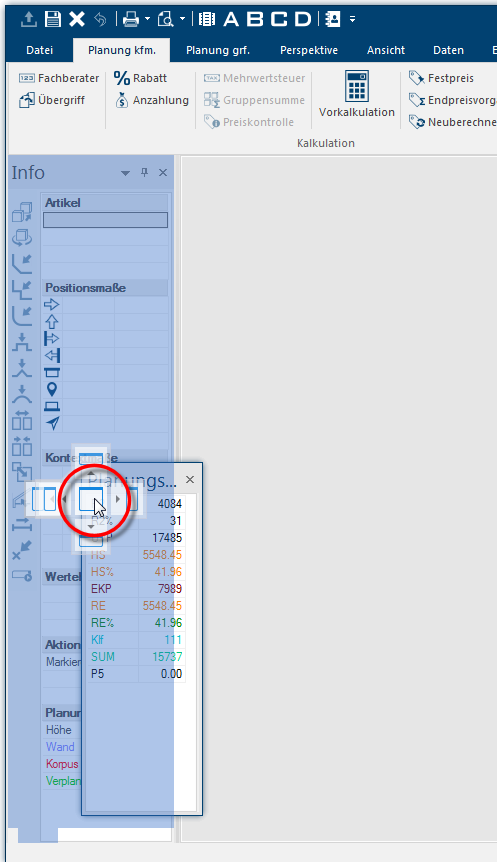
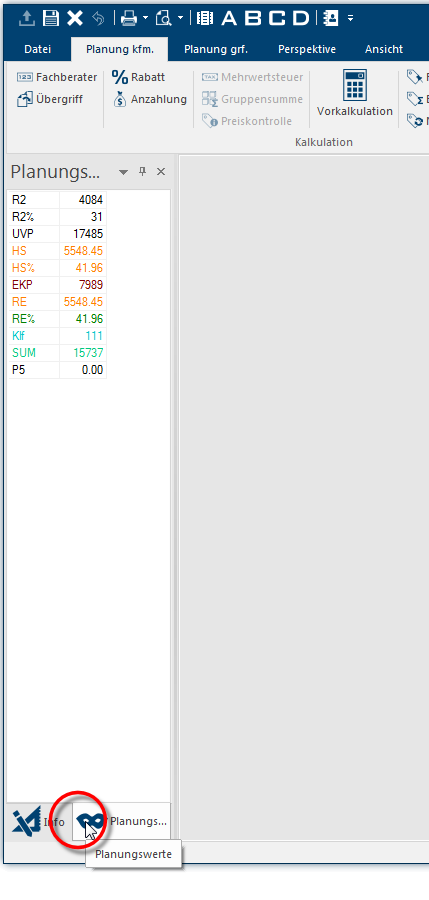
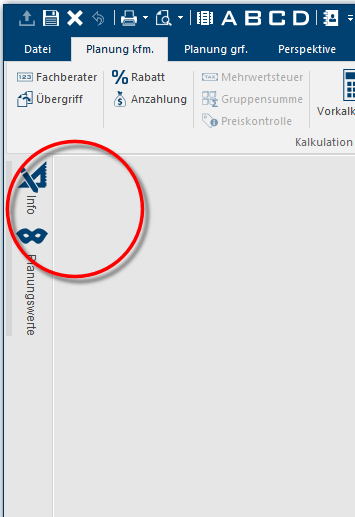
If you pick the third alternative as described before, the sidebars are now overlapping. You then have the possibility to switch between both sidebars by using the tabs at the bottom of the sidebar. In this case you can of course also permanently collapse the sidebars again by using the pin symbol to get a very compact arrangement of the sidebars.
The Sidebar - Info

On the sidebar Info you always find all information necessary for the graphical editing. This sidebar is set by default to always show expanded, so that you have all needed info at hand at any time during planning. In addition, this sidebar holds alle the tools that are frequently needed during a planning. Please also note that only those tools are activated which are available for the current work step of your planning.
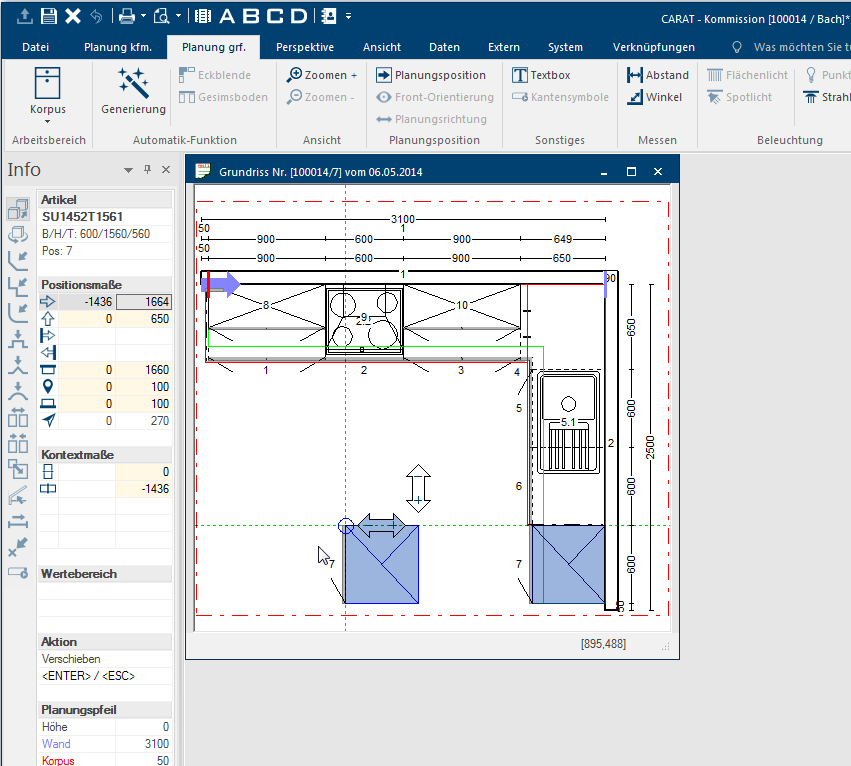
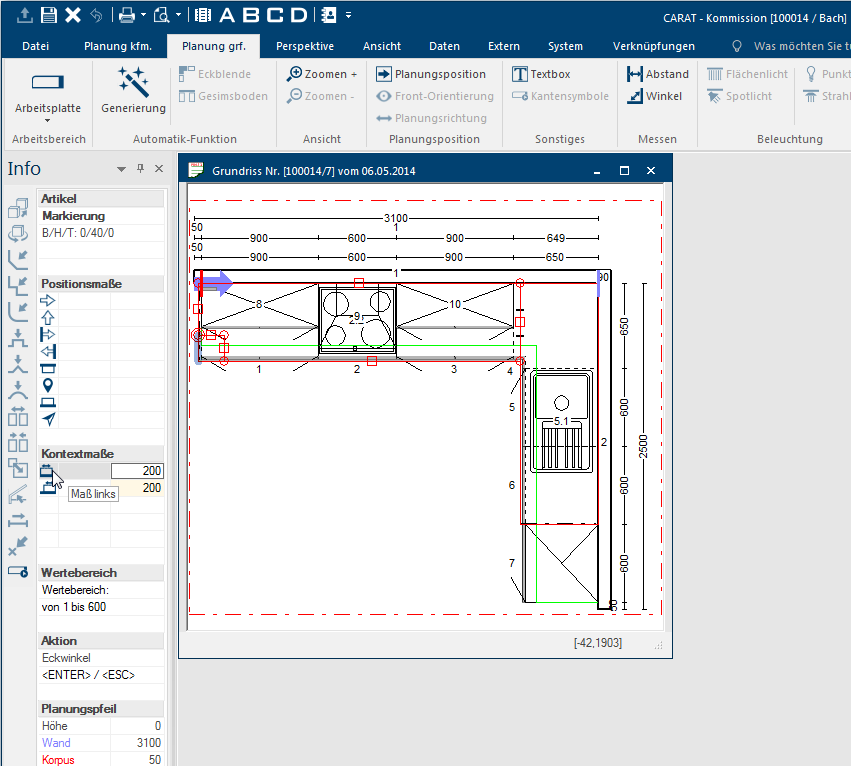
The info bar is subdivided into several areas.
- All tools are shown in form of symbols on the left margin. A short explanation of the respective symbol will appear when holding the mouse cursor over the symbol.
- A table, divided in several areas, is placed to the right of the symbols.
- Information about the marked article is shown in the Item area.
- All measurement information of the marked article is displayed in the Position measurements area. This area contains two columns with input fields, that are released for input as soon as a corresponding function is selected from the standard toolbar. Relative input, such as how much an article should be moved, can be entered in the left column. Absolute measures, such as where exactly in the room the article should be placed, can be entered in the right column.
- After opening special editing functions from the standard toolbar, the input fields for editing articles are displayed in the Context measurements area. These input options The word option (from Latin: optio = free will) used in computing means a choice. In CARAT it is normally used with a list box. are always dependent on the selected article and the editing function, thus from the respective context.
- Information about required minimum or maximum values is displayed in the Value range area, dependent on which input fields are shown in the context measurements.
- The Action area shows which actions are currently in process or which actions would be possible at that moment.
- Reference data about the position of the planning arrow is displayed in the Planning arrow area.
The sidebar - Planning value

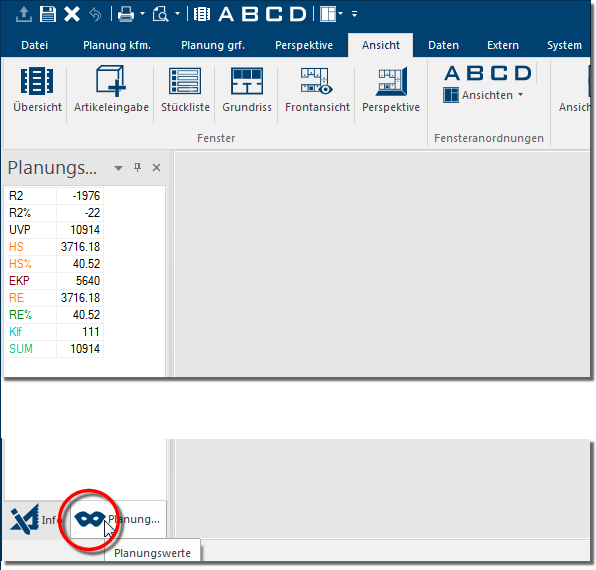
The sidebar Planning values displays the most relevant commercial information for your planning. These values are usually necessary for an optimal pricing. As these values are sensitive this sidebar is pre-set by default for a collapsed display. Provided that you have configured A configuration designates the specific program settings or hardware components in a computer. the blind planning values via the system options. See also: Blind Planning Values
The planning values sidebar is positioned underneath the info sidebar. If you need to switch quickly between the Info side bar or the Planning values, you can simply click on the related tab in the lower area of the sidebar.
The sidebar - Graphic effects

In order to be able to create an even more interesting kitchen design there are now several focus, light and colour effects available in the Graphic effects sidebar of CARAT.
In order to start editing the graphic effects, open the perspective view of your planning an expand the sidebar Graphic effects.
CARAT art
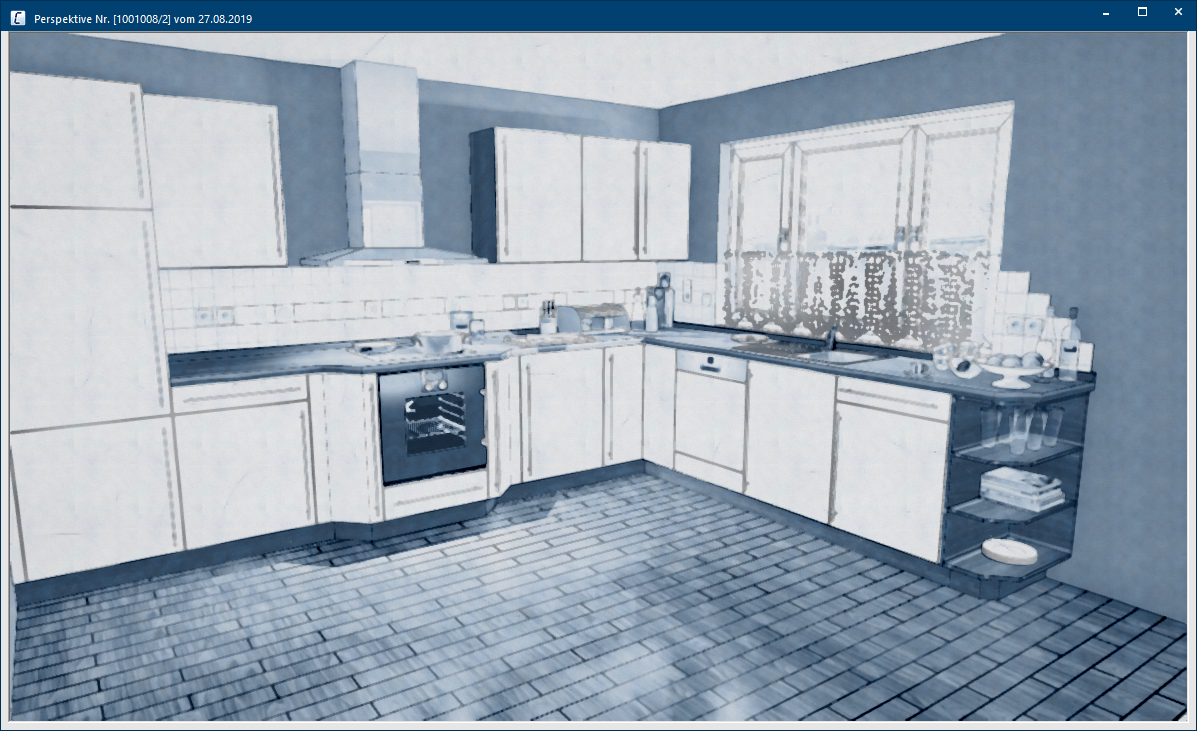
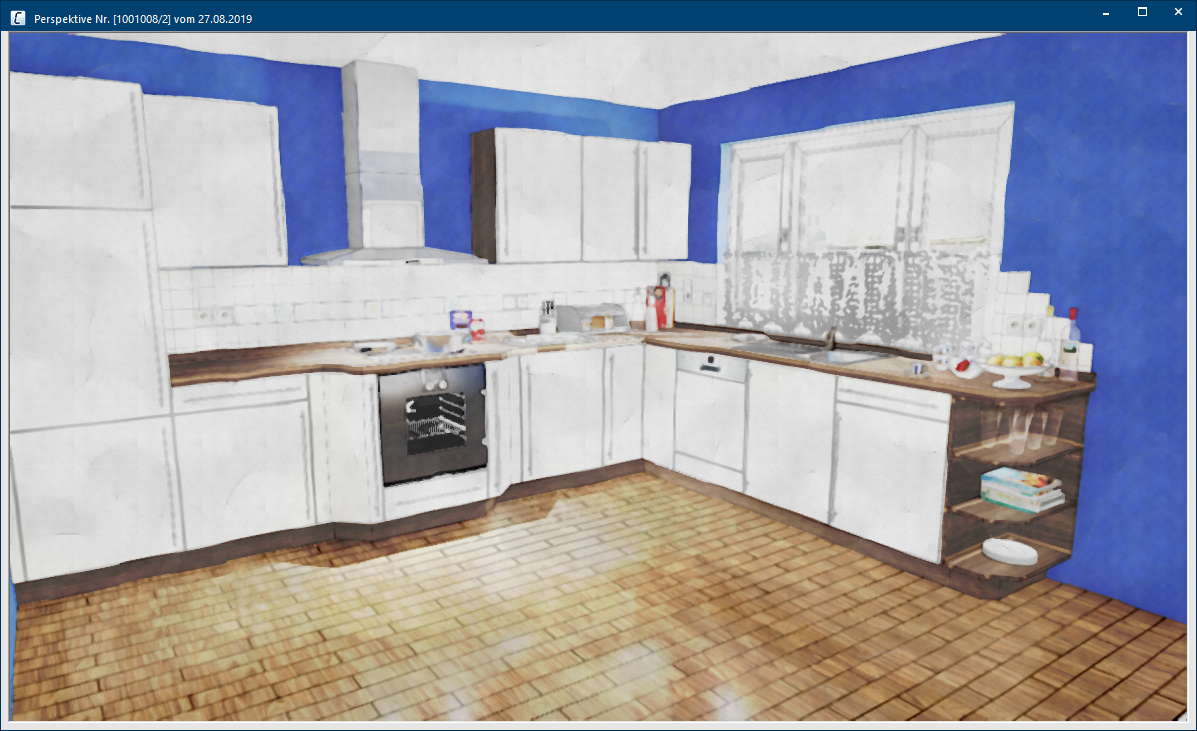
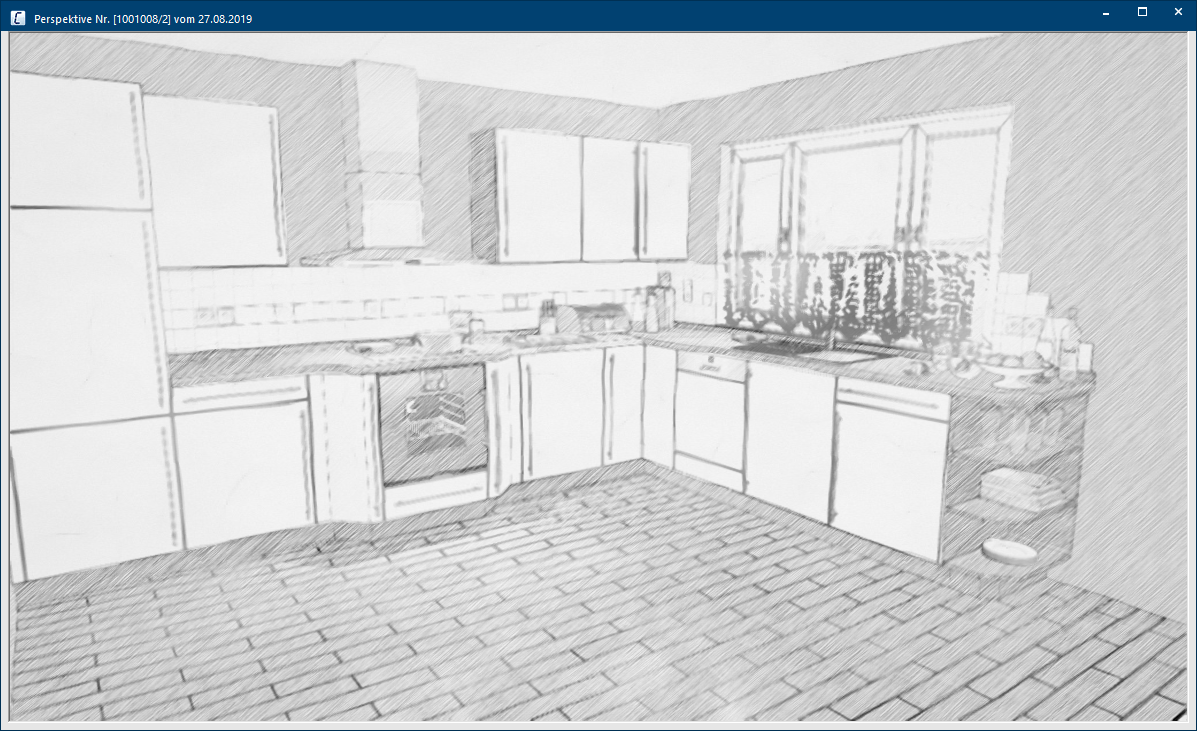
If your licence includes the optional Module 3C (3D presentation advanced) you can change the perspective with colour effects, after activating this function.
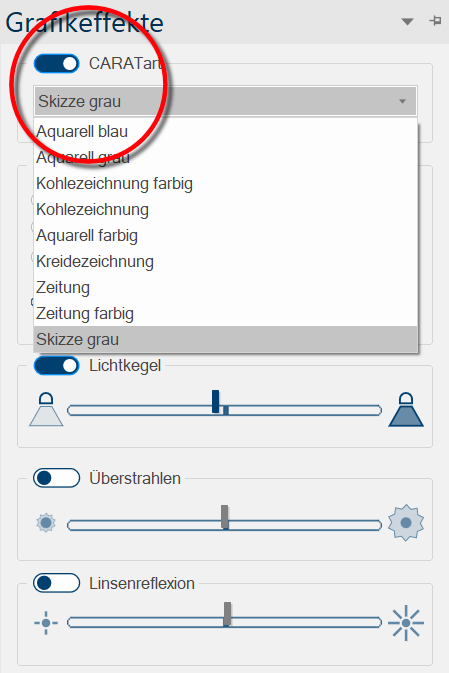
Here are some examples:
Field depth and focus effects
Up to now, you only could focus a perspective over the entire image area. With the focus effects, you now have the possibility to highlight only certain areas of an image, in order to steer the customer's gaze to a particular picture section.
The autofocus
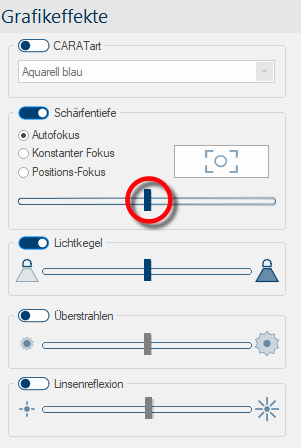
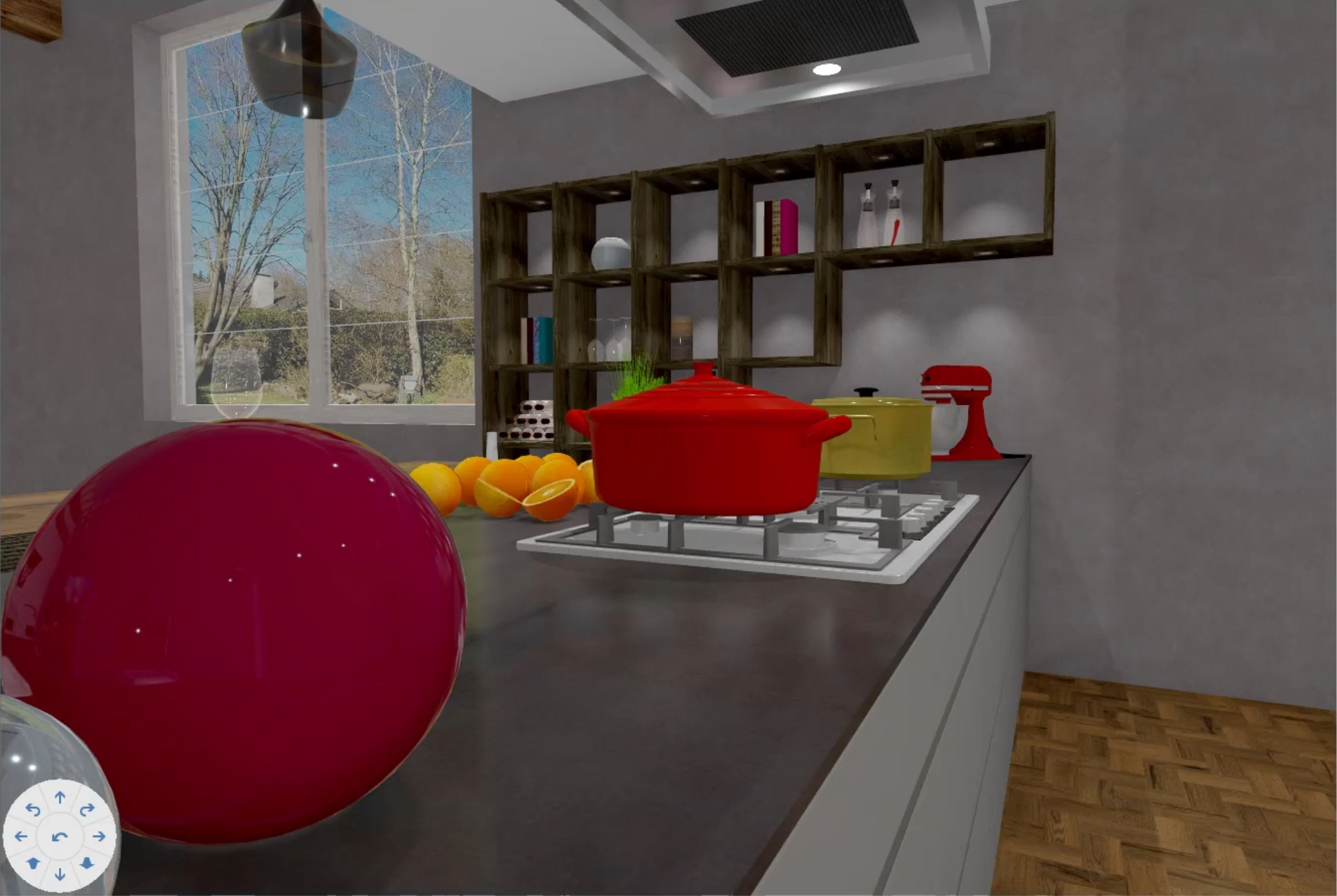
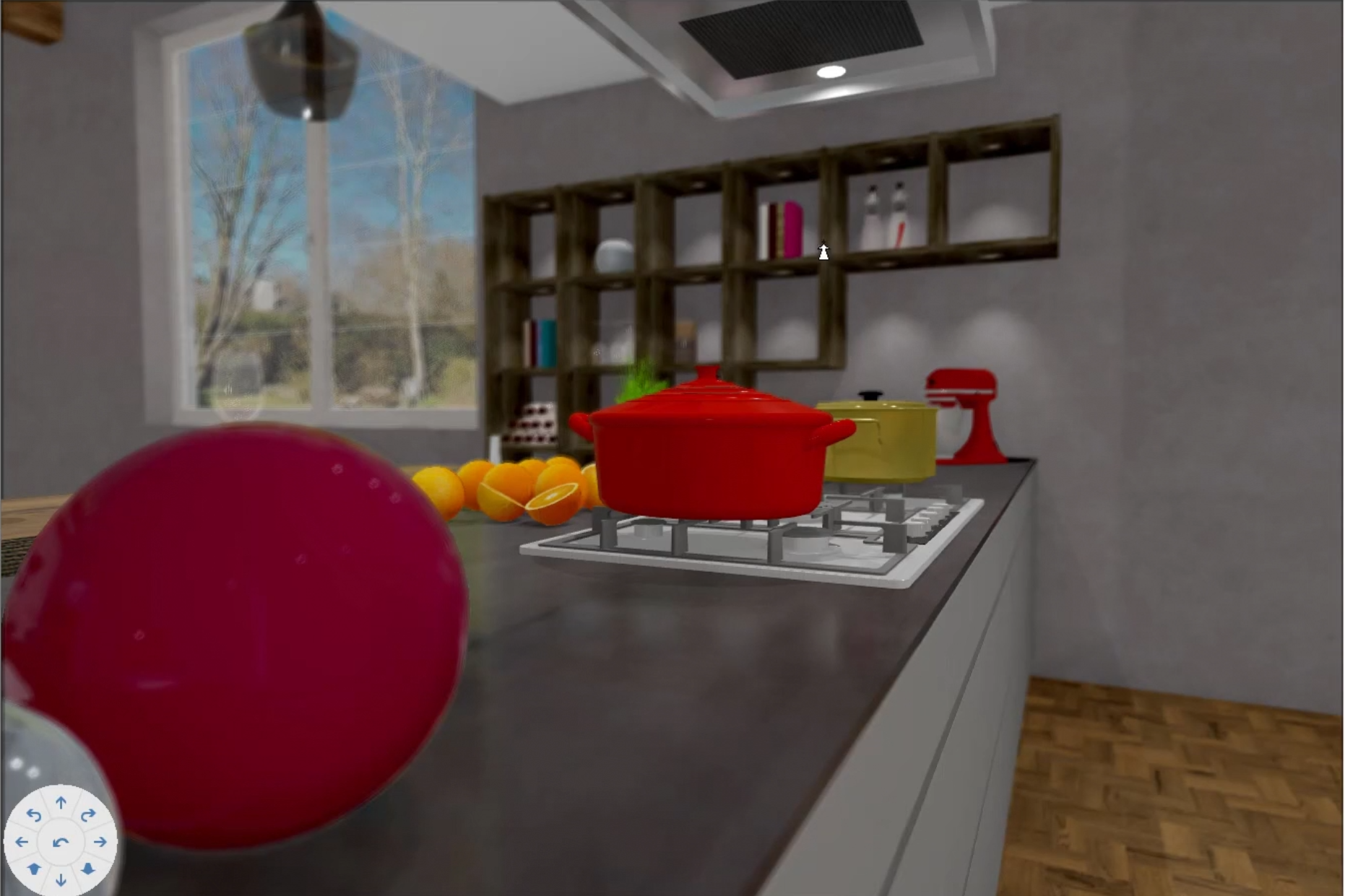
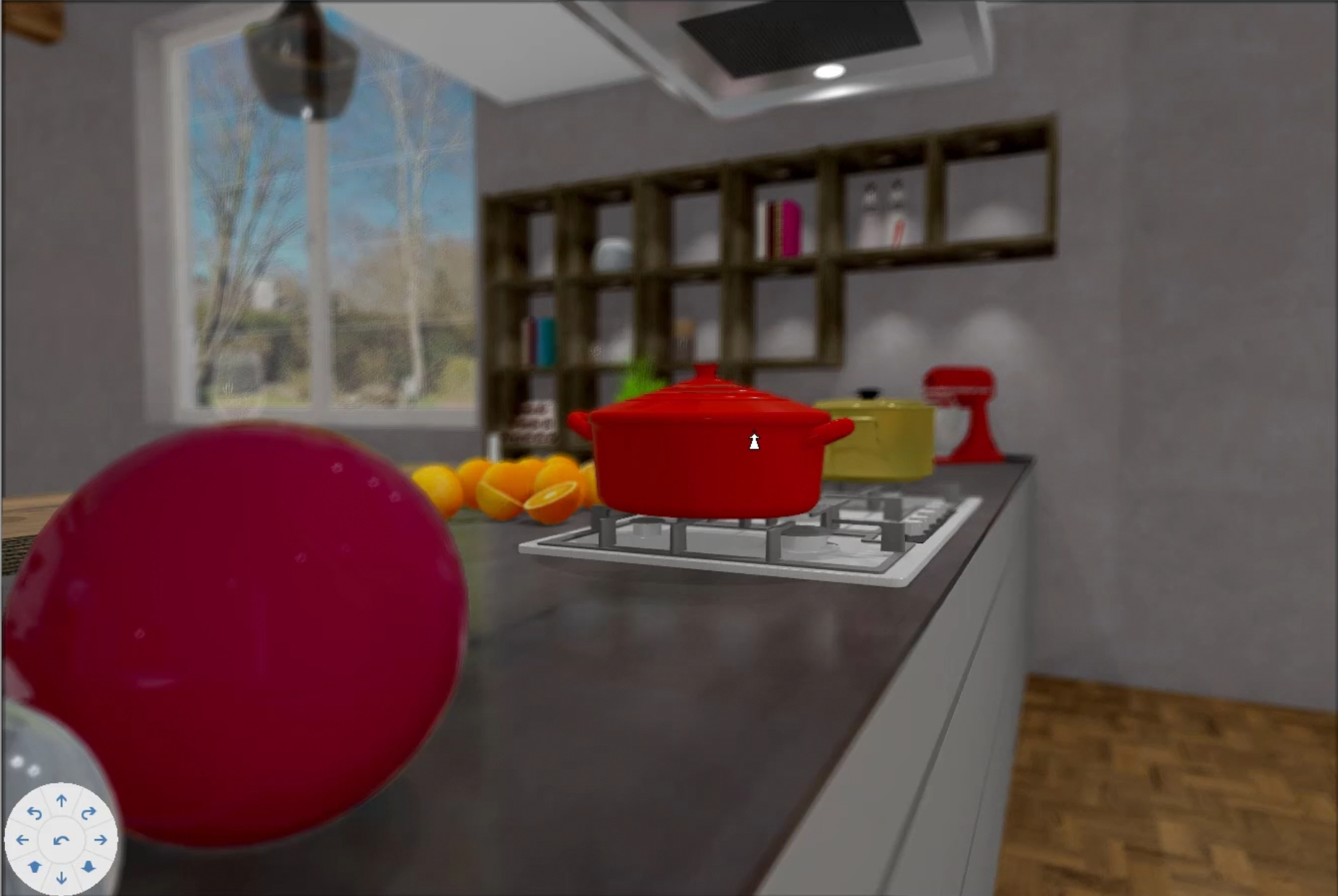
With the activation of the field depth, this area first starts in Auto-focus, thus the middle section of the perspective window is focused. If you move the slider underneath to the left, the image becomes sharp over the entire image area, the further you move the slider to the right, the more blurred everything around the centre of the image becomes.
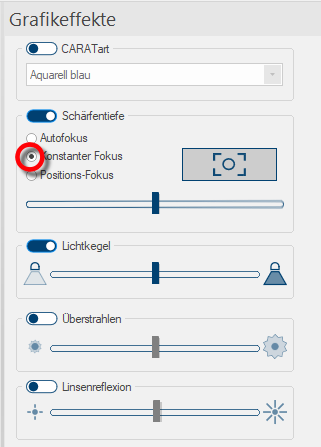
The continuous focus
If you activate the Continuous focus, your mouse cursor will change into a focus indicator, as soon as you move it in the perspective window.
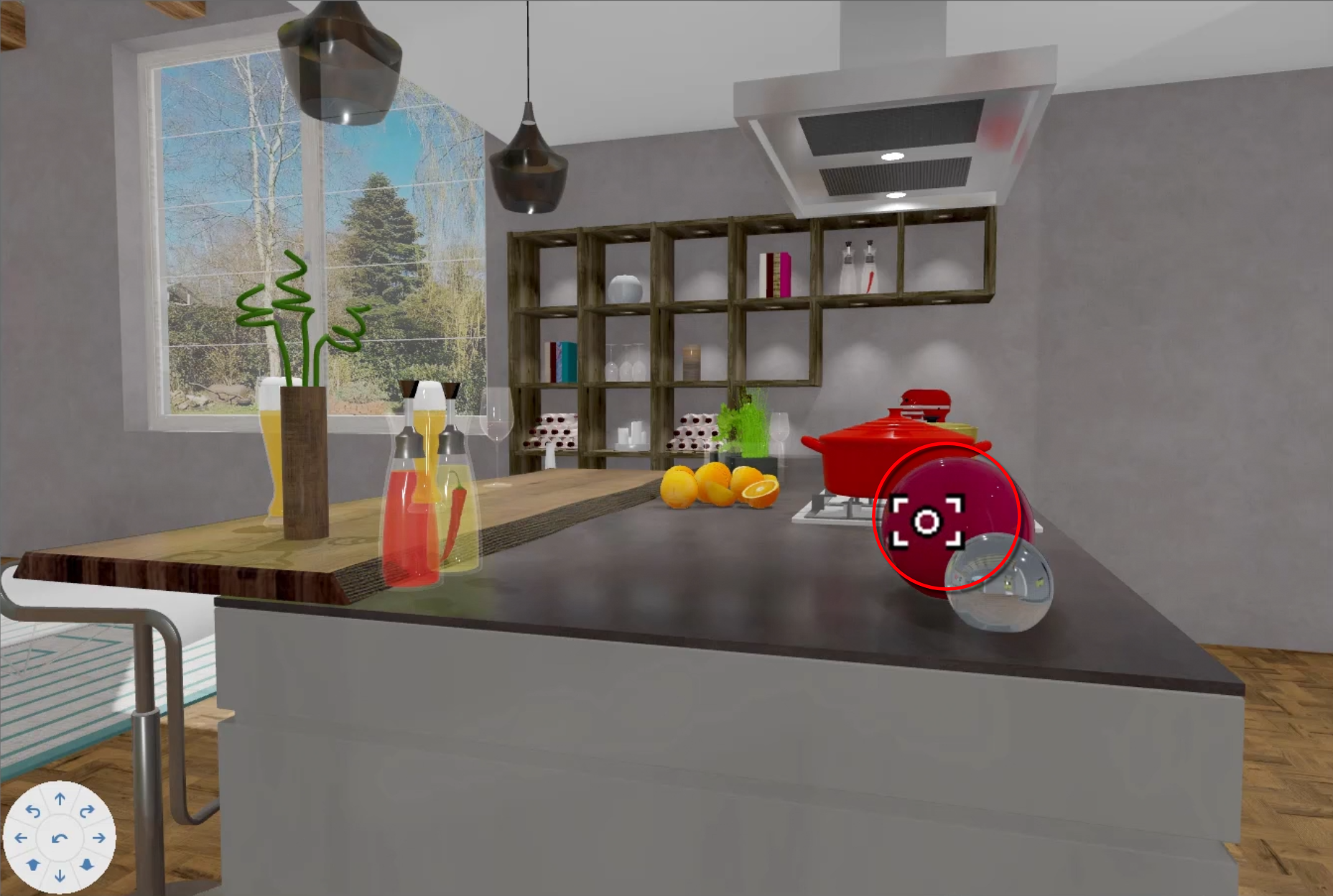
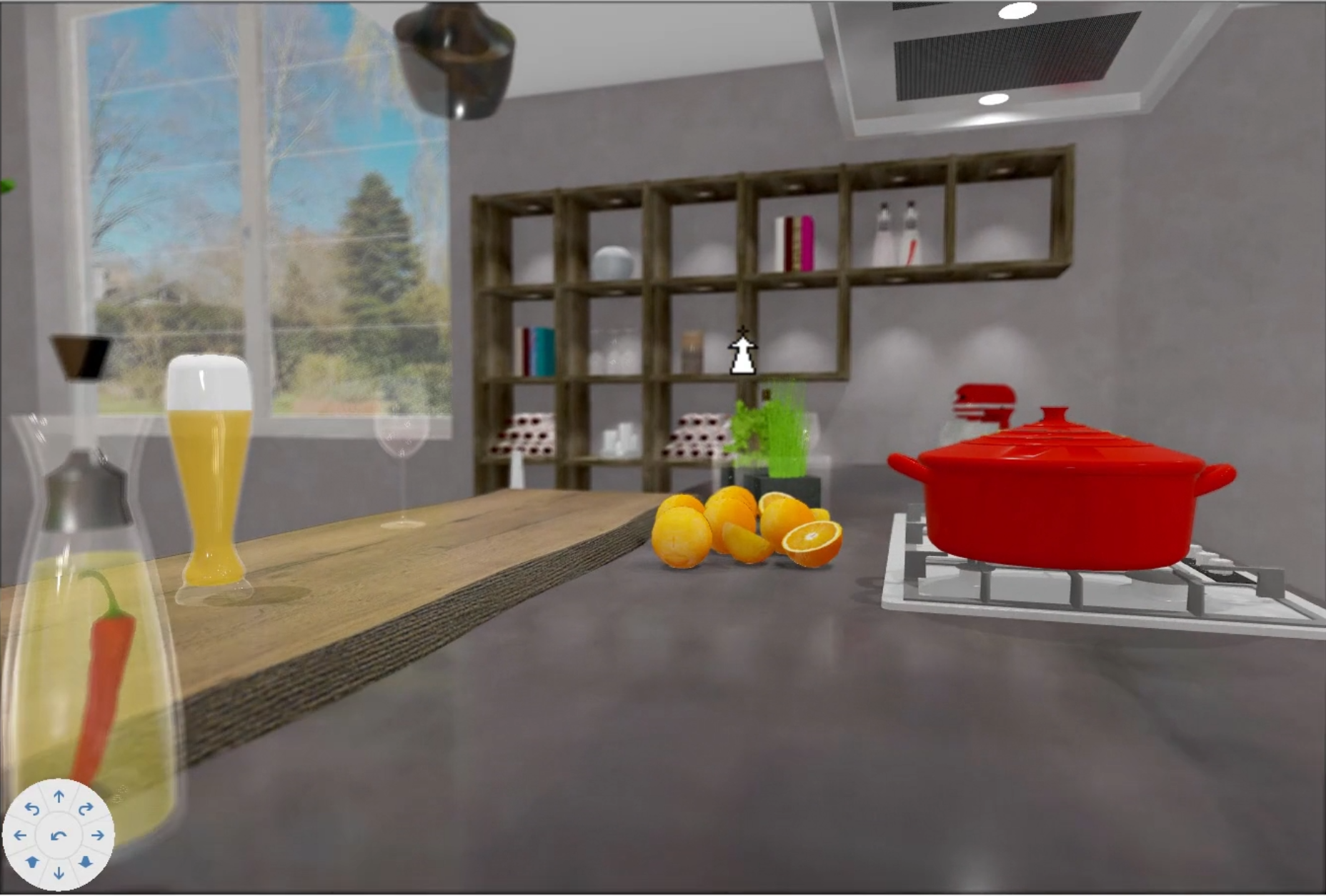
If you now click on an object, CARAT will memorise the distance for the focus between the camera lens and the object. When moving within the perspective, CARAT maintains this focus distance to constantly focus the image within this distance range.
The position focus
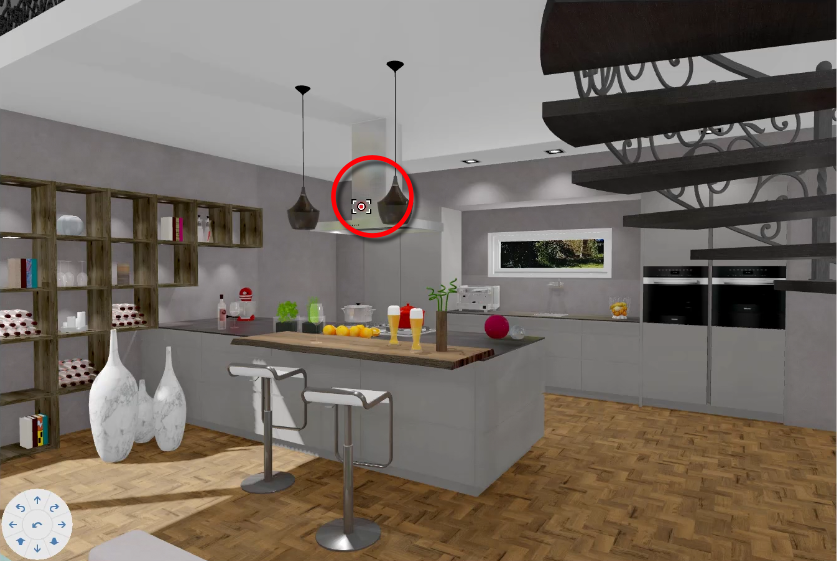
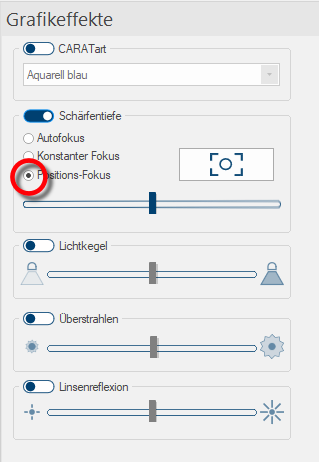
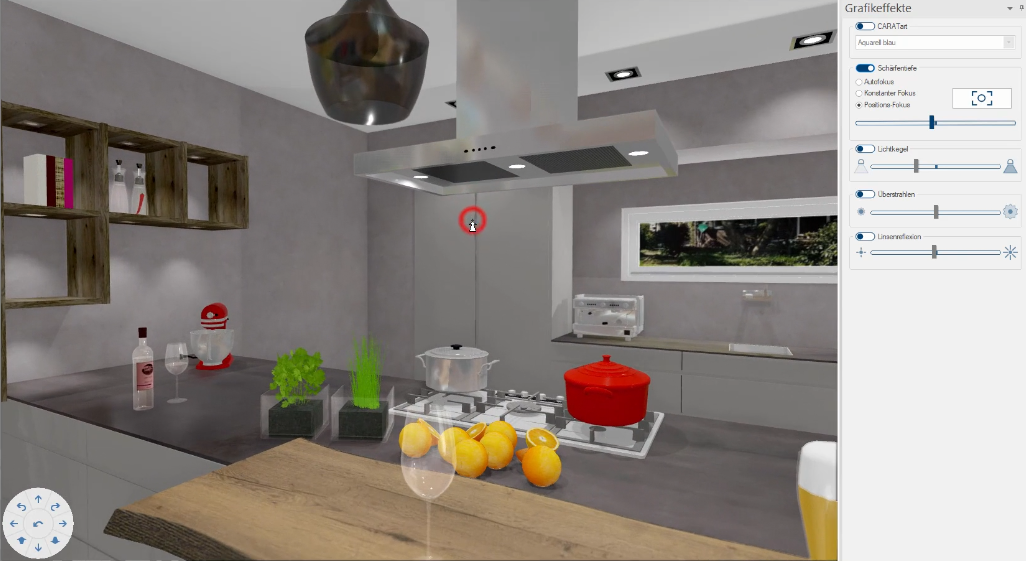
When activating the position focus, CARAT automatically locks itself in on one object and tries to keep the focus area always on that targeted object. Also here, in the perspective, the mouse cursor changes again into a Focus indicator and you can select the object to be focused on with just one click.
Light cone
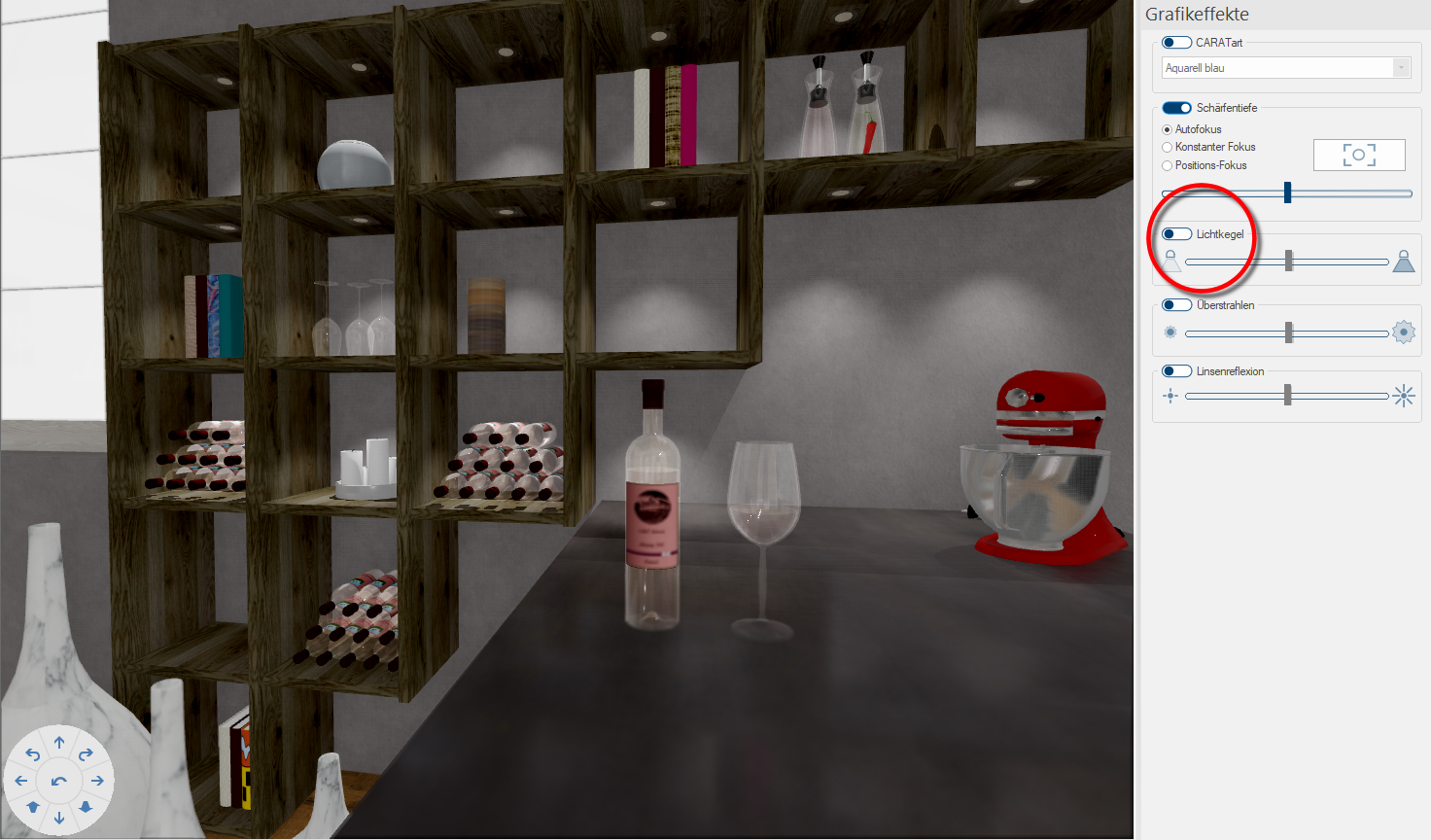
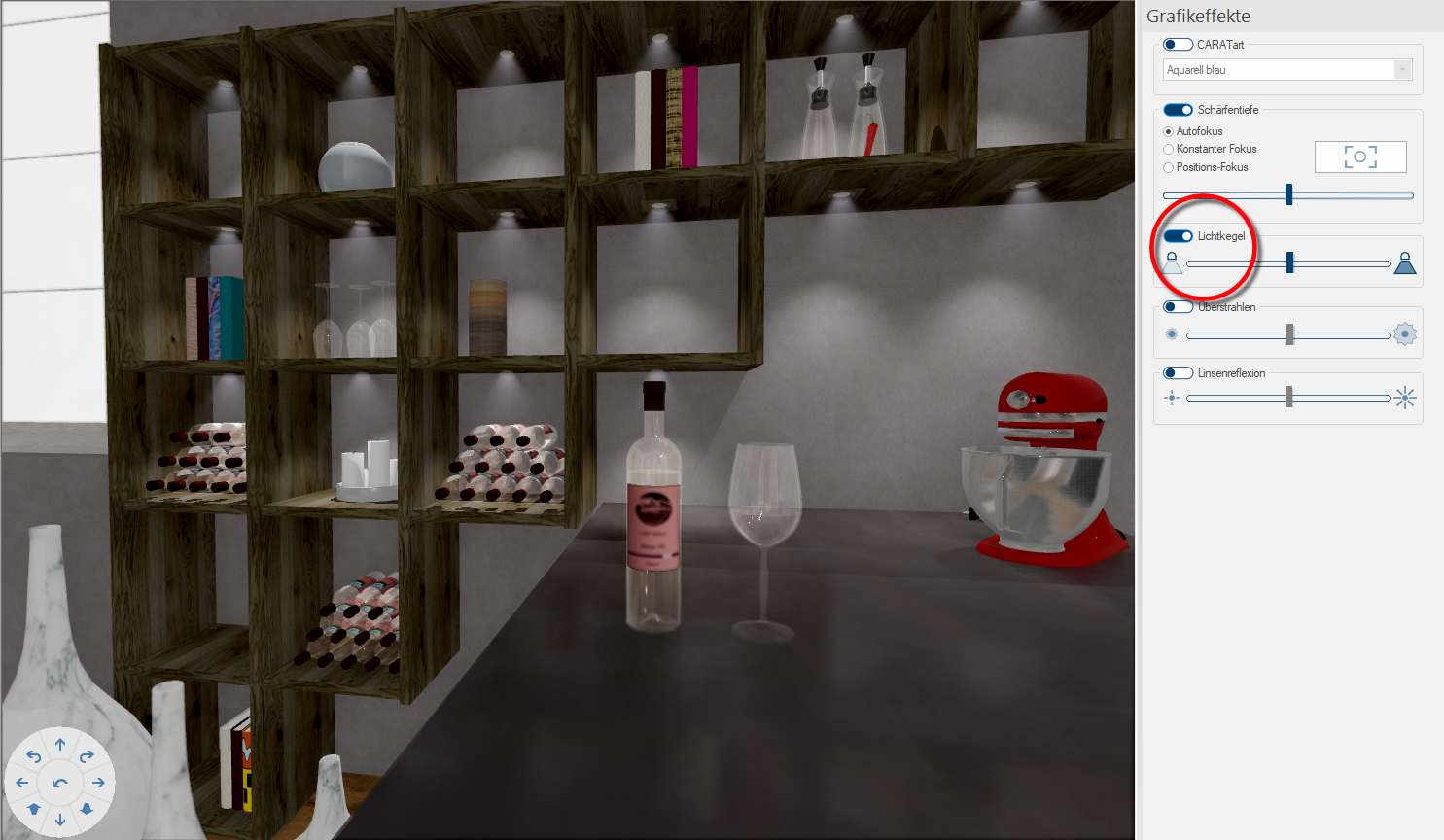
In addition to the normal wall reflections of a lamp, you can make the light cone visible by activating this function and regulate its intensity with the sliding controller.
Blooming
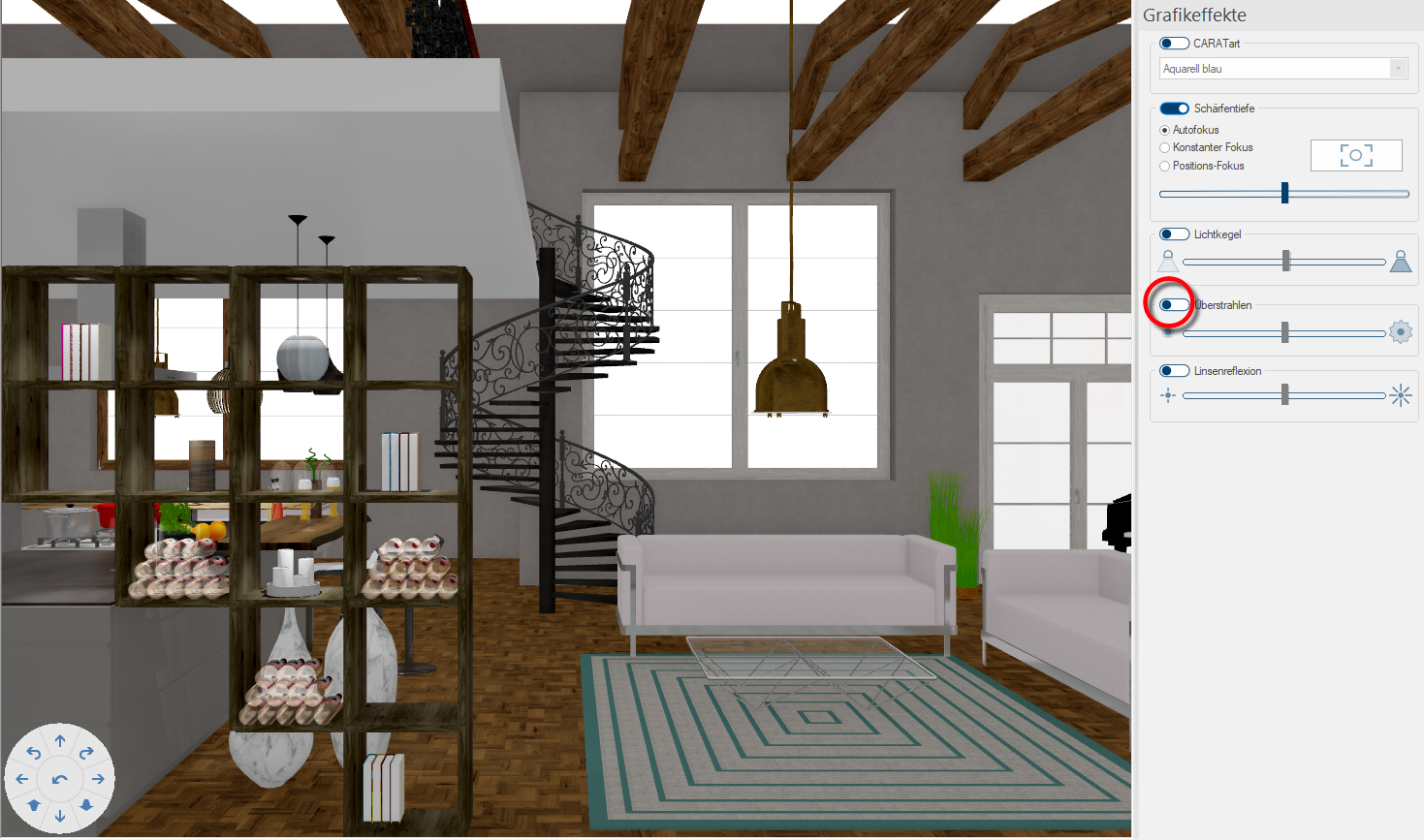
Blooming describes the photographic effect in which the surrounding areas of light sources are also brightened up. Strong light sources can result in a halo of light. By activating the function, you can use the sliding controller to attenuate or intensify this effect.
. 
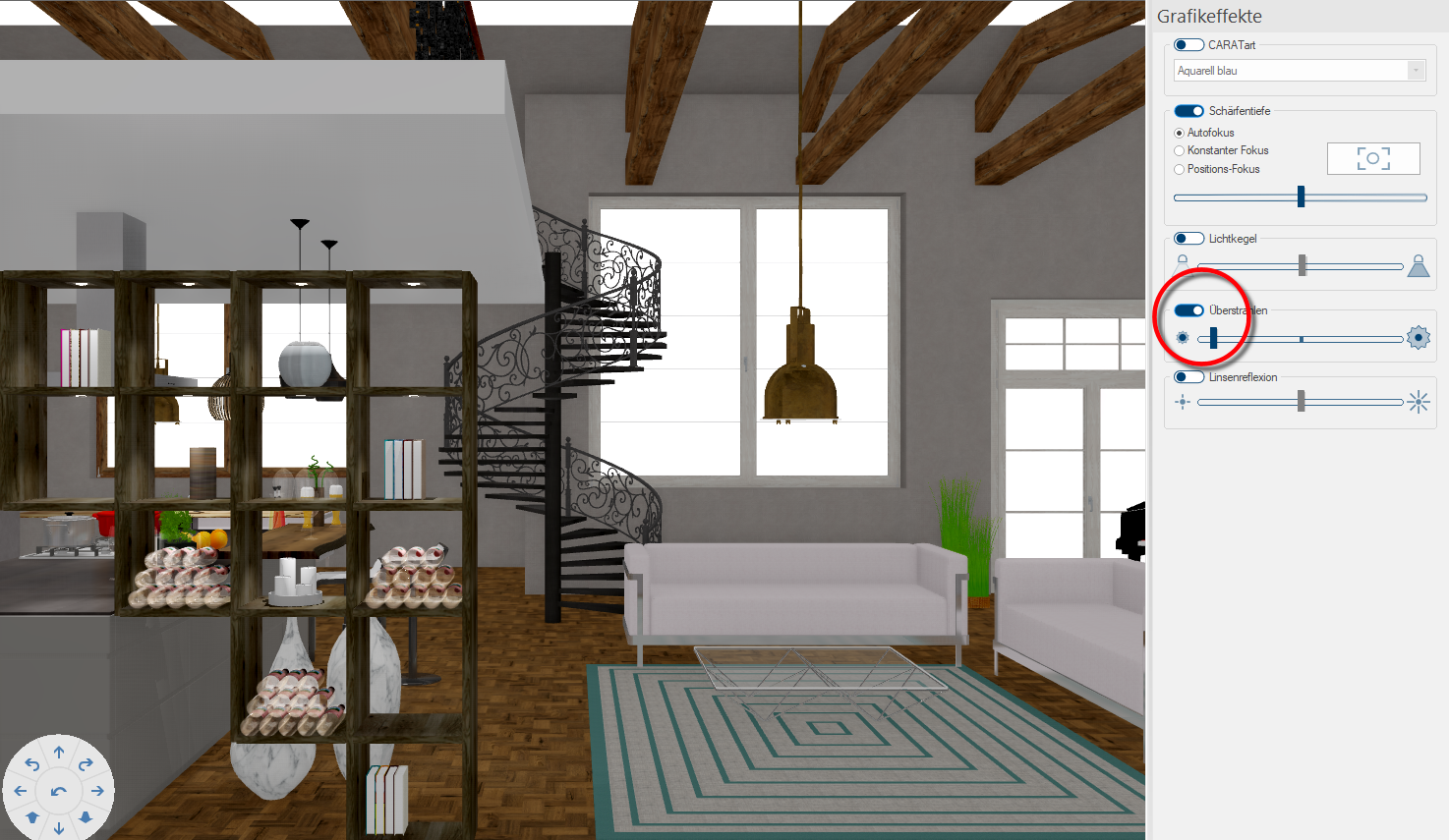
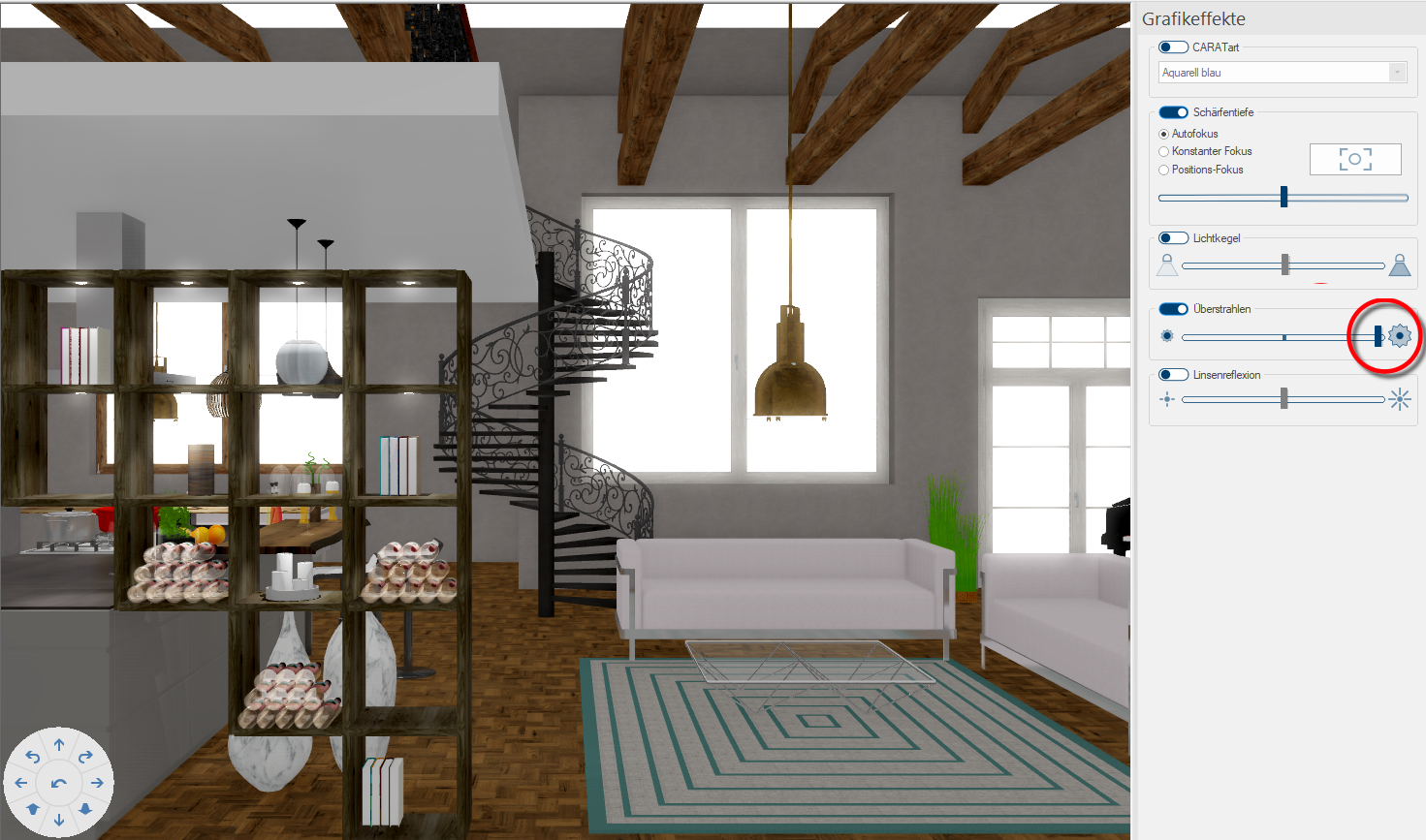
Lens flare
We know this effect also from the photography. Due to this effect, light sources get a ring of rays or become star shaped. By activating the function, you can move the sliding controller to attenuate or intensify this effect.
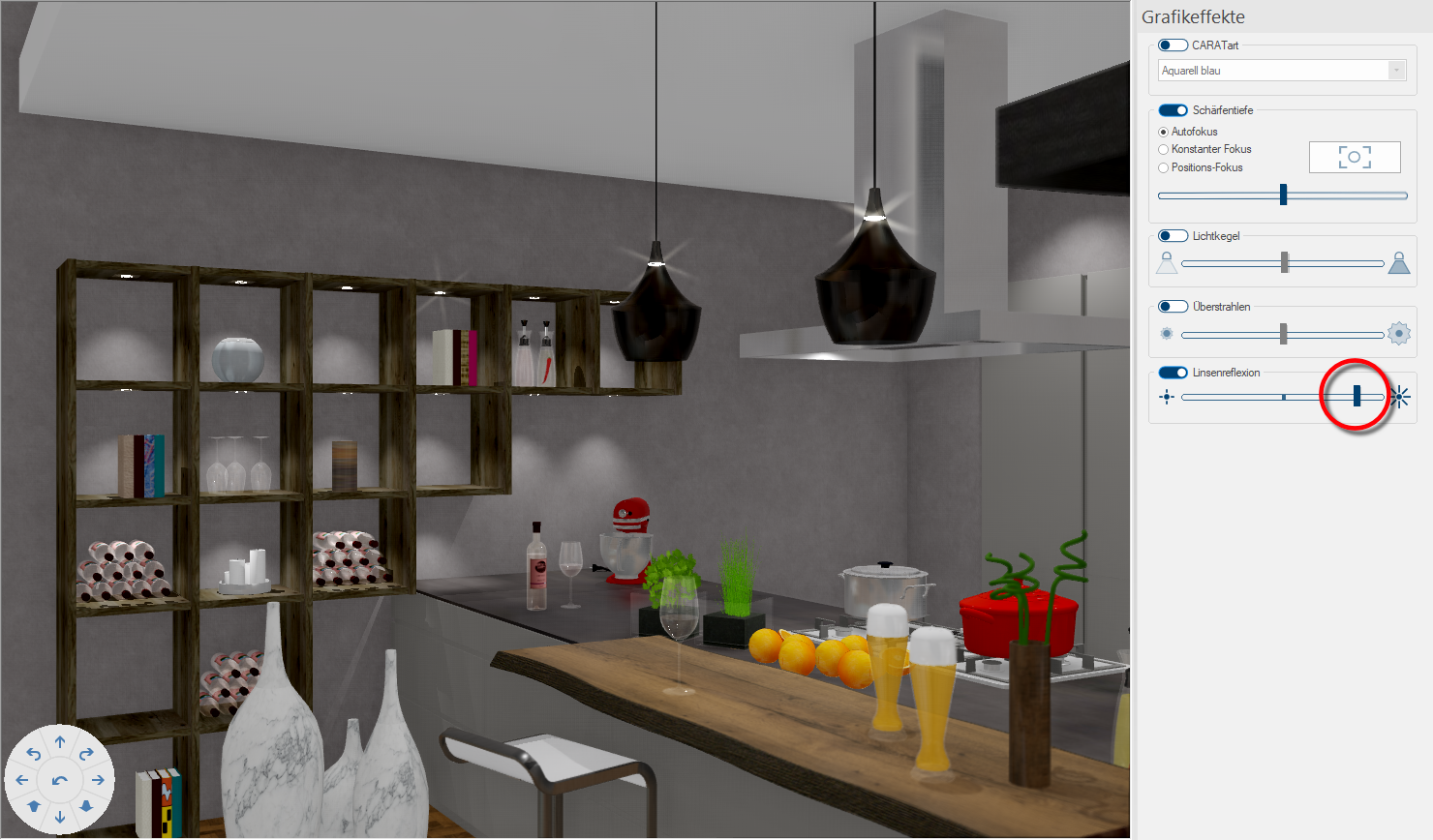
The Sidebar - Front changes

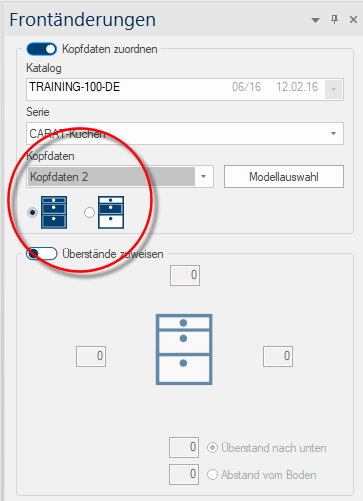
The sidebar front changes makes both the assignment of varying Head data per article as well as the Assignment of projections in an open commission possible. This sidebar will be positioned by default on the right side of the program window in expanded condition.
Assign head data
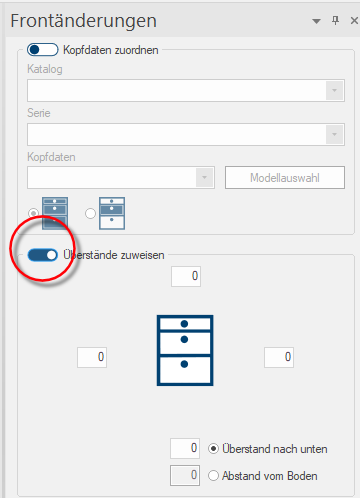
Assign projecting ends
- The Assign projecting ends function can be activated by clicking in the lower part of the front changes sidebar.
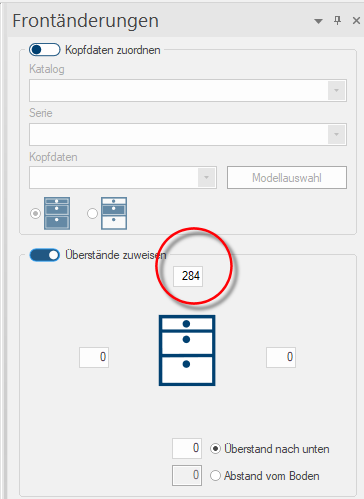
- In the schematic drawing of a base cabinet you can enter the sizes of the projecting ends of the fronts (compared to the cabinet) on the left, right, top and bottom in millimetres. In addition, you can also enter the distance to the floor of the room Beyond that, you can also enter the downward distance to the floor of the room, so that CARAT can automatically calculate the height.
Example of adding Addition (in Latin: addere) is one of four basic operations in arithmetic. In primary school and in common language it is the expression used for the adding of two or more numbers. an upward projecting front end of 284 mm.
- The assignment of the required projecting front end will now be completed in the Perspective, by clicking on the front of the article you want to edit.
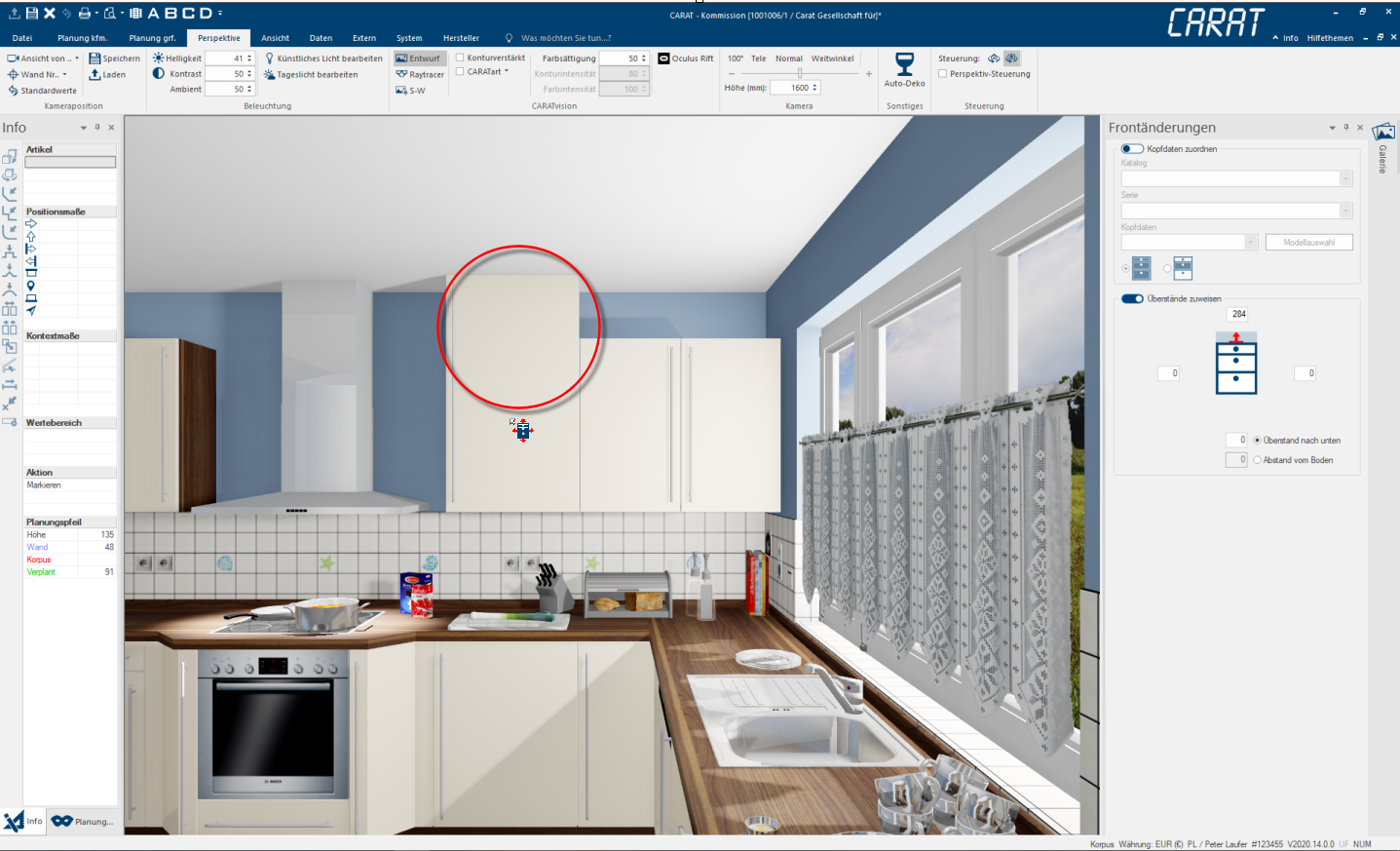
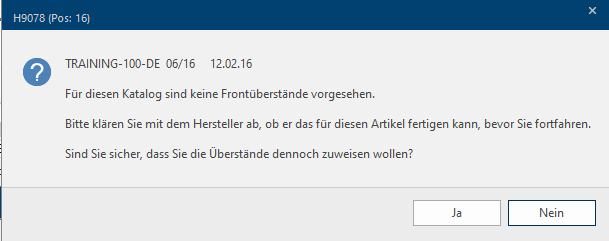
In this case, adding the projecting ends can be confirmed on one's own responsibility with yes, as far as the user has the relevant authorisation. CARAT will assume that the planning person has the option to produce the projecting front ends by themselves due to an affiliated carpentry. In this case too, CARAT will create a dummy article in the parts list, so that it can be considered commercially.
You will get an extensive impression of this from our new videos in the CARAT academy:
The Sidebar - Gallery

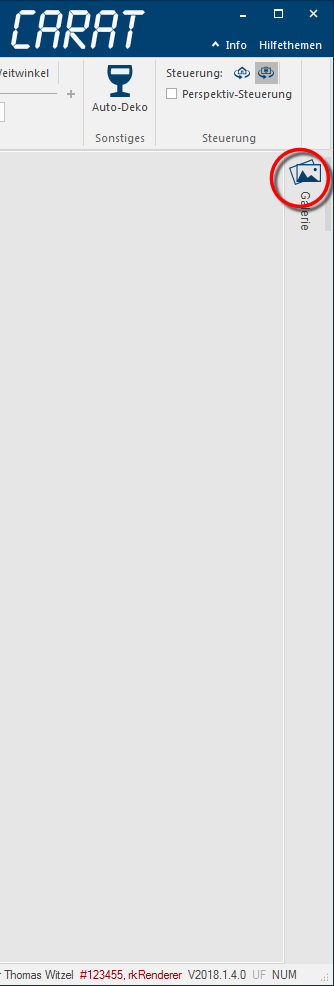
By default, the sidebar Gallery is placed at the right side of the program window and is collapsed. The sidebar will expand as soon as you move your mouse cursor over the symbol. The sidebar will collapse automatically as soon as you move the mouse cursor away from the sidebar area.
If you want to use the functions of the Gallery sidebar over a longer period during your workflow, we recommend to permanently expand the sidebar by clicking on the Pin Symbol in the upper right corner. Find more info about this in the list of particular functions of the sidebars below. The sidebar Gallery is split into the tabs Create and manage perspective pictures and Create and manage CARAT view scenarios.

The tab - Create and manage perspective pictures
On the tab Create an manage perspective pictures you are provided with a picture management. You can save the current live picture from the perspective view as a graphic file (PNG Portable Network Graphics (PNG) is a graphics format for raster graphics with loss less image compression. Besides different colour depths PNG also supports transparency by alpha. It is an universal, from the World Wide Web Consortium (W3C) recognized format and is supported by all modern web browsers.). And it does not matter whether you are using the draft mode or the Raytracer Raytracing is a mathematical method that copies the natural vision. With Raytracing is a trick used: the reversal of the light rays from the virtual eye in the virtual room, so that only those light rays, that actually would reach the eye in the selected position, are calculated. mode or if you combined it with additional effects such as contour-intensified, colour saturation or even special illumination settings.
The mode CARAT emotion will be additionally available to create pictures directly from CARAT emotion if you have started CARAT emotion. This will allow you to make the special CARAT emotion effects such as steam or fire and the vivid presentation available in a freeze image.
Of course you can save a picture in any arbitrary size, independent from the size displayed in the perspective window. The maximum size will only be limited by the memory of your graphics board. The features needed to display and manage your saved images are provided in a toolbar. The functions are New, Fitted, Original size, Export, Print and Delete. When placing the mouse cursor over any of the symbols additional info will be displayed.

See also: tutorial video about the tab Perspective pictures
Saving a picture
- As soon as you click on the symbol for New, you can select the size for the new image in the Resolution Commonly the picture resolution means the quantity of pixels (picture points), which make up a digital image. Normally values are given in width x height. area. From a selective list you can pick from typical sizes. Alternatively, you can select Custom to determine an individual size. By the selection of the size, a certain aspect ratio will be predetermined. To make it easier to set the appropriate picture detail for it, the live picture in the perspective window will be adapted to the preset aspect ratio. At any time, you can move the camera in the perspective window or in CARAT emotion in order to adapt the picture detail in an optimal way.
See also: How to navigate in the perspective
See also: CARAT emotion
- In the area Quality, the Draft mode is always preset so that you can select the perfect picture detail first. The draft mode is the Live mode. You can only move through the scene in real time when in draft mode - but with an impressively high quality. In order to actually provide the amazing speed in the draft mode, computationally intensive effects like reflections are simulated or not included like gloss effects of surfaces and light refraction of glass.

- In order to create a picture with these additional effects, you have two options - Normal and Quality as well as CARAT emotion to create a picture detail directly from an opened CARAT emotion scene. The option Quality needs roughly twice the time as the option Normal as a clearly more elaborate calculation of the picture is necessary. The time span for the calculation of a picture depends on the size of the related picture and how powerful your computer is or rather how many cores the processor has. The rule of thumb is: doubling the number of processor cores will divide the calculation time in half. Calculating the picture from a CARAT emotion scene need only a few seconds and already contains snapshots of the effects of the CARAT emotion scene such as steam from pots or cups.

Hint: Before creating a picture detail from CARAT emotion, use the new AI function Light optimisation from the menu bar on the Perspective tab of the settings in CARAT emotion in order to create an optimally lit picture detail.
See also: CARAT emotion - Regardless of the perspective showing the draft mode you have the option via the Quality area to create the picture directly in the requested quality. This saves you the time for an additional calculation as only the picture you want to save will be re-calculated but not the live picture.
- You can create the picture by clicking the button Save, after you have selected the desired picture size and the appropriate picture section as well as the quality mode.
- In the area of the saved graphics a dummy (a very rough draft of the scene to be calculated) will be added and a progress bar informs about the process of the calculation. The creation in the draft mode should take only a few seconds. The Raytracer calculation of a picture in 4K resolution (4096 x 2160 pixels Pixel or picture element identifies both, the smallest unit of digital raster graphics and the display of these graphics on a monitor with raster activation.) with the option Normal or Quality will take several minutes with an average computer (current processor with 4 cores).
The calculation of a picture in 4K resolution (4096 x 2160 pixels) with the option CARAT emotion takes only slightly longer than in draft mode.
- When the calculation is done, the dummy will be replaced with a preview of the finished picture. In the lower margin of the preview you find the follwing info: picture mode (picture symbol for Draft and CARAT emotion as well as the Glasses for Normal and Quality (Raytracer), the file name, the picture size and the creation date.

Example Pictures in 4K resolution (4096 x 2160 pixels) -
Draft
Normal
Quality
CARAT emotion


Display and manage saved pictures
- The list of pictures is sorted by creation date, from newest to oldest. Please click on the sidebar on the appropriate preview, to show an already saved picture. The preview of the picture currently shown is marked with a blue frame.
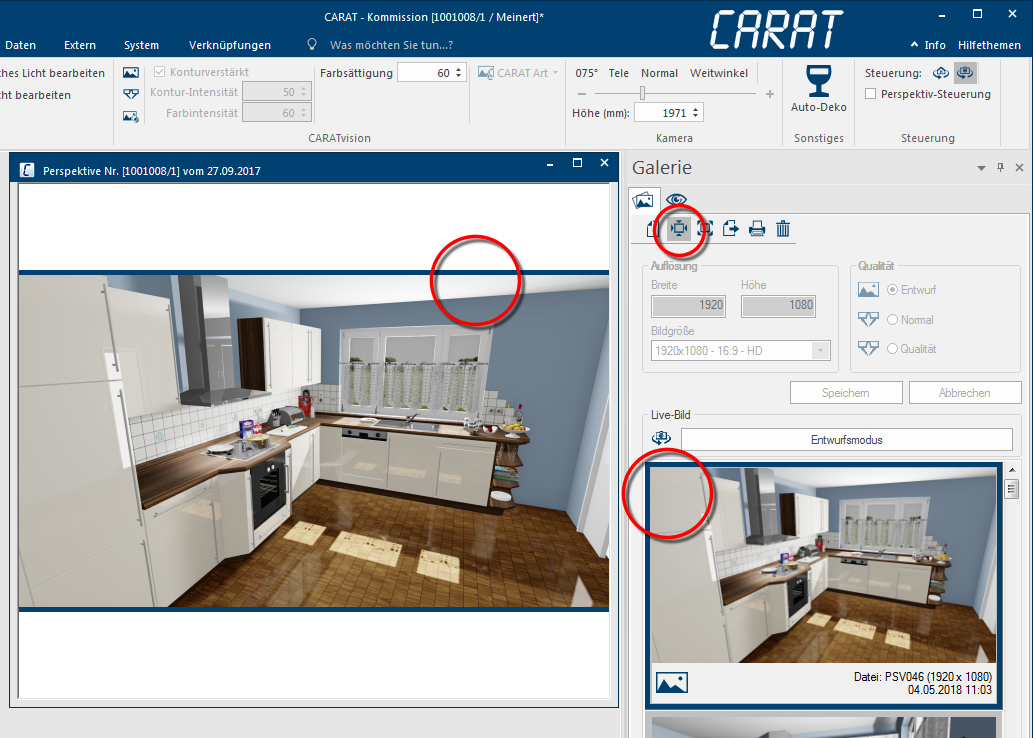
- The selected picture will first be shown in the correct aspect ratio and thus fitting in the perspective window, irrespective of the size of the perspective window. For a better perception, the symbol for the active function Fitting will be highlighted in grey in the symbol bar. With the function Fitting you can fully display a saved picture in the perspective window.
- By using the button Design mode in the live picture area, directly above the preview list, you can leave the preview mode at any time, and activate the real time graphic of CARAT again.
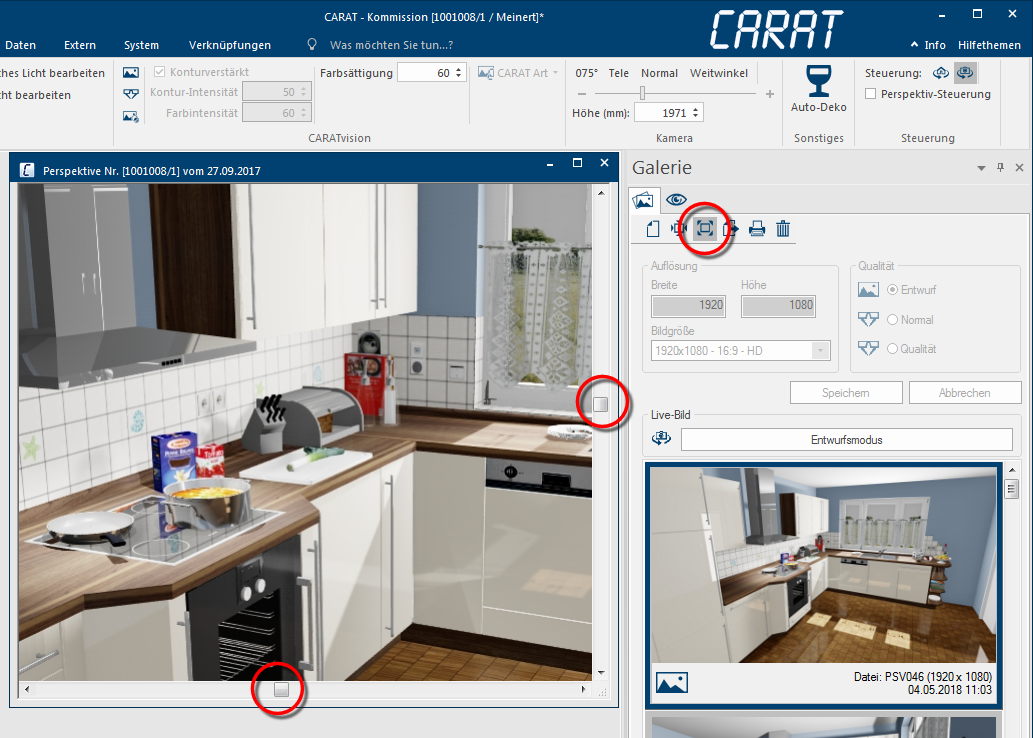
- If you created a picture with a high resolution which you want to verify in the perspective window afterwards, you can use the function Original size in the symbol bar. The saved picture will now be displayed 1:1. In this case, 1:1 means that one pixel of the picture is equivalent to one pixel on the screen. As the size of the perspective window usually is not sufficient to display the entire picture, the perspective window now contains two scroll bars A scroll bar, also called roll bar, is a graphical processing element in application programs with a graphical user interface. If, because of the quantity, only a part of text and picture elements can be displayed, the relevant spot can be reached by using the scroll bar. The English scrolling originates from scroll. to re-position the picture detail.
- Via the toolbar the function Export is available, in case you want to use one or more pictures outside of CARAT. First mark one or all of the pictures that you want to export by clicking on the respective preview. You can optionally hold the Shift or the Ctrl key while selecting the pictures to mark more than one picture at once.
- Left click + Shift-key The Shift-key is a key that appears on the computer keyboard and type writer. The key is most often used to make lower-case letters into upper-case letters by holding it down while selecting the relevant letter. = All pictures between the first and the second marked picture will be marked.
- Left click + Ctrl-key The Ctrl-key (short for Control Key) is located on the PC keyboard to the far left in the bottom row of keys. The Ctrl-key has a similar function as the Shift-key. Usually this key is used in conjunction with another key or with the mouse to perform a special function. = Only those pictures you click on will be marked.
- You can print a marked picture directly from CARAT by using the function Print.
- You can delete one or even several marked pictures from the preview list by using the function Delete.

The tab - Create and manage CARAT view scenarios

On the tab Create and manage CARAT view scenarios you can offer your customer CARAT view scenarios a full 360° virtual perspective of his kitchen.
By uploading the created CARAT view scenarios into the CARAT cloud you can easily offer 360° perspectives to view in the internet browser. You can decide over quality and resolution of the CARAT view scenario and which of the scenarios you want to upload to the CARAT cloud or delete.
See also: Video tutorial about creating a CARAT view scenario
Creating a new CARAT view scenario
- As soon as you switch to the tab Create and manage CARAT view scenario you can use the function New from the toolbar. The picture of the kitchen will be set simultaneously according to the aspect ratio of the preview of the CARAT view scenario.
- Now you have the option to adjust the picture detail by moving the camera in the perspective as used. All settings of the Perspective tab in the menu bar are available as well. In the Quality area you can define the display quality for the preview of the CARAT view scenario. In the Resolution area you select the wanted resolution for the pictures.
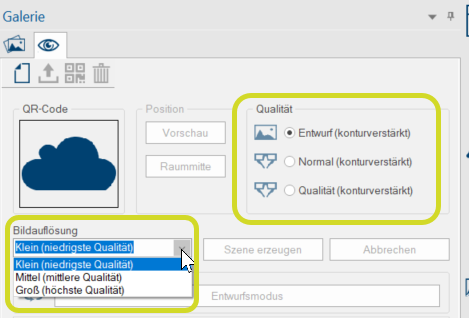
- After finishing the presettings for the perspective you can create the preview first by clicking on the symbol New in the toolbar. Thereupon the preview will be calculated. In the draft mode this will take only a few seconds but for the two quality levels it requires a clearly longer time span.
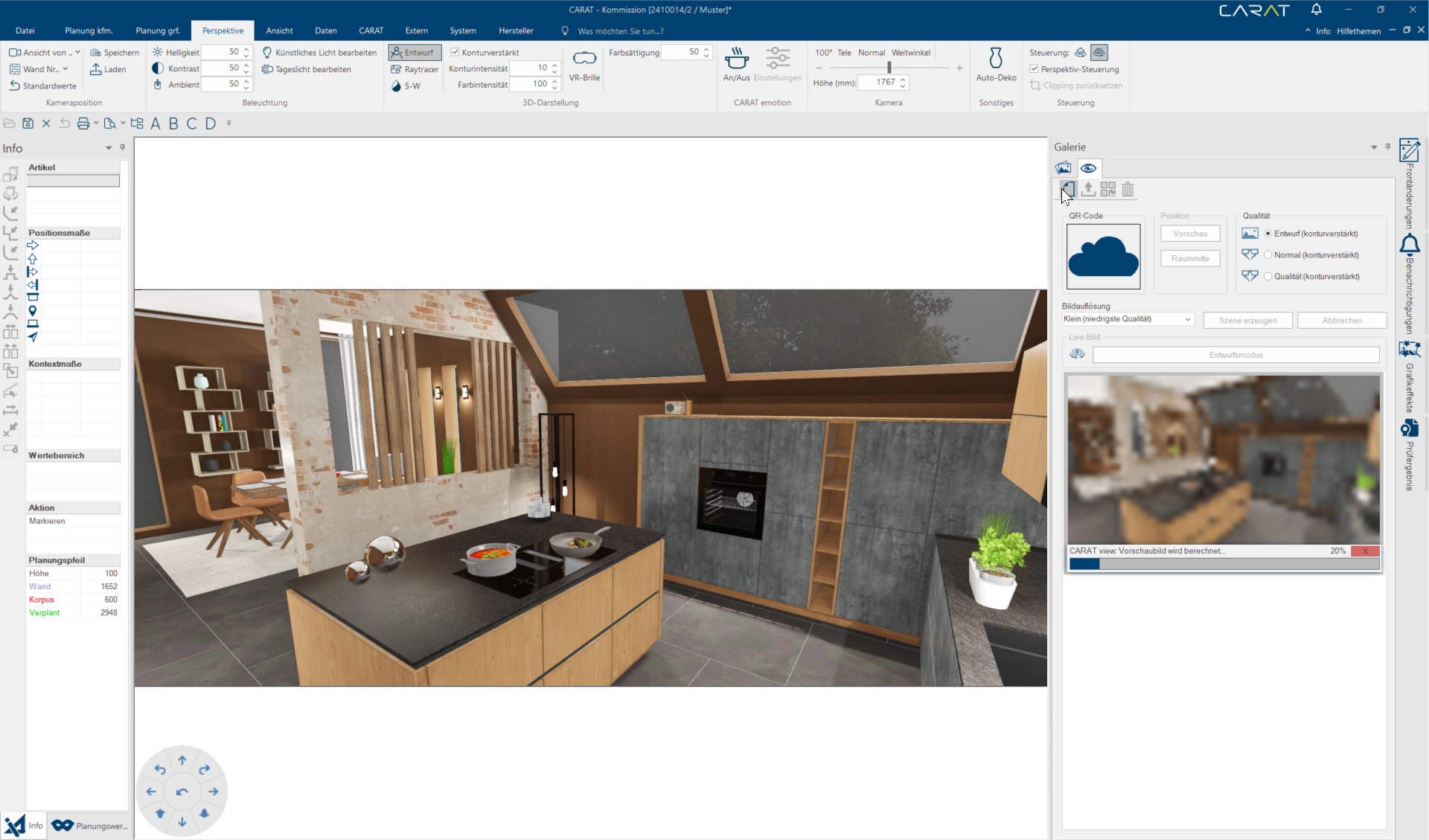
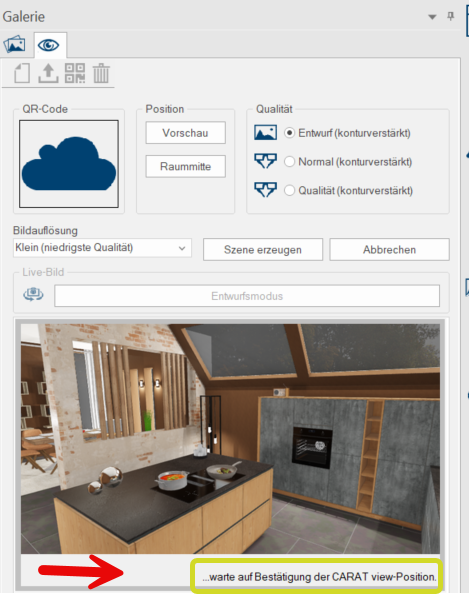
- When the preview is created the camera in the perspective window moves to the centre of the room as this position allows you to have a panoramic view of the entire room. Of course, you can also pick a different camera position for the CARAT view scenario. To do so, simply move the camera in the perspective window to the position of your choice.
- As long as you do not confirm the position for the CARAT view scenario by clicking on the button Create scenario, a correspondent notification underneath the preview will inform you about this fact.
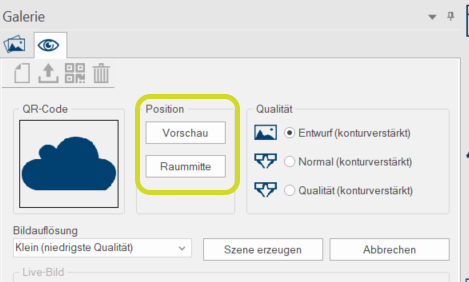
- You can check the new camera position by means of an automatic 360° rotation by clicking on the button Preview. You can quickly reach the position in the middle of the scene by clicking on the button Middle of the room.
- When the camera position meets your requirements you can create the CARAT view scenario. To do so, please click on the button Create scenario. Now views of all directions from the camera position will be created. From these six views the CARAT view scenario will be generated. The calculation takes only seconds in Draft mode. For a CARAT view scenario that is created with the Raytracer with the option Normal or Quality, you should allow some extra time.
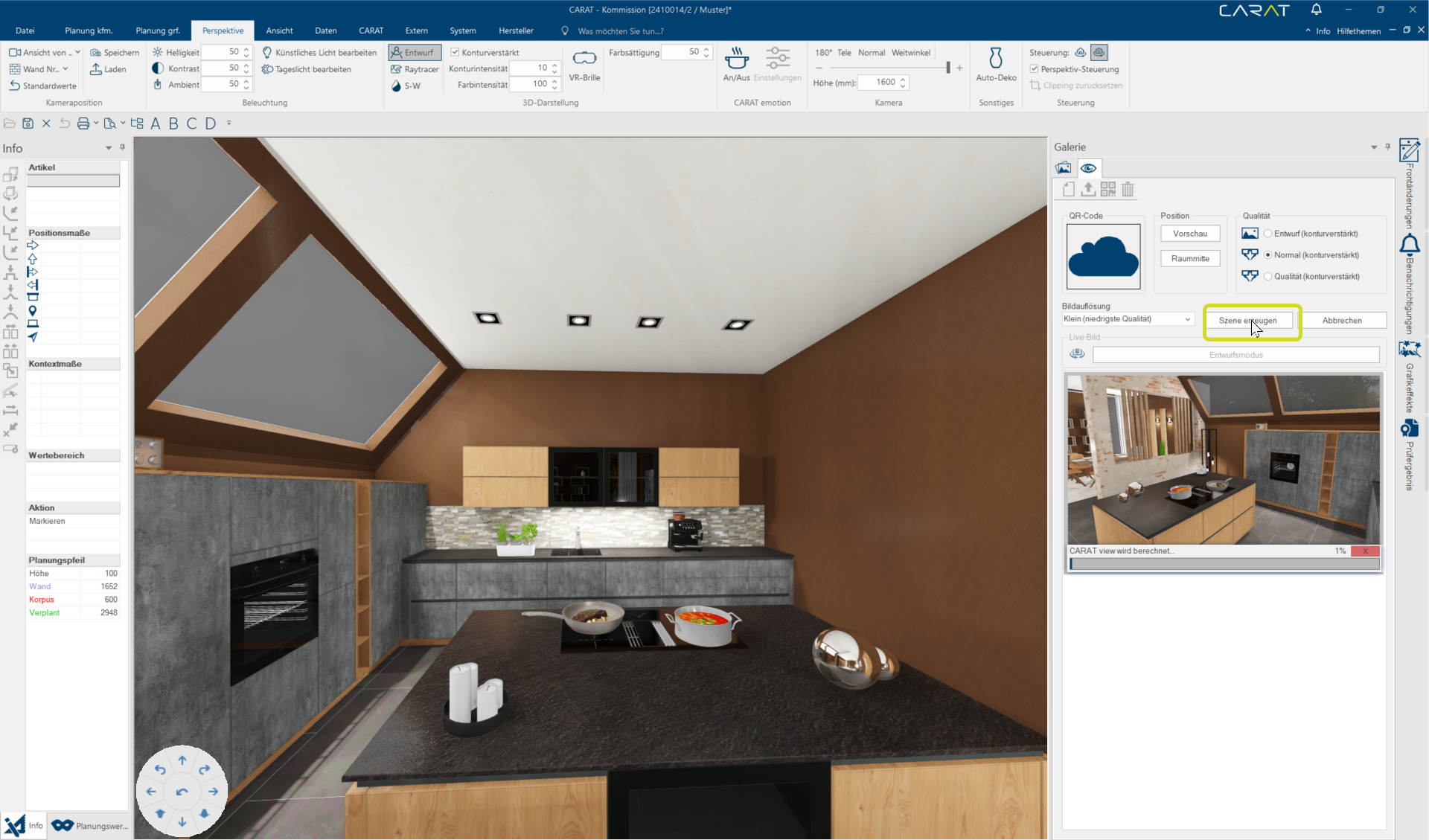
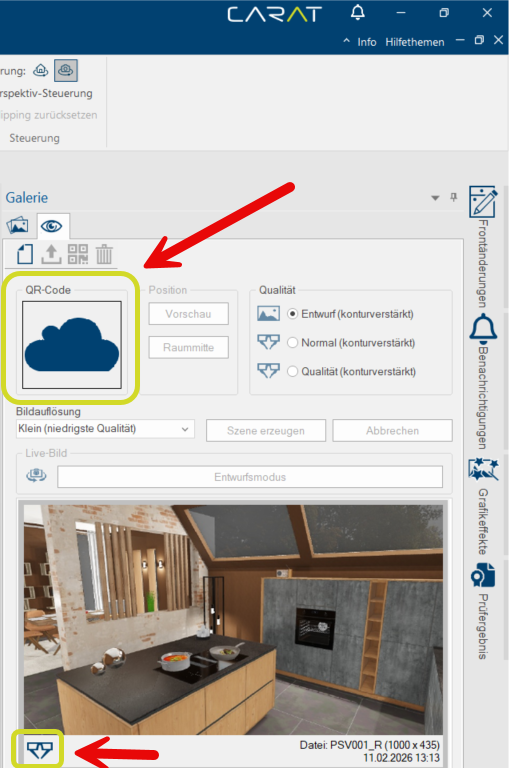
- After the CARAT view-scenario is calculated completely the picture mode (picture icon for Draft or glasses for Raytracer), the file name, the picture size (fixed preset) and the date of creation is shown at the lower edge of the preview.
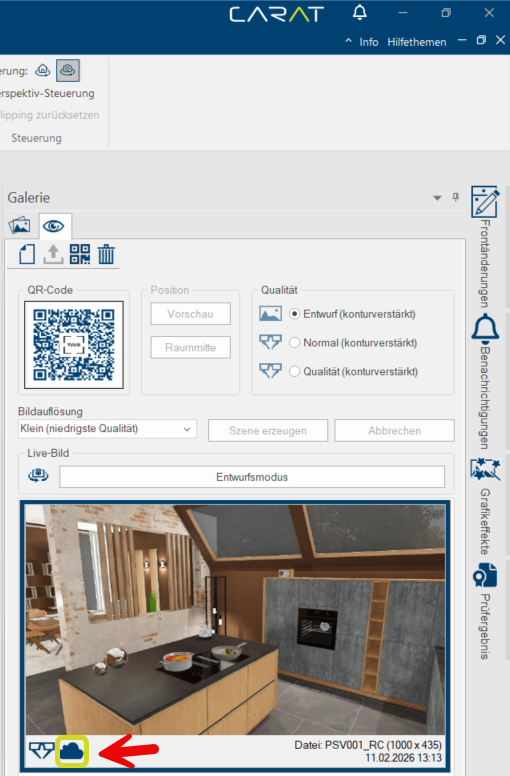 Upload and manage CARAT view-scenarios
- With the Upload function you can upload one or multiple CARAT view scenarios to the CARAT cloud. Only CARAT view scenarios that have been uploaded to the CARAT cloud can be viewed in the internet browser. First of all, mark the CARAT view scenarios you want to upload. Hold the SHIFT or CTRL key down while selecting the scenarios if you want to upload multiple views. The selected scenarios will be marked with a blue frame.
- Left click + Shift-key = All scenes between the first and the second marked scene will be marked.
- Left click + Ctrl-key = Only those scenes on which you click will be marked.
- Afterwards, click on the function Upload to upload the CARAT view-scenario to the CARAT cloud.
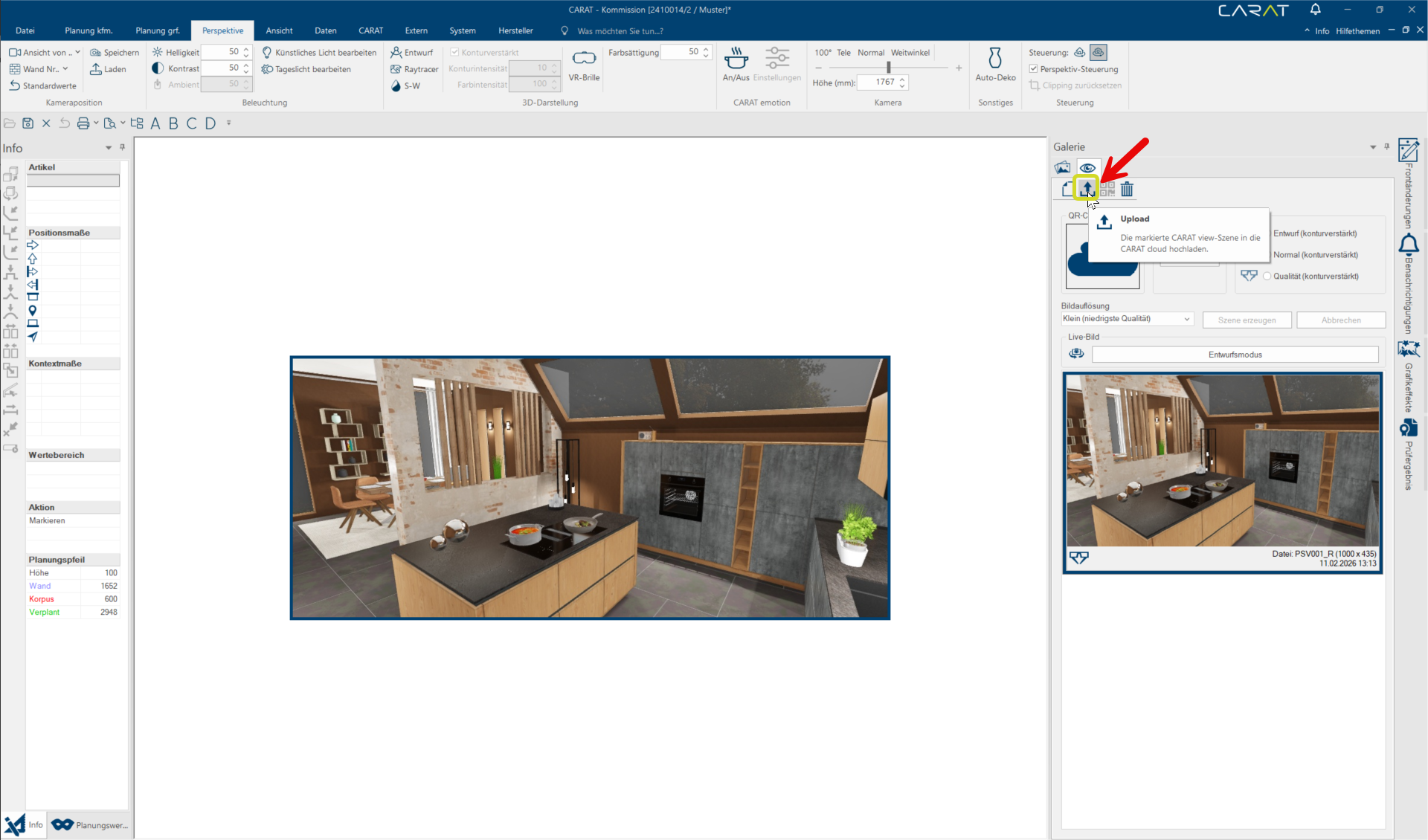
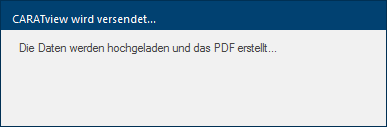
- A reference dialogue will indicate that the upload of the CARAT view-scenario(s) to the CARAT cloud is in progress.
- To view scenarios that have already been uploaded to the CARAT cloud in your internet browser, visit the CARAT cloud portal, click on the hamburger menu, go to CARAT view management, then click on the eye symbol in the Preview column. You also can delete unwanted scenarios from here. To do so click on the 3 dots and afterwards on the recycle bin icon.


Automatically creating a PDF
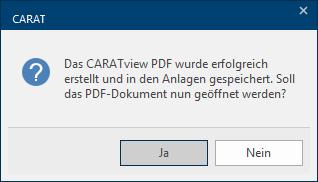
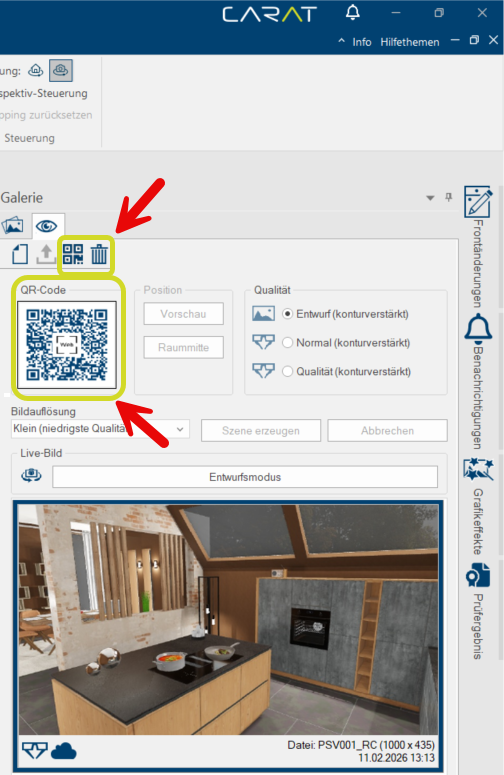
- After uploading the CARAT view scenarios to the CARAT cloud, a PDF The Adobe Portable Document Format (PDF) was developed and perfected in the 80's by Adobe Systems. Adobe PDF files contain data from any application, that can be displayed on every computer, and are suitable thereby to be exchanged with users throughout the world. file with a QR code and a short guide on how to download Downloading is a term used in electronic data processing. To download means to acquire data from another location (e.g. network PC or Internet) and transfer this data to your own computer. the CARAT view scenarios will automatically be created.. You can also immediately open the PDF file by clicking Yes if needed.
- The displayed PDF can now either be printed or sent to your customer by e-mail E-mail (electronic mail) is a letter like message transmitted electronically over a computer network.. To view the CARAT view scenarios in the internet browser the created PDF contains a QR code that can be scanned with a smartphone or tablet and a link that opens the CARAT view scenarios directly in an internet browser. The CARAT view scenarios automatically adapt to the available screen sizes The screen size is stated in inches (1 inch = 2.54 cm) and indicates the distance along the diagonal of the viewable screen. Unlike a TFT-Monitor however, is with a cathode-ray tube (CRT) monitor the visible range somewhat smaller than the diagonal of the CRT. of the different devices. By moving your finger over the screen or holding the mouse button pressed when on the computer you can move the CARAT view scenario.
Example: PDF with QR code and link to open it in the internet browser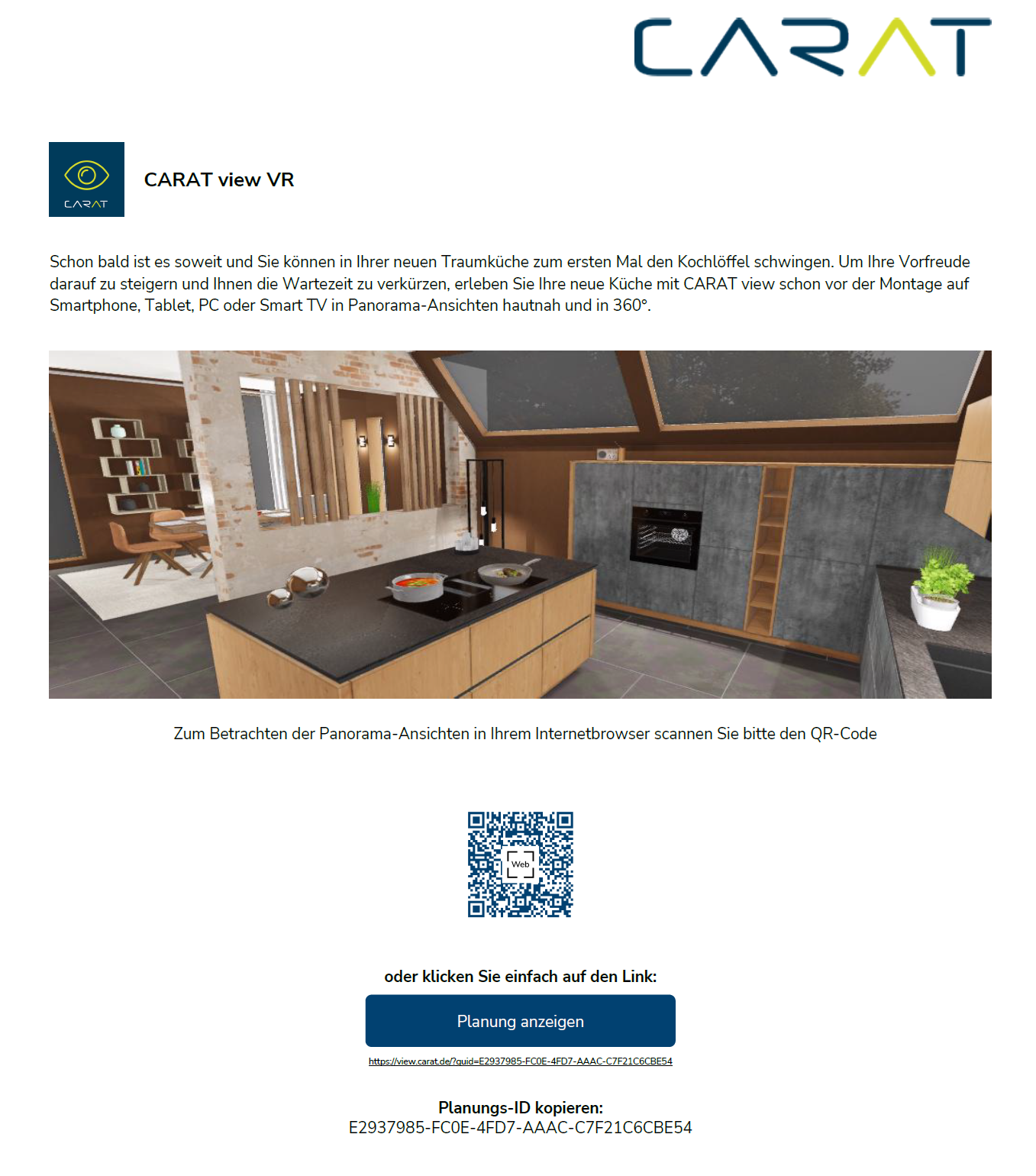
Example: opened scenario in the internet browser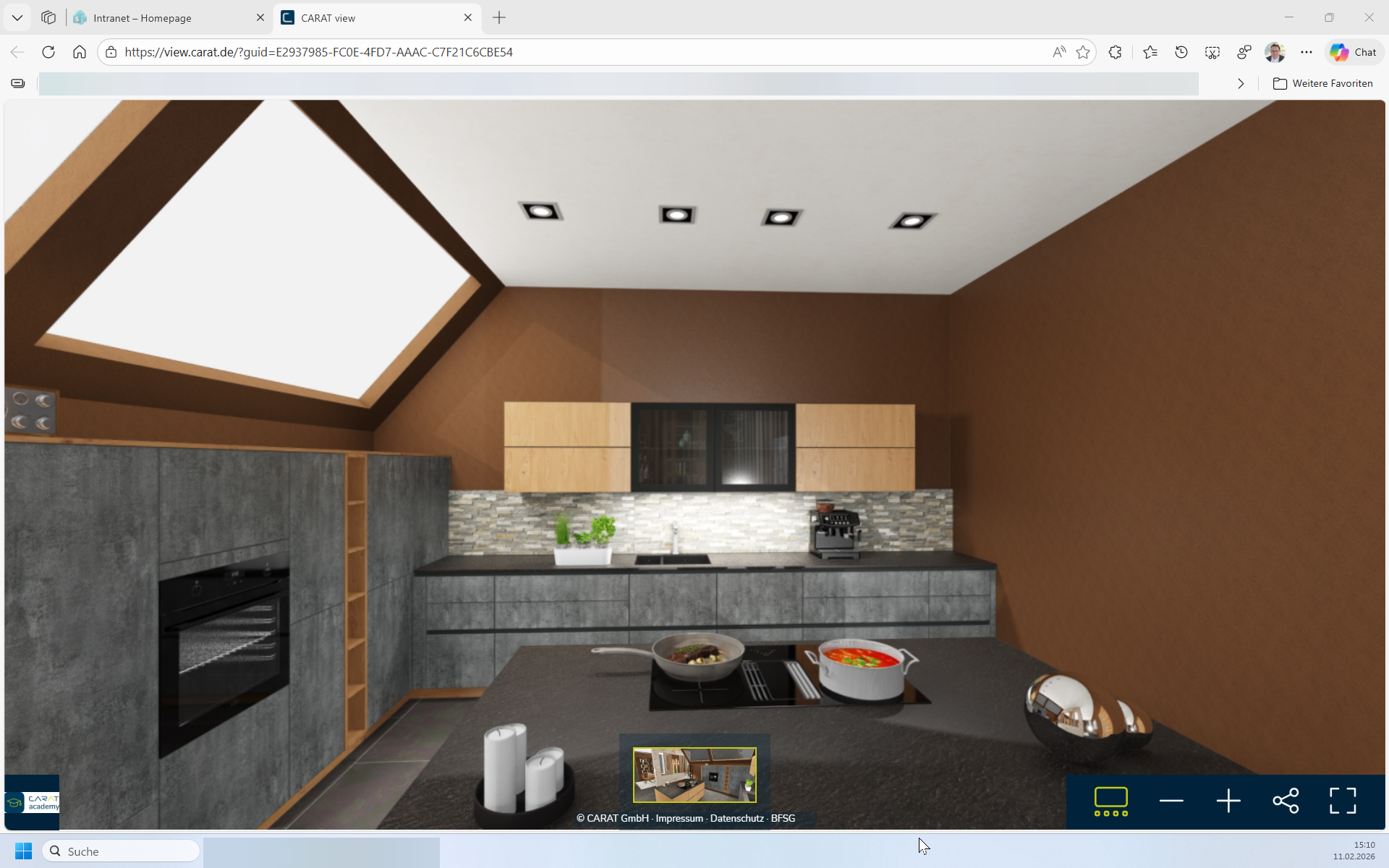
With a click on the recycle bin icon you can delete selected CARAT view scenarios from CARAT. Scenarios that have already been uploaded to the CARAT cloud must be deleted additionally in the CARAT cloud portal.
See also: Upload and manage CARAT view scenarios
 The Sidebar - Notifications

The sidebar Notifications shows you important program information. In addition, new notifications are also highlighted by a number beside the bell icon in the menu bar. By clicking on that icon, a side bar will open up on the right and display the notifications.
See also: The technical order check (TAK)

Example of a notification of the availability of a check result from TAK:
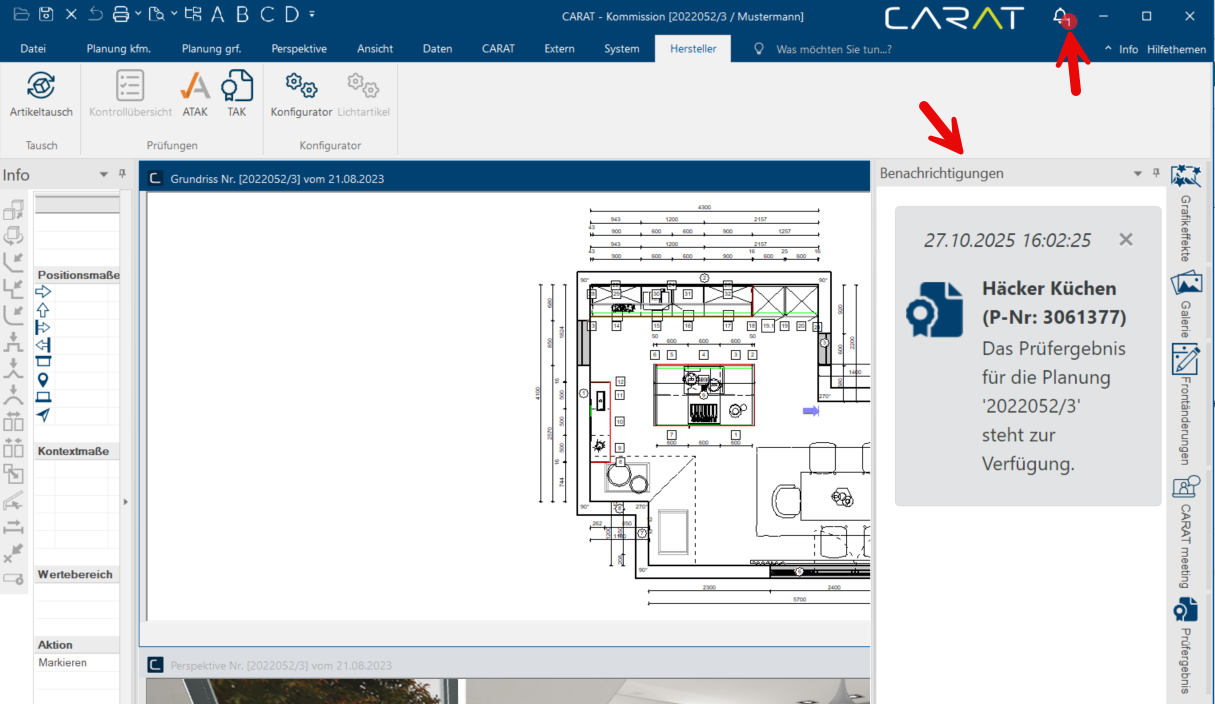
By clicking on the notification the check result will be displayed. Also, the number beside the bell icon will disappear which tells you that no more unread notifications are left.
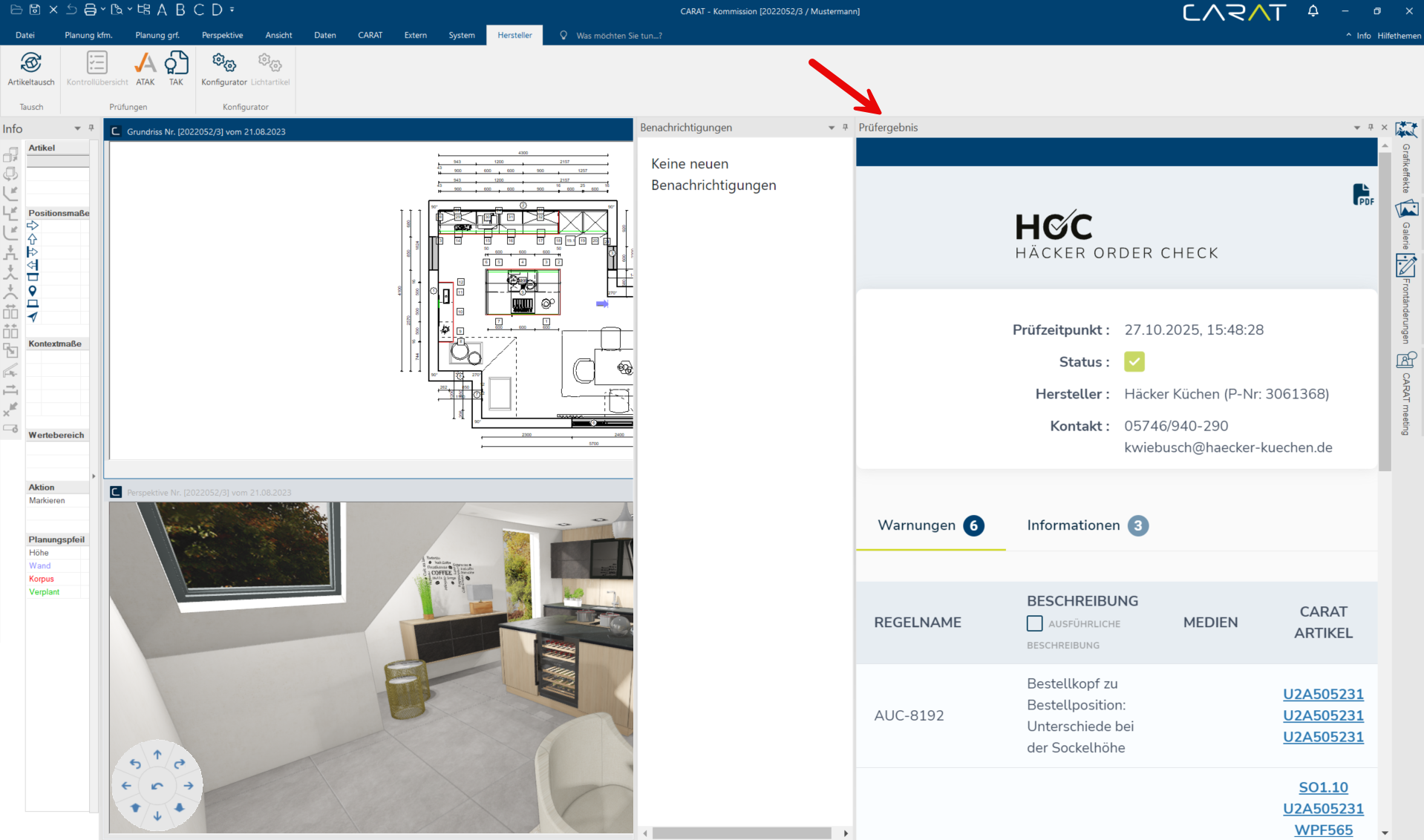
The sidebar - Check result

The sidebar Check result displays the result of the Technical order check (TAK).
See also: The technical order check (TAK)


