The Front view

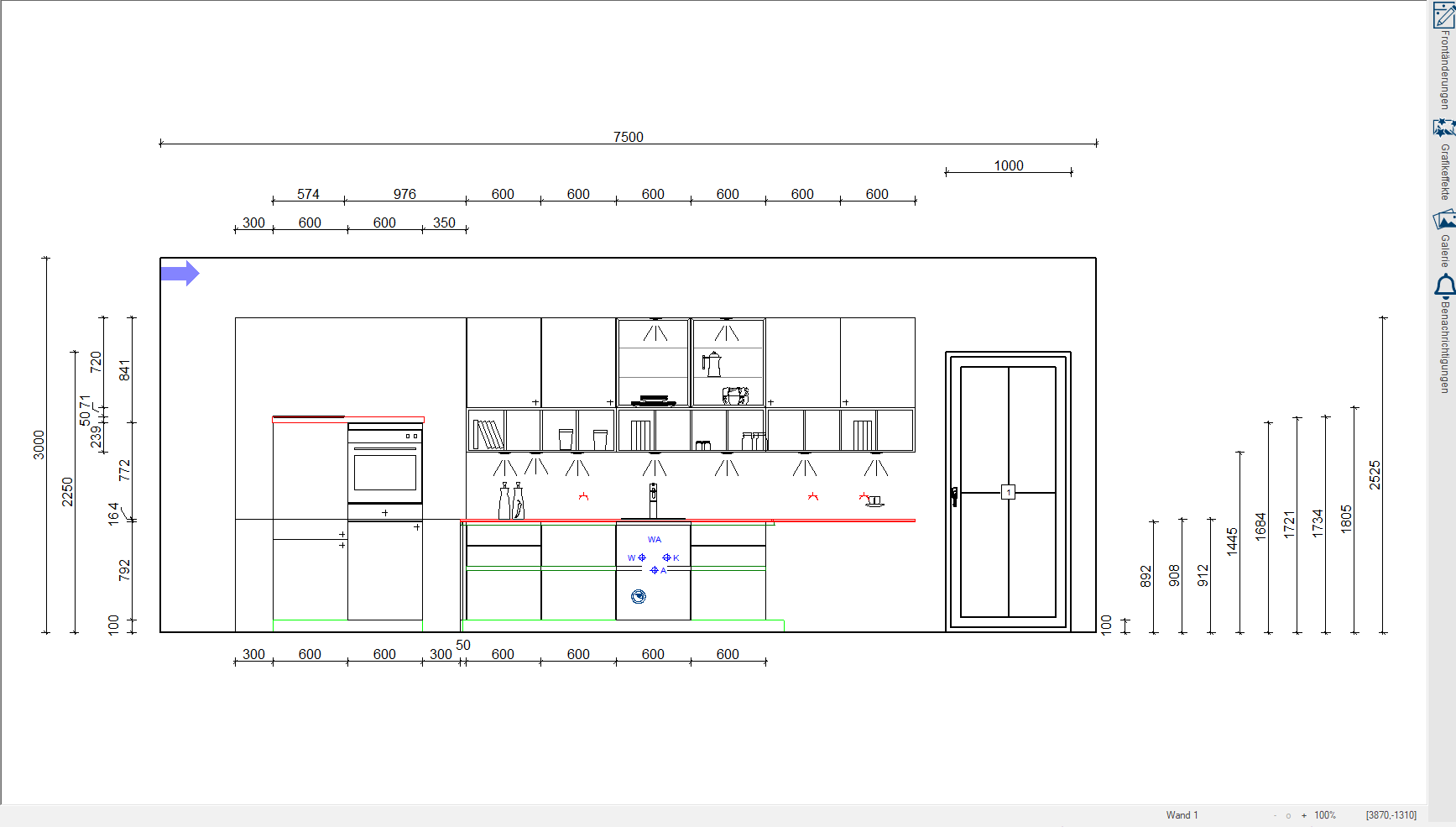
In the Front view, you can see the Display of the front of your planning for one wall at a time. The wall that is displayed when opening the front view is always the wall in which you are currently planning or last planned articles in the Floor plan. If you have faded in the Blue planning arrow in the Floor plan, this can also be recognised by its position.
,
See also: The View Options: The Front view
You can use the Front view for this:
-
Clear visualisation of the planned articles including height grid and arrangement
-
Moving articles to an optimal height for the customer
-
Precise placement or moving of decoration articles
-
Creating an placing installation symbols (these can be displayed in the front view)
-
Creating and displaying a tiling plan
-
Vertical display of virtual walls, for example to be able to display a kitchen island on both sides
When desired you can also add additional Addition (in Latin: addere) is one of four basic operations in arithmetic. In primary school and in common language it is the expression used for the adding of two or more numbers. dimension lines or texts so you can print or export the floor plan for further processing. Changes is the front view are automatically taken over in all depending views like the floor plan and the perspective as well as the article list. If a graphically relevant element is changed or deleted in any other view, the front view will directly be updated An update designates a new version of a base software program, which fixes faults or contains small improvements..
Example of a front view with decoration articles, installation symbols and dimension lines in the cabinet working layer Because the ranges of a design often overlap in the floor plan (e.g. plinth, worktop, carcase etc.) these article groups are classified into working layers. of the planning graph. index card
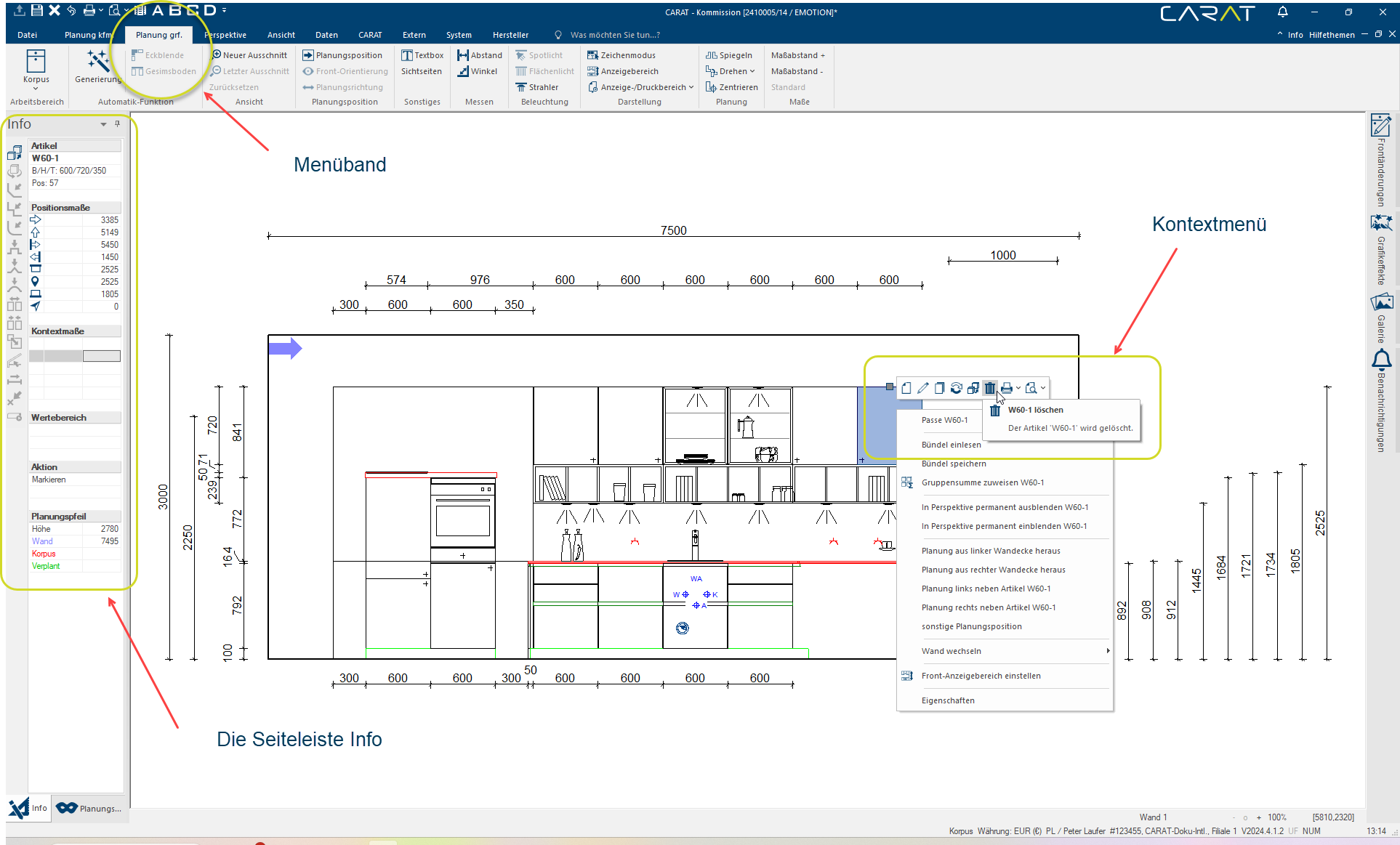
Depending on the set working layer you can add, change, relocate or delete several graphical elements, who should be displayed in the front view. The necessary functions for this are for selection available via permanently accessible areas. Functions that are currently not usable are shown inactive (grey).
- The menu ribbon: The Planning graph. index card will automatically get in the foreground, as soon as you click Typically the LEFT mouse button is pressed once quickly, if not specified differently. Clicking will either mark an object, or when clicking on a button, the execution of the desired activity (e.g. OK, Cancel, Close). in the floor plan view. On this index card are all essential functions for editing the front view available. See also: The index card - Planning graph.
- The Sidebar Info: Via the sidebar info are all tools for editing the front view available. Also here applies that the tool are only activated (dark blue) when you have marked the object to be edited. See also: The Sidebar - Info
- The Context Menu In almost all Windows programs a click with the RIGHT mouse button opens a context menu containing a list of commands that are commonly the next step of a procedure.: Via the context menu, which you can open with a right click in the front view, are for one all basic functions as well as very special, meaning context depending, functions available. The basic functions, which you usually will need regularly, are in the icon bar, above the context menu.