CARAT emotion
What is CARAT emotion?
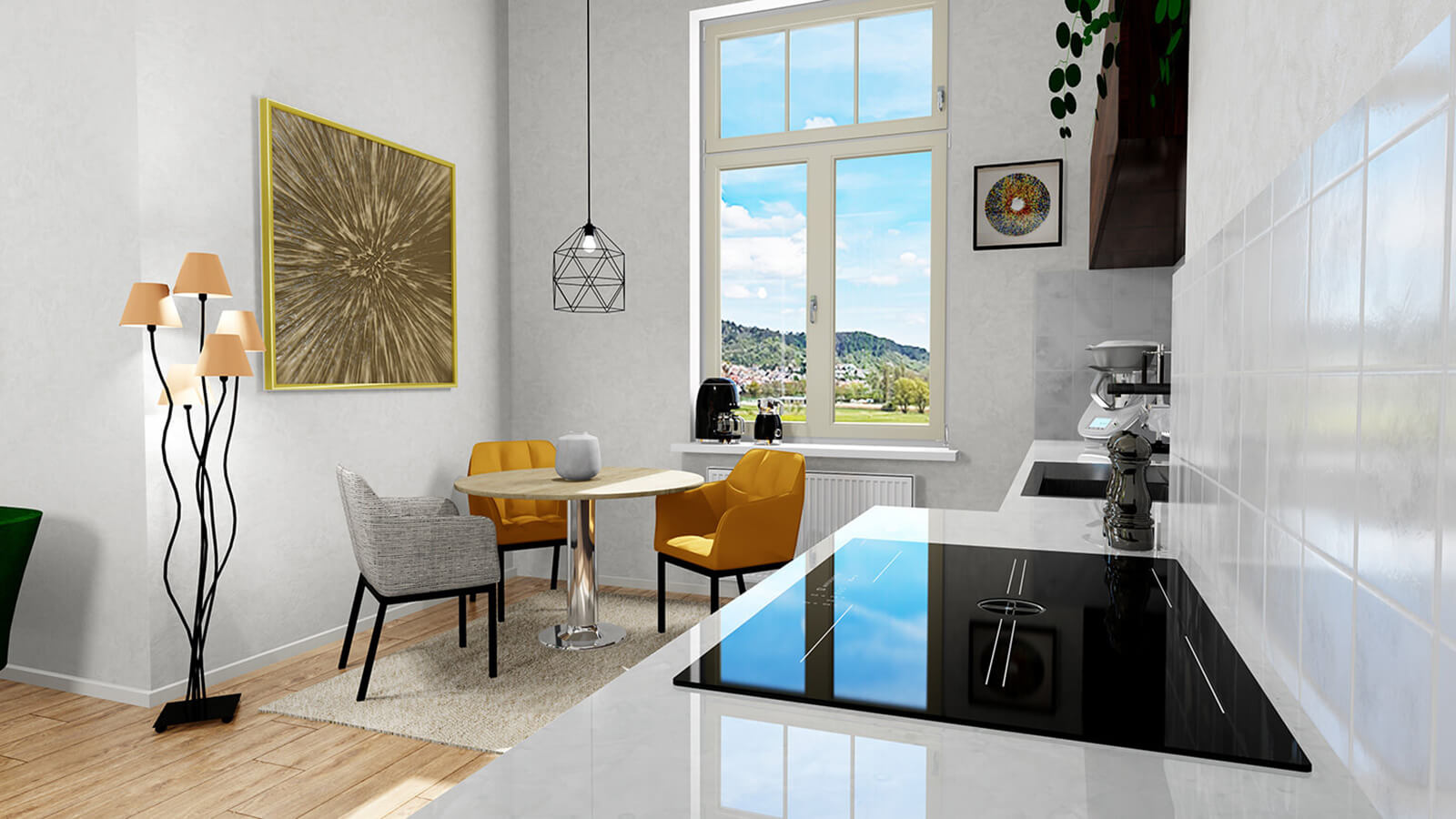
Start the next level of graphic visualisation with us! Lively 3D surfaces and Brilliant structures ensure a Realistic, Dynamic and Emotional presentation. With CARAT emotion, you can ad Addition (in Latin: addere) is one of four basic operations in arithmetic. In primary school and in common language it is the expression used for the adding of two or more numbers. the finishing touches to your designs, set focussed highlights and create an inviting ambience.
See also: CARAT emotion tutorial video

See also: The Hardware configurator
 This is how your start and end the CARAT emotion view:
Click Typically the LEFT mouse button is pressed once quickly, if not specified differently. Clicking will either mark an object, or when clicking on a button, the execution of the desired activity (e.g. OK, Cancel, Close). on the new symbol in the CARAT emotion group of the perspective index card Some dialogue windows are too voluminous, therefore the functions are separated into indexed groups. The subgroup names typically appear on the tab of the index card at the top of the dialogue and can be selected by clicking on the appropriate tab.. This will start or end the new view.

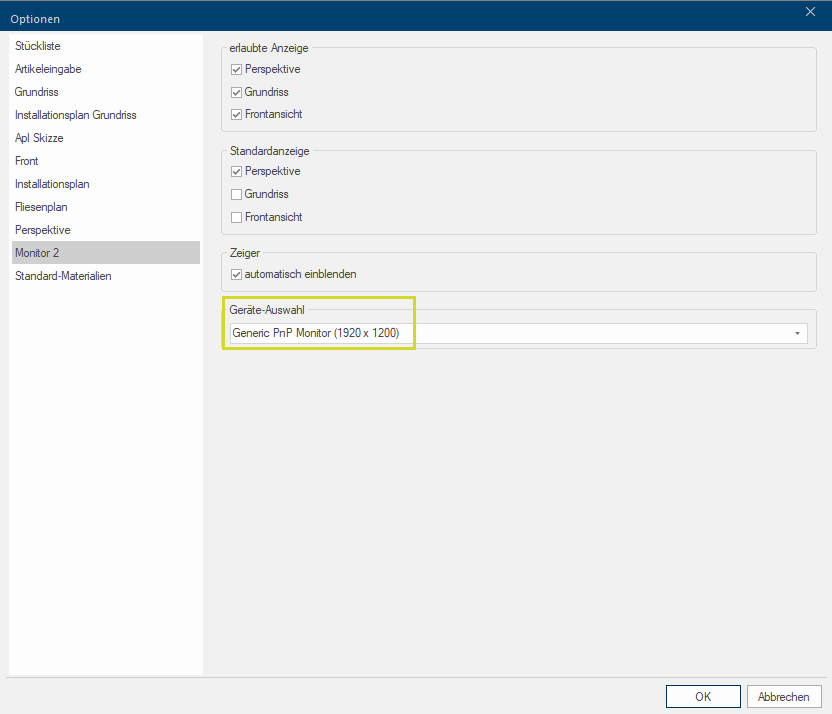
The new view will then automatically be transferred in Full screen on a connected 2nd monitor A monitor is a output device and/or a part of an output device used for displaying information or pictures. It is thus a display in a technical sense.. If you have Multiple monitors available, you can preselect under Monitor 2 in the View options The word option (from Latin: optio = free will) used in computing means a choice. In CARAT it is normally used with a list box. of the Settings group on the View index card on which monitor should be transferred.
Where to find the animated articles and how to plan them in.
You will find animated articles to be planned in the Neutral catalogue.
Open your design, select the Neutral catalogue by Article new and activated QuickClick.
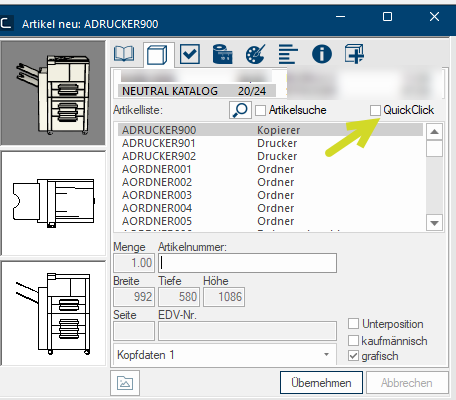
Now click on one of the categories (Deco-articles/Lights, Kitchen accessories, Appliances, furniture).
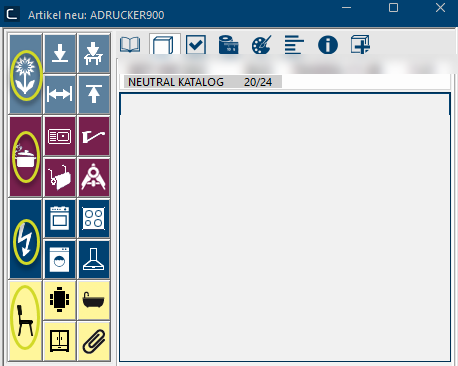
Now you can activate the Animated articles style and the animated articles from this ranges will be displayed. Then select an article by clicking on it.
Example: A candleholder from the Deco-articles/Lights range
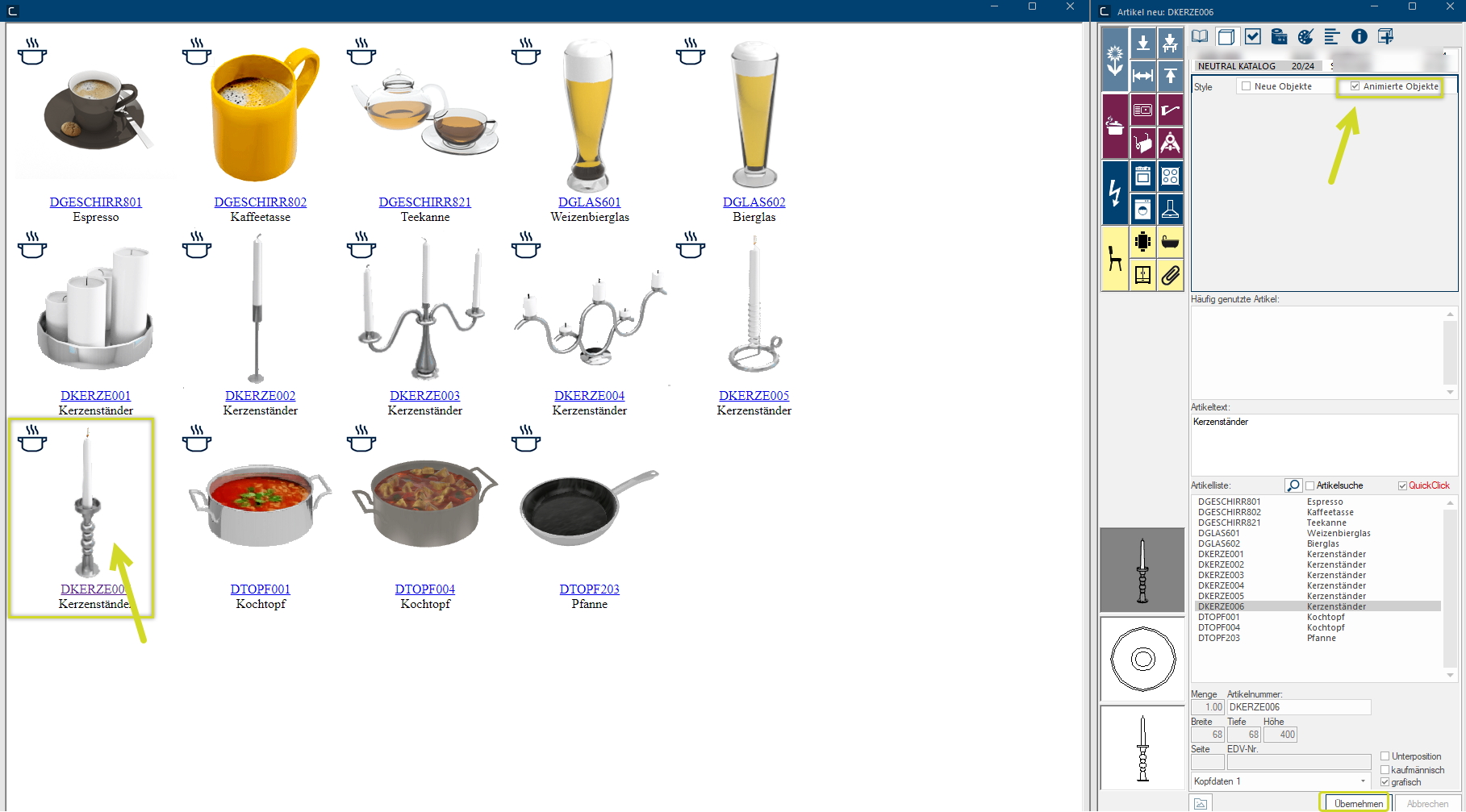
By clicking on Apply and then positioning the candleholder in the floor plan, the article is planned and visible in the perspective.
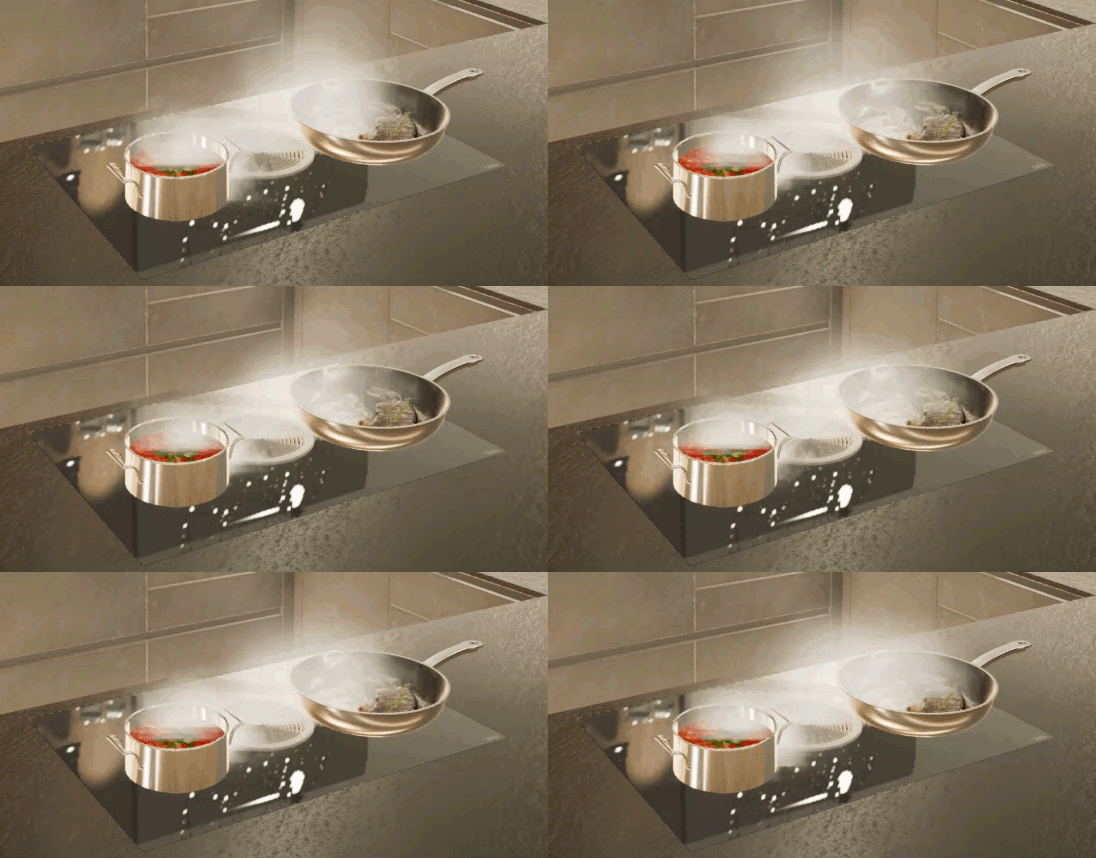
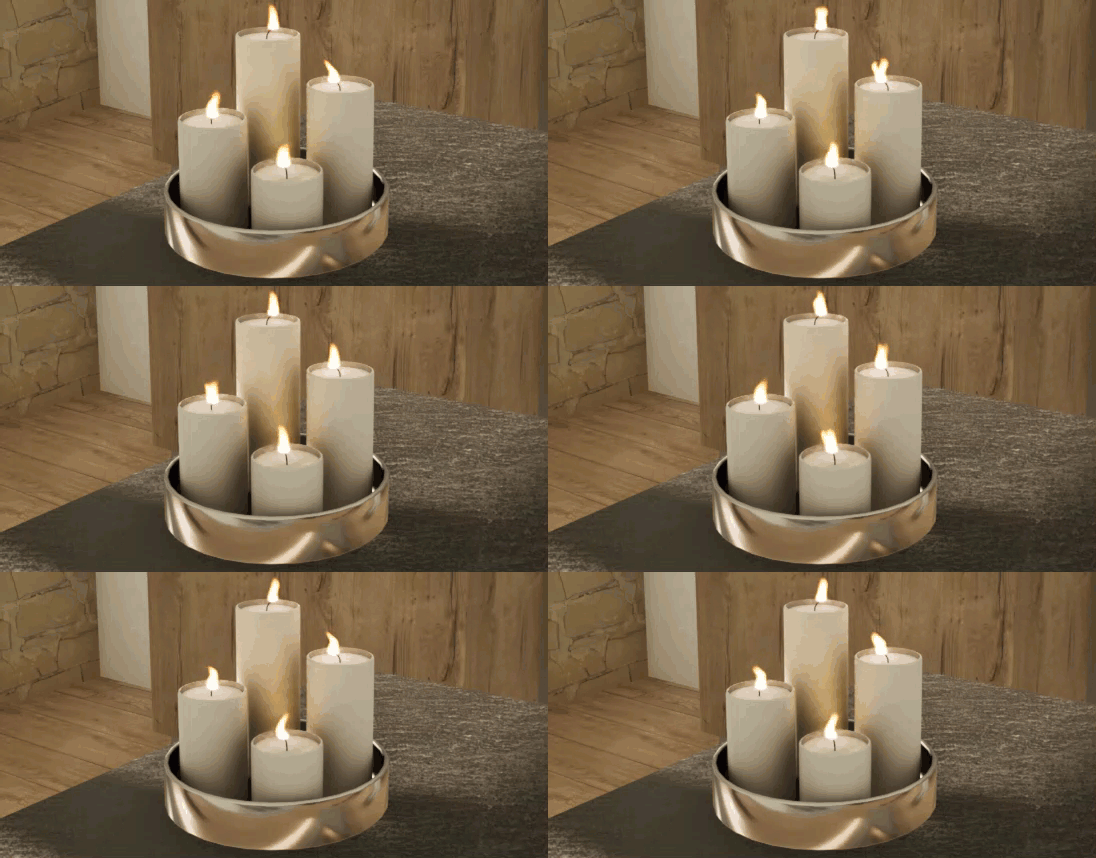
Here you see some detailed examples in the CARAT emotion view with planned Animated objects from the Neutral catalogue:
|
DPOT001 + DPOT205 + KHI4004
|
DCANDLE001
|
|
RFIREPLACE010
|
DTABLEWARE801
|
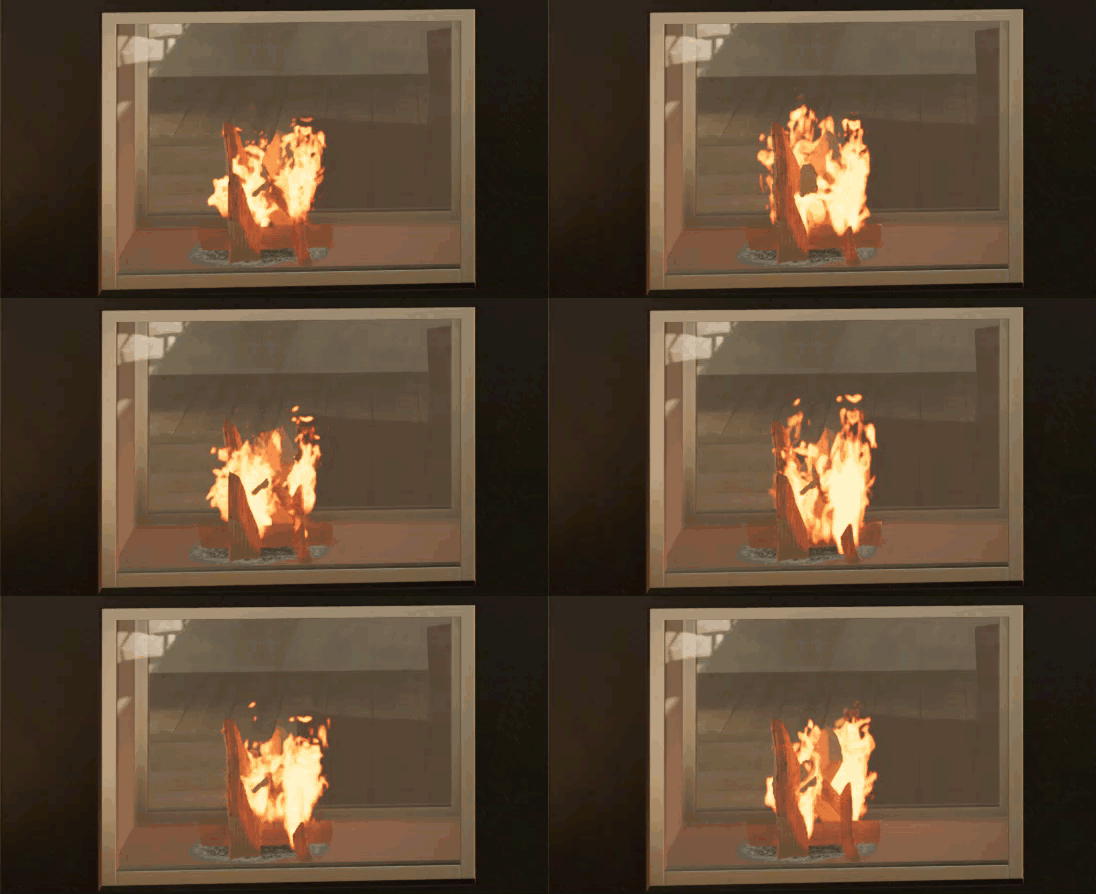
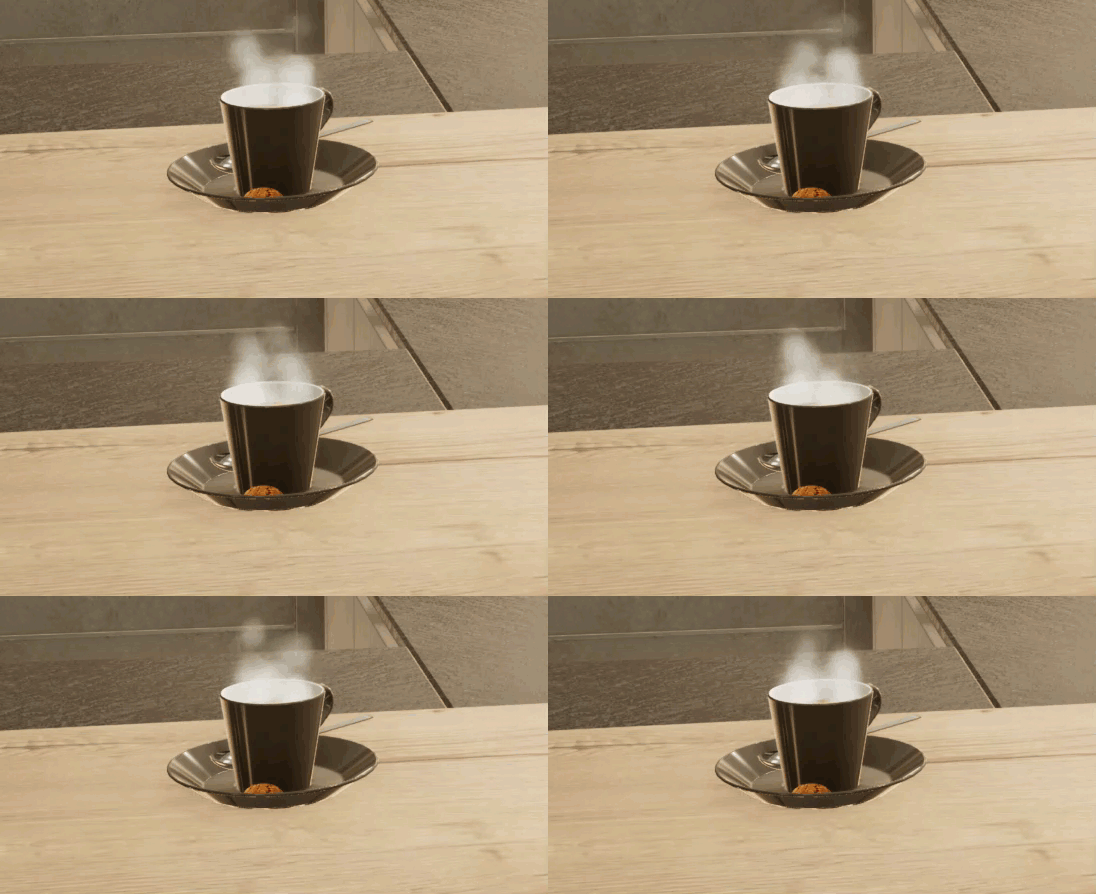 How to move within the CARAT emotion view?
The movement in the view is Synchronised with the perspective by the displayed Control in the Perspective of CARAT or with the help of Keys and keyboard shortcuts.
New, starting from version V2025.4.0.0: In Addition Addition (in Latin: addere) is one of four basic operations in arithmetic. In primary school and in common language it is the expression used for the adding of two or more numbers. to Synchronous control via the Perspective, you can now move Directly in Camera mode or Room rotation in the CARAT emotion view using your Keyboard, the Mouse or a Controller much like in the perspective.
(fehlender oder ungültiger Codeausschnitt)See also: The Perspective
Control in general
Hold down Ctrl: All movements, rotations and clipping planes are slowed down. This applies to the mouse, keyboard and controller.
To steer directly in the CARAT emotion view, click once in the CARAT emotion view with the mouse.
You can reverse the rotation direction of the room under Perspective in the View options of the View index card of the Menu ribbon.
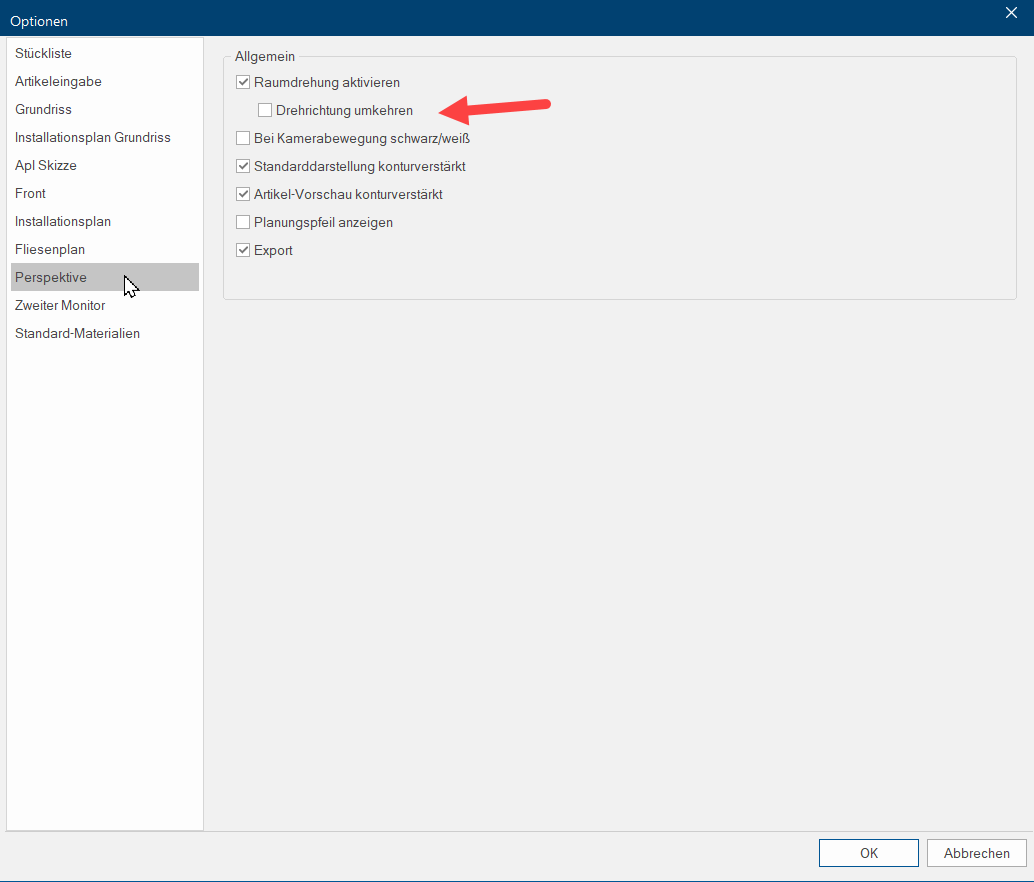
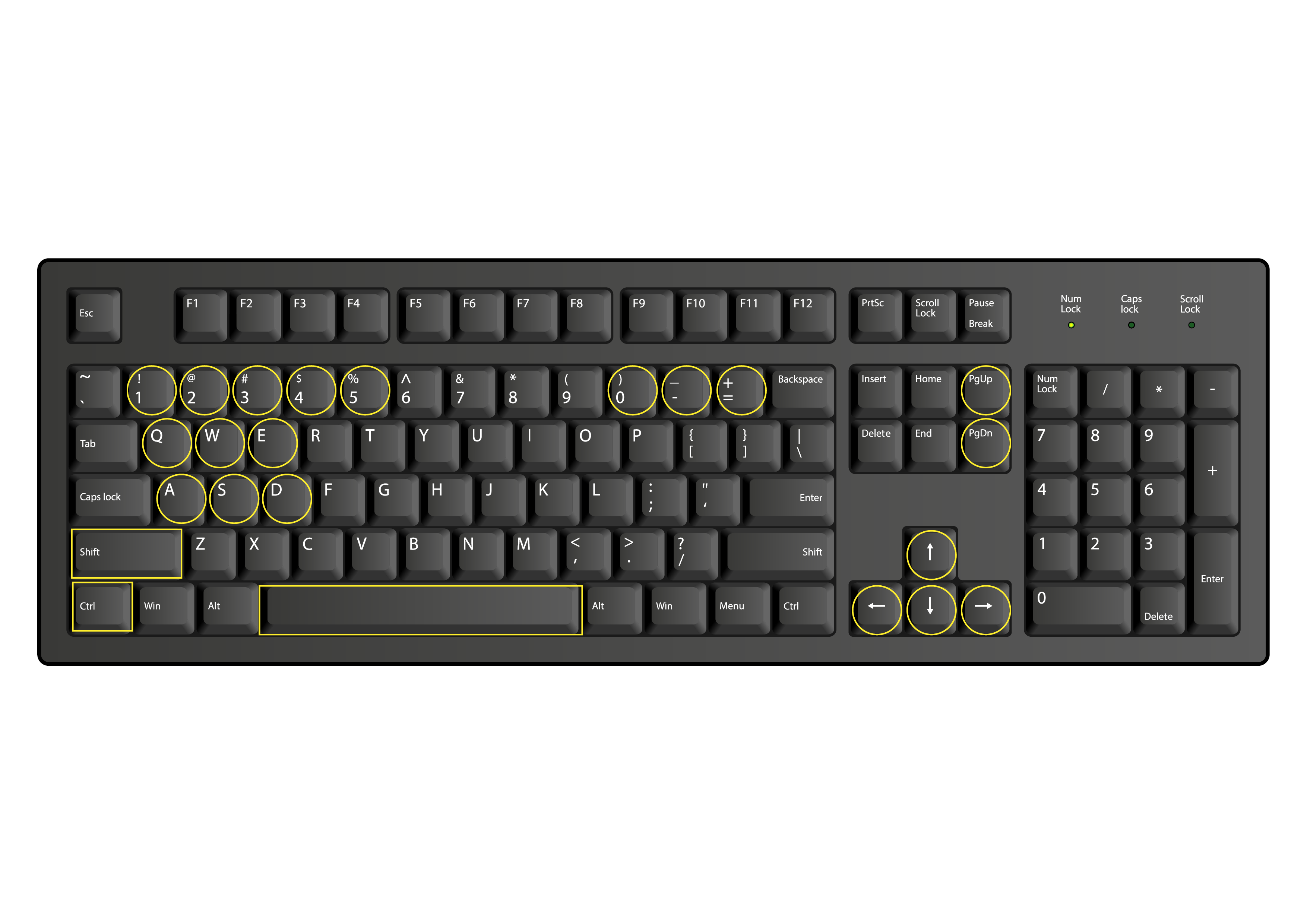
Control with the keyboard and mouse or touch pad
Key's | Action | Picture |
W or arrow upwards | Moving forwards |
Click on the image to enlarge the picture
|
A or arrow to the left | Move to the left | |
S or arrow downwards | Move backwards | |
D or arrow to the right | Move to the right | |
Q or page down | To sink | |
E or page up | To rise | |
Look around/turn within the kitchen scene | ||
Ctrl and + | Enlarge camera zoom | |
Ctrl and - | Reduce camera zoom | |
Ctrl and 0 | Reset camera zoom | |
Tap the space bar twice | Reset camera position | |
Keys 1-5 (not numeric keypad) | Predefined views: (tap keys twice) 1 = Front 2 = Back 3 = Right 4 = Left 5 = Top | |
Shift + mouse wheel scroll | Moving the front clipping plane |
Control with mouse or touch pad
Action | Description | Picture |
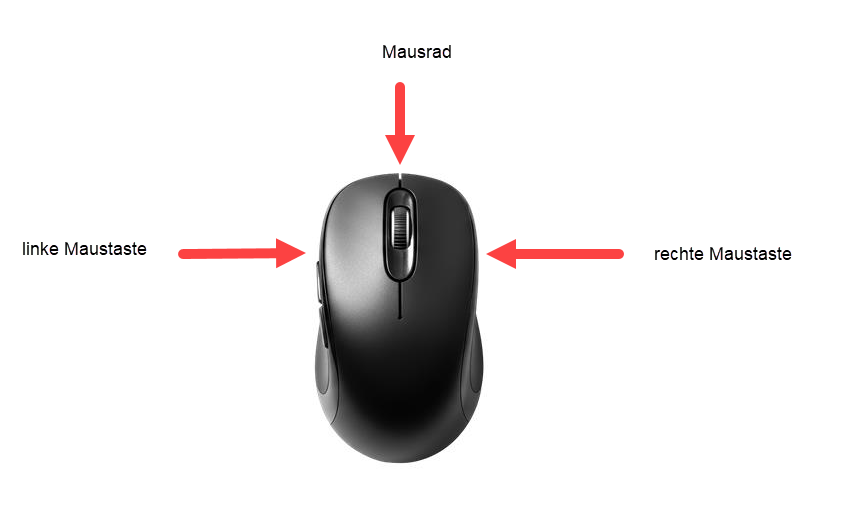
Click right mouse button In dialogue windows you always find one or more buttons that can be activated by clicking on them. Typical functions for buttons are e.g. OK, Cancel, Apply. Buttons are always activated by a single click with the left mouse button. + move mouse | Look around/turn within the scene |
Click on the image to enlarge the picture
|
Click right mouse button | A symbol shows whether the Camera mode or the Room rotation is active
indicates room rotation
indicates camera mode | |
Mouse wheel scroll | Move camera forwards or backwards | |
Press mouse wheel + move mouse | Move camera left/right/upwards/downwards | |
Press mouse wheel twice | Reset camera position |


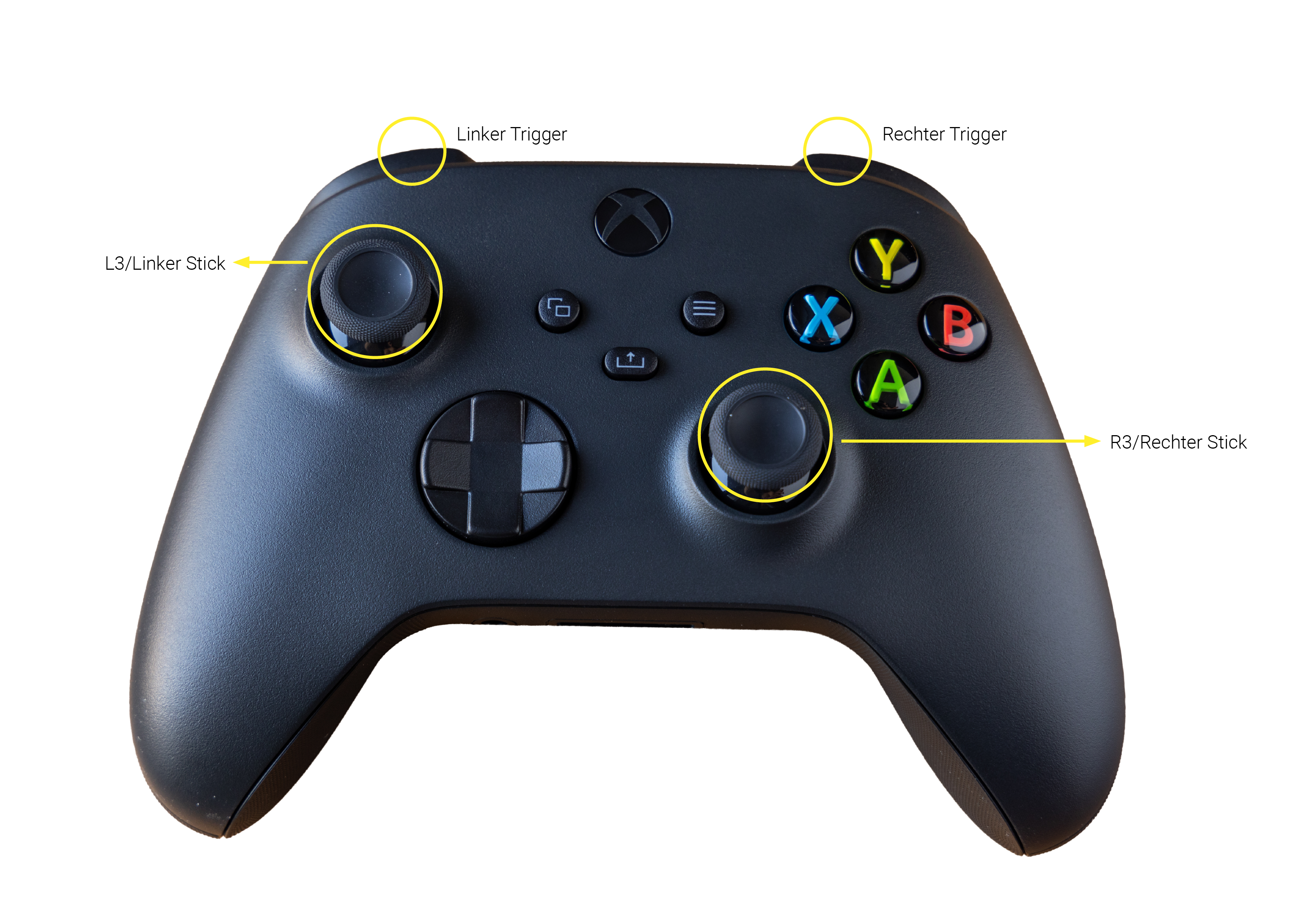
Control with controller (using the Xbox 360 as example)
The harder the sticks or triggers are pressed, the faster the movements are.
All standard controllers that work on current Windows operating systems An operating system is the software which enables the use of a computer. It administrates operating resources like memory, input and output devices and controls the execution of programs. and can be connected via USB or Bluetooth are suitable. The following have been specifically tested:
Xbox controllerPlayStation controller
Switch Pro controller
Android gamepad
OS gamepad
Nimbus + gamepad
WebGL gamepad
Action | Description | Picture |
Left stick | Movement forwards/backwards/left/right |
Click on the image to enlarge the picture
|
Right stick | Look around/turn within the kitchen scene | |
Right trigger | To rise | |
Left trigger | To sink | |
L3 (press in the left stick) or R3 (press in the right stick) | Reset camera position |
 How to optimize individually the visual display of the CARAT emotion view?
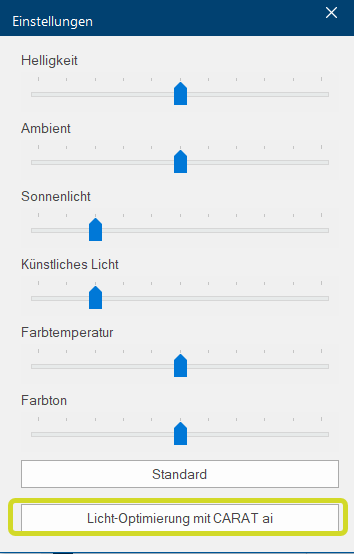
After having started the CARAT emotion view, please click on Settings in the CARAT emotion group of the Perspective index card in the Menu bar of CARAT.

A free-floating window Programs and files are shown in so called windows in the operating system of the same name. In CARAT each view (e.g. floor plan, article input, front view, perspective etc.) opens its own window. Multiple windows can be shown simultaneously for processing. If changes are made in one of these windows, this has an automatic effect on all other windows. with various sliding controllers opens. You can either operate the window in CARAT or drag it with the mouse directly in the scene on the 2nd monitor. Adjust here the visual details such as Colouring and Lighting to optimise the presentation of your scene. You can reset your adjusted setting at any time by clicking on Standard.
New from V2025.4.0.0: In CARAT emotion a new CARAT Guide feature will assist you with the Light optimization of your 360° scene. This happens by clicking the button Light optimization with CARAT AI in the Settings dialogue Dialogue, dialogue windows or dialogue fields are special windows in software applications. Dialogue windows are displayed by application programs in different situations to request input or confirmation from the user..
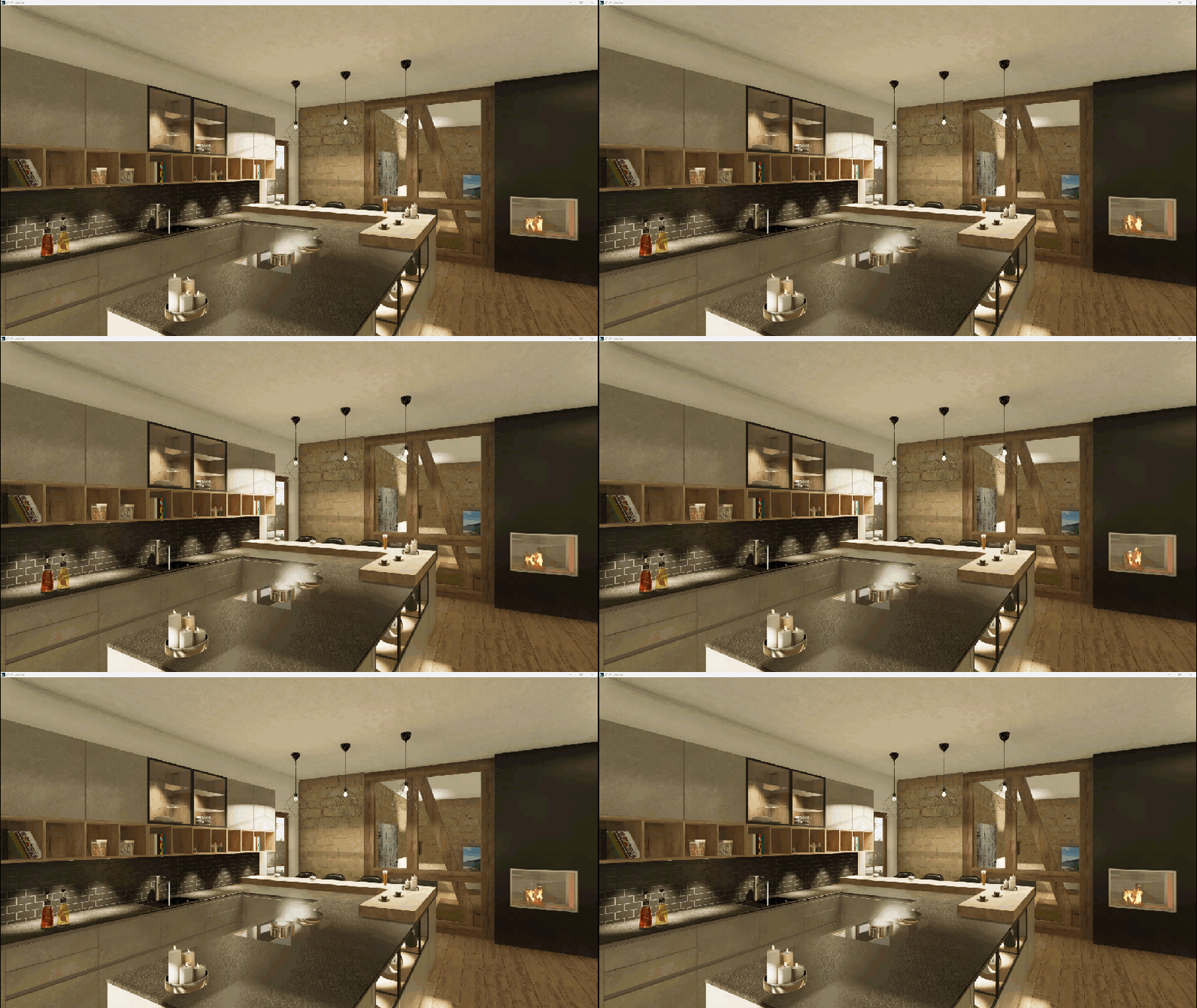
Example of an illumination optimisation:
|
Previously:
|
Afterwards:
|


Level 1: Available from V2023.10.0.0
A kitchen designed with CARAT emotion level 1 in the perspective
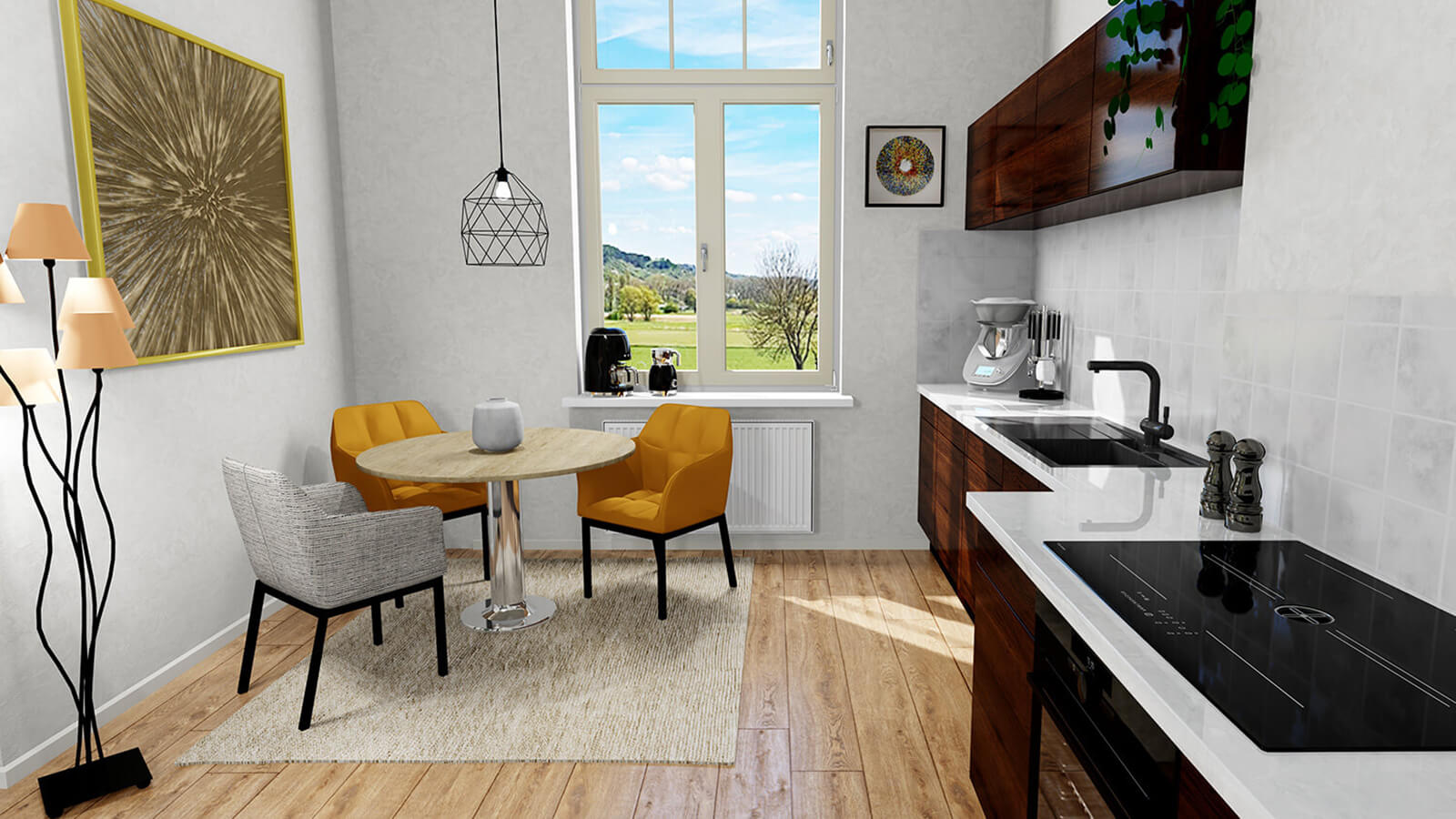
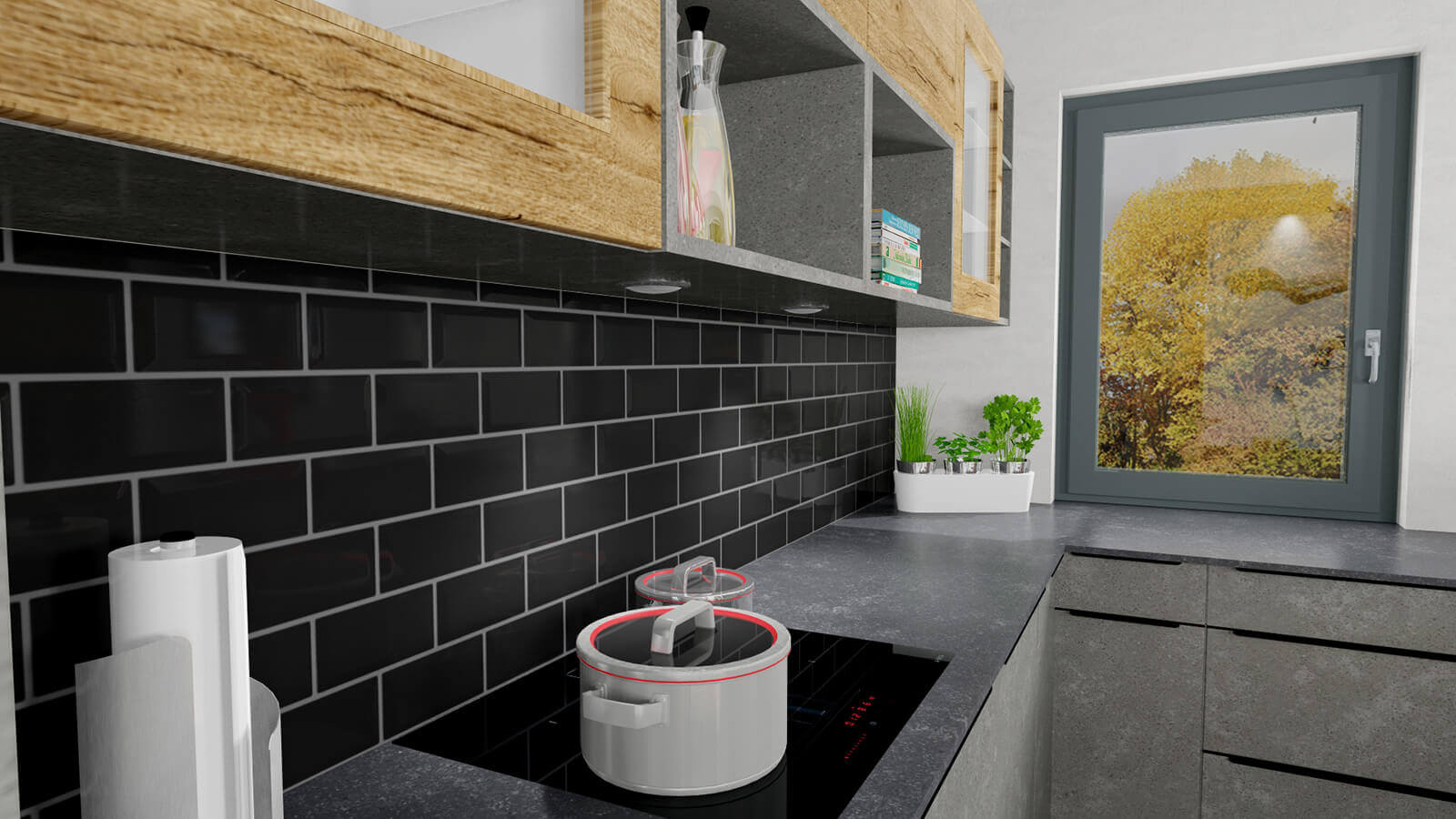
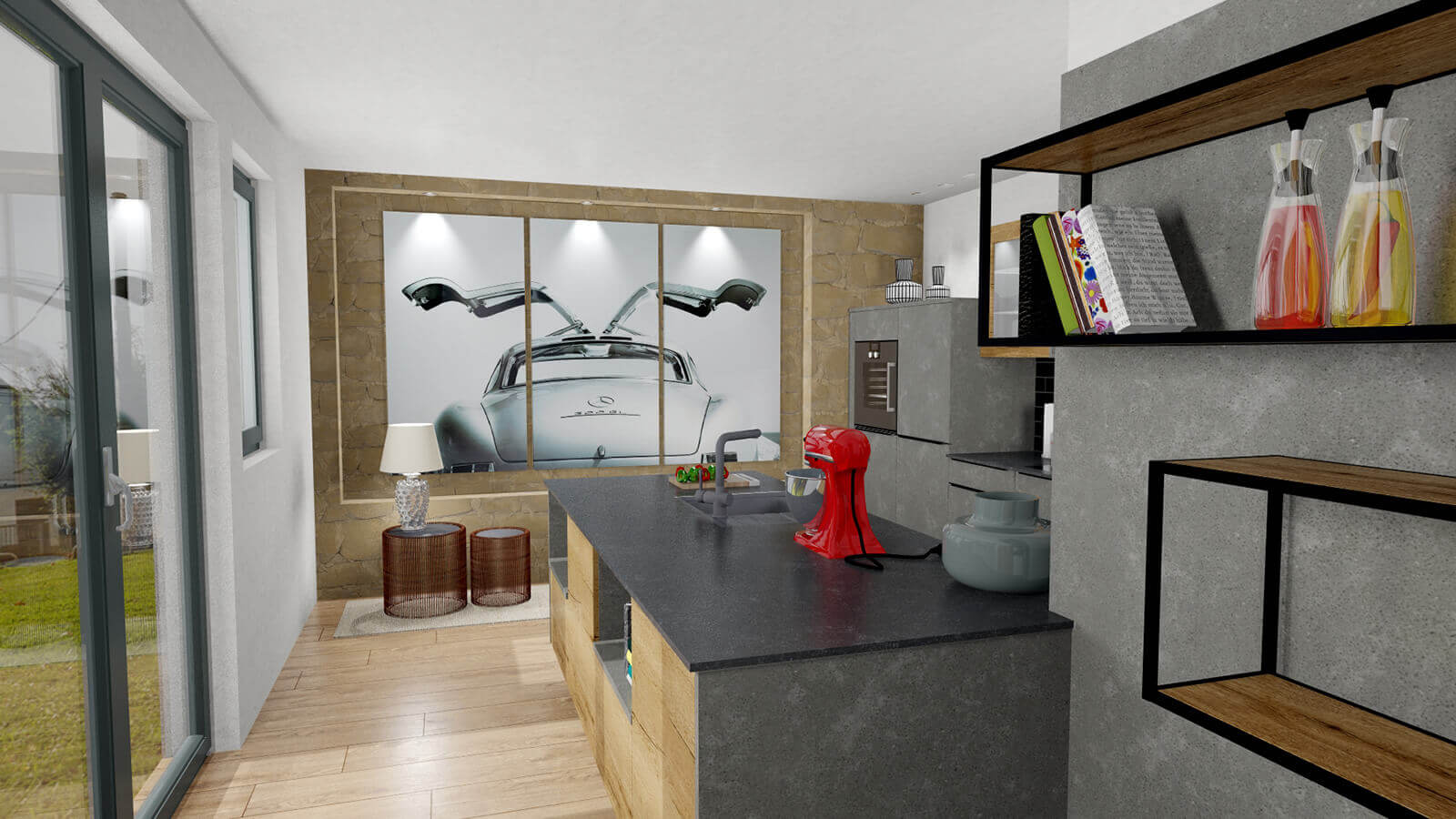
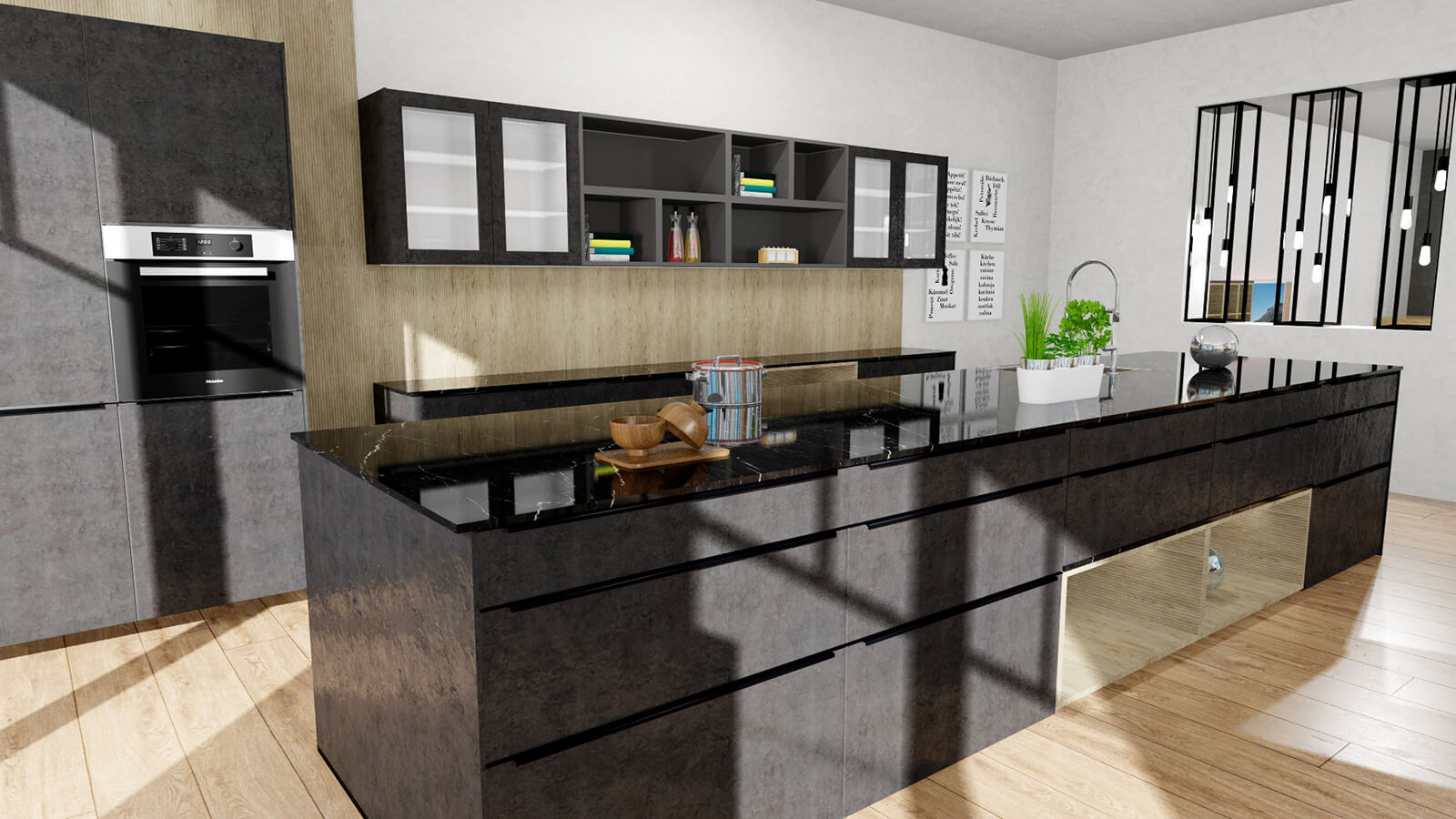
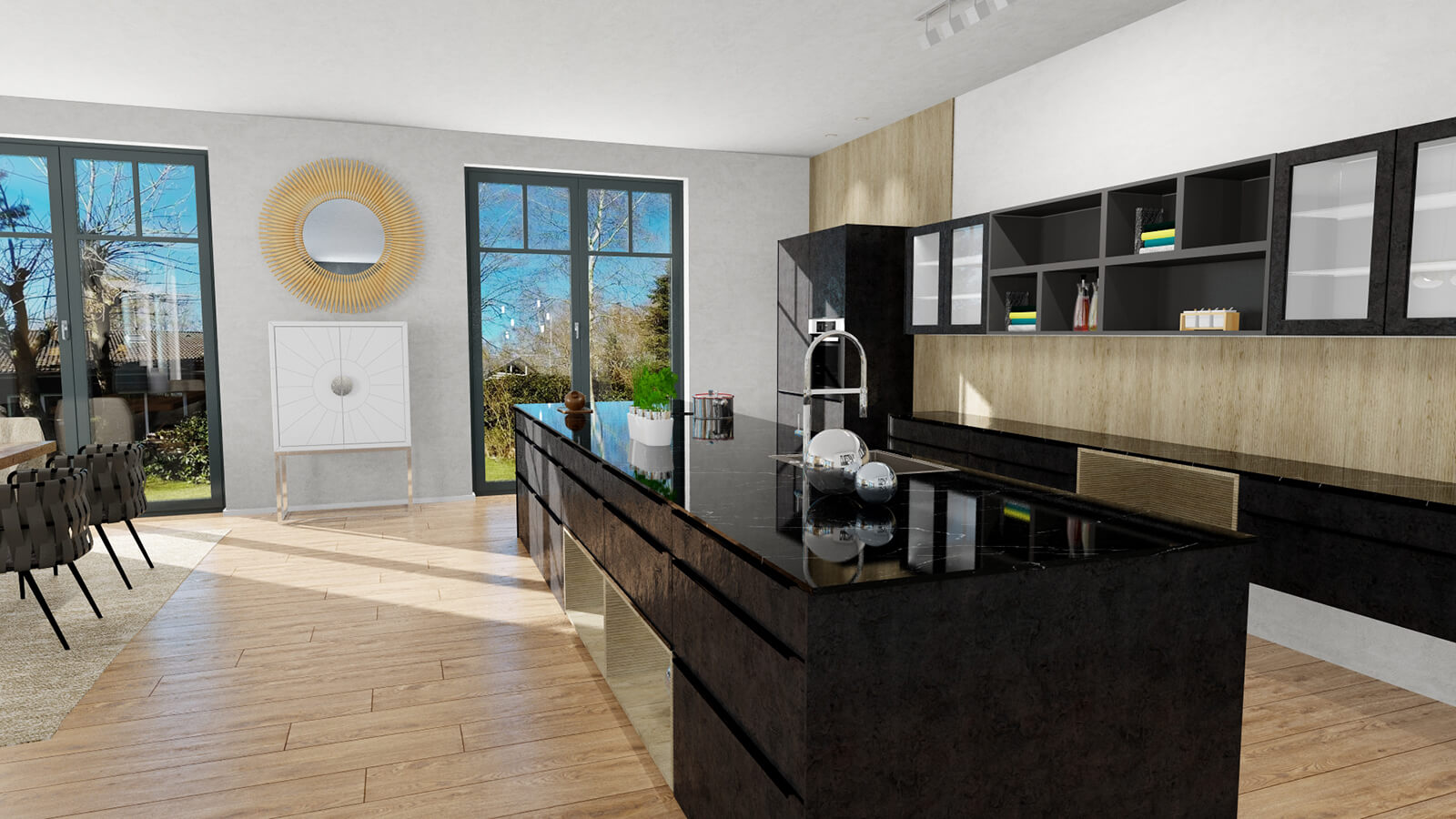
Textures In computer graphics, one uses textures as surfaces of a 3D models. with Realistic surface structures have been integrated into all areas of the design software Software denotes all nonphysical functional components of a computer, which contains at least one microprocessor. This primarily includes computer programs, as well as data used with computer programs., enabling an even more Detailed visualisation of the designed kitchens. You will find these new textures in most manufacturer catalogues as well as in CARAT's own data. Resulting in Brilliant structures in a Dynamic representation of room objects such as Floors, Tiled surfaces, Doors and Windows. Thus creating True to life scenes.
-
Click on the pictures to see some examples in detail:
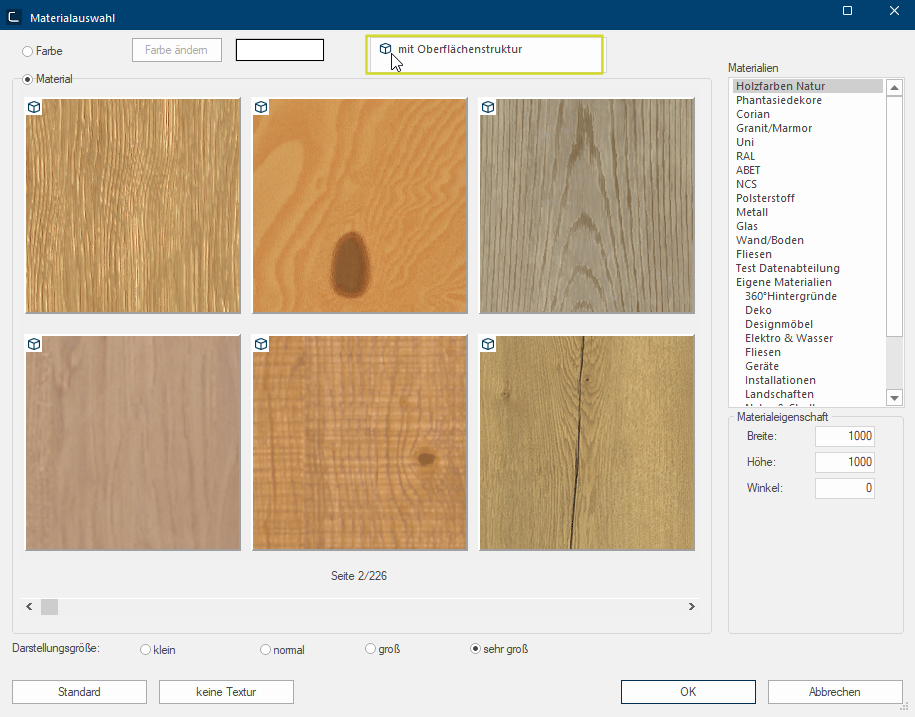
See also: The Material Selection
Level 2
Activated from Version V2024.4.1.0
With the new CARAT emotion view, the graphic visualisation of your CARAT kitchen design reaches new dimensions. Transfer your design on a 2nd monitor and now ad Neu animated articles to your kitchen design. Together with your customers, be amazed how your kitchen design suddenly becomes even more Lively in interaction with the new Textures with realistic surface structures and the Animated articles and is presented in a Quality unrivalled up to now.
An example of a kitchen design in the new CARAT emotion view with animations:
Look forward to:
-
Steaming pans
-
Burning fireplaces and candles
-
Running water
-
Steaming cups
-
Sparkling drinks
This is how your start and end the CARAT emotion view:
Click on the new symbol in the CARAT emotion group of the perspective index card. This will start or end the new view.
The new view will then automatically be transferred in Full screen on a connected 2nd monitor. If you have Multiple monitors available, you can preselect under Monitor 2 in the View options of the Settings group on the View index card on which monitor should be transferred.
Where to find the animated articles and how to plan them in.
You will find animated articles to be planned in the Neutral catalogue.
Open your design, select the Neutral catalogue by Article new and activated QuickClick.
Now click on one of the categories (Deco-articles/Lights, Kitchen accessories, Appliances, furniture).
Now you can activate the Animated articles style and the animated articles from this ranges will be displayed. Then select an article by clicking on it.
Example: A candleholder from the Deco-articles/Lights range
By clicking on Apply and then positioning the candleholder in the floor plan, the article is planned and visible in the perspective.
Here you see some detailed examples in the CARAT emotion view with planned Animated objects from the Neutral catalogue:
|
DPOT001 + DPOT205 + KHI4004
|
DCANDLE001
|
|
RFIREPLACE010
|
DTABLEWARE801
|
How to move within the CARAT emotion view?
The movement in the view is Synchronised with the perspective by the displayed Control in the Perspective of CARAT or with the help of Keys and keyboard shortcuts.
New, starting from version V2025.4.0.0: In Addition to Synchronous control via the Perspective, you can now move Directly in Camera mode or Room rotation in the CARAT emotion view using your Keyboard, the Mouse or a Controller much like in the perspective.
(fehlender oder ungültiger Codeausschnitt)See also: The Perspective
Control in general
Hold down Ctrl: All movements, rotations and clipping planes are slowed down. This applies to the mouse, keyboard and controller.
To steer directly in the CARAT emotion view, click once in the CARAT emotion view with the mouse.
You can reverse the rotation direction of the room under Perspective in the View options of the View index card of the Menu ribbon.
Control with the keyboard and mouse or touch pad
Key's | Action | Picture |
W or arrow upwards | Moving forwards |
Click on the image to enlarge the picture
|
A or arrow to the left | Move to the left | |
S or arrow downwards | Move backwards | |
D or arrow to the right | Move to the right | |
Q or page down | To sink | |
E or page up | To rise | |
Shift + arrow keys or WASD | Look around/turn within the kitchen scene | |
Ctrl and + | Enlarge camera zoom | |
Ctrl and - | Reduce camera zoom | |
Ctrl and 0 | Reset camera zoom | |
Tap the space bar twice | Reset camera position | |
Keys 1-5 (not numeric keypad) | Predefined views: (tap keys twice) 1 = Front 2 = Back 3 = Right 4 = Left 5 = Top | |
Shift + mouse wheel scroll | Moving the front clipping plane |
Control with mouse or touch pad
Action | Description | Picture |
Click right mouse button + move mouse | Look around/turn within the scene |
Click on the image to enlarge the picture
|
Click right mouse button | A symbol shows whether the Camera mode or the Room rotation is active
indicates room rotation
indicates camera mode | |
Mouse wheel scroll | Move camera forwards or backwards | |
Press mouse wheel + move mouse | Move camera left/right/upwards/downwards | |
Press mouse wheel twice | Reset camera position |
Control with controller (using the Xbox 360 as example)
The harder the sticks or triggers are pressed, the faster the movements are.
All standard controllers that work on current Windows operating systems and can be connected via USB or Bluetooth are suitable. The following have been specifically tested:
Xbox controllerPlayStation controller
Switch Pro controller
Android gamepad
OS gamepad
Nimbus + gamepad
WebGL gamepad
Action | Description | Picture |
Left stick | Movement forwards/backwards/left/right |
Click on the image to enlarge the picture
|
Right stick | Look around/turn within the kitchen scene | |
Right trigger | To rise | |
Left trigger | To sink | |
L3 (press in the left stick) or R3 (press in the right stick) | Reset camera position |
How can the optical presentation of the CARAT emotion view be optimised?
After having started the CARAT emotion view, please click on Settings in the CARAT emotion group of the Perspective index card in the Menu bar of CARAT.
A free-floating window with various sliding controllers opens. You can either operate the window in CARAT or drag it with the mouse directly in the scene on the 2nd monitor. Adjust here the visual details such as Colouring and Lighting to optimise the presentation of your scene. You can reset your adjusted setting at any time by clicking on Standard.
New, starting from V2025.4.0.0: A new AI-function now supports you with the Illumination optimisation of your 360° scenes in CARAT emotion. This is done using the new Illumination optimisation with CARAT ai button in the Settings dialogue.
Example of an illumination optimisation:
|
Previously:
|
Afterwards:
|
Level 3: from V2026.2.1.2 automatically included
With the latest expansion stage Level 3 of CARAT emotion your products now come to life. Doors, drawers and pull-outs can be opened and closed with just one click. Planned furniture items with electric appliances and accessories reveal the interior after opening them you can thrill your customers already during planning with the features and the atmosphere of their new kitchen.
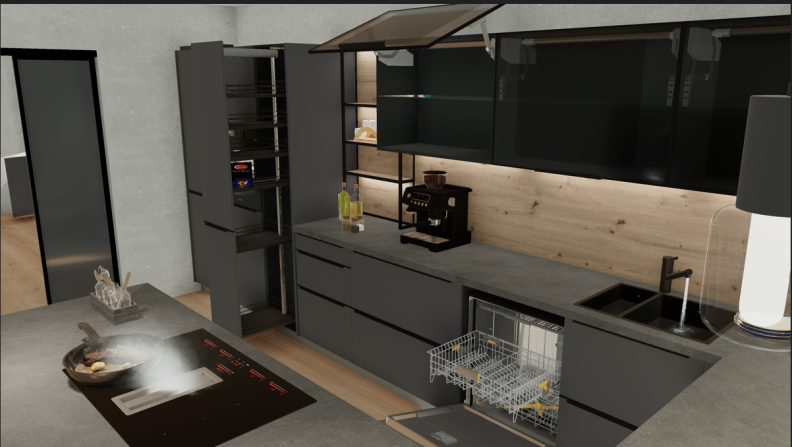
In addition, the new CARAT emotion menu bar gives you direct access to the new features Decorate Interior and Avid Collisions that you can activate or deactivate here. Aside from that you can also open the dialogue for the CARAT guide - Light assist. A description for it can be found further down on this page with the title CARAT guide - Light assist.
This is how it works:
-
After starting CARAT emotion within CARAT you will find the new CARAT emotion menu bar in the lower right corner. There you can click on the icon with the three drawers for Interior. Now you can activate the feature Decorate Interior by clicking on it and decoration items will be placed automatically inside the opening doors, drawers and pull-outs.
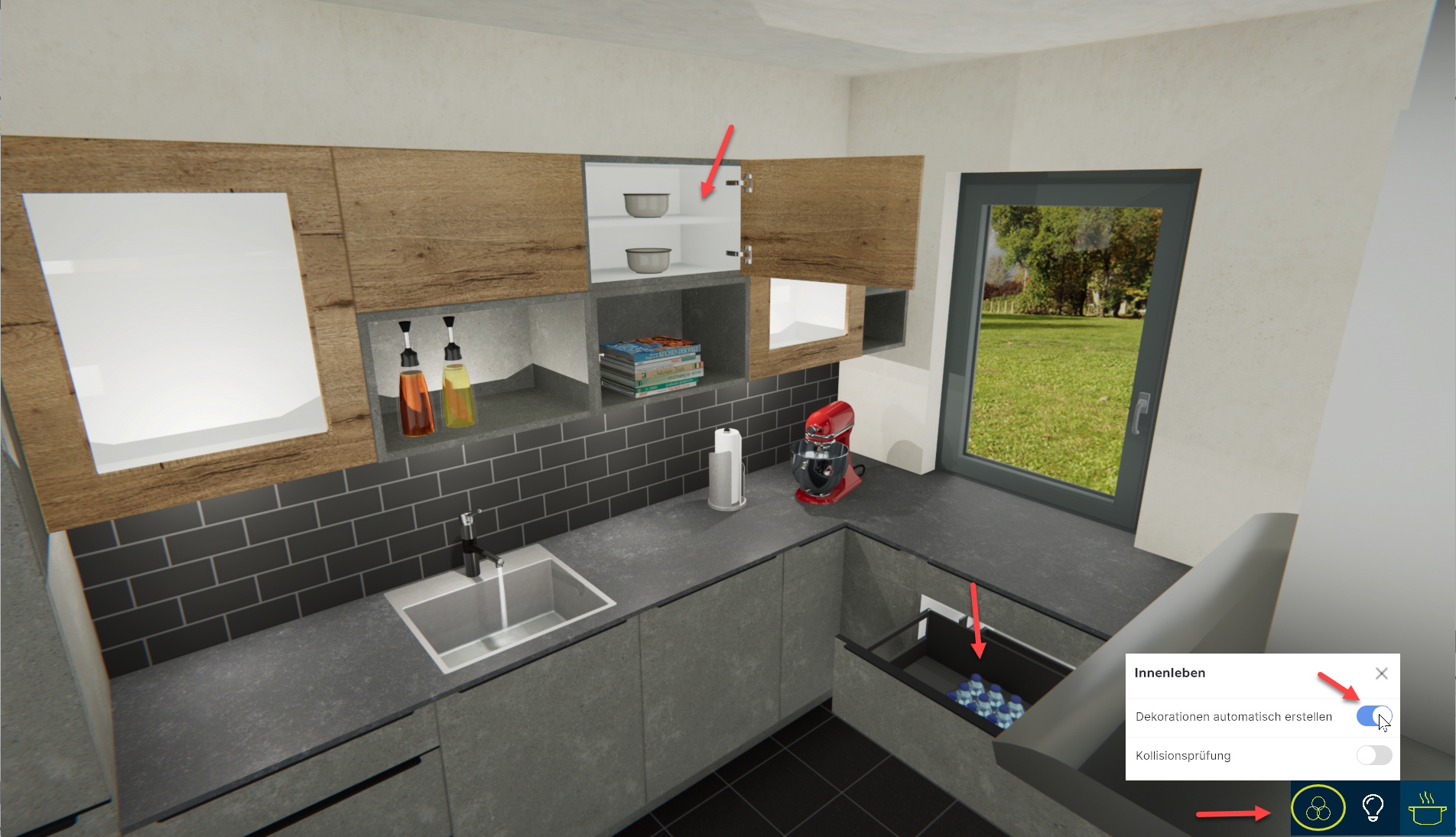
-
Furthermore, we recommend to activate the feature Avoid Collisions. This will avoid the parallel opening of doors, drawers and pull-outs if they would block each other.
CARAT Guide - Light assist (Light optimization with AI) automatically activated from V2026.2.1.2 on
Add atmosphere to your kitchen and make your planning become a vivid experience for the customer with the CARAT Guide - Light assist (light optimization with AI). It provides you with a very easy way to improve the lighting planning in CARAT emotion by means of artificial intelligence.
-
Automatic optimization of light sources
-
Flexible adjustment of front changes or different room sizes
-
Adding new virtual light sources
In this way we support you with the creation of persuading light conception for your planning without the usual intricate detail work. Thus will give you more freedom for consulting, creativity and on-on-one exchanges with your customers.
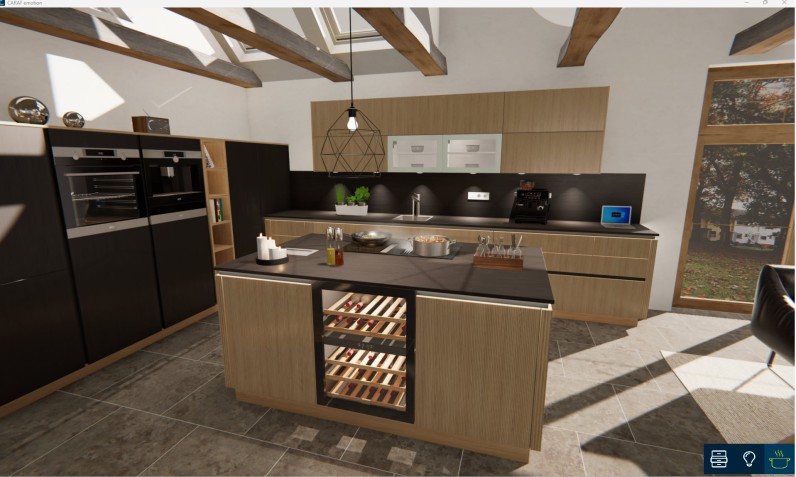
This is how it works:
-
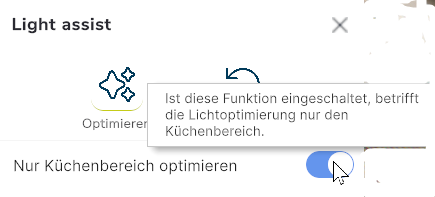
After starting CARAT emotion within CARAT you will see a new menu bar in the lower right corner. Click on the Bulb icon to open the Light assist dialogue. Afterwards click on the Optimize with AI icon to start Light assist. In addition, you will see a Tool tip with a short description when hover the mouse over the icon.
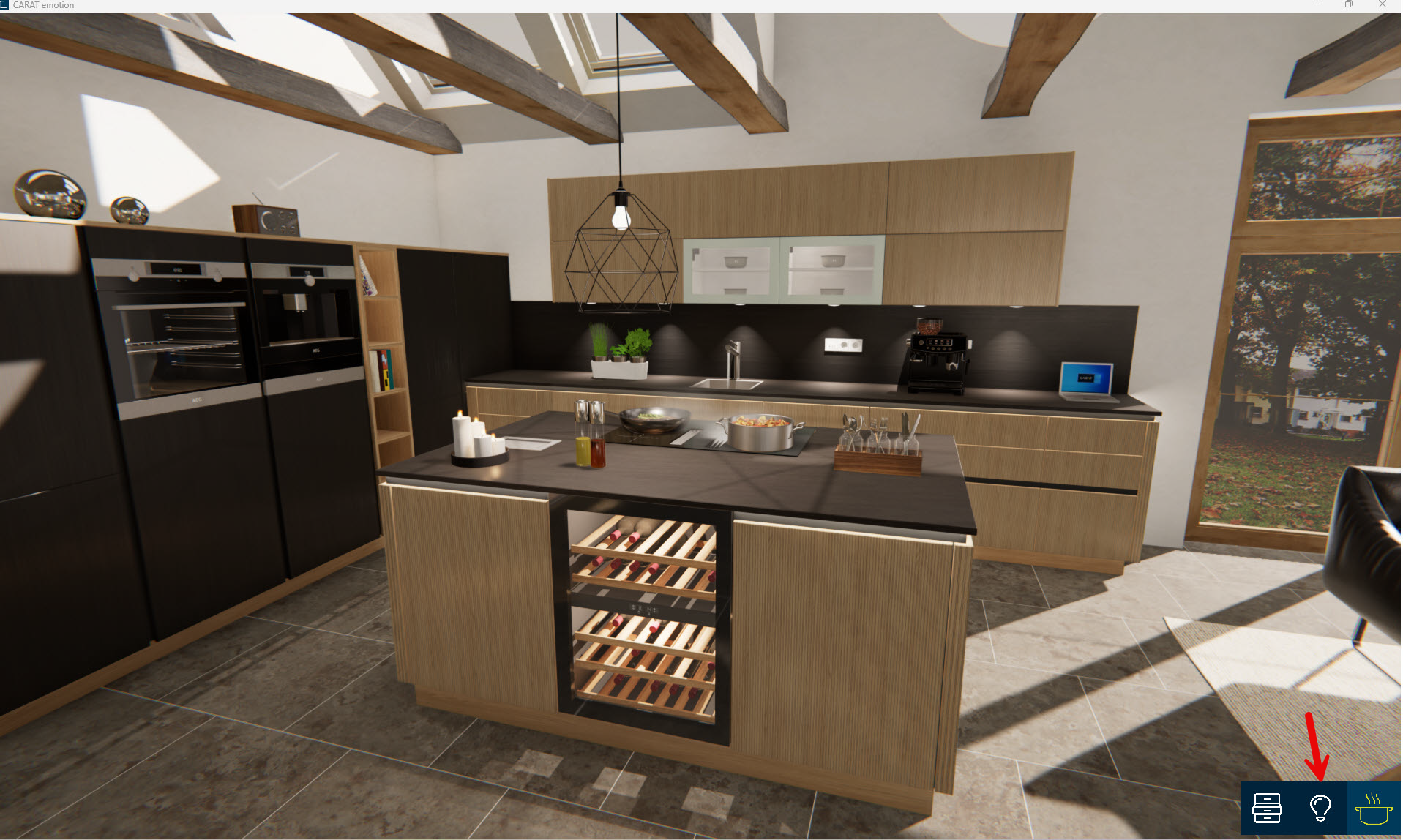
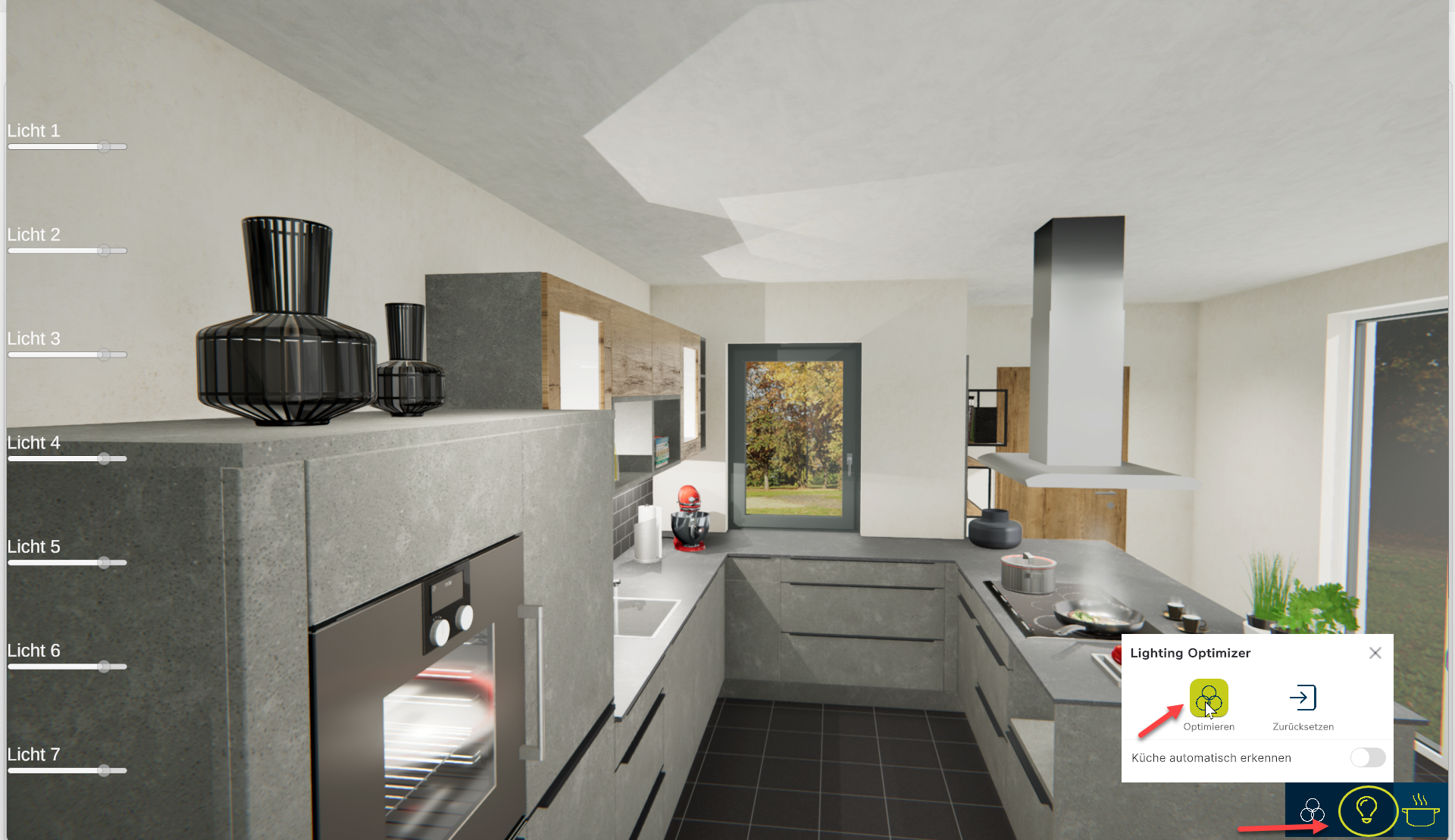
-
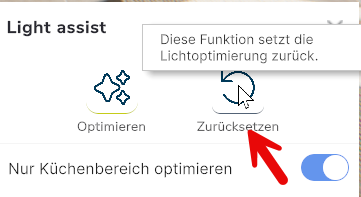
In case the performed Performance, in the context of computing and software, is a term meaning the effectiveness at usage of resources and the quality of output from programs. optimization does not meet your expectations, you can cancel the modifications by clicking Reset and open the dialogue Settings from the menu bar on the Perspective tab in order to make individual changes. Here as well, you will see a Tool tip when hovering the mouse over the icon.
See also: Settings