The Take Over

The special advantages are:
-
Flexibility: The Take over can be executed with any catalogue or catalogue series and the results are especially good when the alternative catalogue provides a similar article spectrum as the original catalogue.
-
Adaptive: CARAT memorizes the once executed take over at article level. The more frequently you use the CARAT take over, the less effort it takes.
The Take over is done Commercially as well as Graphically, so that usually only a few adjustments are necessary for the new design.
This is how the take over works:
With the Take over, you can quickly and easily have your existing planning variant converted to another catalogue or another series by CARAT, without having to make a Complete new design.
 Take over between two catalogues
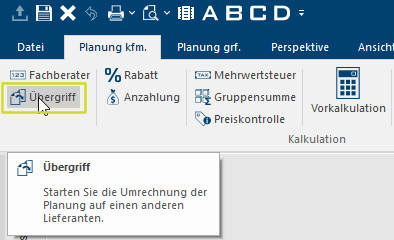
To be able to execute a take over either open the desired planning variant or mark, in the Commission overview, the desired planning variant. Then go to the Planning commercial index card Some dialogue windows are too voluminous, therefore the functions are separated into indexed groups. The subgroup names typically appear on the tab of the index card at the top of the dialogue and can be selected by clicking on the appropriate tab. in the menu bar and click Typically the LEFT mouse button is pressed once quickly, if not specified differently. Clicking will either mark an object, or when clicking on a button, the execution of the desired activity (e.g. OK, Cancel, Close). on the Take over option The word option (from Latin: optio = free will) used in computing means a choice. In CARAT it is normally used with a list box. in the Calculation area.
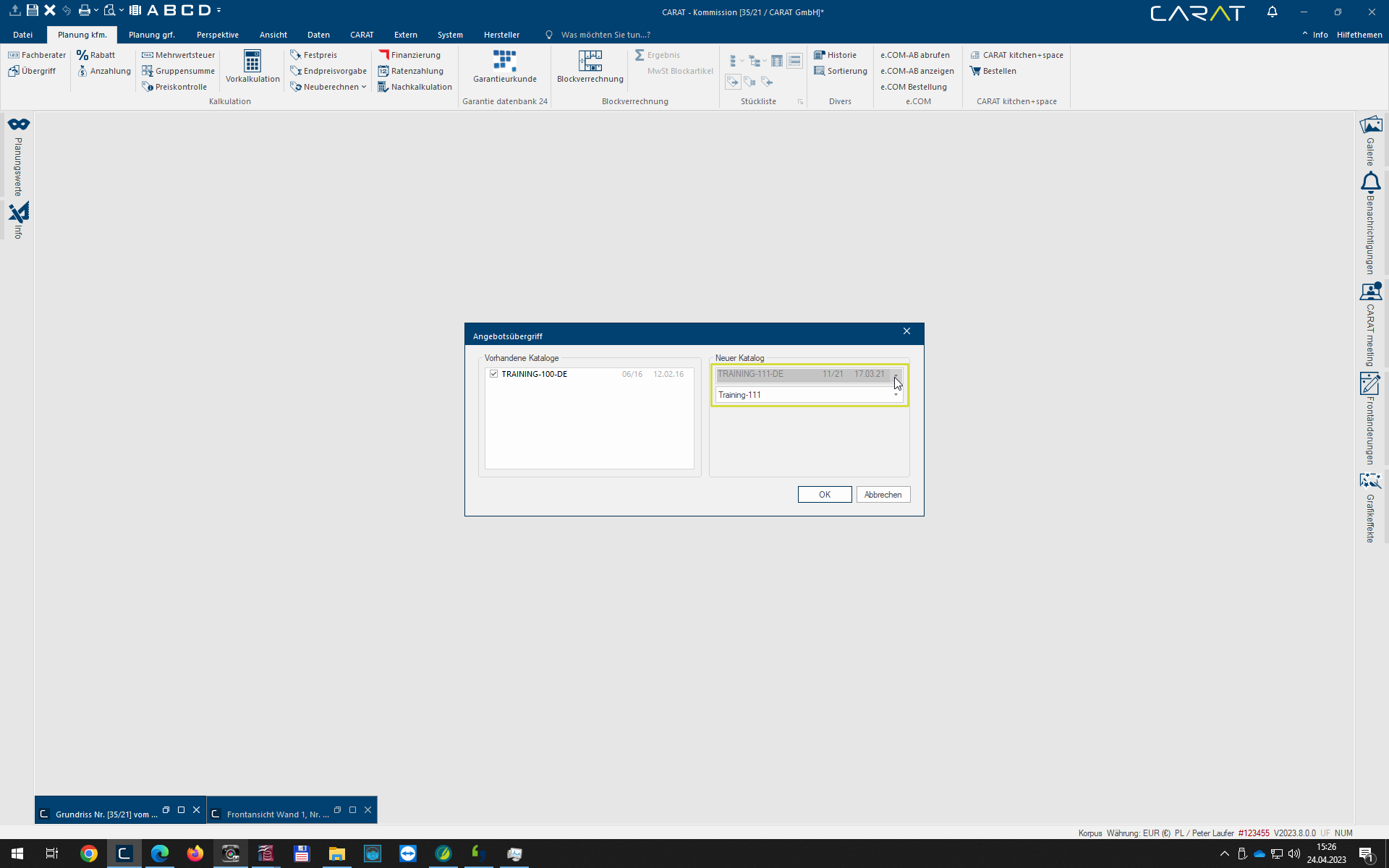
Now the Quotation take over dialogue Dialogue, dialogue windows or dialogue fields are special windows in software applications. Dialogue windows are displayed by application programs in different situations to request input or confirmation from the user. opens, which you can use make the catalogue choice for the take over. In the left-hand area you can see the Existing catalogues that can be selected for the take over. In the right-hand New catalogue area you then select the desired target catalogue or the desired series for the take over. Click on the OK button In dialogue windows you always find one or more buttons that can be activated by clicking on them. Typical functions for buttons are e.g. OK, Cancel, Apply. Buttons are always activated by a single click with the left mouse button. to get to the model selection.
So that the article checks as well as the pricing can be carried out smoothly after the take over, the Model selection for the target catalogue should first be set.
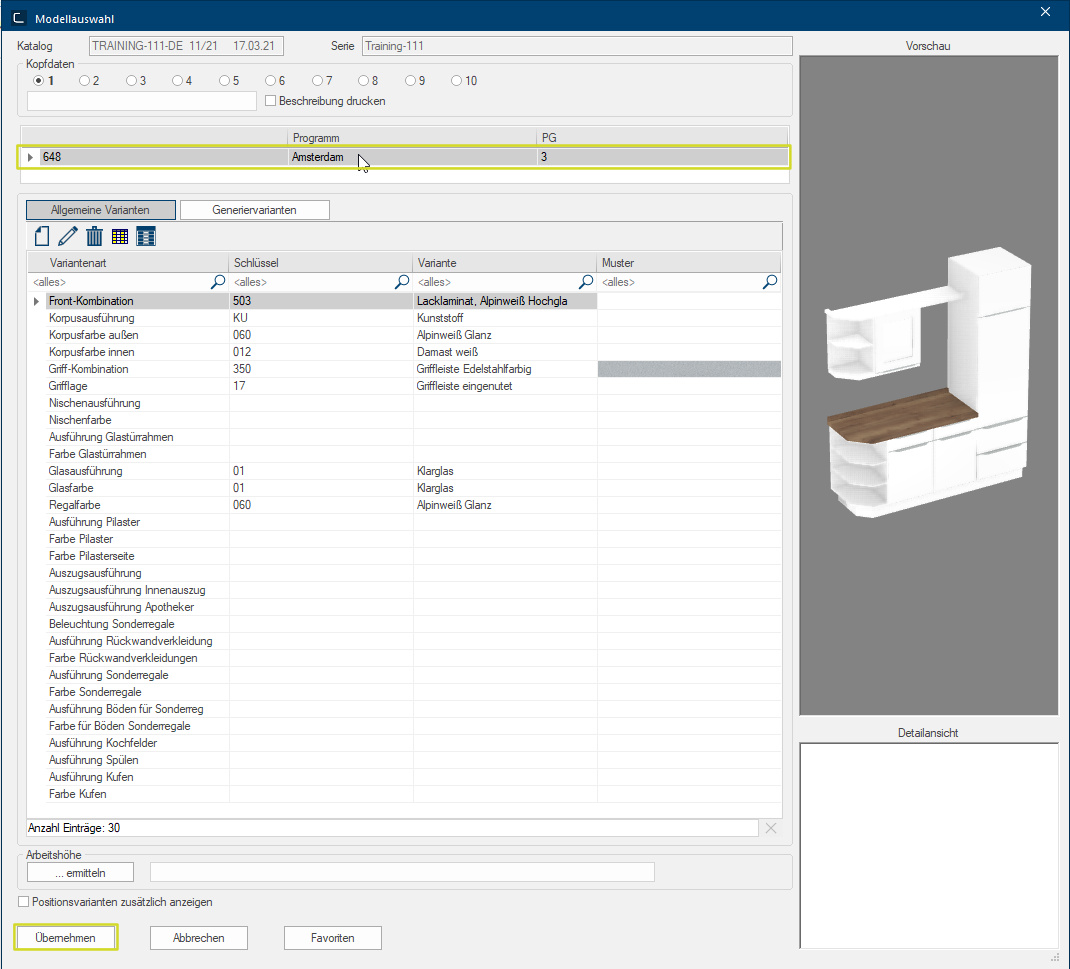
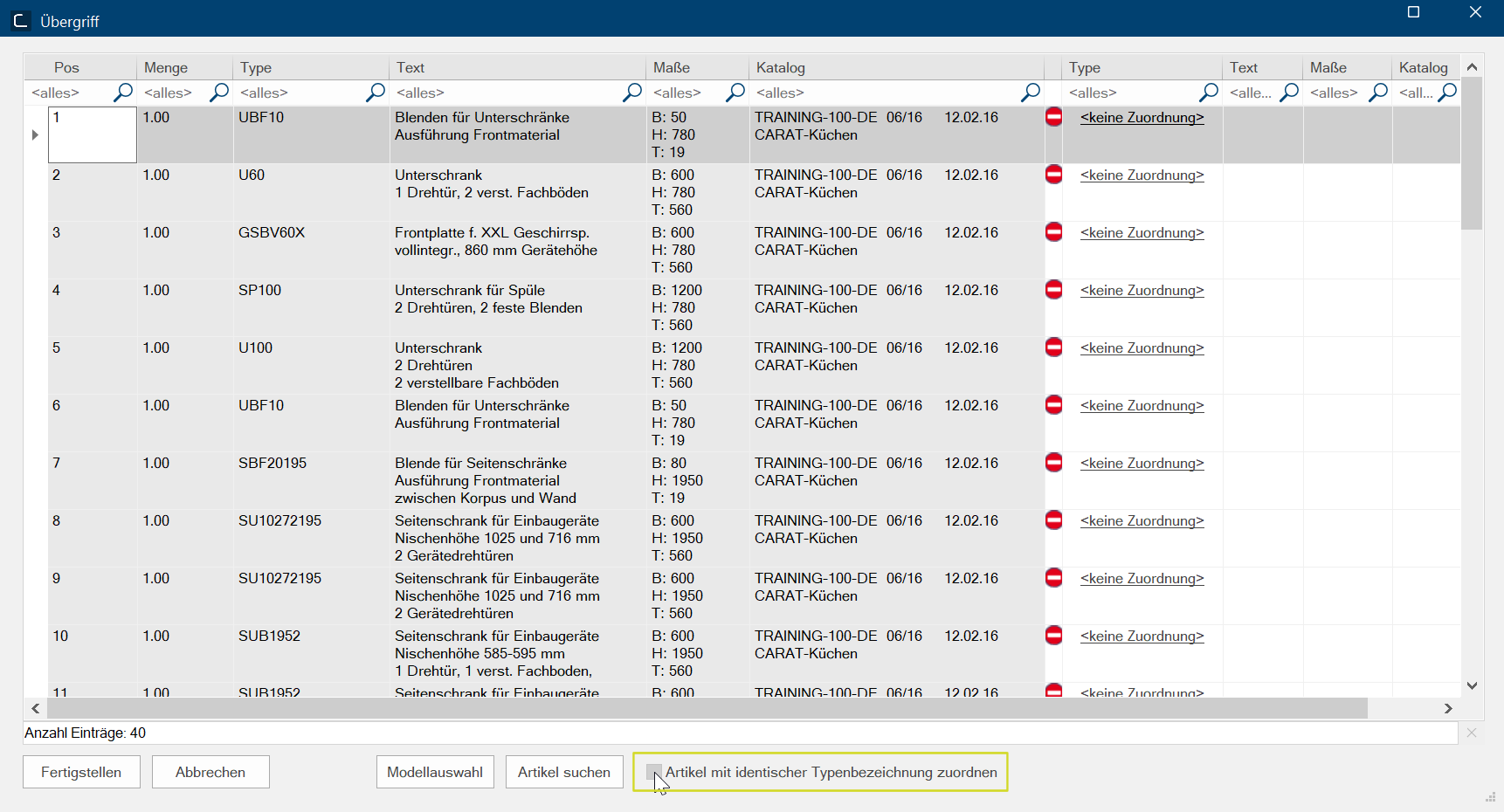
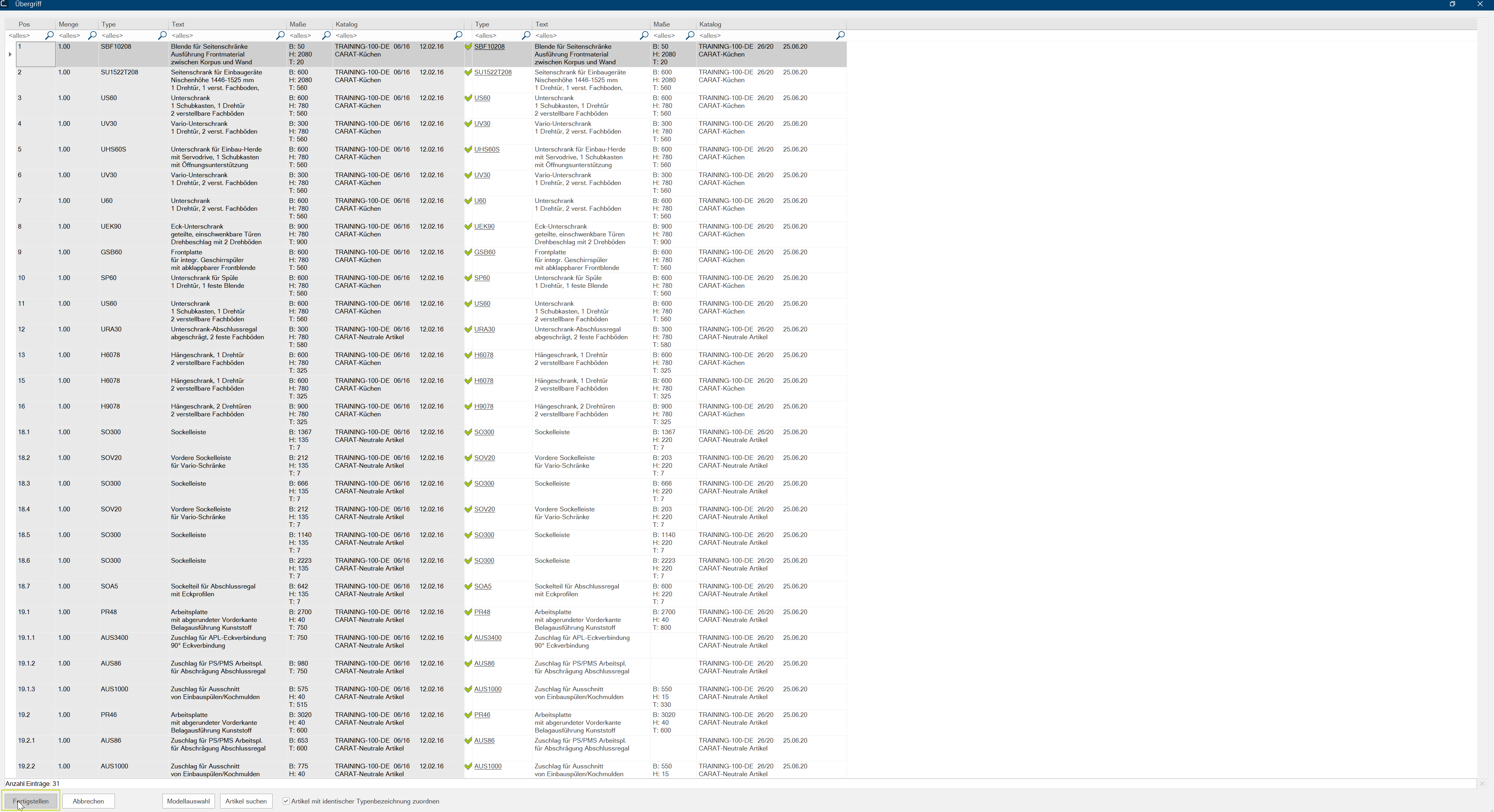
After clicking on Apply, you get to the Take over dialogue. The take over dialogue contains two article lists. The Article list on the left shows the articles currently planned. In addition Addition (in Latin: addere) is one of four basic operations in arithmetic. In primary school and in common language it is the expression used for the adding of two or more numbers. to the Position in the offer, the Quantity, Type, Text and Dimensions of the articles are displayed. The Right-hand article list is empty and will later contain the assigned articles. In the Type column, the Red stop sign and the input No allocation indicate that no article has been allocated yet. Next, start the Manual article allocation by clicking on the link No allocation.
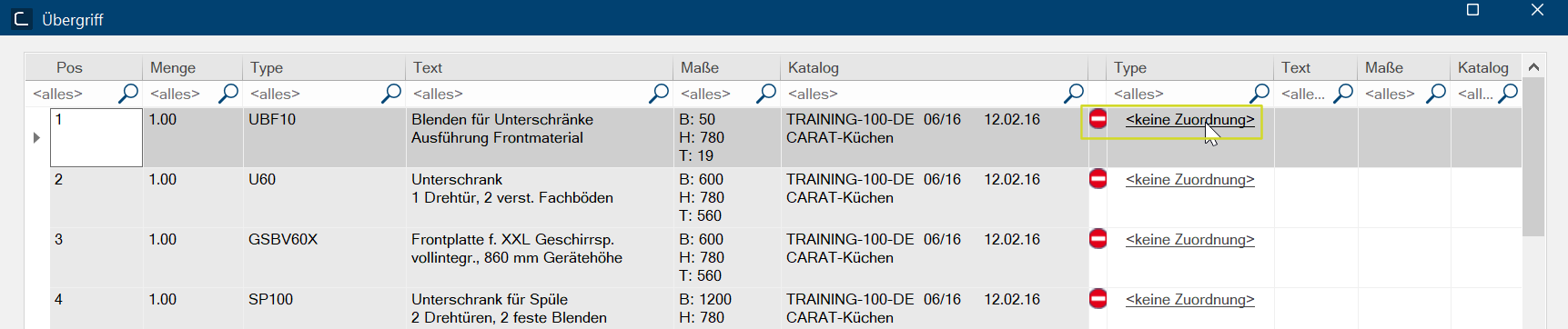
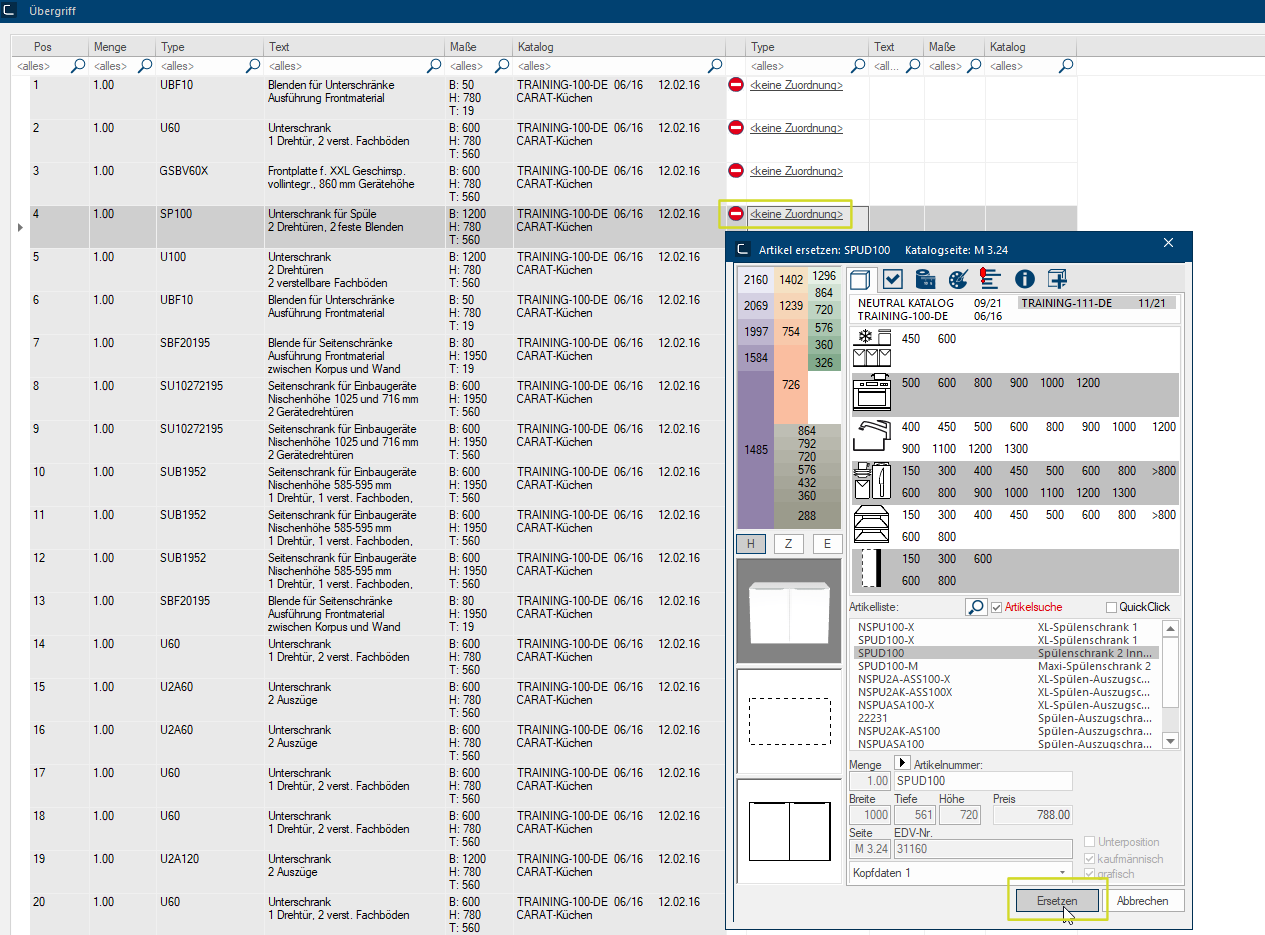
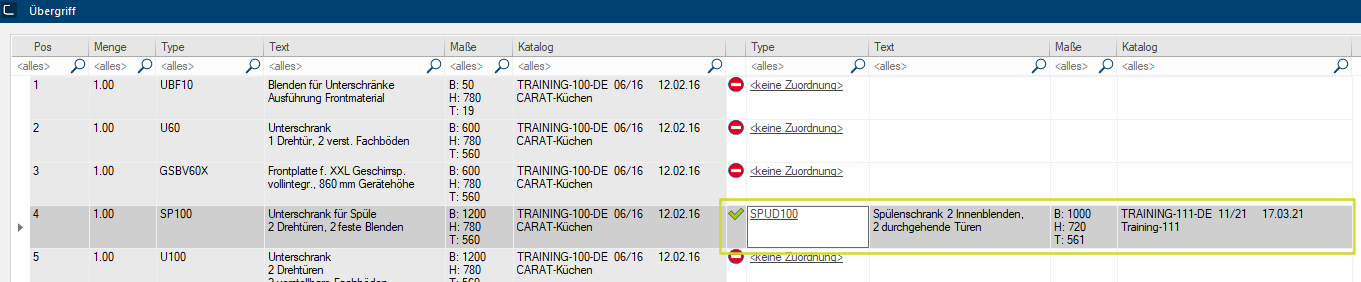
CARAT now searches for matching articles and then opens the Article replace dialogue. Here you select a corresponding article or enter the matching Article number. After clicking on Replace, the Take over dialogue opens again and the selected line now has a Green checkmark and the fields Type, Text, Dimensions and Catalogue are filled. If the article number was planned several times, they are automatically assigned.
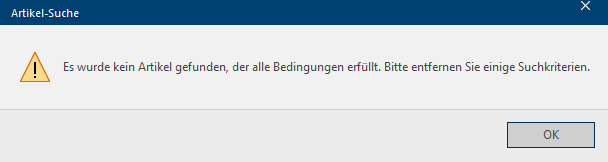
It may happen that the Article search from the take over does not find a matching article. In this case, a message opens that you confirm with OK.
The Article search dialogue appears and you can search for a matching article or alternatively enter an article number and then replace the article there.
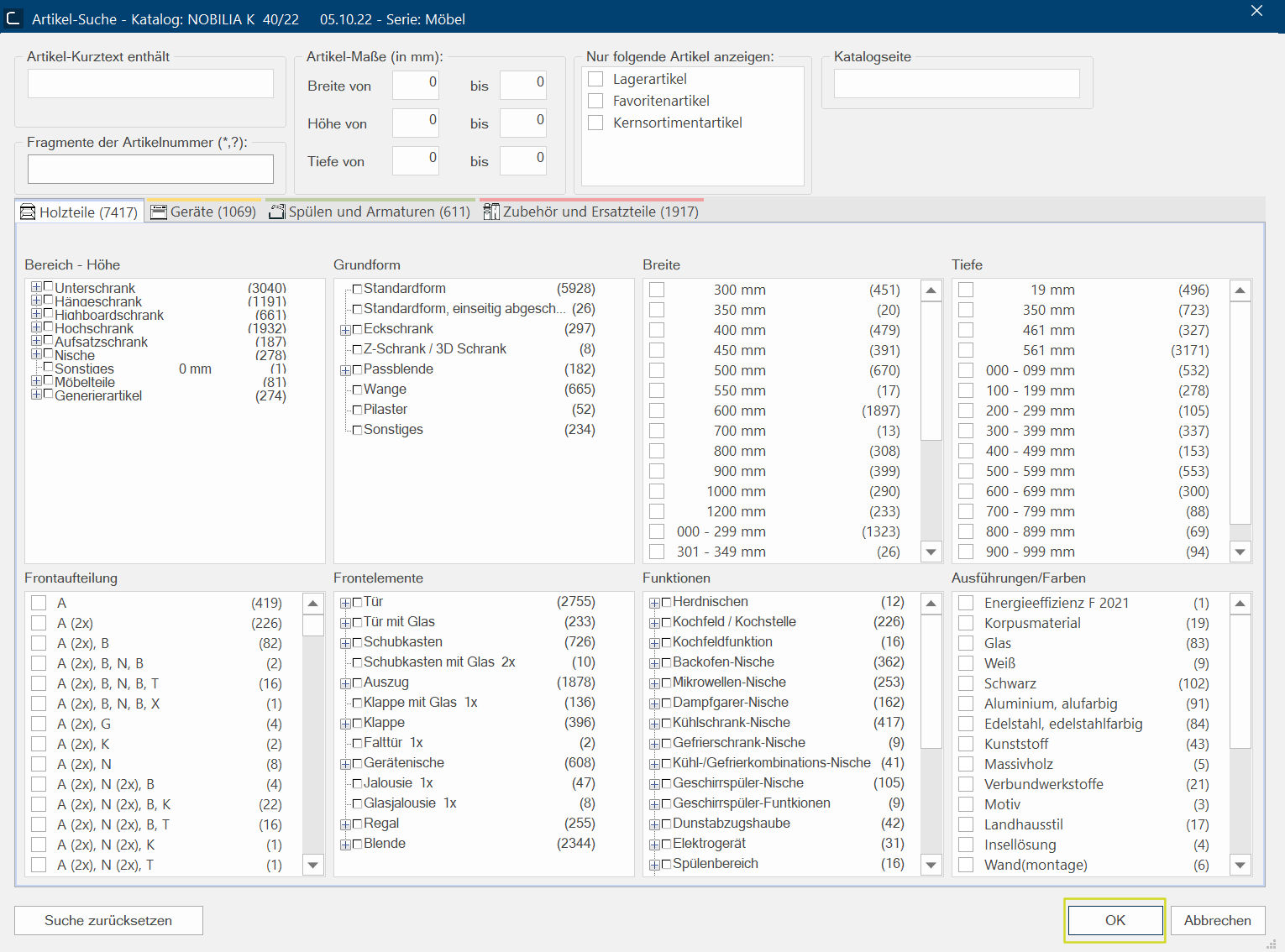
See also: The Article Search
After you have replaced all articles, close the Take over dialogue by clicking on Complete at the bottom left.
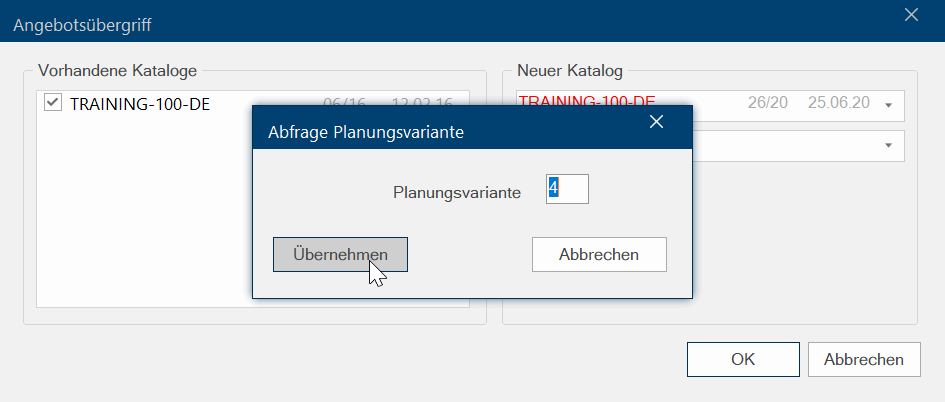
To finalise the take over, a new planning variant is created so as not to change the original planning. In this dialogue you could still manually change number of the proposed planning variant. If you click on the Apply button, the new planning variant is created and can be edited by you as usual.
Changes in the graphic or commercial planning may also occur with each take over. Therefore, After each take over, please always check the graphic planning very carefully in addition to the commercial offer.


